Best Webcam For Zoom Meetings: Top Picks For Clear Calls
The Logitech Brio Ultra 4K is my top pick for clear, polished Zoom meetings in most lighting conditions.
You join a Zoom call, check the tiny preview, and see a soft, dark image staring back at you. Your laptop camera may blur your face, wash out a bright window, or make your voice sound far away. A good webcam fixes that with sharper video, better light control, and a more natural view. I tested the key features that matter most for work calls, online classes, interviews, and home offices. This guide helps you find the Best Webcam for Zoom Meetings without paying for features you will never use.

Logitech C920x HD Pro PC…
Compatible with Nintendo Switch 2’s new GameChat mode HD lighting adjustment and autofocus: The Logitech webcam automatically fine-tunes the lighting, producing bright, razor-sharp images even in low-light settings. This makes…

Logitech Brio 101 Full HD…
Compatible with Nintendo Switch 2’s new GameChat mode Auto-Light Balance: RightLight boosts brightness by up to 50%, reducing shadows so you look your best—compared to previous-generation Logitech webcams (1) Privacy…

Logitech MX Brio Ultra HD…
Compatible with Nintendo Switch 2’s new GameChat mode Ultra HD 4K webcam: meet or stream in 4K resolution at 30fps or 1080p at 60fps, with our most advanced webcam sensor…
Logitech C920x HD Pro Webcam

The Logitech C920x remains one of the safest webcam picks for everyday Zoom calls. It records Full HD 1080p video at up to 30 frames per second, so your face looks clear without needing a powerful computer. The glass lens gives the image a more natural look than many low-cost laptop cameras. I also like its familiar shape and simple clip, which make setup quick.
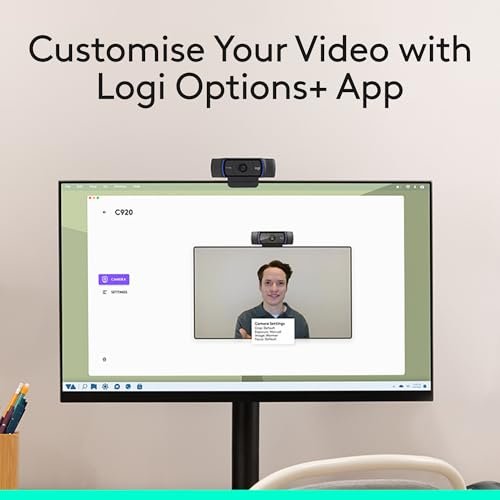
This webcam uses automatic light correction to help balance a dim room or a bright background. Its two built-in microphones capture your voice from both sides, although I still prefer a headset for busy rooms. The C920x works with common video apps, including Zoom, Microsoft Teams, Google Meet, and Skype. For a home office, school desk, or remote job, it delivers a dependable picture at a sensible price.
Pros:
- Sharp 1080p video for normal Zoom calls
- Reliable autofocus for changing distance
- Automatic light correction helps in uneven rooms
- Dual microphones provide useful basic voice pickup
- Universal clip fits most laptops and monitors
- Works with major video meeting software
- Strong long-term value from a well-known model
Cons:
- Video is limited to 30 frames per second
- No built-in privacy shutter
- Microphones can struggle with loud room noise
- Full HD cannot match a true 4K webcam
My Recommendation
I recommend the C920x to workers, students, and families who want a simple upgrade from a built-in laptop camera. It is especially useful when you need clear 1080p video but do not want to learn camera controls. The autofocus helps when you move during a presentation or hold a document near the lens. Its wide software support also makes it a practical choice for shared home computers.
This is not the most advanced camera in this guide, but it gets the important things right. If you want the Best Webcam for Zoom Meetings on a moderate budget, the C920x offers a strong balance of image quality, ease of use, and proven design. It is usually easy to find, and its broad compatibility adds peace of mind.
Logitech Brio 101 Full HD Webcam

The Brio 101 is a compact Full HD webcam made for people who want a clean image without a large camera body. It supports 1080p video and uses automatic light correction to make your face easier to see. The simple design sits neatly above a laptop screen or monitor. I find it well suited to small desks where a bulky webcam would get in the way.
Its fixed-focus approach keeps operation simple, but it works best when you sit at a normal meeting distance. The built-in microphone is useful for casual calls and short meetings. Logitech’s software can add extra control, depending on your computer and operating system. A built-in privacy shutter gives this model an important advantage for people who care about camera privacy.
Pros:
- Full HD 1080p video for clear work calls
- Small body suits compact desks and laptops
- Built-in privacy shutter protects the lens
- Automatic light correction improves face visibility
- Simple setup suits beginners
- Clean design looks professional on a monitor
- Useful for Zoom, Teams, and other common apps
Cons:
- Fixed focus is less flexible for close objects
- Microphone quality is basic for noisy spaces
- Fewer advanced controls than premium Brio models
- 1080p video does not provide 4K cropping detail
My Recommendation
I would choose the Brio 101 for remote workers who want a tidy, low-stress camera with a privacy shutter. It is also a good fit for students and casual users who want better video than a built-in webcam provides. The small footprint makes it easy to leave on a laptop or monitor. The image looks best when your face stays at a normal seating distance.
The Brio 101 is not designed for studio work or detailed streaming. Still, it handles everyday Zoom meetings with little effort. If privacy, compact size, and Full HD video matter more than premium controls, this webcam gives good value and remains one of the easier Best Webcam for Zoom Meetings choices for basic users.
Logitech MX Brio Ultra HD 4K Webcam

The Logitech MX Brio is the premium choice in this group for users who want highly detailed video. Its 4K resolution can show more fine detail than a standard 1080p webcam, especially on a large monitor or when you crop the image. The camera also supports Full HD modes for smoother performance and smaller file sizes. Its sturdy build feels more like professional desk equipment than a basic accessory.
Low-light performance is one of its strongest features. Logitech’s image tools can help balance shadows and bright areas, which is useful when your office has a window behind you. The camera includes dual beamforming microphones and offers software-based controls for framing and image adjustment. Zoom may limit the final meeting stream based on account, app, and network conditions, but a high-quality source still gives you a cleaner starting point.
Pros:
- Detailed 4K video supports cropping and large displays
- Strong image quality for meetings and streaming
- Improved visibility in dim or mixed light
- Autofocus keeps the subject sharp
- Useful software controls for framing and color
- Premium build feels stable on a monitor
- Dual microphones provide clear basic pickup
Cons:
- Higher price than standard Full HD webcams
- 4K requires more computer power and bandwidth
- Zoom may compress or limit the visible resolution
- A separate microphone remains better for polished audio
My Recommendation
I recommend the MX Brio to consultants, executives, creators, and remote workers who want a polished image every day. It is also valuable for people who move between Zoom meetings and video production. The extra detail helps when you crop your view, show a product, or sit farther from the camera. Its controls give advanced users more room to tune the image.
This webcam may be more camera than a casual Zoom user needs. For serious video calls, however, it is a strong Best Webcam for Zoom Meetings candidate because it combines high detail, useful light handling, and a premium design. Buy it when image quality matters enough to justify the higher cost.
EMEET C960 1080p Webcam with Microphones

The EMEET C960 is a budget-friendly 1080p webcam with a broad 90-degree field of view. That wider view can include two people, a whiteboard, or more of your desk without forcing you to sit far away. It uses two built-in microphones to capture speech during normal calls. The camera is a practical upgrade for older laptops and desktops that still use soft 720p cameras.
The C960 uses plug-and-play setup on many computers, so you can connect it and select it inside Zoom. Its flexible mount can sit on a monitor or laptop, and the camera can also work with a tripod setup when supported. A wide view is helpful for group calls, but it can show more of a messy room than a narrow camera. I suggest placing it at eye level and checking the edges of the frame before an important meeting.
Pros:
- Affordable way to add 1080p video
- 90-degree view works well for small groups
- Two microphones capture normal speech
- Plug-and-play design reduces setup time
- Flexible mount works with many monitors
- Useful for classrooms, interviews, and home offices
- Wide compatibility with common meeting apps
Cons:
- Wide view may show unwanted room clutter
- Low-light detail is less refined than premium models
- Microphones are not ideal beside loud fans
- Autofocus performance may feel less polished
My Recommendation
The C960 is best for students, families, and first-time webcam buyers who want more space in the frame. It makes sense for a shared office where two people may sit together during a call. I also like it for online tutoring because the wider view can show a small teaching area. Its low price makes it easier to improve several computers at once.
Do not expect premium color or strong dark-room performance at this price. The C960 succeeds because it covers the basics at a low cost. If you need an inexpensive Best Webcam for Zoom Meetings with a wide view and built-in microphones, it deserves serious consideration.
Logitech Brio Ultra 4K HD Webcam

The Logitech Brio Ultra 4K remains a powerful webcam for people who want a sharp, flexible picture. It supports 4K video and can provide a more detailed image than standard Full HD cameras. The camera also supports lower resolutions, which helps when your meeting app or internet connection cannot handle 4K. Its image has enough detail for professional calls, live presentations, and content work.
Automatic light correction helps the Brio handle common office problems, such as a bright window or a dim desk lamp. It includes autofocus and a privacy shutter, two features I consider important for a work camera. The field of view can be adjusted in supported software, allowing you to choose a tighter portrait view or a broader workspace view. As with any 4K webcam, the final Zoom result depends on the app, computer, connection, and meeting settings.
Pros:
- 4K resolution provides rich image detail
- Adjustable field of view supports different desk layouts
- Autofocus works well for presentations and movement
- Privacy shutter adds useful peace of mind
- Light correction helps in difficult rooms
- Supports streaming as well as video meetings
- Strong compatibility with Logitech software
Cons:
- Premium price may not suit casual users
- 4K can use more system resources
- Built-in audio cannot replace a quality headset
- Some advanced controls need software support
My Recommendation
I suggest the Brio Ultra 4K for professionals who need a flexible camera that can serve more than one purpose. It works well for executives, trainers, streamers, and remote workers who often present documents or products. The adjustable view is useful when your desk changes from a one-person call to a wider demonstration. The privacy shutter makes it a comfortable choice for a camera that stays connected.
The Brio Ultra 4K is an excellent Best Webcam for Zoom Meetings when you want high detail and useful framing choices. It costs more than a basic Full HD model, but its feature set can replace the need for a second camera. Choose it when you value flexibility and expect to use the webcam for years.
EMEET C960 4K Webcam with PDAF Autofocus

The EMEET C960 4K brings high-resolution video and fast autofocus to a more accessible webcam design. Its 4K mode can show fine detail, while lower modes make more sense for many Zoom calls. The 73-degree field of view gives a natural head-and-shoulders frame without showing as much room as a 90-degree model. That balance suits a single speaker who wants a focused image.
Phase-detection autofocus, or PDAF, is designed to help the camera find focus quickly. This is useful when you hold notes up to the lens or shift in your chair during a presentation. Dual omnidirectional microphones offer basic voice pickup, but I still recommend a headset in a shared or loud room. The camera is a good option for users who want 4K detail without moving to the highest premium price tier.
Pros:
- 4K video delivers strong detail for supported workflows
- PDAF autofocus responds quickly to movement
- 73-degree view creates a focused meeting frame
- Dual microphones support everyday voice calls
- Useful for meetings, streaming, and recordings
- Lower resolution modes help save bandwidth
- Good feature set for its price class
Cons:
- 4K mode may be unnecessary for basic Zoom calls
- Microphones pick up some room sound
- Low-light image quality depends on room lighting
- Software controls may not be as deep as Logitech options
My Recommendation
I recommend the C960 4K to creators, teachers, and remote professionals who want sharp video and quick focus at a reasonable cost. It is a strong fit for anyone who sometimes shows papers, products, or hand-written notes on camera. The narrower 73-degree view also helps keep a small room from filling the screen. It offers more speed and detail than a basic budget webcam.
This model makes the most sense when you will use its 4K capture outside Zoom as well. For meetings alone, Full HD may be enough, but the extra resolution gives you room to crop and record. It is a well-rounded Best Webcam for Zoom Meetings for buyers who want modern features without paying the highest premium price.
How I Choose the Best Webcam for Zoom Meetings
A webcam can list an impressive resolution and still produce a poor meeting image. I look at the full experience, not just the largest number on the box. Lens quality, exposure, focus, microphone pickup, mounting, and software support all affect a real call. A 4K label does not automatically make a camera better for every desk.
I also consider how Zoom handles video. Meeting software may reduce resolution to save bandwidth or match the call settings. The camera still matters because a clean source gives the software better information to process. Good lighting, a stable connection, and a camera placed near eye level often improve the result more than a small jump from 1080p to 4K.
Resolution and Frame Rate
Full HD 1080p is enough for most work meetings. It gives a clear face image and usually works well with common laptops and internet plans. The models in this guide that offer 1080p at 30 frames per second can keep your face sharp during normal speech and movement.
4K is useful when you crop the image, record video, or sit farther from the webcam. It can also preserve more detail on a large display. However, 4K uses more processing power and may need more bandwidth. If your main goal is a standard Zoom call, a good 1080p webcam can be the smarter buy.
Autofocus
Autofocus keeps your face clear when you lean forward or move back. It also helps if you show a book, product, or document during a call. A fixed-focus camera can work well when you always sit in one place, but it has less flexibility.
Fast autofocus should settle without constant hunting. Excessive focus changes can distract the people in your meeting. The Logitech and EMEET models with autofocus are better for users who present objects or move often.
Field of View
Field of view describes how much the camera sees from left to right. A narrow view keeps attention on one person and hides more of the room. A wider view can include another person, a whiteboard, or a small work area.
A 90-degree view is useful for a group, but it may reveal clutter. A 73-degree view often feels more focused for one speaker. I suggest choosing the view based on your room size and how many people normally sit in front of the webcam.
Microphone Quality
Built-in webcam microphones work for quiet rooms. They are convenient for quick calls and casual chats. They are not always the best choice near a keyboard, fan, television, or other speaker.
A headset or separate USB microphone can make your voice sound fuller and reduce room echo. I treat a webcam microphone as a helpful backup, not a replacement for dedicated audio. Clear sound matters as much as a sharp face because a meeting can survive a soft picture more easily than missing words.
Low-Light Performance
Most webcams perform best with light in front of your face. A window behind you can turn your face into a dark shape. A small lamp placed behind the screen can often make a major difference.
Automatic exposure and light correction help, but they cannot break the rules of physics. Premium models usually handle dark areas and bright backgrounds with more control. Before blaming your webcam, move a light toward your face and close a bright curtain behind you.
Privacy and Security
A physical privacy shutter is a useful feature for a camera that stays connected. It gives you a clear barrier when the lens is not in use. Software indicators also help, but a cover provides simple visual reassurance.
The Brio 101 and Brio Ultra models offer privacy-focused designs. If a chosen webcam lacks a shutter, you can use a separate camera cover. Never rely only on an app icon when privacy is important.
Mounting and Placement
The best webcam should sit close to eye level. A camera that points up from a desk can create an unflattering angle. A camera placed too high can make you look down during a call.
Most webcams use a monitor clip, and many can attach to a tripod. Check that the clip grips your display without covering the screen. Keep the lens near the top center of your monitor so your eyes stay close to the meeting window.
Best Features Comparison
| Best for | Why |
|---|---|
| Everyday remote work | The Logitech C920x offers dependable 1080p video, autofocus, and broad software support. |
| Premium image quality | The Logitech MX Brio and Brio Ultra 4K provide detailed video and stronger framing options. |
| Budget and wider views | The EMEET C960 1080p gives an affordable 90-degree view for shared desks and small groups. |
How to Get Better Zoom Video From Any Webcam
Start by placing the camera at eye level. Your face should fill a reasonable part of the screen, with a little space above your head. Avoid sitting with a bright window directly behind you. Turn toward a soft light source instead.
Next, open Zoom’s video settings before your important call. Check the camera selection, preview the image, and confirm that the frame looks balanced. Enable HD video when your plan, device, and network can support it. If your image stutters, lower the resolution and close unused apps.
Clean the lens with a soft, dry cloth. Fingerprints can make even a premium camera look hazy. Use a stable internet connection when possible, and place your router or computer where walls and other devices cause less interference.
Audio deserves equal care. Select the correct microphone in Zoom and make a short test recording. Wear headphones if you hear an echo. A quiet room and a close microphone usually help more than software filters alone.
Which Webcam Is Right for Your Setup?
Choose the Logitech C920x if you want a proven, no-fuss 1080p webcam for work and school. It is the sensible middle ground. It offers enough quality for most calls without adding complicated controls.
Choose the Logitech Brio 101 if you want a small webcam with a privacy shutter. It is best for basic users who sit at a normal distance and want a tidy desk. Its simple operation is part of its appeal.
Choose the MX Brio or Brio Ultra 4K if you record video, crop your frame, or want a more polished professional look. These models cost more, but they offer greater detail and flexibility. They also make sense for users who stream or present on camera often.
Choose the EMEET C960 1080p when price and a wide view matter most. It can cover a shared desk or small group with less cost. Choose the EMEET C960 4K when you want fast autofocus and sharper recordings at a mid-level price.
FAQs Of Best Webcam for Zoom Meetings
What resolution is best for Zoom meetings?
Full HD 1080p is enough for most Zoom meetings. It gives a clear face image while using less computer power and bandwidth than 4K. Choose 4K if you also record, stream, or crop your video.
Is a 4K webcam better than a 1080p webcam for Zoom?
Not always. Zoom may compress the video, and many calls do not display the full 4K detail. A 4K webcam is still useful for cropping, recording, and future-proofing your setup.
Do I need a separate microphone with a webcam?
Not for a quiet room and short calls. A separate microphone or headset is better for busy rooms, interviews, podcasts, and professional presentations. Test the webcam microphone before relying on it.
How can I stop my Zoom video from looking dark?
Place a soft light in front of your face. Avoid a bright window behind you. You can also use the webcam’s automatic light correction and adjust Zoom’s video settings.
Should I buy a webcam with a privacy shutter?
Yes, if the camera stays connected to your computer. A physical shutter gives simple protection when you are not on a call. It also removes the need to remember a separate lens cover.
Final Verdict: Which Should You Buy?
The Logitech MX Brio is the Best Webcam for Zoom Meetings for premium quality, while the C920x is the better value for most users. Choose the Brio 101 for privacy and small desks, or an EMEET model for a wider view or lower cost.
Place any webcam at eye level, add light in front, and test your audio. With the right setup, clearer Zoom video can make every remote call feel more natural and professional.