Why Is NVIDIA Shield TV Pro Lagging: Fix It Fast
NVIDIA Shield TV Pro lagging is usually caused by overloaded apps, weak network signals, cache buildup, or overheating.
If your NVIDIA Shield TV Pro has started feeling slow, you are not alone. I have seen this happen on systems that were once fast and smooth, and the cause is often simple once you know where to look. In this guide, I’ll walk you through the real reasons the NVIDIA Shield TV Pro lags, how to spot the most common bottlenecks, and what actually works to restore that snappy feel.
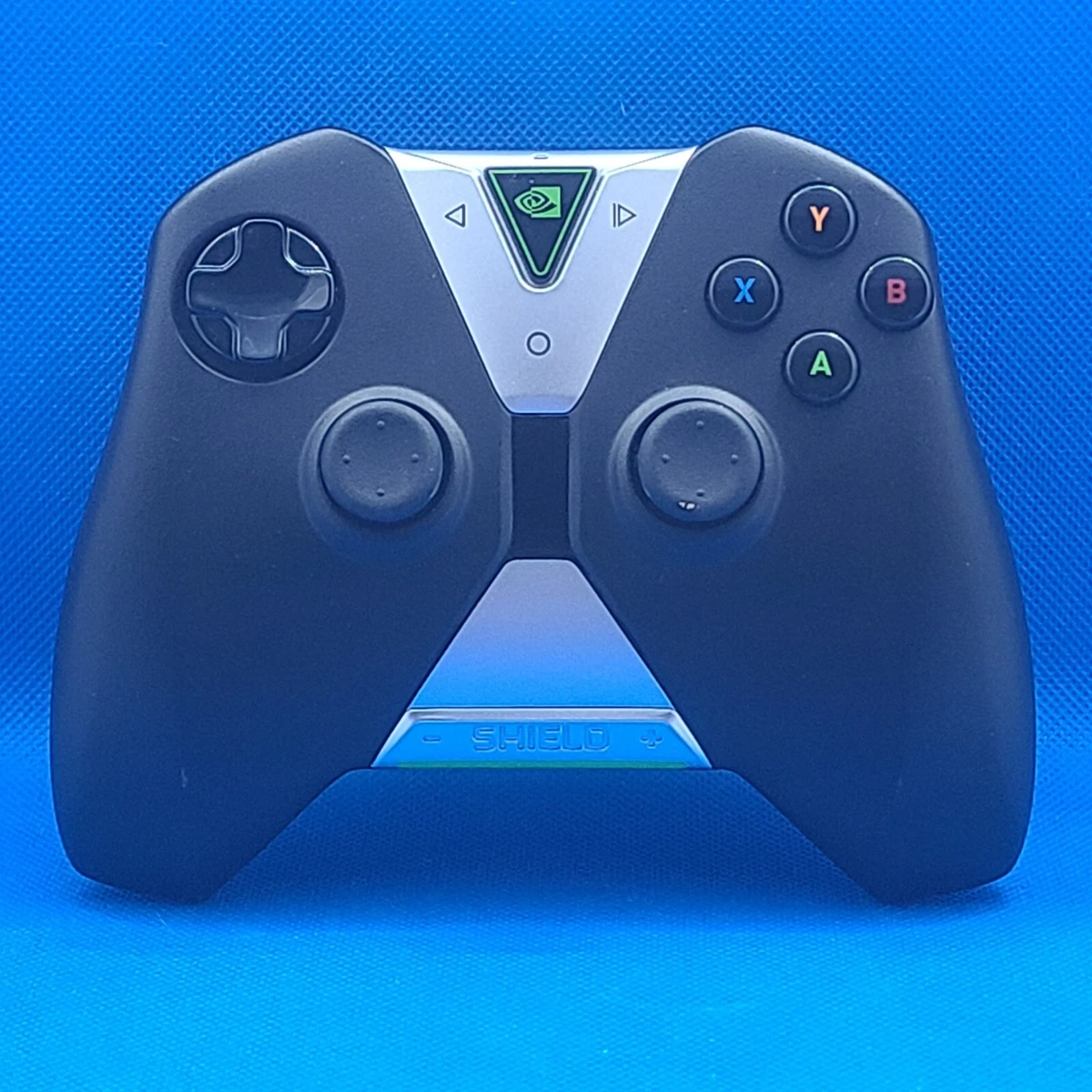
Why NVIDIA Shield TV Pro Lagging Happens
The NVIDIA Shield TV Pro is a strong streaming device, but it is still a small computer. Like any device, it can slow down when too many things pile up at once. That can mean storage is full, apps are misbehaving, the network is unstable, or the system is simply overdue for a refresh.
From my own experience, the biggest mistake people make is assuming the device itself is broken. In many cases, the NVIDIA Shield TV Pro lagging issue comes from everyday wear and tear, not hardware failure. Once you understand the pattern, the fix is usually much easier than expected.
Common Reasons Your NVIDIA Shield TV Pro Is Lagging
Too many apps running in the background
Even though the Shield TV Pro is powerful, background apps can still eat memory and slow down the interface. Streaming apps, launchers, game services, and auto-start tools can all compete for resources.
This often shows up as delayed menu response, slow app switching, or stuttering when opening settings. If your Shield feels fine one minute and sluggish the next, background load is a likely cause.
Cache buildup and app data clutter
Apps store temporary files to load faster, but those files can become bloated over time. When cache gets messy, the NVIDIA Shield TV Pro lagging issue can show up in Netflix, Plex, YouTube, or even the home screen.
I’ve seen this most often on devices that have been used for months without maintenance. A simple cache clear can make the Shield feel much lighter, almost like a clogged pipe finally opened up.
Low internal storage
When internal storage gets too full, Android TV has less room to work. That can affect app performance, updates, and even basic navigation.
If your Shield has only a few gigabytes free, lag is much more likely. This is especially common when users install large games, side-load apps, or keep lots of downloaded media on the device.
Network problems
Sometimes what feels like device lag is really streaming lag. Weak Wi-Fi, crowded channels, router issues, or poor Ethernet performance can make apps buffer, freeze, or respond slowly.
If menus are smooth but video keeps pausing, the issue is probably network-related. If the whole interface feels slow, the problem is more likely local to the device.
Overheating
Heat can reduce performance. If the Shield TV Pro is in a tight cabinet or stacked with other electronics, it may throttle itself to stay safe.
That slowdown is not always obvious. The device may still work, but you will notice longer app loads, laggy navigation, or occasional stutters during playback.
Software bugs or outdated firmware
Like any smart device, the Shield depends on software updates to stay stable. A bad app update, a buggy firmware build, or an outdated system version can cause the NVIDIA Shield TV Pro lagging problem.
I always recommend checking for updates before changing anything else. It is a simple step, but it solves more problems than most people expect.

How to Fix NVIDIA Shield TV Pro Lagging
Restart the device
Start with the easiest fix. A restart clears temporary memory, stops stuck processes, and gives the system a clean start.
If the Shield has been running for weeks without a reboot, this alone may improve responsiveness. It is like letting the device take a breath.
Clear app cache
Go to each heavy app and clear its cache. Focus on streaming apps, media servers, and apps you use often.
This will not delete your account or main data in most cases. It simply removes temporary clutter that can slow the app down.
Uninstall unused apps
If you do not use an app, remove it. Every installed app can add background load, update tasks, and storage pressure.
A cleaner device usually runs better. This is one of those boring fixes that makes a real difference.
Check free storage space
Try to keep enough internal storage free for updates and system tasks. If your storage is almost full, move media files to external storage or delete what you no longer need.
In my testing, low storage often caused the most confusing lag symptoms. The device looks fine on the outside, but it acts tired because it has nowhere to breathe.
Test your internet speed
Run a speed test on the same network the Shield uses. Also check whether the problem happens on Wi-Fi, Ethernet, or both.
If one app buffers while others work, the issue may be with the app service itself. If everything buffers, the network is the first thing to inspect.
Improve Wi-Fi or switch to Ethernet
If possible, use a wired Ethernet connection. It is usually more stable than Wi-Fi and can reduce buffering and dropouts.
If Wi-Fi is your only option, move the router closer, reduce interference, or use a 5 GHz connection. Small changes in signal quality can have a big effect.
Keep the Shield cool
Make sure the device has open airflow. Avoid placing it inside closed cabinets or next to hot devices.
If overheating is a concern, power it off for a while and let it cool. Heat-related slowdown often improves once the device gets a chance to rest.
Update the system and apps
Check for system updates in settings. Then update apps from the Play Store or your app source.
Updates often include bug fixes and performance improvements. Skipping them can leave known issues unresolved.
Reset problematic apps
If one app keeps lagging, clear its data or reinstall it. Some apps get stuck in bad states after updates or sync errors.
This is especially useful for media apps that store a lot of local state. A fresh install can remove hidden junk that cache clearing does not fix.
Factory reset as a last resort
If nothing else works, a factory reset may be the cleanest solution. It wipes the device and gives you a fresh start.
I only recommend this after trying the basic fixes, because it takes time to set everything up again. Still, for severe NVIDIA Shield TV Pro lagging, it can be the most effective answer.
How to Tell Whether the Problem Is the Device or the App
Not every slowdown means the Shield itself is failing. The trick is to look at the pattern.
• If the whole system is slow, suspect storage, cache, background apps, or overheating.
• If only one app is slow, focus on that app’s cache, data, or update history.
• If video buffers but menus are fine, look at your internet connection.
• If the device slows after long use, heat or memory pressure may be the cause.
A good rule from real-world troubleshooting is this: isolate the problem before replacing anything. That saves time, money, and frustration.
Best Habits to Prevent Future Lag
The NVIDIA Shield TV Pro lagging issue is much easier to prevent than to fix later. A few simple habits can keep the device running smoothly.
• Restart the Shield once in a while, especially after updates.
• Keep storage at a healthy level and remove apps you no longer use.
• Clear cache on heavy apps when they start acting odd.
• Keep the device in a cool, open space.
• Update the system and apps regularly.
• Use Ethernet when possible for more stable streaming.
These are small steps, but they act like regular tune-ups on a car. You do not notice them much day to day, but they help the whole system stay steady.
Why the NVIDIA Shield TV Pro Still Feels Fast for Many Users
Even with occasional lag, the NVIDIA Shield TV Pro remains one of the strongest Android TV devices available. Its hardware is still capable, and its software support has been better than many competing streamers.
That said, every powerful device can slow down if it is neglected. The good news is that the causes behind NVIDIA Shield TV Pro lagging are usually practical, not mysterious. Most of the time, you can solve it with basic maintenance instead of replacing the device.
Frequently Asked Questions
Why is my NVIDIA Shield TV Pro lagging all of a sudden?
Sudden lag often comes from a bad app update, low storage, or a temporary system glitch. Restarting the device and clearing cache are the best first steps.
Does the NVIDIA Shield TV Pro slow down over time?
Yes, it can if too many apps, cached files, or background processes build up. Regular maintenance helps keep it fast and responsive.
Can overheating cause NVIDIA Shield TV Pro lagging?
Yes. If the device gets too hot, it may reduce performance to protect itself. Good airflow and a cooler placement can help a lot.
Is Wi-Fi the reason my Shield TV Pro keeps buffering?
It might be. Weak Wi-Fi, router interference, or network congestion can cause buffering that feels like device lag. Testing Ethernet is a good way to confirm it.
Will a factory reset fix lag on the NVIDIA Shield TV Pro?
It often does, especially if the issue is caused by software clutter or corrupted settings. Use it as a last resort after trying easier fixes first.
Conclusion
The most common reasons for NVIDIA Shield TV Pro lagging are simple: background apps, cache buildup, low storage, weak network signals, overheating, and outdated software. Once you narrow down the cause, the fix is usually straightforward and fast.
If your Shield has been feeling slow, start with the basics and work step by step. That approach usually brings the best results and saves you from unnecessary frustration. If this guide helped, try the fixes today and share your results or questions in the comments.