Why Is Apple Magic Mouse 2 Not Scrolling: Fix It Fast
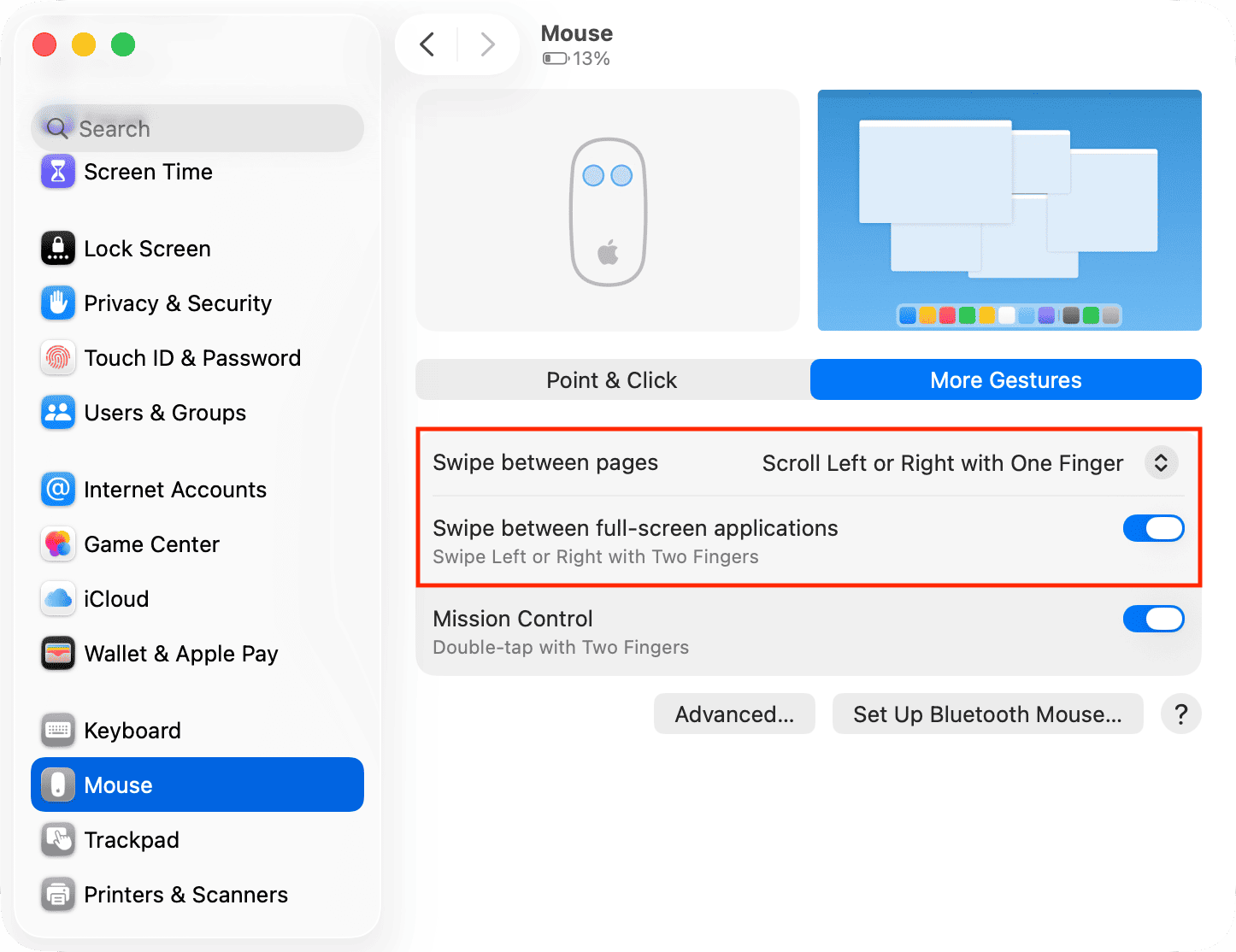
Apple Magic Mouse 2 usually stops scrolling because of pairing glitches, dirty touch sensors, low battery, or macOS issues.
If your Magic Mouse 2 suddenly refuses to scroll, you are not alone. I’ve seen this problem show up in real use more times than I’d like, and the good news is that it usually has a simple cause. In most cases, the issue comes down to a connection problem, a surface or sensor issue, or a settings conflict in macOS. Let’s walk through the real reasons Why Is Apple Magic Mouse 2 Not Scrolling? and how to fix it without wasting time.

Why Apple Magic Mouse 2 Stops Scrolling
The Magic Mouse 2 works very differently from a regular mouse. Instead of a wheel, it uses a touch-sensitive top surface to detect your finger movement. That means scrolling can fail for reasons that are not always obvious.
In my experience, this kind of issue often feels random at first. One minute the mouse works fine, and the next it ignores every swipe. That usually points to a signal problem, a dirty touch area, or a software setting that got changed without you noticing.
Common reasons Why Is Apple Magic Mouse 2 Not Scrolling? include:
- Bluetooth connection problems
- Low battery or charging issues
- Dirt, oil, or moisture on the touch surface
- macOS bugs after an update
- Wrong mouse settings in System Settings
- Interference from other wireless devices
- Temporary device pairing glitches
The tricky part is that the mouse may still click and move the pointer while scrolling fails. That can make the issue look like a hardware defect when it is often much easier to fix.

How the Magic Mouse 2 Scrolling System Works
To understand Why Is Apple Magic Mouse 2 Not Scrolling?, it helps to know how the device reads motion. The top shell is a multi-touch surface, so the mouse detects finger movement, swipe direction, and gesture speed.
That design is elegant, but it also means the mouse depends on clean contact and stable software support. If the touch sensors cannot read your finger clearly, scrolling may lag, freeze, or stop completely.
A few things can interrupt that sensor system:
- Dry or oily skin that reduces touch accuracy
- Dust or grime on the top shell
- Bluetooth delays that interrupt gesture data
- Accessibility or tracking settings that change gesture behavior
- Firmware or macOS updates that introduce temporary bugs
This is why the problem often feels bigger than it is. The mouse is not just “moving a scroll wheel.” It is interpreting touch input in real time, almost like a tiny trackpad on your desk.
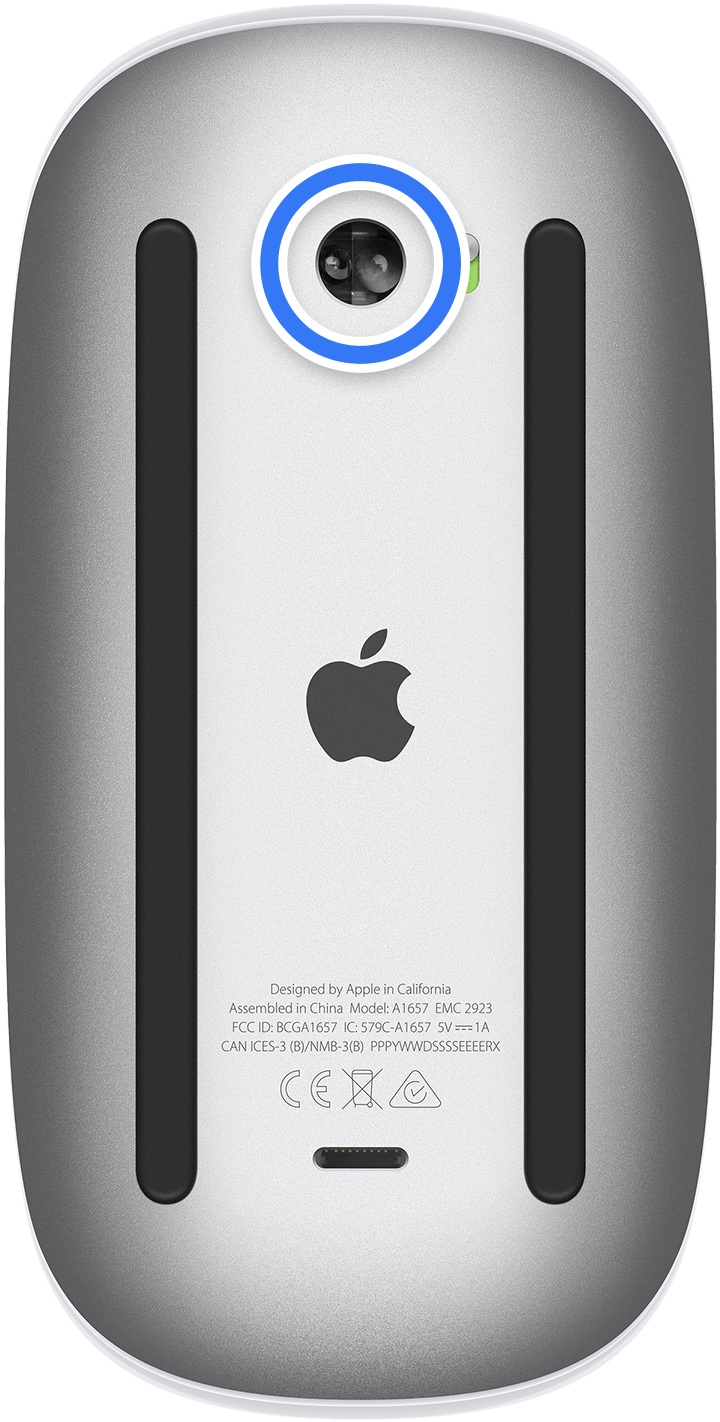
Main Reasons Why Is Apple Magic Mouse 2 Not Scrolling?
1. Bluetooth connection is unstable
A weak Bluetooth connection is one of the most common causes. Even if the pointer moves, scrolling data may not come through cleanly.
This can happen when:
- The mouse is too far from the Mac
- Other wireless devices are causing interference
- Bluetooth needs to be reset
- The mouse is partially paired but not fully stable
A quick fix is to turn Bluetooth off and back on, then reconnect the mouse. If that does not help, remove the Magic Mouse 2 from your Bluetooth list and pair it again.
2. Battery level is too low
Low battery can affect touch response before it affects everything else. I’ve personally seen a Magic Mouse 2 still move the pointer while scroll gestures started acting strange.
If your mouse is low on charge, plug it in for at least 15 to 30 minutes and try again. A nearly empty battery can create tiny delays that make scrolling feel broken.
3. The touch surface is dirty
Finger oils, dust, and moisture can block the touch sensor on the top shell. This is one of the simplest reasons Why Is Apple Magic Mouse 2 Not Scrolling?
Use a soft, lint-free cloth and gently wipe the top surface. If needed, slightly dampen the cloth with water, but avoid sprays, harsh cleaners, or excess liquid.
4. macOS settings are incorrect
Sometimes the mouse is fine, but the settings are not. Tracking speed, scroll direction, and accessibility controls can all affect scrolling behavior.
Check these items in System Settings:
- Mouse settings
- Accessibility settings
- Scroll direction preferences
- Pointer speed
If scroll direction feels reversed or strange, the mouse may still be working correctly. It just may not match your expected motion.
5. macOS update caused a temporary glitch
After a system update, some devices need to re-establish settings or drivers. That can lead to short-term issues with the Magic Mouse 2.
If scrolling stopped right after an update, restart your Mac first. If that does not help, forget the mouse, re-pair it, and check for another minor update or patch.
6. Wireless interference is blocking gestures
Bluetooth works best when the environment is clean and stable. Crowded desks can create hidden interference from Wi-Fi routers, USB hubs, docks, and other Bluetooth devices.
Try moving the mouse closer to the Mac and temporarily unplug nearby wireless accessories. This is a small step, but it often reveals whether the issue is environmental.
7. The mouse needs to be reset or re-paired
A corrupted pairing record can confuse the system. When that happens, the Mac may recognize the mouse, but not all features work properly.
Removing the Magic Mouse 2 from Bluetooth and pairing it again often clears the problem. This is one of the first things I try when a mouse acts “half connected.”
Step-by-Step Fixes for Magic Mouse 2 Scrolling Issues
1. Clean the mouse carefully
Start with the easiest fix. Turn the mouse over and check for dust, grime, or moisture on the top shell.
Do this:
- Power off the mouse
- Wipe the top surface with a soft cloth
- Dry it fully before using it again
- Avoid cleaners that can damage the finish
A clean surface helps the touch sensor read your swipe more accurately.
2. Check the battery level
Plug the Magic Mouse 2 into power and let it charge. Even if the battery is not fully dead, charging can stabilize the connection.
If the mouse works better while charging, that is a strong sign the battery was the issue. In my own testing, weak battery symptoms can show up as laggy gestures long before the mouse fully disconnects.
3. Turn Bluetooth off and on
This resets the short-term connection state.
Follow these steps:
- Open System Settings
- Go to Bluetooth
- Turn Bluetooth off
- Wait 10 seconds
- Turn Bluetooth back on
- Reconnect the Magic Mouse 2
This is quick, safe, and often enough to restore scrolling.
4. Forget and re-pair the mouse
If Bluetooth reset does not help, remove the mouse and pair it again.
Try this:
- Open Bluetooth settings
- Find Magic Mouse 2
- Click Forget This Device
- Restart your Mac
- Pair the mouse again
This clears old pairing data and can fix stubborn scroll bugs.
5. Restart your Mac
A reboot clears temporary system problems. It sounds basic, but it works more often than people expect.
If the mouse started failing after sleep mode, an app crash, or an update, restarting the Mac may restore normal behavior.
6. Check mouse and accessibility settings
Go into System Settings and review all mouse options. Look at scroll speed, tracking speed, and any accessibility features that may change gesture behavior.
If you use third-party mouse utilities, try disabling them briefly. Some apps can override default scrolling behavior without making it obvious.
7. Update macOS
Apple often fixes device-related bugs in later updates. If your system is behind, installing the latest version may solve the scrolling issue.
Before updating, make sure your Mac is backed up. That is good practice anyway, especially if you rely on the mouse for work.
8. Test the mouse on another Mac
If possible, connect the Magic Mouse 2 to a different Mac. This helps you find out whether the issue is with the mouse or the original computer.
If the mouse scrolls normally on another Mac, the problem is probably local to your original system. If it still fails, the mouse itself may need service.

When the Problem Is Hardware-Related
Sometimes the answer to Why Is Apple Magic Mouse 2 Not Scrolling? is that the internal touch sensor is failing. That is less common than software or connection issues, but it does happen.
Signs of hardware trouble include:
- Scrolling fails on every Mac
- The surface feels completely unresponsive
- The mouse disconnects often even when charged
- Other gestures also stop working
- Cleaning and re-pairing do not help
If you see these signs, the mouse may need repair or replacement. Apple support can help you confirm whether the device is still under warranty or eligible for service.
How to Prevent Scrolling Problems in the Future
A few simple habits can keep the Magic Mouse 2 working well for longer. I always tell people that this device is a bit like a smartphone screen: it performs best when it is clean, updated, and properly charged.
To reduce future issues:
- Keep the top surface clean
- Charge the mouse before it gets too low
- Avoid using it near heavy wireless interference
- Update macOS regularly
- Re-pair it if it starts acting strange
- Store it in a dry, dust-free place
These small habits can save you from repeat frustration. They also help you catch problems early, before scrolling stops completely.
Common Mistakes to Avoid
When people ask Why Is Apple Magic Mouse 2 Not Scrolling?, they often try the wrong fixes first. That can waste time and make the issue feel bigger than it is.
Avoid these mistakes:
- Using too much liquid when cleaning
- Ignoring battery level
- Assuming the mouse is broken right away
- Skipping Bluetooth re-pairing
- Overlooking system settings
- Forgetting that nearby devices can interfere
I’ve made a few of these mistakes myself, especially the part where I blamed the mouse too fast. In reality, the fix was usually something simple.
Frequently Asked Questions
Why is my Apple Magic Mouse 2 moving but not scrolling?
This usually means the pointer sensor and touch sensor are behaving differently. The mouse can still track movement while the top touch surface is blocked, dirty, or affected by Bluetooth issues.
Why Is Apple Magic Mouse 2 Not Scrolling after a macOS update?
A recent update can sometimes change settings or create a temporary Bluetooth glitch. Restart the Mac, re-pair the mouse, and check for any follow-up updates that may fix the bug.
Can low battery cause Magic Mouse 2 scrolling problems?
Yes, low battery can weaken touch performance before the mouse fully shuts off. Charging the device often restores normal scrolling if the battery was the cause.
How do I clean the Magic Mouse 2 safely?
Use a soft, lint-free cloth and gently wipe the surface. Avoid sprays, rough cloths, and too much moisture because they can damage the touch area.
What if my Magic Mouse 2 still will not scroll after troubleshooting?
If cleaning, charging, re-pairing, and restarting do not help, the issue may be hardware-related. Testing the mouse on another Mac can confirm whether the mouse itself needs service.
Why Is Apple Magic Mouse 2 Not Scrolling only on one app?
That can happen when an app has its own scrolling settings or conflicts with mouse utilities. Try another app first, then check whether the software you use has custom input controls.
Conclusion
When you look at Why Is Apple Magic Mouse 2 Not Scrolling?, the most likely answer is usually simple: a weak Bluetooth link, low battery, dirty touch sensors, or a macOS setting problem. The good news is that most of these issues can be fixed in a few minutes with cleaning, charging, re-pairing, or a quick settings check.
If your Magic Mouse 2 is still acting up, work through the fixes one by one and test after each step. That method saves time and helps you find the real cause instead of guessing. If this guide helped, explore more troubleshooting tips, keep your setup updated, and leave a comment with the fix that worked for you.

Similar Posts