Best USB-C Hub: Top Picks For Every Setup
The Anker 7-in-1 USB-C hub is the best USB-C hub for most laptops, monitors, drives, and everyday desk setups.
Your laptop has one slim USB-C port, but your desk still needs a monitor, mouse, keyboard, flash drive, camera card, and charger. I know the feeling of carrying several dongles just to join a meeting or move a file. A good USB-C hub acts like a small docking station and gives your computer the ports it lacks. I tested the key features that matter most, including speed, video support, charging, size, heat, and ease of use. The models below suit different users, from simple office setups to fast USB-C workstations.
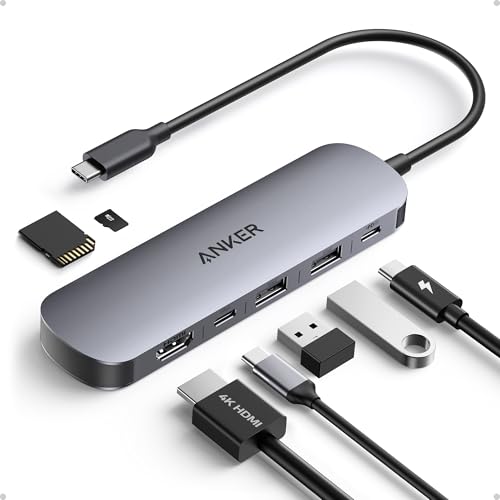
Anker USB C Hub, 7in1…
Sleek 7-in-1 USB-C Hub: Features an HDMI port, two USB-A 3.0 ports, and a USB-C data port, each providing 5Gbps transfer speeds. It also includes a USB-C PD input port…
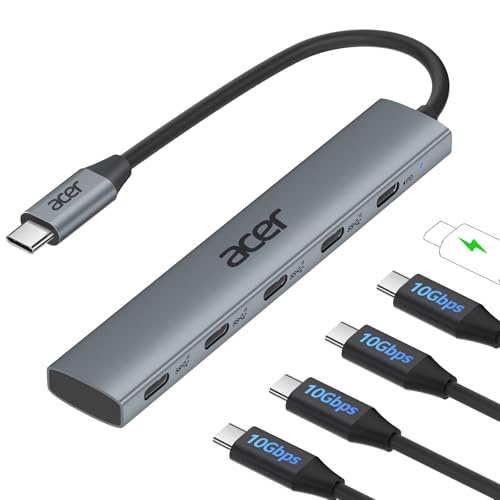
Acer 10 Gbps USB C…
Ultra-Fast 10Gbps: 5-in-1 USB C Hub with 4 USB-C 3.2 Gen 2 ports, offering 10Gbps high-speed data transfer which can transfer 1GB of files in 1 second. As a USB-C…
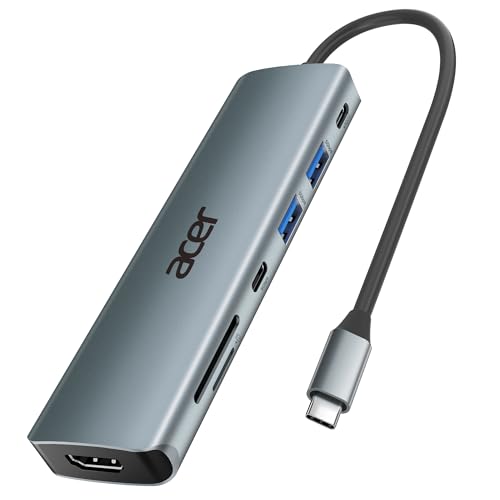
Acer USB C Hub, 7…
[7-in-1 Multi-port USB C Hub] Acer USBC adapter macbook is made of Aluminum material, expands a USB-C port to 7 ports (1*HDMI 4K@30HZ, 2*USB 3.1, 1*USB-C, 1*Type-C PD charging, 1*MicroSD…
Anker 7-in-1 USB-C Hub

Anker’s 7-in-1 USB-C hub is the easiest all-round pick in this group. It gives a modern laptop a useful mix of ports without taking much room in a bag. The listed HDMI output supports up to 4K at 60Hz when the host computer, cable, and display also support that mode. That makes it a strong fit for office work, photo review, streaming, and a clean home desk.
The layout also feels more useful than a basic four-port splitter. You get room for common USB devices, an external display, and other daily accessories in one small adapter. I like this type of hub for people who move between a desk and a meeting room because it removes cable clutter without feeling like a full dock. It is still wise to check your laptop’s USB-C features before buying, since some USB-C ports support data only and cannot send video.
Pros:
- Useful seven-port layout for home and office work
- 4K at 60Hz HDMI support on compatible host devices
- Compact form that travels well
- Good match for MacBook, Windows laptop, Chromebook, and tablet users
- Combines display, USB accessories, and storage in one adapter
- Simple setup with no large desktop power brick
Cons:
- Actual video and data speed depends on the host USB-C port
- It may become warm during long transfers or heavy display use
- It is not a replacement for a high-power professional docking station
My Recommendation
I recommend this Anker model to most people who want the best USB-C hub without studying a long port chart. It suits students, remote workers, travelers, and laptop owners who need one external screen plus several basic accessories. The 4K 60Hz claim is especially useful for smooth desktop motion, though your computer must support DisplayPort video over USB-C. It is also a sensible choice for anyone who values a small body and a familiar, easy setup.
Choose it when balanced features matter more than having every possible port. It offers a practical middle ground between a tiny travel dongle and a costly Thunderbolt dock. Availability and price can change, but this model is usually easy to find and offers strong overall value for a daily USB-C setup.
Acer 10Gbps USB-C Hub

This Acer hub takes a different path from the usual USB-A-heavy adapter. It includes four USB-C 3.2 ports and a 100W Power Delivery input, which makes it interesting for newer laptops and USB-C accessories. The 10Gbps rating can help with fast external SSDs, modern card readers, and large file jobs. In real use, the host port and connected device still set the final speed.
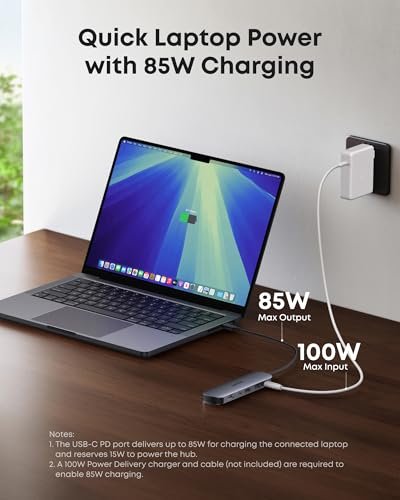
The 100W input does not mean the computer will always receive a full 100W. USB-C power delivery normally reserves some power for the hub, so the laptop may receive less than the charger’s printed maximum. That detail is common with powered hubs, not a flaw unique to this model. I see this Acer as a good fit for users who have moved beyond older USB-A gear and want more USB-C sockets on the desk.
Pros:
- Four USB-C 3.2 ports suit current accessories
- 10Gbps class data performance for compatible devices
- 100W Power Delivery input supports powered desk use
- Helpful for external SSDs, phones, cameras, and USB-C tools
- Less need for USB-C-to-USB-A adapters
- Modern port mix for newer Windows laptops and tablets
Cons:
- It offers fewer traditional USB-A ports than many seven-in-one hubs
- 100W input does not equal 100W delivered to the laptop
- It may not suit older accessories without an adapter
My Recommendation
This Acer is best for a USB-C-first workstation. I would pick it for a user with a fast portable SSD, USB-C phone, USB-C camera gear, and a laptop that needs extra charging support. It is also a strong option for creators who move large files and do not want every accessory to pass through an older USB-A port. Before purchase, confirm that your charger, cable, and laptop support the power level you need.
It is not the most universal choice for a mixed old-and-new desk. However, for a current setup built around USB-C, it can be more useful than a hub filled with ports you never use. If fast USB-C expansion and power input are your priorities, this model deserves serious attention when comparing the best USB-C hub options.
Acer 7-in-1 USB-C Adapter

This Acer seven-in-one adapter is aimed at people who want a traditional multi-port travel hub. Its design fits the common laptop problem: one USB-C socket must connect to several useful desk tools. A seven-port layout can cover a display, USB accessories, memory cards, and charging, depending on the exact port configuration supplied with the product. It is a flexible choice for a laptop bag or a small work area.
I like the idea of this hub for users who switch between work locations. A single adapter can stay in your bag while your charger and monitor remain at home or at the office. It also gives older accessories a place to connect, which matters when your keyboard, mouse, or thumb drive still uses USB-A. As with any hub, I would verify the product page against your computer’s port needs before ordering, especially if you require a card reader, Ethernet, or a specific display mode.
Pros:
- Seven-in-one design covers many everyday laptop needs
- Useful for mixed USB-C and USB-A accessories
- Portable shape works well for travel and hybrid work
- Can reduce the number of separate adapters in a laptop bag
- Good fit for office users, students, and home workers
- Offers a simple way to expand a compatible USB-C laptop
Cons:
- Exact performance depends on the laptop and each connected device
- A compact hub cannot match the port spacing of a full desktop dock
- Some users may need a separate adapter for specialized equipment
My Recommendation
I recommend this Acer seven-in-one model for people who want broad everyday coverage at a modest size. It makes sense for a student who carries a laptop to class, a worker who visits two offices, or a family that shares one laptop with several devices. The mixed-port approach is more forgiving than a USB-C-only hub because it works with accessories from different years. It is also a practical starter choice for someone buying a first USB-C hub.
Pick this model when flexibility matters more than the fastest possible transfer rate. It will not replace a professional dock for multiple monitors and many high-speed drives, but it can solve the most common connection problems in seconds. Its value is strongest when the advertised port list matches your actual gear.
UGREEN Revodok Pro 6-in-1 Hub
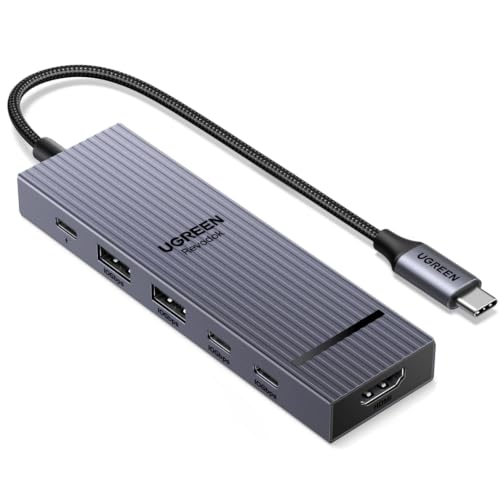
The UGREEN Revodok Pro is a focused six-in-one hub for users who care about speed and a sharp external display. It lists 10Gbps data support and 4K at 60Hz HDMI output, two useful features for modern workstations. A 10Gbps connection can make a clear difference when moving video clips, photo folders, or large backups to a compatible SSD. The hub still shares bandwidth through one host connection, so several busy devices may divide that available capacity.
This model appeals to me when the desk has a clear purpose. It can serve a laptop with a monitor, storage, and other USB devices without adding the bulk of a large dock. The “Pro” name should not be confused with Thunderbolt certification or unlimited desktop bandwidth. Instead, think of it as a compact, high-speed USB-C adapter for a well-matched setup.
Pros:
- 10Gbps data rating suits fast storage and file transfers
- 4K 60Hz HDMI output supports a smooth high-resolution desktop
- Compact design keeps a workstation tidy
- Good choice for photographers, editors, and content creators
- Useful balance of video, data, and charging functions
- Strong option for a modern laptop with one USB-C expansion port
Cons:
- Connected devices share the bandwidth of the host connection
- It has six ports rather than the broader coverage of a seven-in-one model
- 4K 60Hz requires compatible laptop, cable, monitor, and software support
My Recommendation
I would choose the UGREEN Revodok Pro for a creator or office user who values fast storage and a smooth 4K display. It is especially attractive for a MacBook, Windows laptop, or tablet used with one main monitor and an external SSD. The 10Gbps rating gives it a more serious feel than a basic travel splitter. Just remember that a fast label describes the link class, not a promise of the same speed in every real-world file copy.
This is one of the best USB-C hub choices for a focused desk rather than a large multi-monitor setup. It offers strong value when your accessories fit its port plan. If your needs later grow to Ethernet, several displays, or many powered drives, a dedicated dock may be a better long-term purchase.
Anker 4-in-1 USB-C Hub

Anker’s four-in-one hub is the simple answer for a laptop that only needs more USB connections. It avoids extra video and card ports, which can keep the unit small and easy to pack. I see it as a USB splitter and extender for a mouse, keyboard, flash drive, phone, or other common accessory. That narrow purpose can be a benefit when you do not need a full workstation adapter.
A small hub also creates fewer choices and fewer cables. Plug it into a compatible USB-C port, connect the accessories, and get back to work. It is a good fit for travel, classrooms, coffee shops, and minimalist desks where a monitor is not part of the plan. If you need HDMI, SD cards, Ethernet, or laptop charging, move up to one of the larger models instead.
Pros:
- Small and light for everyday travel
- Simple four-port design is easy to understand
- Useful for keyboards, mice, drives, and other USB devices
- Good choice for laptops with too few USB ports
- Less expensive than a full multi-port docking adapter
- Works well for short, quick connection tasks
Cons:
- It does not provide the broad port range of a seven-in-one hub
- It is not the right choice for HDMI or wired network connections
- It may not provide laptop charging through the hub
My Recommendation
I recommend this Anker four-in-one model to users who want the smallest practical fix. It is ideal for a laptop owner who needs a few extra USB ports but already has video and charging covered. Students, travelers, and home users can benefit from its low-clutter design. It also makes a useful backup hub for a laptop bag because it takes little space.
Do not pay for a seven-port hub if you will only connect a mouse, keyboard, and thumb drive. For that job, this compact Anker adapter is a sensible value. It is not the best USB-C hub for a monitor-based desk, but it may be the best match for a simple accessory setup.
How I Choose the Best USB-C Hub
A USB-C hub can look like a small metal brick, yet its internal limits matter. I start with the ports, then check the speed, display support, power input, build, and compatibility. A long list of ports means little if the hub cannot meet your main task. The right model should solve a real problem without adding new cable trouble.
I also look at how each hub fits a normal day. Can it connect a monitor before a meeting? Can it read a drive without dropping out? Does it stay stable while charging? These details often matter more than a bold number on the box. I favor honest port planning over buying the biggest hub available.
USB-C Hub Port Types Explained
USB-C describes the shape of the plug, not the full feature set. Two USB-C ports can look the same while offering very different data, video, and power abilities. Your computer’s manual or technical page should confirm what the port supports. This check prevents one of the most common buying mistakes.
USB-A ports connect older items such as mice, keyboards, printers, and many flash drives. USB-C data ports suit newer SSDs, phones, cameras, and cables with USB-C plugs. HDMI sends video to a monitor or television, but the laptop must support video output through its USB-C port. A Power Delivery input lets a compatible charger send power through the hub to the computer.
Some hubs also include SD or microSD card slots, Ethernet, audio, or a second display output. Those ports can be valuable, but they often share the hub’s total bandwidth. I suggest listing your devices before shopping. Mark each item as data, video, power, network, or storage, then select a hub that covers the most important tasks.
Why Data Speed Matters
Speed becomes clear when you copy large files. A small document may finish at once on almost any hub, while a folder of raw photos can expose a slow connection. A 5Gbps USB link can handle common office work well. A 10Gbps link gives more room for fast SSDs and large media files.
Advertised speed is a ceiling, not a guaranteed file-copy result. The host port, cable, drive, file type, heat, and other connected devices all affect performance. A hub can also share one upstream connection among its ports. If you copy to two drives at once, each drive may receive less bandwidth.
For normal school or office work, do not chase speed you will never use. For video editing, frequent backups, or large photo libraries, a 10Gbps model is easier to justify. The UGREEN and Acer options in this review are the strongest fits for that kind of workflow.
Understanding HDMI and 4K 60Hz Support
Many people search for a USB-C hub with 4K HDMI. That feature can make text and images look crisp on a large monitor. The 60Hz refresh rate also gives smoother pointer motion than 30Hz for everyday desktop use. Still, the full chain must support the result.
The laptop needs a USB-C port with DisplayPort Alt Mode, or another supported video feature. The hub needs the correct display hardware. Your HDMI cable and monitor must also accept the chosen resolution and refresh rate. If one link has a lower limit, the display may fall back to a lower mode.
A hub may support one external monitor while another laptop supports more screens through a special driver or dock. Operating system rules also matter. I recommend checking your computer maker’s display specifications before buying a hub for a multi-monitor desk.
Power Delivery: What 100W Really Means
Power Delivery, often called PD, lets a charger send power through a compatible hub. This can keep your laptop charged while the hub connects other devices. It helps reduce desk clutter because one charger can serve the computer and the adapter. The charger, cable, laptop, and hub must all agree on a supported power profile.
A hub marked “100W PD” usually describes the maximum input it can accept. The hub may use some power for its own circuits and connected devices. The laptop may therefore receive less than 100W. That is normal, and it explains why a high-wattage charger does not always produce the same charging rate through a hub.
For a lightweight laptop, a 65W charger may be enough. A powerful gaming or workstation laptop may need its own charger connected directly. I would not buy a hub as a way to replace a large laptop power supply unless the manufacturer clearly confirms that use.
Compatibility Tips Before You Buy
First, check the computer port. A USB-C port with a small lightning symbol may support advanced display and data features, while a plain USB-C port may offer fewer functions. Some tablets have one USB-C port that handles charging and data but not external video. The shape alone cannot answer this question.
Next, check the operating system and display plan. Most basic hubs work without special software, but some multi-display systems use a driver. A work computer may also block accessories through security rules. If you use a company laptop, ask the IT team before connecting an unfamiliar device.
Finally, inspect your cables. A high-speed hub cannot make a low-speed cable fast. A cable may also support charging but not video. Keep a short, certified cable near the hub, and avoid bending the built-in lead sharply where it meets the adapter.
USB-C Hub or Docking Station?
A hub usually focuses on portability and basic expansion. It draws power from the computer or accepts a charger through a PD input. A docking station often has a larger power supply, more ports, network features, and better support for a permanent desk. The line between the two has become less clear, but the use case remains different.
Choose a hub when you travel, use one monitor, or need a few extra connections. Choose a dock when you run several screens, wired Ethernet, speakers, external drives, and a charger every day. A dock costs more, yet it can save time if your desk has many cables. I would not use a small bus-powered hub as the center of a demanding studio.
Heat, Stability, and Daily Use
Compact hubs can feel warm, especially during large file copies or high-resolution video output. Warm does not always mean unsafe. Heat becomes a concern when devices disconnect, transfers slow, or the case becomes too hot to touch comfortably. Give the hub air and avoid placing it under papers or fabric.
Stable contact also matters. A loose USB-C connection can cause a monitor to blink or a drive to vanish. Keep the host plug free from side pressure, especially when using a laptop on a soft surface. A hub with a short built-in cable may fit one laptop well but feel awkward with another.
I also prefer a hub with clear port labels and sensible spacing. Wide USB plugs can block nearby sockets on a very small adapter. A few extra inches of cable can make a desk setup much easier, even if it adds a little weight to a travel bag.
Best USB-C Hub Comparison Table
| Best for | Why |
|---|---|
| Most laptop users | Anker 7-in-1 offers a balanced mix of display, data, and daily expansion. |
| Fast USB-C storage | Acer 10Gbps and UGREEN Revodok Pro suit compatible SSDs and large file transfers. |
| Light travel | Anker 4-in-1 keeps the kit small when you only need extra USB ports. |
Setup Tips for Better Results
Connect the hub directly to the laptop whenever possible. A second adapter or long extension can add another point of failure. If you use power delivery, connect the charger to the hub before plugging in several devices. This order can help the computer recognize the power path correctly.
Plug the monitor in first, then add storage and smaller accessories. If the display does not appear, check the input source, cable, and laptop video settings. Restarting the computer can help after a major change, but most simple hubs should work without extra software.
For drives, eject them through the operating system before unplugging the hub. Do not remove a memory card while its light is active. These habits protect your files and reduce the chance of corruption. A good adapter cannot protect data from an unsafe disconnect.
Common USB-C Hub Buying Mistakes
The first mistake is buying by port count alone. Seven ports may sound better than four, but unused ports do not improve your work. A smaller hub can be the smarter pick if it covers your actual devices.
The second mistake is assuming every USB-C port supports every feature. USB-C is a connector standard, not a guarantee of 4K video, fast data, or charging. Always compare the hub’s requirements with the laptop’s specifications.
The third mistake is ignoring power needs. Several drives, a monitor, and a laptop can place more demand on a small adapter than expected. If your setup stays on one desk, a powered dock may offer a calmer and more stable experience.
The fourth mistake is expecting a 10Gbps label to make an old drive fast. The slowest part of the chain sets the result. A modern hub helps only when the computer, cable, and accessory can use the added speed.
FAQs Of Best USB-C Hub
What is the best USB-C hub for most people?
The Anker 7-in-1 model is the best USB-C hub for most users because it balances port range, portability, and display support. It works well for office desks, study spaces, and travel. Confirm that your laptop supports video over USB-C before using its HDMI output.
Can a USB-C hub charge my laptop?
Only a hub with a compatible Power Delivery input can pass charger power to the laptop. The charger and cable must support the needed wattage. The laptop may receive less than the charger’s maximum because the hub uses some power itself.
Will a USB-C hub support two monitors?
Not always. Many hubs support one external HDMI display, while multiple-monitor support depends on the hub, laptop, operating system, and display technology. Check the product specifications and your computer’s video limits before buying for two screens.
Does USB-C mean 10Gbps speed?
No. USB-C only describes the plug shape. Data speed depends on the USB standard used by the port, hub, cable, and connected device. A 10Gbps hub can still run slowly when paired with an older computer or drive.
Do USB-C hubs work with Mac and Windows laptops?
Many basic hubs work with both systems, but features can vary. Display output, charging, Ethernet, and multi-monitor support may follow different rules on each platform. Check the hub details and laptop specifications for your exact model.
Final Verdict: Which Should You Buy?
The Anker 7-in-1 is the best USB-C hub for most people. Choose UGREEN or Acer’s 10Gbps model for fast storage, or the Anker 4-in-1 for simple travel use.
Match the ports to your real devices, confirm video and power support, and buy for your laptop’s limits. The right Best USB-C Hub can turn one crowded port into a calm, capable workspace.