HP DeskJet 4155E Troubleshooting: Quick Fix Guide
HP DeskJet 4155e troubleshooting usually fixes paper, ink, Wi-Fi, and driver issues fast.
If your HP DeskJet 4155e is acting up, you are not alone. I have seen this model behave like a helpful helper one minute and a stubborn desk guest the next. The good news is that most HP DeskJet 4155e troubleshooting issues come down to simple causes, and once you know where to look, the printer is often back to normal in minutes.
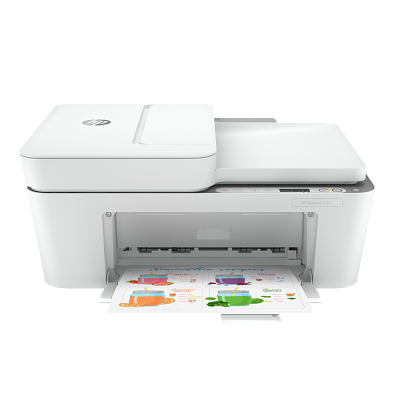
Common HP DeskJet 4155e Troubleshooting Problems
The HP DeskJet 4155e is a compact all-in-one printer, which makes it popular for home offices, school work, and light business use. But like many wireless inkjet printers, it can run into problems with setup, printing, scanning, and connectivity.
In my experience, the most common issues are not “serious” hardware failures. They are usually small things that stack up, like a weak Wi-Fi signal, a clogged printhead, an outdated driver, or paper that is not seated correctly. The trick is to work through the printer like a checklist, not like a mystery.
Here are the issues people run into most often:
- Printer not turning on
- Printer offline or not responding
- Wi-Fi setup failure
- Poor print quality
- Paper jam or paper feed errors
- Ink cartridge errors
- Scanning not working
- Slow printing or stalled jobs
If you approach HP DeskJet 4155e troubleshooting step by step, you can usually isolate the issue without guessing.

Start with the Basics Before You Deep Dive
Before changing settings, take a few minutes to check the simple stuff. This matters because many printer problems look technical but start with a power, cable, or network issue.
I have made the mistake of going straight to driver resets when the real issue was a loose power cable. It is a classic time-waster. Start simple, because printers often “fail” for reasons that are easy to miss.
Try this first:
- Make sure the printer is plugged into a working wall outlet
- Check that the power cord is firmly seated in the printer and outlet
- Confirm the printer is turned on
- Restart the printer and your computer or phone
- Make sure paper is loaded correctly
- Check whether any warning lights are blinking
If the printer still does not respond, move on to the specific problem area below.

HP DeskJet 4155e Not Printing
When the HP DeskJet 4155e will not print, the cause is often one of four things: the printer is offline, the print queue is stuck, the wrong printer is selected, or there is a connection problem.
This is one of the most common HP DeskJet 4155e troubleshooting cases because it can happen on Windows, Mac, Android, or iPhone. The printer may look ready, but the job never reaches it.
Try these steps:
- Open the print queue and cancel any stuck jobs
- Make sure the HP DeskJet 4155e is set as the default printer
- Check that the printer status says ready and not offline
- Restart the printer, computer, and router
- Reconnect the printer to Wi-Fi if it has dropped off the network
- Reinstall or update the HP Smart app if you print from a phone
If the job still will not print, send a simple test page. That helps tell you whether the issue is with the app, the device, or the printer itself.
A useful habit I learned early: always test with a basic black-and-white document first. Fancy files with large images can hide the real problem.
HP DeskJet 4155e Wi-Fi Troubleshooting
Wireless setup is where many users get stuck. The HP DeskJet 4155e supports Wi-Fi, but it works best on a stable 2.4 GHz network with a strong signal. If your router settings are unusual, setup can fail even when the printer is fine.
This is one area where patience helps. Wi-Fi issues can feel random, but they are usually caused by signal strength, network mismatch, or a temporary router glitch.
Try these fixes:
- Move the printer closer to the router during setup
- Restart the router, then restart the printer
- Make sure your phone or computer is connected to the same Wi-Fi network
- Use the HP Smart app to run wireless setup again
- Confirm you are using a 2.4 GHz network, not only 5 GHz
- Disable VPNs temporarily if they interfere with setup
If the printer keeps dropping Wi-Fi, check for these common causes:
- Router too far away
- Too much interference from walls or appliances
- Network password changed
- Router restarted and assigned a new connection
- Printer saved the wrong network profile
In my own testing, placing the printer a few feet closer to the router often solved a problem that looked much bigger than it really was. Think of Wi-Fi like a weak hand signal across a noisy room. The signal has to be clear enough to land.
HP DeskJet 4155e Paper Jam Troubleshooting
Paper jams can happen even with a new printer. The HP DeskJet 4155e is small, so paper handling matters more than many people expect. If paper is misaligned, curled, damp, or overfilled, a jam can happen fast.
The key is to remove the paper gently. Pulling too hard can tear a sheet and leave scraps inside the printer.
Use these steps:
- Turn off the printer
- Open the input tray and rear access area if needed
- Remove any loose paper slowly and evenly
- Check for torn pieces inside the rollers
- Fan the paper stack before reloading it
- Load only a small amount of paper
- Make sure the paper guides touch the edges without bending the paper
Helpful paper habits:
- Use clean, dry paper
- Avoid wrinkled or curled sheets
- Store paper in a dry place
- Do not overload the input tray
- Align the stack before printing
If jams keep happening, inspect the rollers. Dust or paper residue can reduce grip. A soft, lint-free cloth can help clean accessible areas, but do not use liquids inside the printer unless the manual specifically allows it.
HP DeskJet 4155e Print Quality Problems
Bad print quality is another major reason people search for HP DeskJet 4155e troubleshooting help. Common symptoms include faded text, streaks, missing lines, smudges, or blank pages.
Most of the time, the issue is related to ink level, clogged nozzles, or misaligned cartridges. I have also seen users blame the printer when the real issue was a low-quality print setting or draft mode left on by accident.
Try these fixes:
- Check ink levels in the HP Smart app
- Remove and reinstall the cartridges
- Run the printer’s cleaning or alignment tool
- Print a test page
- Make sure you are using the correct paper type setting
- Use normal or best print quality for important documents
If text looks faded:
- Replace low or empty cartridges
- Clean the cartridge contacts carefully
- Run one or two cleaning cycles
If you see streaks or lines:
- Run printhead cleaning
- Check for dried ink or dust
- Make sure the paper is not damaged
It is normal for an inkjet printer to need a cleaning cycle now and then. That is not a flaw so much as part of the trade-off for compact, affordable color printing.
HP DeskJet 4155e Cartridge and Ink Errors
Ink cartridge errors can show up as messages about missing cartridges, incompatible cartridges, or cartridge problems. These messages can be frustrating because the cartridges may look fine from the outside.
The HP DeskJet 4155e usually works best with genuine HP cartridges that match the printer model. If a cartridge is not seated correctly, the printer may reject it.
Try this:
- Turn the printer on
- Open the cartridge access door
- Remove both cartridges
- Check for plastic tape still attached
- Reinsert the cartridges firmly until they click
- Close the access door and wait for the printer to finish initializing
- Clean the cartridge contacts if needed
Things to watch for:
- Protective tape left on the cartridge
- Cartridge not fully clicked into place
- Dirty contacts
- Wrong cartridge type
- Cartridge damaged or expired
One mistake I have seen many times is users rushing the install. A cartridge that is just slightly loose can trigger a warning that looks much worse than the fix really is.
HP DeskJet 4155e Scanner Not Working
The scanner on the HP DeskJet 4155e is useful for school forms, receipts, and everyday documents. When scanning fails, the issue is often software-related, not hardware-related.
If the printer prints but will not scan, the scanner driver, HP Smart app, or device permissions may be the problem. This is especially common after an operating system update.
Try these steps:
- Restart the printer and the computer
- Reopen the HP Smart app
- Confirm scanner permissions are enabled on your device
- Reinstall the printer if the scan feature disappears
- Use a flat, clean surface for placing the document
- Check that the lid is fully closed
If scanned files are blank or dark:
- Place the document face down correctly
- Clean the scanner glass
- Remove shadows or bright light sources near the scanner
- Try a different file format if the app allows it
A good rule here is simple: if printing works but scanning fails, focus on the software and app first.

HP DeskJet 4155e Offline Status Fixes
An offline printer can be maddening because everything seems connected, yet nothing prints. In HP DeskJet 4155e troubleshooting, offline status often points to a communication issue between the printer and the device.
This can happen after sleep mode, a network change, or a system update. I have seen printers go offline simply because the router rebooted overnight and the computer remembered the old connection.
Try these fixes:
- Restart the printer
- Restart the router
- Restart the computer or phone
- Remove the printer from your device and add it again
- Make sure the printer is on the same Wi-Fi network as your device
- Disable “Use Printer Offline” if it is turned on in your settings
If the printer keeps showing offline, a full re-add through the HP Smart app can often clear the problem. This is one of those fixes that feels too simple, but it works surprisingly often.
HP DeskJet 4155e Driver and Software Troubleshooting
Drivers and apps help your computer talk to the printer. If they are outdated, corrupted, or installed incorrectly, the HP DeskJet 4155e may misbehave in strange ways.
This can show up as missing print options, failed scans, or a printer that appears but does not respond. Software issues are common after updates because settings can break quietly in the background.
What to do:
- Check for the latest printer software and driver updates
- Remove old printer entries from your device
- Reinstall the HP Smart app if needed
- Restart after installing updates
- Use the correct driver for your operating system
If you are on Windows, check the printer list and print spooler service. If you are on Mac, remove and re-add the printer from system settings. If you are on mobile, make sure the app has local network and Bluetooth permissions when needed.
One lesson from hands-on troubleshooting: do not install multiple printer apps at once unless you need them. Too many overlapping tools can make the situation messier, not better.

Preventive Tips to Avoid Future Problems
Good maintenance saves time later. The HP DeskJet 4155e is a practical home printer, but like any inkjet, it performs best when you use it regularly and keep it clean.
A few simple habits can prevent a lot of future HP DeskJet 4155e troubleshooting.
Best practices:
- Print at least once every week or two
- Keep the printer in a dust-free area
- Use good-quality paper
- Keep the firmware and app updated
- Store cartridges properly if replacing them
- Avoid unplugging the printer too often
- Leave enough space around the printer for airflow and access
I like to think of it like keeping a bicycle in shape. You do not need to rebuild it every month. You just need to keep the tires firm, the chain clean, and the parts from sitting idle too long.
Frequently Asked Questions of HP DeskJet 4155e Troubleshooting
Why is my HP DeskJet 4155e not printing even though it is connected?
A connected printer can still fail if the print queue is stuck or the printer is set offline. Clear the queue, restart the printer, and confirm the HP DeskJet 4155e is selected as the default printer.
How do I reset the HP DeskJet 4155e?
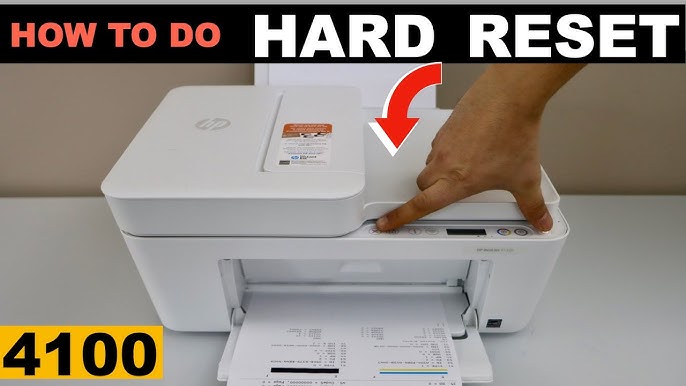
A basic reset usually means turning the printer off, unplugging it for about 60 seconds, and plugging it back in. This can clear temporary errors and refresh the wireless connection.
Why does my HP DeskJet 4155e keep going offline?
This often happens because of Wi-Fi interruptions, router changes, or sleep mode. Reconnecting the printer to the network and restarting the router usually helps.
What should I do if the HP DeskJet 4155e shows an ink cartridge error?
Remove both cartridges, check for leftover protective tape, and reinstall them firmly. If the error continues, clean the cartridge contacts and confirm the cartridges are compatible with the printer.
How do I fix poor print quality on the HP DeskJet 4155e?
Check ink levels, run a cleaning cycle, and make sure the paper type and print quality settings are correct. If the problem continues, align the cartridges and try a new test page.
Why will my HP DeskJet 4155e scan but not print?
That usually points to a software or driver issue rather than a hardware problem. Reinstall the printer software, update the HP Smart app, and check your device permissions.
Conclusion
HP DeskJet 4155e troubleshooting becomes much easier when you break it into small, clear steps. Most issues come from simple causes like Wi-Fi trouble, paper jams, low ink, or outdated software, and each one has a practical fix.
If your printer is giving you trouble, start with the basics, move through the more specific checks, and do not overlook the simple things. A calm, step-by-step approach usually saves more time than guessing ever will.
If this guide helped, try the fixes on your printer today, keep the printer maintained, and explore more setup tips so your HP DeskJet 4155e stays reliable when you need it most.