Epson Workforce WF-2950 Troubleshooting: Quick Fix Guide
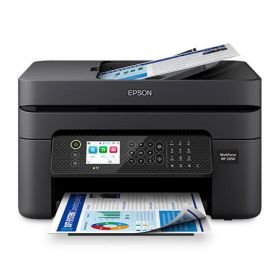
Most Epson WorkForce WF-2950 issues come from setup, ink, paper feed, Wi-Fi, or firmware glitches.
If you are dealing with Epson WorkForce WF-2950 troubleshooting, you are usually looking at a fix that is simpler than it first seems. I have worked through plenty of printer problems like these, and the pattern is often the same: a small issue in the paper path, a bad connection, or a driver mismatch causes the whole machine to act up. This guide walks you through the most common Epson WorkForce WF-2950 troubleshooting steps in a clear, practical way, so you can get back to printing without the guesswork.

Epson WorkForce WF-2950 troubleshooting basics
Before you dig into advanced fixes, start with the basics. Most printer problems are not mysterious. They usually come from power, connectivity, ink, paper, or software.
A good first step is to watch the printer like you would a car dashboard. If a light is blinking, if the display shows an error, or if the print job never starts, that clue can narrow the problem fast. In my experience, skipping the basics often wastes time.
Here is the simple order I use when doing Epson WorkForce WF-2950 troubleshooting:
- Check power and restart the printer
- Look for paper jams or loose paper
- Confirm ink cartridges are seated correctly
- Test the Wi-Fi or USB connection
- Update the printer driver and firmware
- Run a nozzle check or cleaning cycle
These steps solve many everyday issues before you ever need deeper repair. They are also safe and easy for most home users.
Epson WorkForce WF-2950 not printing
One of the most common complaints is that the printer turns on but does not print. This can happen even when the computer says the job was sent successfully. That is frustrating, but it usually points to a queue, connection, or driver issue.
Start by checking whether the printer is set as the default printer on your device. Then open the print queue and clear any stuck jobs. A single stalled file can block everything behind it.
Try these steps:
- Cancel all pending print jobs
- Restart both the printer and the computer
- Make sure the printer is selected as the active device
- Reconnect the USB cable or rejoin Wi-Fi
- Reinstall the Epson driver if needed
I have seen cases where the printer looked dead, but the real issue was one stuck document from a failed PDF print. Once the queue was cleared, the printer worked normally again.
Epson WorkForce WF-2950 paper jam troubleshooting
Paper jams are one of the most physical and obvious problems, but they still catch people off guard. With the Epson WorkForce WF-2950, even a tiny torn piece of paper can trigger repeated errors.
Turn the printer off before removing jammed paper. Pull the sheet slowly and in the direction of the paper path. Never yank hard, because that can leave scraps behind or damage rollers.
Check these common areas:
- Rear access area
- Input tray
- Output area
- Inside the scanner section, if the model design allows access
After clearing the jam, reload the paper neatly. Fan the stack first, and do not overfill the tray. From my own experience, damp paper and bent corners are two of the fastest ways to invite another jam.
Epson WorkForce WF-2950 Wi-Fi connection problems
Wireless issues are very common in home offices. If your Epson WorkForce WF-2950 keeps disconnecting, fails to appear on the network, or refuses to print over Wi-Fi, the problem may be your router, signal strength, or saved network settings.
A printer can be picky about network changes. If you recently changed your router name, password, or band settings, the printer may still be trying to connect to the old network.
Try this:
- Restart the router and printer
- Move the printer closer to the router temporarily
- Re-enter the Wi-Fi password
- Use the Epson setup utility to reconnect
- Check that the printer and computer are on the same network
If your router has both 2.4 GHz and 5 GHz bands, use the 2.4 GHz network. Many printers connect more reliably there. That small detail has saved me a lot of time in real setups.
Epson WorkForce WF-2950 driver and software issues
Driver problems can make a healthy printer act broken. If the Epson WorkForce WF-2950 is not recognized, prints with strange formatting, or fails after a system update, the driver may be outdated or corrupted.
This is especially common after installing a new version of Windows or macOS. The printer may still show up, but the software behind it does not communicate correctly.
A clean fix often includes:
- Removing the old printer from the device list
- Downloading the latest Epson driver package
- Installing the full software, not just a basic driver
- Restarting the computer after installation
- Running a test page
In practice, I have found that fresh installation works better than trying to “repair” a badly broken driver. It is like replacing a warped bridge instead of trying to drive across it carefully.
Epson WorkForce WF-2950 ink and print quality problems
If your pages come out faded, streaky, or with missing lines, the issue is often ink-related. Low ink, clogged nozzles, or air in the ink path can all affect print quality.
The Epson WorkForce WF-2950 uses precision ink delivery, so a clogged nozzle can show up as broken text or missing colors. That does not always mean the cartridge is empty. Sometimes the ink is there, but it is not flowing properly.
Try these steps:
- Check ink levels on the printer display or software
- Remove and reseat the cartridges
- Run a nozzle check
- Run a print head cleaning cycle
- Print a test page after each cleaning
Be careful not to run too many cleaning cycles in a row. That can waste ink fast. I learned that the hard way years ago, when I kept cleaning a printer over and over instead of checking for a simple clogged nozzle pattern first.
Epson WorkForce WF-2950 scanning problems
Since the WF-2950 is an all-in-one printer, scanning problems can be just as annoying as print issues. If scans fail, freeze, or save to the wrong place, the problem may be software, driver, or communication related.
Start by checking the Epson Scan software or your device’s built-in scan utility. Make sure the scanner is detected and the correct destination folder is selected. If the scanner glass is dirty, that can also affect scan clarity.
Useful checks include:
- Restart the printer and computer
- Confirm the scan app has permission to access files
- Clean the scanner glass and lid
- Reinstall scanning software if it crashes
- Test both flatbed scanning and any document feeder function
I often tell people to think of scanning like taking a photo through a window. If the glass is dusty or the app is confused, the result will look off even if the hardware is fine.
Epson WorkForce WF-2950 error lights and messages
Blinking lights and on-screen messages are the printer’s way of asking for help. They may look vague, but they usually point to a category of issue such as paper, ink, cover open, or connection failure.
When an error appears, do not ignore the exact pattern of the light or message. Write it down or take a photo before you reset anything. That makes troubleshooting much easier later.
Common responses include:
- Close all covers and trays firmly
- Remove and reinstall the ink cartridges
- Clear any paper from the path
- Restart the printer
- Check the screen for a more specific code or message
If the same error keeps returning after basic checks, the printer may need a firmware update or service. That is less common, but it is worth keeping in mind.
Epson WorkForce WF-2950 firmware and reset tips
Firmware updates can improve stability, fix bugs, and improve compatibility with your devices. If your Epson WorkForce WF-2950 behaves oddly after a network change or update, firmware may help.
Check for updates through Epson software or the printer’s support tools. If the printer is freezing, dropping jobs, or failing to connect, a restart plus firmware update is often a strong combo.
Try this order:
- Power off the printer
- Unplug it for 60 seconds
- Restart the router and computer
- Reconnect the printer
- Check for firmware updates
If needed, you can also reset network settings on the printer and set up Wi-Fi again. I only recommend a full reset after the simpler steps fail, because resets are useful but can be a hassle if you are in a hurry.
Preventive care for Epson WorkForce WF-2950 troubleshooting
The best troubleshooting is the kind you do before a problem starts. Regular care keeps the printer smoother, cleaner, and less likely to surprise you.
A little maintenance goes a long way. Printers are a lot like bikes: if you let them sit too long without use, parts can stiffen or clog. Printing a test page now and then can help keep the ink flowing.
Good habits include:
- Use the printer at least once every couple of weeks
- Keep paper stored dry and flat
- Use quality paper that matches the printer settings
- Update drivers when needed, not randomly
- Shut down the printer properly instead of unplugging it often
I have found that people who keep their printer in a dust-free spot and use it regularly have far fewer problems. It is boring advice, but it works.
Frequently Asked Questions of Epson WorkForce WF-2950 Troubleshooting
Why is my Epson WorkForce WF-2950 not printing even though it has ink?
This often happens because of a stuck print queue, a bad connection, or a driver issue rather than ink itself. Clear the queue, restart the printer, and test a simple document first.
How do I fix a paper jam in the Epson WorkForce WF-2950?
Turn the printer off and gently pull the paper out in the direction of the paper path. Check for torn scraps in the rear access area, tray, and inside compartments before restarting.
Why won’t my Epson WorkForce WF-2950 connect to Wi-Fi?
The printer may be using old network settings, or the signal may be weak. Reconnect it through the setup menu, and if possible, use the 2.4 GHz network for better reliability.
What should I do if the print quality is streaky or faded?
Run a nozzle check first, then perform a cleaning cycle if needed. Also confirm the ink cartridges are seated correctly and not nearly empty.
How do I reset the Epson WorkForce WF-2950?
You can usually restart it by powering it off, unplugging it for a minute, and then turning it back on. For network issues, resetting the Wi-Fi settings and reconnecting the printer may help more than a full factory reset.
Conclusion
Epson WorkForce WF-2950 troubleshooting is usually about working through the basics in the right order. Once you check paper, ink, power, Wi-Fi, drivers, and print queues, most issues become much easier to solve. The key is to stay calm and treat each symptom like a clue instead of a disaster.
If you use the steps in this guide, you will save time, reduce frustration, and likely avoid unnecessary repairs. Try the fixes one by one, note what changes, and keep your printer on a simple maintenance routine. If this guide helped you, explore more printer tips, share your experience, or leave a comment with the issue you are facing.

Similar Posts
































