Kodak Mini 3 Retro Troubleshooting: Quick Fixes
Most Kodak Mini 3 Retro problems come from power, paper, Bluetooth, app, or printer alignment issues.
Kodak Mini 3 Retro troubleshooting is usually simple when you test one cause at a time. This guide covers the checks that matter most, from charging and Bluetooth pairing to blank prints, paper jams, poor color, and app errors. The steps are based on common portable photo printer behavior and practical home testing methods.
Kodak Mini 3 Retro troubleshooting basics
The Kodak Mini 3 Retro is a small photo printer that uses Bluetooth and a mobile app to print images from a phone. It needs three things to work well: enough battery power, the correct paper and cartridge setup, and a stable connection with the Kodak photo printer app.
Before changing settings, check the simple causes first. Many problems look serious but come from a low battery, a loose cartridge, or paper placed on the wrong side.
Use this quick checklist:
- Charge the printer for at least 30 minutes.
- Confirm that the printer is turned on.
- Check that the paper tray has the correct Kodak Mini 3 Retro paper.
- Make sure the cartridge is fully inserted.
- Turn Bluetooth off, then turn it on again.
- Close and reopen the Kodak app.
- Restart both the printer and your phone.
Avoid pressing buttons many times in a row. A portable printer may need a few seconds to start, connect, or feed paper. Repeated commands can make the problem harder to trace.

Kodak Mini 3 Retro will not turn on
A printer that does not turn on often has a drained battery. The status light may stay off if the battery is fully empty, so connect the printer to a reliable USB power source and wait before testing it.
Try these steps:
• Use the supplied charging cable or a good-quality replacement cable.
• Try another wall adapter or USB port.
• Let the printer charge for 30 to 60 minutes.
• Press and hold the power button for a few seconds.
• Check the charging port for dust or damage.
The Kodak Mini 3 Retro may not print while the battery is too low. Even if the printer turns on, printing can fail when the battery cannot provide enough power for the heating cycle.
If the printer becomes very hot, smells unusual, or shows signs of swelling, stop using it. Do not open the battery or attempt a repair at home. Contact the seller or Kodak support for safe service options.
Kodak Mini 3 Retro is not charging
Charging problems can come from the cable, power source, port, or battery. Test each part separately instead of assuming the printer itself is broken.
Start with a different USB cable and wall adapter. Some computer ports provide limited power, while a wall adapter often gives a more stable charge. Check whether the charging indicator changes when you gently reconnect the cable.
Keep these points in mind:
• Do not force the plug into the charging port.
• Remove lint with care. Never push a metal tool into the port.
• Charge the printer at room temperature.
• Avoid using a damaged or loose cable.
• Do not print while troubleshooting a possible charging fault.
If the light never changes after trying several known-good cables and adapters, the battery or charging circuit may need service. This is one area where Kodak Mini 3 Retro troubleshooting should stop before you risk damage.

Kodak Mini 3 Retro will not connect to Bluetooth
Bluetooth pairing can fail when the printer is already connected to another phone. It can also fail when the phone uses an old pairing record or when the app does not have the permissions it needs.
Follow this order:
- Turn on the printer.
- Keep the printer close to your phone.
- Open the Kodak app.
- Remove the printer from the phone’s Bluetooth list if it appears there.
- Restart the phone.
- Open the app and pair from inside the app.
- Approve Bluetooth and nearby-device permissions.
Do not pair only through the phone’s Bluetooth menu if the app expects to manage the connection. Many mobile printers use the app to send print jobs, check paper status, and control image settings.
If another phone is nearby, turn off its Bluetooth for a moment. This prevents the printer from reconnecting to the wrong device. In my usual Kodak Mini 3 Retro troubleshooting routine, clearing the old pairing record solves more connection problems than changing advanced phone settings.

Kodak Mini 3 Retro app problems
The app may freeze, close, or fail to find the printer even when Bluetooth works. This often happens after an app update, a phone system update, or a permission change.
Try the following:
• Force close the app and reopen it.
• Update the app from the official app store.
• Restart the phone.
• Check Bluetooth and nearby-device permissions.
• Allow photo access for the images you want to print.
• Clear the app cache on Android.
• Reinstall the app if the issue continues.
On iPhone, deleting and reinstalling an app can remove damaged local settings. On Android, clearing the cache is a useful first step because it removes temporary files without always deleting stored data.
Make sure you use the official app intended for the Kodak Mini 3 Retro. Similar Kodak products can use different apps, paper types, and connection methods. Installing the wrong app is a common but easy-to-miss cause.

Kodak Mini 3 Retro prints blank photos
Blank prints usually point to incorrect paper placement, a cartridge problem, or a print job that did not transfer correctly. Check the consumables before changing image settings.
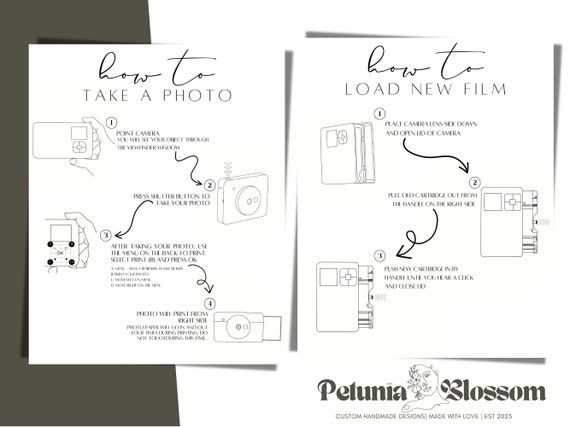
Remove the paper tray and confirm that the photo paper faces the correct direction. Follow the small diagram on the paper pack or inside the tray. Thermal photo paper has a printable side, and placing it backward can produce a blank sheet.
Next, check the cartridge:
- Turn off the printer.
- Open the cartridge cover.
- Remove and reseat the cartridge.
- Confirm that it is the correct model.
- Check for protective film or packaging.
- Close the cover firmly.
- Turn the printer on and try one test image.
Never reuse a sheet that has already passed through the printer. The printer may feed it poorly, and the image layer may no longer be positioned correctly. If every sheet stays blank with a new, correct cartridge, stop printing and contact support.

Kodak Mini 3 Retro prints slowly or stops halfway
A slow print is not always a fault. The Mini 3 Retro may process the image and pass the paper through several times to build the final color layers. Interrupting this cycle can damage the print or cause a paper jam.
Wait until the sheet fully exits. Do not pull the paper while it is moving. Keep the printer on a flat surface and leave space around the paper outlet.
If it stops halfway, check these causes:
• Low battery power.
• Paper loaded too tightly.
• A bent or damp sheet.
• A cartridge that is not seated correctly.
• Too many print commands sent at once.
Cancel duplicate jobs in the app, restart the printer, and load a fresh pack of paper. Sending the same photo repeatedly is a mistake I often see during Kodak Mini 3 Retro troubleshooting. One command, followed by a short pause, gives the printer time to respond.

Kodak Mini 3 Retro paper jam fixes
A jam can occur when paper is folded, loaded incorrectly, or pushed against the tray wall. Small printers have tight feed paths, so even a slightly damaged sheet can stop the mechanism.
Use this safe method:
- Turn the printer off.
- Remove the paper tray.
- Wait for the printer to cool.
- Remove loose paper without pulling hard.
- Check the feed path for scraps.
- Reload clean, flat paper.
- Reinsert the tray fully.
- Turn the printer on and test one sheet.
Do not use scissors, tweezers, or a knife inside the printer unless the official repair instructions specifically allow it. A sharp tool can damage the rollers or internal sensor.
Keep photo paper sealed until use. Heat, moisture, and pressure can affect the paper surface. Store it in a cool, dry place and avoid touching the printable side.
Kodak Mini 3 Retro print quality problems
Faded colors, lines, spots, and uneven images can result from the cartridge, paper, image file, or print surface. First, print a bright, clear photo with good lighting. This helps separate printer problems from poor source images.
For better results:
• Use a high-resolution image.
• Avoid extreme cropping.
• Increase brightness slightly for very dark photos.
• Clean the outside of the paper path with a soft, dry cloth.
• Use fresh paper made for the Mini 3 Retro.
• Keep your fingers away from the printable surface.
Very dark photos may print darker than they appear on a bright phone screen. This is not always a printer defect. Screen brightness can hide shadow detail, so a small brightness adjustment may improve the final photo.
Lines that repeat in the same place on every print may indicate a roller or cartridge issue. Do not wipe the paper with liquid. Moisture can leave marks and may harm the printer.
Kodak Mini 3 Retro prints the wrong photo or duplicate photos
Wrong or repeated photos usually come from a queued print job or a delayed app connection. The app may still be processing an earlier command while the user selects another image.
Clear the queue by closing the app and turning off the printer. Wait a few seconds, turn it back on, and send one image only. Keep the phone near the printer until the transfer finishes.
Also check whether another person is connected. Shared spaces can create confusion when several phones have used the same printer. Disconnect other devices before starting a new print session.
This simple reset is one of the most useful Kodak Mini 3 Retro troubleshooting steps because it removes old commands without changing the printer’s deeper settings.
Kodak Mini 3 Retro firmware and reset steps
Firmware updates can improve app compatibility and fix connection bugs. If the app offers an update, keep the printer charged and close to the phone during the process. Do not turn off either device while an update is running.
A basic restart is safer than a full reset:
- Turn off the printer.
- Close the Kodak app.
- Restart the phone.
- Turn on the printer.
- Reopen the app.
- Pair again.
- Send one test print.
Use a factory reset only when the official instructions recommend it. A reset may remove stored connection details, but it will not fix a damaged battery, broken feed system, or incorrect paper.
Record the exact error message before contacting support. Include the phone model, operating system, app version, printer behavior, and steps already tried. Clear details help support staff identify the cause faster.
When to contact Kodak support
Home Kodak Mini 3 Retro troubleshooting is appropriate for setup, battery checks, pairing, paper loading, and app problems. It is not appropriate for opening the printer or repairing its battery and internal electronics.
Contact support when:
• The printer will not charge with known-good cables.
• The printer overheats or smells unusual.
• The feed motor makes loud grinding sounds.
• Every print is blank with correct paper and a new cartridge.
• The printer shows a repeated error after a restart.
• The housing or charging port is physically damaged.
Keep your receipt, serial number, cartridge details, and a photo of the error or print result. Warranty coverage can depend on the seller, region, purchase date, and type of damage.
How to prevent Kodak Mini 3 Retro problems
Good storage and careful loading prevent many faults. Treat the printer like a small camera accessory, not like a rough-use gadget.
Follow these habits:
• Charge it before an event or trip.
• Carry paper in its original sealed package.
• Keep the printer away from heat and moisture.
• Do not overload the paper tray.
• Use the correct Kodak paper and cartridge.
• Send one print at a time.
• Keep the app and phone software current.
• Clean dust from the outside of the printer.
A little patience also helps. Wait for the paper to finish moving before touching it, and allow the app a few seconds to complete each print job. These habits reduce jams, duplicate prints, and connection errors.
Frequently Asked Questions of Kodak Mini 3 Retro Troubleshooting
Why is my Kodak Mini 3 Retro not printing?
Check the battery, paper direction, cartridge position, Bluetooth connection, and app permissions. Restart the printer and send one test image after completing these checks.
How do I reset the Kodak Mini 3 Retro?
Turn off the printer, close the app, restart your phone, and pair the printer again through the app. Use a factory reset only when the official product instructions advise it.
Why is my Kodak Mini 3 Retro printing blank paper?
The paper may be facing the wrong way, the cartridge may be loose, or the cartridge may be incorrect or empty. Reseat the cartridge and test fresh, compatible paper.
Why will my phone not find the Kodak Mini 3 Retro?
Keep the printer close, enable Bluetooth and nearby-device permissions, and remove old pairing records. Then restart the phone and connect through the Kodak app.
How do I fix a Kodak Mini 3 Retro paper jam?
Turn off the printer, remove the tray, and gently remove loose paper. Do not force stuck paper or use sharp tools inside the feed path.
Can low battery affect Kodak Mini 3 Retro print quality?
Yes. A very low battery can interrupt the print cycle or prevent the printer from completing a sheet. Charge the printer before testing print quality again.
Conclusion
Kodak Mini 3 Retro troubleshooting starts with the basics: charge the printer, check the paper, reseat the cartridge, refresh Bluetooth, and restart the app. Most home issues can be solved without tools, while overheating, electrical faults, and repeated mechanical errors need professional support.
Use one test at a time and avoid sending repeated print commands. With proper paper storage, regular charging, and careful handling, your Kodak Mini 3 Retro can stay ready for birthdays, trips, parties, and everyday snapshots. Try these steps today, then share your result or explore more printer care guides for better photo prints.