Phomemo M110 Troubleshooting: Fix Common Problems
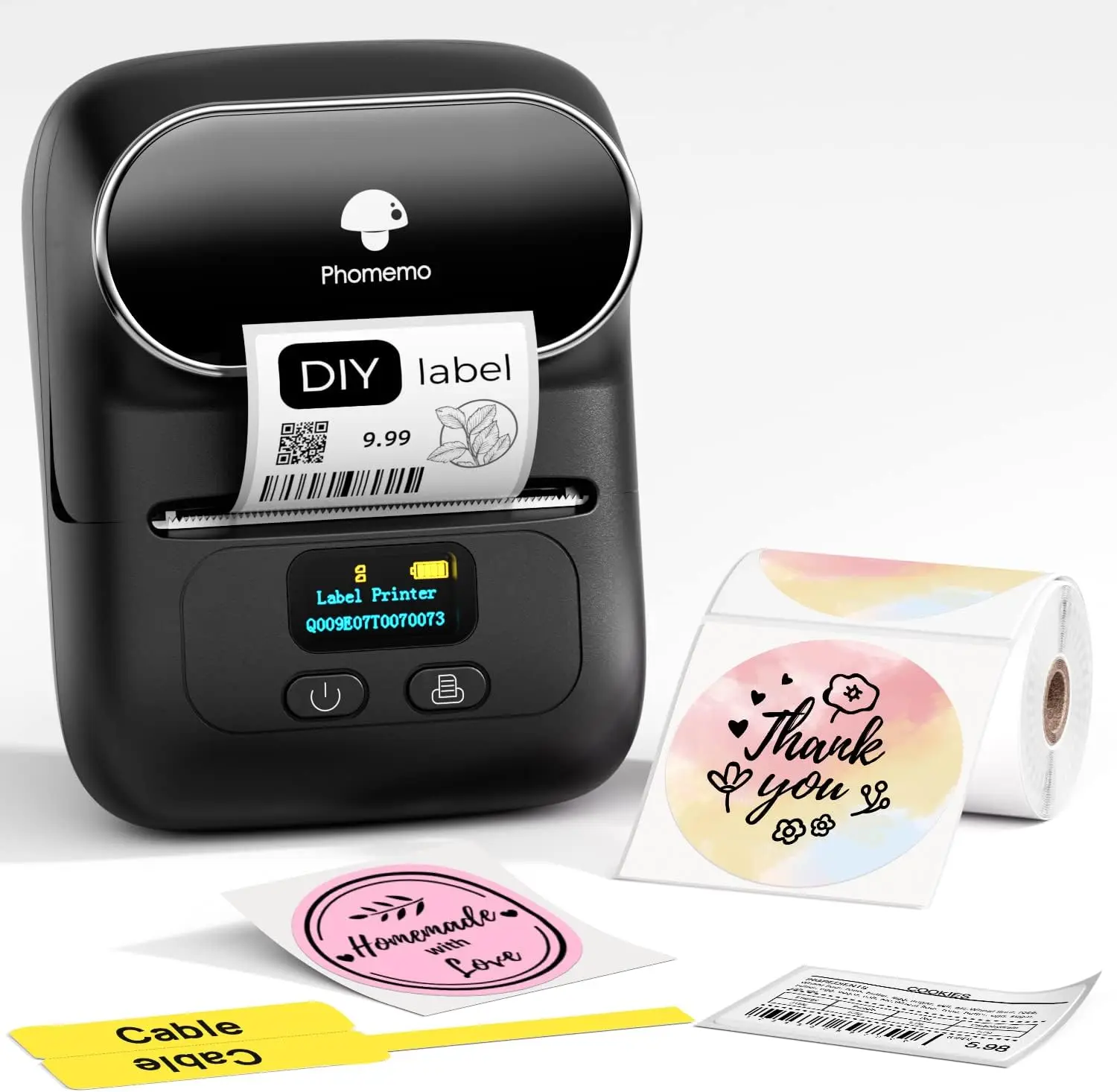
Most Phomemo M110 problems come from Bluetooth pairing, label setup, battery power, or incorrect app settings.
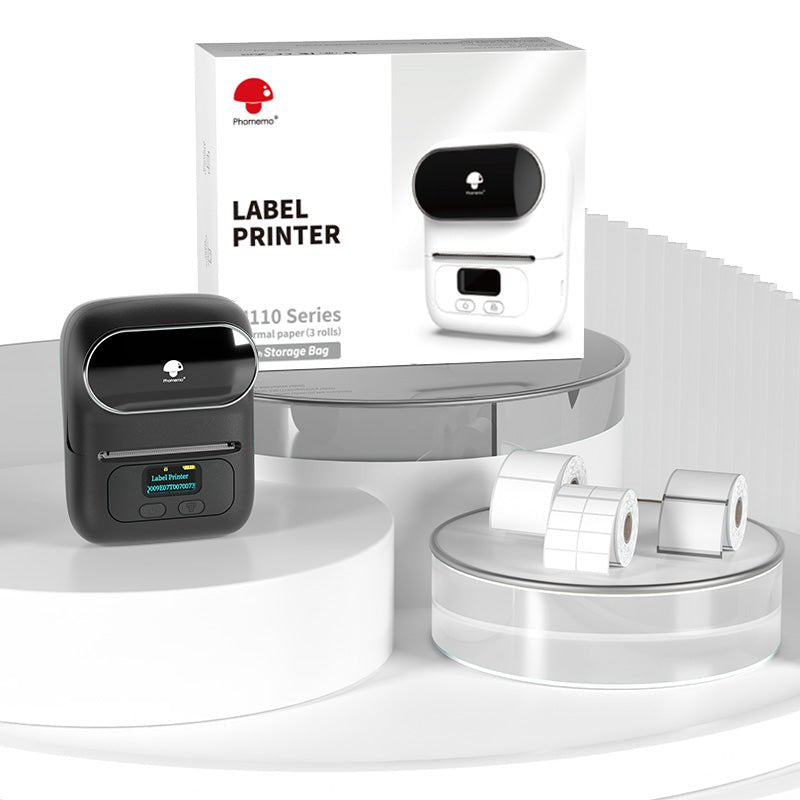
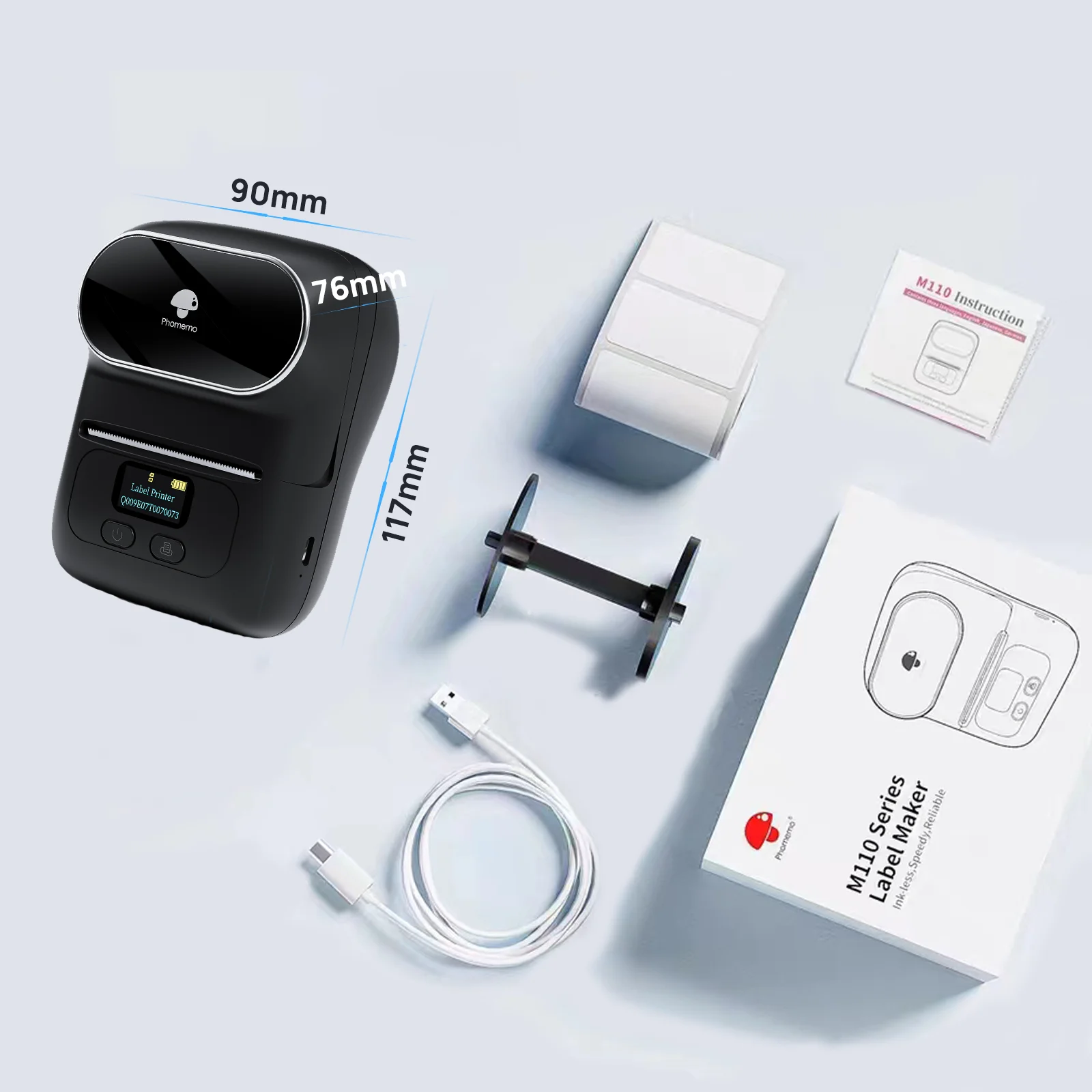
Phomemo M110 troubleshooting is usually simple once you check the printer, phone, labels, and app in the right order. This compact thermal printer has no ink to replace, but small issues such as paper sensor errors, weak Bluetooth links, wrong label sizes, and low battery can stop it from working. This guide explains the common causes and gives safe steps to fix them.
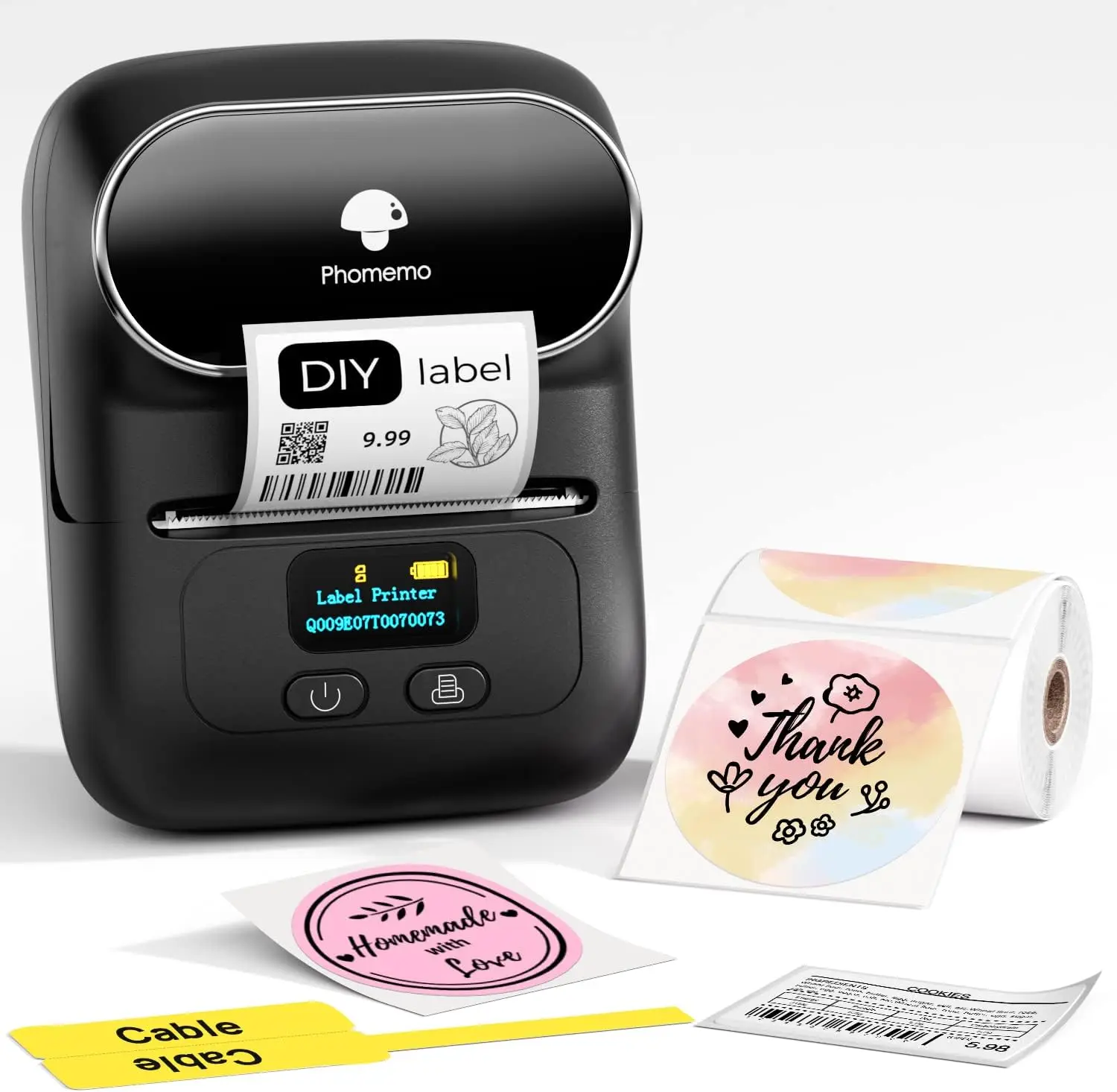
Phomemo M110 Troubleshooting: Start With the Basics
Before changing app settings or removing the printer, check the simple things first. Many printing problems are caused by low power, a loose label roll, or a phone that connected to the wrong device.
Use this quick check:
- Make sure the M110 is turned on.
- Charge it with a suitable USB cable.
- Confirm that the paper compartment is closed.
- Load a compatible label roll.
- Place the labels in the correct direction.
- Turn off Bluetooth on nearby phones that may connect to the printer.
- Open the Phomemo printing app and check the selected printer.
- Print a small test label.
The M110 is a direct thermal printer. It uses heat-sensitive labels instead of ink or toner. This means faded printing is often linked to the label material, print density, print speed, or a dirty print head rather than an empty ink cartridge.
A useful lesson from hands-on printer testing is to change one thing at a time. If you reset Bluetooth, replace the labels, and reinstall the app at once, you may fix the issue but never know what caused it.
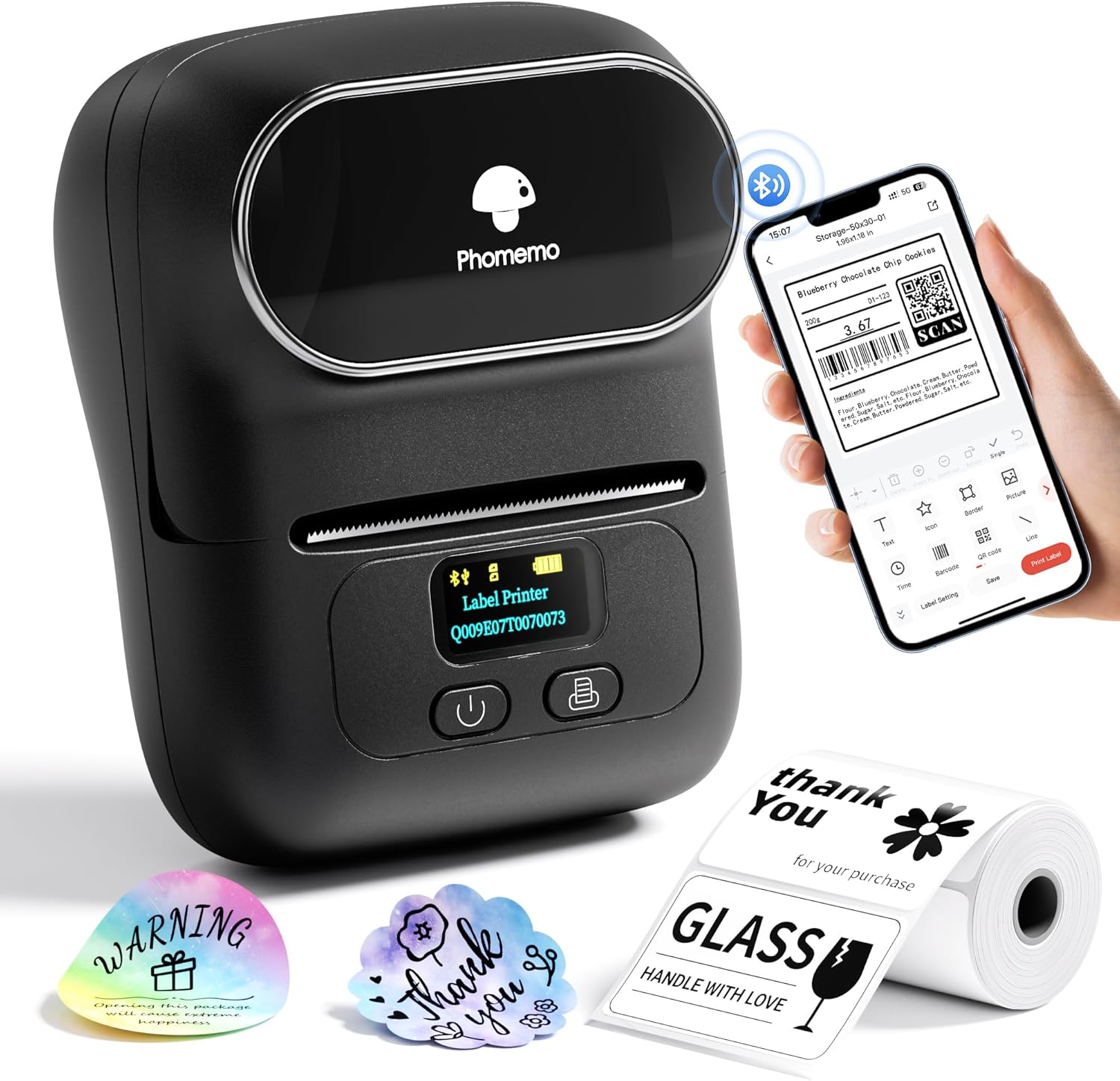
Phomemo M110 Will Not Turn On
If your Phomemo M110 does not turn on, the battery is the first thing to check. A battery can become fully drained when the printer has been stored for several weeks. In that state, the power light may not appear right away after you connect the charger.
Try these steps:
- Connect the printer to a reliable USB power source.
- Leave it charging for at least 30 minutes.
- Press and hold the power button for a few seconds.
- Try another charging cable.
- Try another USB port or wall adapter.
- Check the charging port for dust or damage.
Avoid forcing a cable into the port. A damaged connector can make the printer seem dead even when the battery is healthy.
If the M110 turns on only while connected to power, the battery may be weak or damaged. Stop using the printer if the battery becomes unusually hot, swollen, or smells strange. Battery problems are not a good area for home repair.
A common mistake is pressing the power button briefly and assuming the printer is not responding. Hold the button long enough for the indicator light or startup sound to appear. Also, make sure the printer is not already on but idle.

Phomemo M110 Is Not Charging
Charging issues can look like power issues, but they are not always the same. The printer may work normally while connected to a charger but fail to store power.
Check the following:
• Use a known working USB cable.
• Test a different wall adapter or computer USB port.
• Inspect the charging port for dirt, looseness, or bent parts.
• Allow the printer to cool before charging if it feels warm.
• Do not charge it in extreme heat or cold.
The charging indicator may behave differently by model version or production batch. For that reason, rely on the printer’s behavior as well as the light. After charging, unplug the cable and try to print a small label.
If the battery drains very quickly, reduce repeated test prints and keep the printer switched off when not in use. Bluetooth connections and frequent high-density prints can also increase power use.
Do not use a damaged cable or an unapproved battery. The safest solution for a failed internal battery is support from the seller or manufacturer.

Phomemo M110 Bluetooth Pairing Problems
Bluetooth is one of the most common causes of Phomemo M110 troubleshooting requests. The printer may appear in your phone’s Bluetooth list but still fail to print through the app.
Start with a clean connection:
- Turn on the M110.
- Open your phone’s Bluetooth settings.
- Remove or forget any old M110 connection.
- Turn Bluetooth off, wait a few seconds, and turn it on again.
- Open the Phomemo printing app.
- Use the app’s printer search option.
- Select the correct M110 device.
On some phones, pairing should be completed inside the Phomemo app rather than from the general Bluetooth menu. Follow the method shown by the app. A Bluetooth connection in the phone settings does not always mean the printing app has permission to use the printer.
Keep the phone close to the M110 during setup. Remove other nearby Phomemo printers from power if several devices have similar names. This prevents the phone from connecting to the wrong unit.
Check app permissions too. Android may require nearby-device or Bluetooth permission. iPhone settings may show Bluetooth access for the app. Without that access, the printer can remain invisible.
If pairing still fails, restart both devices. As a last step, uninstall and reinstall the official printing app, then search for the printer again.
Phomemo M110 Connects but Does Not Print
A connected printer that does not print usually has an app, job, or label setting problem. The phone may show the M110 as connected while the print command remains stuck.
Work through this list:
• Close the printing app completely and reopen it.
• Cancel any waiting print jobs.
• Check that the M110 is the active printer inside the app.
• Confirm that the printer has enough battery.
• Make sure the selected label size matches the roll.
• Print a basic text label instead of an image or barcode.
• Restart the printer and phone.
If a simple text label works but a photo does not, the issue may be the image size or file format. Large images can take longer to process, especially on a phone with limited storage or memory.
Some app templates may be designed for a different Phomemo model. Select the M110 manually when possible. A template made for a wider or narrower printer can create an error or produce a poor layout.
In my experience with small Bluetooth printers, clearing a stuck job is often more effective than repeatedly tapping Print. The app may still be trying to send an old design in the background.

Phomemo M110 Prints Blank Labels
Blank labels are frustrating, but the cause is often easy to find. Direct thermal labels have a printable side and a backing side. If the roll is upside down, the print head cannot create a visible image.
Test the label surface with a fingernail or a blunt object. Scratch both sides gently. The side that turns dark is the heat-sensitive printing side.
Then reload the roll:
- Open the paper cover.
- Remove the label roll.
- Place it so the printable surface faces the print head.
- Pull a short length of label through the outlet.
- Close the cover firmly.
- Run the label calibration process in the app.
If the labels are correctly loaded but remain blank, check the print density setting. A very low density level may create pale marks that look blank. Try a middle setting before using the highest level.
Old, damp, or incompatible labels may also fail. Store thermal labels in a cool, dry place away from direct sunlight. Heat, friction, and moisture can damage the coating before use.
Never use regular paper with the M110. It needs compatible thermal paper or labels made for direct thermal printing.
Phomemo M110 Prints Faint or Uneven Labels
Faint printing can come from low print density, unsuitable labels, a dirty print head, or a weak battery. Start with the easiest fix instead of immediately assuming the printer is defective.
Try this order:
- Charge the printer.
- Increase print density slightly in the app.
- Slow the print speed if that option is available.
- Test a fresh roll of compatible labels.
- Clean the print head after switching the printer off.
- Print again.
Use a soft, lint-free cloth or an approved cleaning wipe. Do not scrape the print head with a blade, pin, or metal tool. Even a small scratch can create a permanent white line.
If one vertical section is always faint, dirt or damage may be located on that part of the print head. If the whole label is faint, the label roll, power level, or density setting is more likely to be responsible.
Thermal labels also fade over time. They are not ideal for long-term records that must resist sunlight, heat, or chemicals. For shipping, storage bins, price tags, and short-term organization, they usually work well.

Phomemo M110 Prints With Lines, Gaps, or Missing Areas
Lines and gaps can point to dirt, damaged labels, or a damaged print head. First, print several labels to see whether the mark stays in the same place.
If the line repeats in the same position, clean the print head. If the line moves with the label roll, inspect the labels for folds, tears, dust, or coating damage.
Keep the inside of the printer free from:
• Loose label pieces
• Dust
• Adhesive residue
• Paper scraps
• Moisture
Do not pull a stuck label with sharp tools. Remove the roll, open the paper path, and slowly lift the label away from the rollers. Pulling too hard can stretch the label or leave adhesive inside the printer.
A label with a damaged edge can also feed unevenly. Replace the roll if the backing is wrinkled or the labels are stuck together.
Phomemo M110 Feeds Labels Incorrectly
Incorrect feeding often means the printer cannot detect the label gap or black mark. The M110 needs to know where one label ends and the next begins.
Check that the roll:
- Is the correct width for the M110.
- Sits straight inside the compartment.
- Is not too tight or too loose.
- Has the printable side facing the print head.
- Has a clean gap between labels.
Use the app’s paper calibration or label learning feature after loading a new roll. Calibration is especially important when changing from continuous paper to pre-cut labels.
If the printer advances several labels at once, open the cover and reload the roll. Make sure the label path is not blocked. Also check the selected paper type in the app.
Do not mix label types without recalibrating. A printer set for gap labels may not feed continuous paper correctly, and the reverse can also happen.
Phomemo M110 Cuts Off Text or Images
Cut-off content is usually a design problem rather than a hardware failure. The label canvas may be wider or taller than the physical label.
For better results:
• Select the exact label size in the app.
• Use the correct orientation.
• Reduce the font size.
• Keep text inside the safe area.
• Turn on auto-fit only when the result remains readable.
• Preview the design before printing.
A barcode needs enough width and clear space around it. If it is compressed too much, a scanner may not read it even when the label looks acceptable.
Images can also be cropped when their aspect ratio does not match the label. Resize the image before placing it on the label, or use the app’s fit-to-label option.
When testing a new design, use one short label. This saves paper and makes errors easier to spot.
Phomemo M110 App Problems
The printing app is the control center for the M110. If it crashes, freezes, or loses the printer, basic phone maintenance may help.
Try these steps:
- Update the app from the official app store.
- Restart the phone.
- Check Bluetooth and nearby-device permissions.
- Free some phone storage.
- Clear the app cache on Android if needed.
- Reinstall the app if the problem continues.
- Sign in again if the app uses an account.
Before reinstalling, save important label designs if they are stored only inside the app. Some drafts may not return after deletion.
Avoid random third-party apps that claim to support every thermal printer. They may use the wrong paper commands or request unnecessary permissions. The official Phomemo app is generally the safest starting point for M110 setup.
App menus can change after updates. If an option has moved, look for printer settings, paper settings, device management, or print preferences.
Phomemo M110 Prints Slowly or Stops Mid-Job
Slow printing can be normal when the design contains a large image, many symbols, or a dense barcode. The phone must process the design before sending it over Bluetooth.
For faster printing:
• Use simple text when possible.
• Reduce image resolution.
• Avoid oversized photos.
• Keep the phone close to the printer.
• Charge the battery before a large print job.
• Print one label at a time during testing.
If the printer stops halfway through a job, cancel the remaining job and restart both devices. A weak Bluetooth connection or low battery can interrupt data transfer.
Give the printer short breaks during long batches. Small thermal printers can warm up during continuous use. If the casing becomes very hot, stop printing and let it cool.
How to Reset the Phomemo M110 Safely
A reset can remove old connections and clear temporary errors, but it should not be the first step. Try restarting the printer and phone before using a full reset.
A safe reset process is:
- Turn off the M110.
- Remove it from the phone’s saved Bluetooth devices.
- Restart the phone.
- Turn the M110 on again.
- Open the Phomemo app.
- Search for the printer.
- Reconnect and calibrate the labels.
The exact button combination for a factory reset can vary by model version and firmware. Check the current user manual or support instructions before holding buttons for a long period.
A reset may remove saved connections or settings. It will not repair a damaged battery, broken charging port, worn print head, or incompatible label roll.
When Phomemo M110 Troubleshooting Does Not Work
If the printer still fails after the steps above, record the details before contacting support. Clear information helps support staff find the cause faster.
Write down:
• The phone model and operating system.
• The Phomemo app version.
• The M110 firmware version, if shown.
• The label type and size.
• The exact error message.
• Whether the printer turns on and charges.
• Whether the problem affects every label or only one roll.
Take a short video if the printer feeds incorrectly or shows unusual lights. Keep the purchase record and product serial details available.
Contact the seller or manufacturer when the printer has a damaged port, battery swelling, repeated connection failure, or a persistent hardware fault. Do not open the printer while it is under warranty unless authorized support tells you to do so.
The biggest troubleshooting mistake is treating every failure as a Bluetooth issue. A printer can connect perfectly and still fail because the labels are wrong, the print side faces down, or the app uses an incorrect paper size.
Tips to Prevent Future M110 Problems
Good setup habits prevent many Phomemo M110 troubleshooting problems. Store the printer and labels in a dry place away from heat and direct sunlight.
Follow these habits:
• Use labels made for direct thermal printing.
• Keep the print head clean.
• Do not overload the paper compartment.
• Charge the printer before important work.
• Keep the app updated.
• Turn off the printer after use.
• Test a new label roll before a large batch.
• Keep the phone close during printing.
• Save important label designs in another format when possible.
• Avoid pulling labels aggressively from the paper path.
A small test label is like a tire check before a road trip. It takes only a moment and can prevent a much bigger problem later.
Frequently Asked Questions About Phomemo M110 Troubleshooting
Why is my Phomemo M110 not connecting to Bluetooth?
Remove the old M110 connection from your phone, restart Bluetooth, and connect through the Phomemo app. Also confirm that the app has Bluetooth or nearby-device permission and that no other phone is connected.
Why is my Phomemo M110 printing blank labels?
The label roll may be upside down, incompatible, or damaged. Load the roll with the heat-sensitive side facing the print head, then test a fresh roll and run label calibration.
How do I fix Phomemo M110 label alignment?
Reload the roll so it sits straight, select the correct label size, and run the app’s calibration or label learning function. Recalibrate whenever you change label type or size.
Does the Phomemo M110 use ink?
No. The M110 is a direct thermal printer and uses heat-sensitive labels. If the print is faint, check the labels, print density, battery level, and print head cleanliness.
Why does my Phomemo M110 keep disconnecting?
The phone may be too far away, the battery may be low, or another device may be competing for the Bluetooth connection. Keep the phone nearby, charge the printer, and remove old pairings.
How can I clean the Phomemo M110 print head?
Turn off the printer, remove the labels, and gently clean the print head with a soft lint-free cloth or approved cleaning wipe. Never use sharp tools or excess liquid.
Can I use any label roll with the Phomemo M110?
No. The roll must match the printer’s supported width, label type, and sensing method. Using the wrong roll can cause blank prints, poor feeding, or alignment errors.
What should I do if the Phomemo M110 will not charge?
Test another cable, USB port, and power adapter, then inspect the charging port for damage. If the printer still will not charge or the battery becomes hot or swollen, stop using it and contact support.
Conclusion
Phomemo M110 troubleshooting becomes much easier when you check power, labels, Bluetooth, app settings, and calibration in that order. Most problems do not require advanced repair. A fresh label roll, clean print head, correct paper setup, and a new Bluetooth connection solve many everyday faults.
Start with one small test label and change only one setting at a time. If the issue continues after careful checks, gather the error details and contact Phomemo support or the seller. Share your own M110 experience in the comments, and explore more printer guides for easier label printing.

Similar Posts