How To Use A USB-C Hub: Easy Setup Guide
A USB-C hub lets one port do more, adding displays, storage, charging, and accessories fast.
If you have ever stared at a slim laptop and thought, “Where do I plug everything in?”, you already understand why a USB-C hub matters. I have used USB-C hubs on travel days, desk setups, and client workstations, and the lesson is always the same: the right hub can turn a single port into a practical, tidy mini-dock. In this guide, I’ll show you how to use a USB-C hub the right way, what to look for, and the common mistakes that can save you time, money, and a lot of frustration.

What a USB-C Hub Does
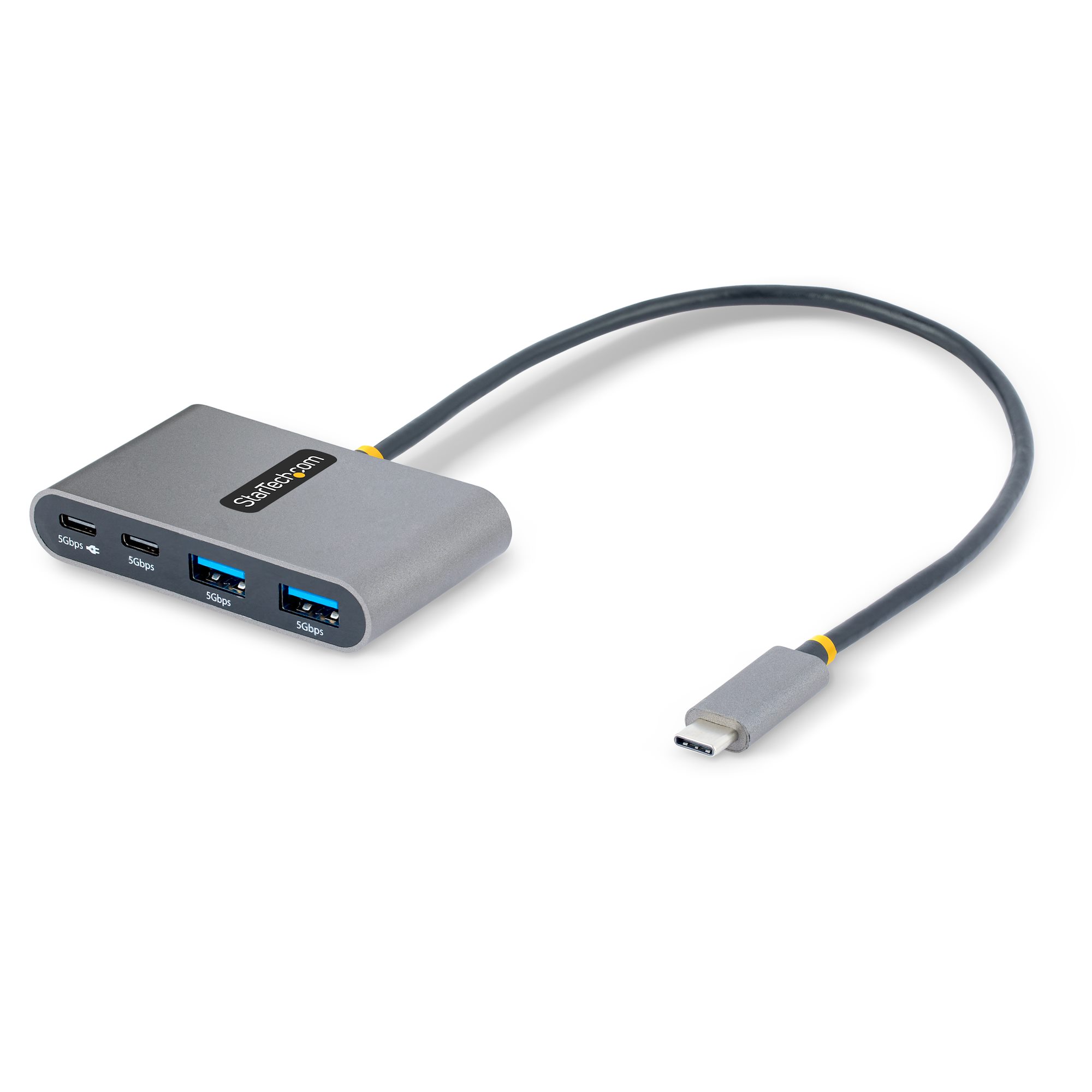
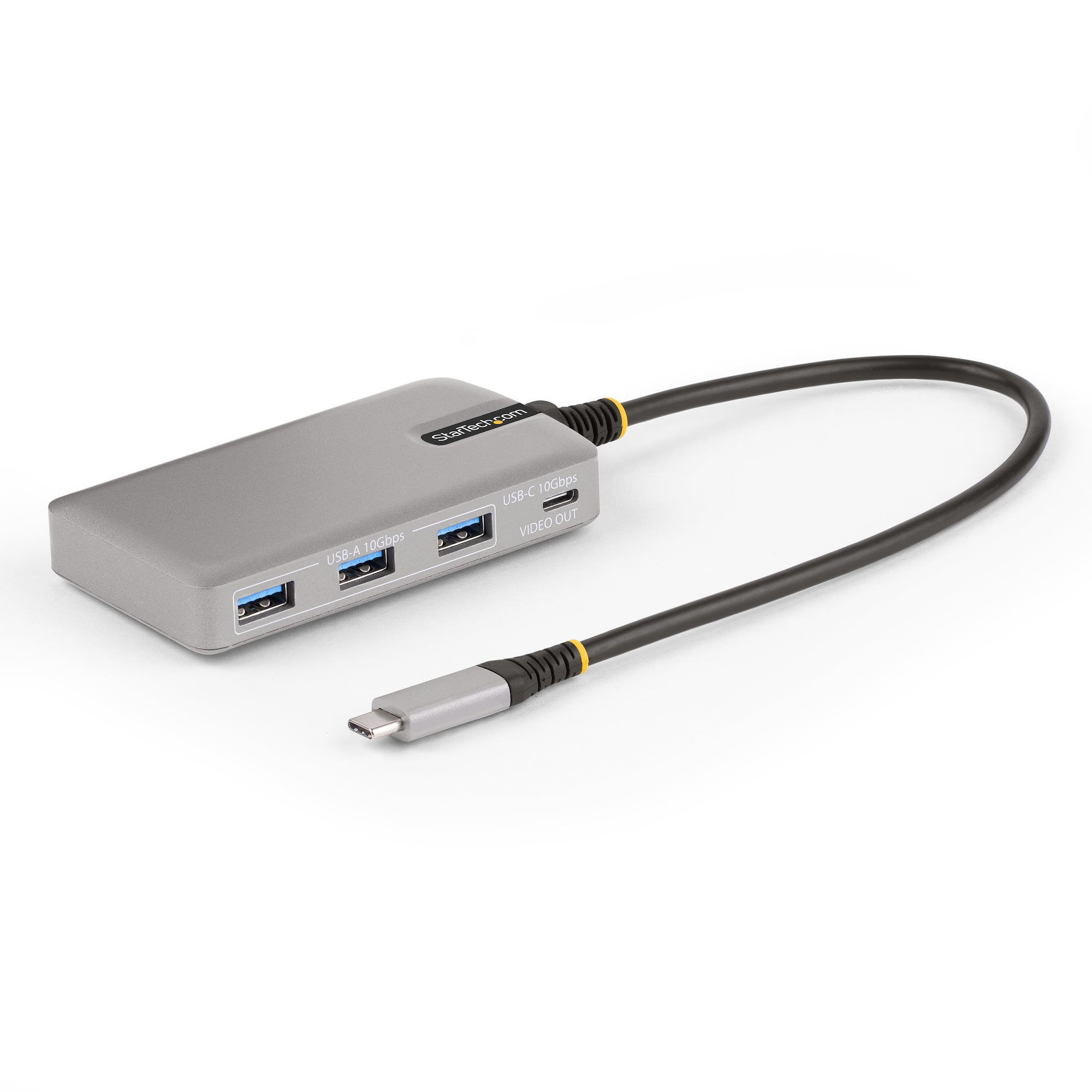
A USB-C hub is a small adapter that expands one USB-C port into several connections. Depending on the model, it can add USB-A ports, HDMI, Ethernet, SD card slots, audio, and power delivery passthrough.
Think of it like a power strip for data and displays. One slim port on your laptop becomes a more useful setup for work, school, travel, or home use.
A USB-C hub is not the same thing as a full docking station. Hubs are usually smaller, lighter, and simpler. Docks often support more monitors, more power, and more advanced features.
When I first started using USB-C hubs, I made the mistake of assuming every hub worked the same way. It does not. The exact features depend on the hub, your laptop, and the type of USB-C support your device has.
How to Use a USB-C Hub Step by Step
Using a USB-C hub is usually simple, but the order matters if you want everything to work smoothly.
-
Check your device’s USB-C port
Make sure your laptop, tablet, or phone supports the features you need. Some USB-C ports only handle charging or data, while others support video output and faster transfer speeds. -
Plug the hub into the USB-C port
Insert the hub firmly into the device’s USB-C port. It should fit cleanly without forcing it. -
Connect your accessories
Attach your keyboard, mouse, monitor, flash drive, Ethernet cable, SD card, or headphones. Add only what you need at first so you can test each connection. -
Connect power if the hub supports charging
If your hub has USB-C Power Delivery passthrough, plug in your charger to keep your device powered while using the hub. This is useful for laptops that charge through USB-C. -
Test each port
Open a file from a USB drive, check if the monitor is detected, and confirm that your keyboard and mouse respond. This helps you catch issues early. -
Adjust display settings if needed
On Windows or macOS, you may need to choose mirror mode or extend mode for an external display. Sometimes the monitor also needs the correct input source selected. -
Safely eject storage devices
Before removing a flash drive or SD card, eject it first. That protects your files from corruption.
In my own setup, I like to connect the monitor first, then storage, then power. That simple habit makes troubleshooting much easier if something does not appear right.

How to Choose the Right USB-C Hub
Not every USB-C hub is built for the same job. Choosing the right one depends on what you actually plan to do.
Here are the main things to check:
- Port compatibility: Confirm the hub matches your device’s USB-C standard and supports the functions you need.
- Video support: If you want to connect a monitor, look for HDMI or DisplayPort output.
- Power Delivery: If you want to charge your laptop while using the hub, check the wattage rating.
- Data speed: USB 3.0, USB 3.1, USB 3.2, and USB 4 can affect transfer speed.
- Build quality: A sturdy cable and solid housing usually last longer.
- Port selection: Choose ports that match your real needs, not just the biggest list on the box.
A good rule I follow: buy for your everyday use, not for rare edge cases. If you only need a flash drive, mouse, and monitor, you probably do not need a bulky premium dock.
Common USB-C Hub Features and What They Mean
A lot of the confusion comes from labels that sound similar but mean different things. Once you understand the basics, choosing and using a USB-C hub gets much easier.
USB-A ports
These let you connect older accessories like mice, keyboards, printers, and flash drives. They are still very useful, especially in mixed-device setups.
HDMI or DisplayPort
These support external monitors and TVs. If your hub supports video output, make sure your laptop’s USB-C port also supports DisplayPort Alt Mode or an equivalent video standard.
Ethernet
This gives you a wired internet connection. It is handy for video calls, large downloads, and stable office work.
SD and microSD card slots
These are useful for photographers, video editors, and anyone moving files from memory cards. They save time compared with using a separate card reader.
USB-C Power Delivery passthrough
This allows the hub to pass charging power to your device while using the hub. It does not always mean fast charging, so check the wattage support.
Audio jack
Some hubs include a 3.5 mm headphone port. This is useful if your laptop removed the built-in audio jack or if you want a cleaner desk setup.
Best Ways to Use a USB-C Hub at Home, Work, and Travel
A USB-C hub can fit into many routines, but the best use depends on the setting.
At home, a hub can turn a laptop into a desk computer with a monitor, keyboard, mouse, and Ethernet connection. This gives you a cleaner space and less cable clutter.
At work, it helps you switch between meetings, presentations, and desk tasks without unplugging everything one cable at a time. That’s one of the biggest time savers I have seen in real-world office use.
On the road, a compact USB-C hub is great for hotel rooms, coworking spaces, and airport work sessions. I always recommend packing a small hub with at least one USB-A port, one video output, and power passthrough if your laptop supports it.
Here are a few practical setups:
- Travel setup: USB-A for a mouse, HDMI for a monitor, and PD for charging
- Home setup: Ethernet, dual USB-A accessories, and external display
- Content creator setup: SD card slot, USB drive, and extra display output
Mistakes to Avoid When Using a USB-C Hub
A USB-C hub is simple, but small mistakes can cause big headaches.
- Using the wrong port: Not every USB-C port supports video or charging.
- Overloading the hub: Too many power-hungry devices can cause disconnects.
- Ignoring wattage limits: If the hub only passes 60W and your laptop needs more, charging may be slow.
- Expecting dual monitors on any hub: Many hubs only support one external display.
- Not checking cable quality: A weak cable can cause flickering displays or unstable connections.
- Skipping firmware or driver updates: Some hubs work better after system updates.
I once spent nearly an hour troubleshooting a “broken” monitor, only to realize the issue was the laptop port, not the hub. Since then, I always test one device at a time before building the full setup.
How to Troubleshoot USB-C Hub Problems
If your USB-C hub is not working, stay calm and test it one step at a time. Most issues are easy to narrow down.
Start with these checks:
- Reconnect the hub and make sure it is seated properly
- Try another USB-C port on the device
- Remove all accessories and test each one separately
- Restart the laptop or tablet
- Check the monitor input source
- Use the original charger if power delivery is failing
- Update your operating system and drivers
If the hub gets hot or disconnects often, it may be underpowered or low quality. In that case, replacing the hub is often faster than chasing endless settings.
Safety and Care Tips for USB-C Hubs
USB-C hubs are safe when used correctly, but they still benefit from basic care.
Keep the hub dry, avoid bending the cable sharply, and do not yank accessories out while files are transferring. If the hub becomes unusually warm, unplug it and let it cool down.
A few habits can extend its life:
- Store it in a pouch when traveling
- Avoid stacking heavy items on the cable
- Use a surge-protected outlet for your charger
- Clean ports gently with compressed air if dust builds up
That sounds simple, but small habits really matter. Most hub problems I have seen were caused by wear, heat, or rough handling, not by the hub “failing” out of nowhere.
Benefits and Limitations of a USB-C Hub
A USB-C hub is one of those tools that feels invisible when it works well. It quietly makes your setup better.
Benefits include:
- More ports from one connection
- Less desk clutter
- Easier travel and faster setup
- Better compatibility with older accessories
- Support for charging and displays in one place
Limitations include:
- Not every hub supports every device
- Some features depend on your laptop’s USB-C port
- Performance can drop with many connected devices
- Dual-monitor support is not guaranteed
- Cheap hubs may overheat or fail early
The key is knowing that a hub is an extender, not magic. It can do a lot, but it still depends on the device behind it.
Frequently Asked Questions of How to Use a USB-C Hub
How do I know if my laptop supports a USB-C hub?
Check your laptop specifications for USB-C, DisplayPort Alt Mode, Power Delivery, and data transfer support. If the manual is unclear, the manufacturer’s support page usually explains what the port can do.
Can I charge my laptop through a USB-C hub?
Yes, if the hub supports USB-C Power Delivery passthrough and your laptop accepts charging over USB-C. Make sure the hub’s wattage is high enough for your device, or charging may be slow.
Why is my monitor not working through the USB-C hub?
The most common reasons are a non-video USB-C port, the wrong monitor input source, or a hub that does not support your display setup. Try reconnecting the cable, checking the input setting, and testing with another port or display.
Can a USB-C hub slow down my transfer speed?
Yes, especially if the hub uses a lower USB standard or multiple devices are sharing the same bandwidth. For large files, look for hubs with USB 3.2 or better and use a port that matches the drive’s speed.
Is a USB-C hub the same as a docking station?
Not exactly. A USB-C hub is usually smaller and simpler, while a docking station often offers more ports, better power support, and more advanced monitor options.
Conclusion
A USB-C hub is one of the easiest ways to make a slim device more useful. Once you know how to use a USB-C hub, you can connect displays, storage, charging, and everyday accessories without making your desk feel messy or your bag feel heavy.
The biggest takeaway is simple: match the hub to your device and your real needs. Test it step by step, watch the power limits, and avoid assuming every port does the same job.
If you are planning a better desk setup or a smoother travel kit, start with the hub that fits your routine best, then build from there. Explore a few models, compare the port types, and leave a comment with your setup if you want help choosing the right one.