How To Transfer Voice Recordings To A Computer: Easy Steps
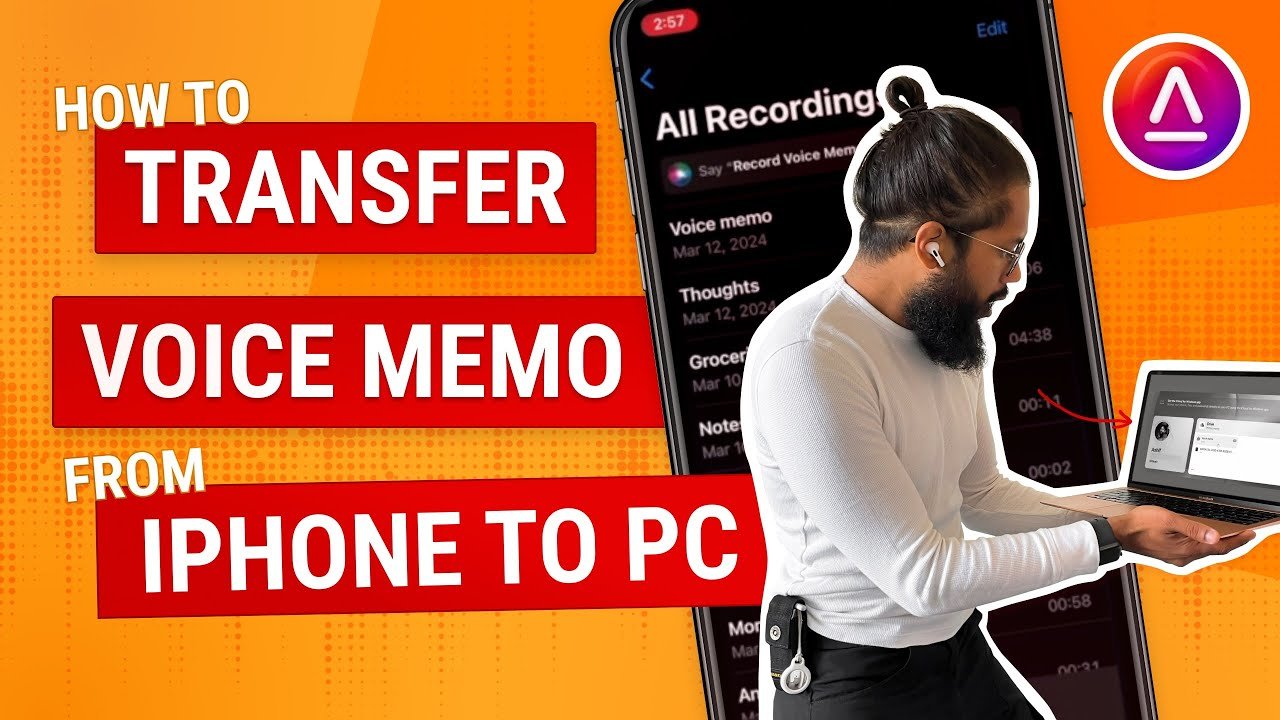
You can transfer voice recordings to a computer with a USB cable, cloud sync, email, or file-sharing apps.
If you’ve ever needed to save an important memo, interview, lecture, or voice note, knowing how to transfer voice recordings to a computer can save you time and stress. I’ve done this many times across phones, recorders, and laptops, and the process is usually easier than people expect once you know which method fits your device.
Why transferring voice recordings matters
Voice recordings often hold things you do not want to lose. They may be work notes, class lectures, podcast ideas, family memories, or interview clips. Moving them to a computer gives you more storage, better backup options, and easier editing.
It also helps with organization. A computer makes it simple to rename files, sort them into folders, and convert them into formats your software can read. In my experience, this is the point where messy voice memos finally start feeling usable.

Common ways to transfer voice recordings to a computer
There is no single best method for every device. The right choice depends on whether your recordings are on an iPhone, Android phone, voice recorder, or tablet. The file size, your internet access, and your comfort with cables also matter.
Here are the most common ways people transfer voice recordings to a computer:
- USB cable, which is usually the fastest and most reliable
- Cloud storage, such as iCloud, Google Drive, OneDrive, or Dropbox
- Email, which works well for short recordings
- Messaging apps, if the file is small enough
- Bluetooth, though it is slower and less dependable for larger files
- File transfer apps, which can help when built-in tools are limited
When I want the fewest problems, I choose USB first. When I need to move one quick memo, I usually reach for cloud sync or email.
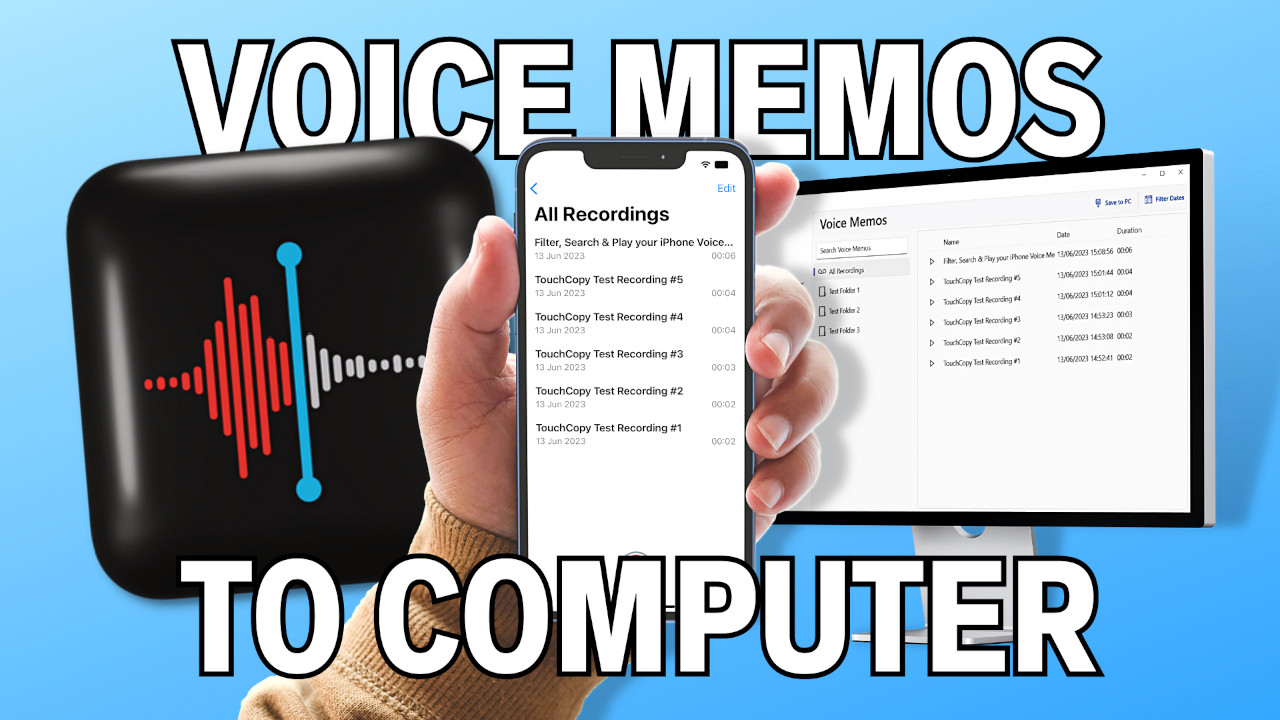
How to transfer voice recordings to a computer from an iPhone
If your voice recording is on an iPhone, it is usually saved in the Voice Memos app. Apple makes this process fairly smooth, especially if iCloud is enabled. You can move recordings to a computer in several ways.
Method 1: Use iCloud sync
If Voice Memos is synced with iCloud, your recordings can appear on your Mac automatically. On Windows, you can still access iCloud through a browser or the iCloud app.
Steps:
- Open Settings on your iPhone.
- Tap your Apple ID name.
- Go to iCloud.
- Make sure Voice Memos is turned on.
- On your Mac, open Voice Memos and wait for sync.
- On Windows, sign in to iCloud and download the file if available.
This method is best if you use Apple devices often. It feels almost invisible once it is set up.
Method 2: Share the recording by email or AirDrop
If you only need one recording, sharing is simple.
Steps:
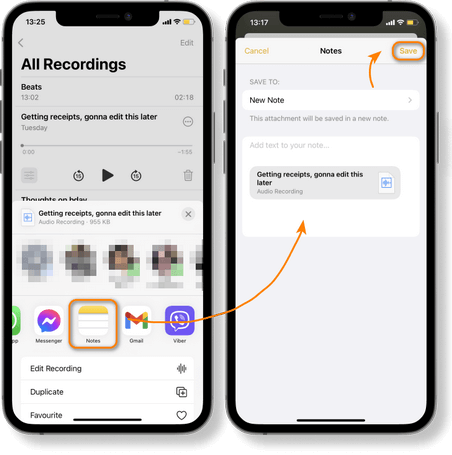
- Open Voice Memos.
- Select the memo you want.
- Tap the share icon.
- Choose Mail, Messages, AirDrop, or another app.
- Send it to yourself.
- Open the file on your computer and save it.
AirDrop is great for Mac users because it is fast and clean. Email works fine too, but large files may fail or get compressed.
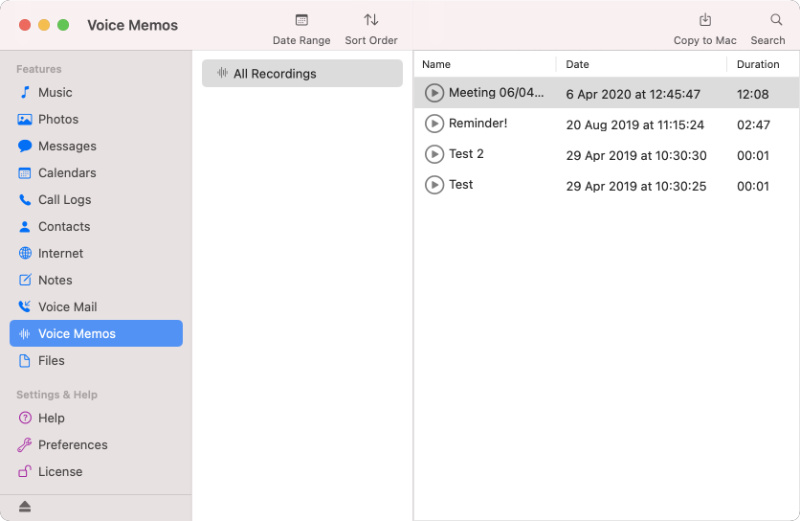
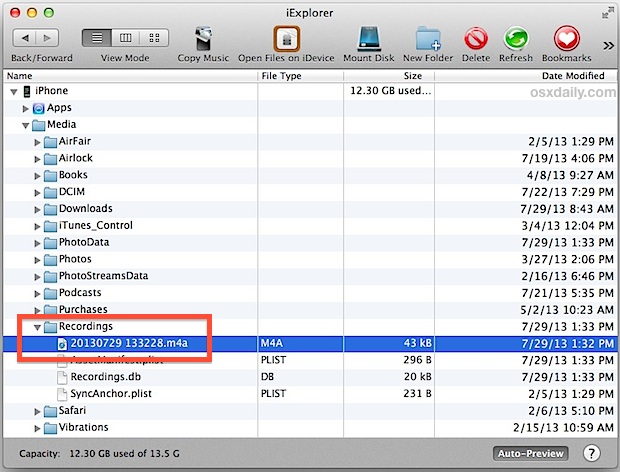
Method 3: Use a cable and File Explorer or Finder
You can also connect the iPhone to a computer with a USB cable, but direct file access is more limited than on Android. In many cases, cloud sharing is easier for Voice Memos. Still, if you already use file management software or backup tools, you may be able to extract the file that way.
From my own experience, iPhone transfers are easiest when you think in terms of sharing, not dragging files like a USB stick. That small mindset shift saves a lot of frustration.

How to transfer voice recordings to a computer from Android
Android phones usually give you more direct file access. That makes it easy to transfer voice recordings to a computer with a USB cable or by using cloud services. The exact folder name may vary by phone brand and recording app.
Method 1: Transfer with a USB cable
This is one of the most dependable options.
Steps:
- Connect your Android phone to the computer with a USB cable.
- Unlock the phone.
- Choose File Transfer or MTP mode if prompted.
- Open File Explorer on Windows or Finder on Mac if supported.
- Look for folders such as Music, Recordings, Sounds, or the app’s folder.
- Copy the voice recording to your computer.
If you cannot find the file, use the phone’s search tool or open the recording app and check the file details. Some apps store audio in hidden or app-specific folders.
Method 2: Upload to cloud storage
If USB access feels clunky, cloud storage is a good backup.
Steps:
- Open Google Drive, OneDrive, or Dropbox on your phone.
- Upload the voice recording.
- Open the same account on your computer.
- Download the file.
This is especially useful when you need access from more than one device. It also protects you if the phone is lost later.
Method 3: Send by email or messaging app
For short clips, this works well.
Steps:
- Open the recording in your audio app.
- Tap Share.
- Choose email or a messaging app.
- Send the file to yourself.
- Download it on your computer.
I often use this for quick notes. For anything longer than a few minutes, though, I prefer a cable or cloud upload because email attachments can be limited.
How to transfer voice recordings from a digital voice recorder
Digital voice recorders still matter a lot in meetings, lectures, court reporting, journalism, and field work. Many models store files on removable memory or internal storage, which makes transfer pretty straightforward.
Using a USB cable
Most modern recorders can connect directly to a computer.
Steps:
- Plug the recorder into your computer with the correct USB cable.
- Turn the recorder on if needed.
- Open the storage folder on your computer.
- Find the audio files, often in WAV or MP3 format.
- Copy them to a folder on your computer.
Using a memory card
If the recorder uses a microSD or SD card, this can be even faster.
Steps:
- Remove the memory card from the recorder.
- Insert it into a card reader or the computer’s card slot.
- Open the card in File Explorer or Finder.
- Copy the files to your computer.
I like the memory card method because it avoids battery issues. I have seen transfers fail simply because a recorder shut off mid-copy, so a direct card read is often safer.
Best file formats for voice recordings
File format matters more than many people think. Some formats are easier to edit, while others are smaller and better for storage. The most common voice recording formats include:
- MP3, which is widely supported and small in size
- WAV, which offers higher quality but takes more space
- M4A, common on Apple devices and many phones
- AMR, which appears on some older devices
- WMA, which may show up on certain Windows-based recorders
If you plan to edit the recording later, WAV or M4A is often a better choice. If you just want to save space, MP3 is usually enough. I have learned to check the format before transferring, because converting later can take extra time.
Common problems when transferring voice recordings
Even simple transfers can go wrong. The good news is that most issues are easy to fix once you know what to look for.
The computer does not detect the device
This often happens because of a bad cable, a locked phone, or the wrong connection mode. Try a different cable, unlock the device, and switch to File Transfer mode if prompted.
The recording file cannot be found
Some apps save files in hidden folders. Search by file extension, such as .m4a or .wav, or check inside the recording app for export options.
The file is too large to email
Use cloud storage or USB instead. Email is fine for short clips, but longer recordings often exceed attachment limits.
The audio sounds corrupted after transfer
This can happen if the transfer was interrupted. Copy the file again and avoid unplugging the device until the process is finished.
The file opens on the phone but not on the computer
Your computer may not support the format natively. Try a media player like VLC or convert the file to a more common format.
These issues can be annoying, but they are rarely permanent. I always tell people to keep the original file until the transfer has been tested and played back correctly.
Tips to make voice recording transfers easier
A little preparation can prevent a lot of trouble later. These habits have saved me more than once:
- Name your files clearly before or after transfer
- Keep recordings in dated folders
- Back up important audio to both a computer and cloud storage
- Use a quality USB cable, not a worn-out one
- Check the file format before sharing or editing
- Test one recording first if you are moving a large batch
Think of it like packing boxes before a move. The more clearly you label things, the easier life gets on the other side.

Why backing up voice recordings is a smart habit
Once a recording is on your computer, you can make a backup copy. That extra step may seem small, but it matters. Devices fail, phones get lost, and memory cards can corrupt without warning.
A safe backup system usually has at least two copies:
- One copy on your computer
- One copy in cloud storage or on an external drive
For important work, I suggest keeping both. That way, if one copy disappears, you are not starting from zero.
Frequently Asked Questions of How to Transfer Voice Recordings to a Computer
How do I transfer voice recordings to a computer without a cable?
You can use cloud storage, email, AirDrop, Bluetooth, or a file-sharing app. Cloud storage is usually the easiest option for longer recordings because it keeps the file intact and makes it easy to download later.
What is the easiest way to transfer voice recordings to a computer?
For most Android devices, a USB cable is the easiest and fastest method. For iPhone users, sharing through iCloud or AirDrop is often the smoothest option.
Why can’t I find my voice recording after connecting my phone to the computer?
The file may be stored in an app folder or hidden location. Check the recording app, search by file type like M4A or WAV, and make sure the phone is unlocked with file transfer enabled.
Can I transfer voice recordings from my phone to a Mac?
Yes, you can transfer them using AirDrop, iCloud, email, cloud storage, or a cable. iPhone transfers are especially easy on Mac because Apple devices work well together.
What file format is best for transferring voice recordings?
WAV is best for quality, while MP3 is best for smaller file size and easier sharing. M4A is also very common and works well for many phones and editing tools.
Why does my voice recording sound distorted on my computer?
The file may have been corrupted during transfer, or the computer may not support the format well. Try transferring the file again and opening it in a different audio player.
Conclusion
Learning how to transfer voice recordings to a computer is one of those small skills that pays off again and again. Whether you use a USB cable, cloud storage, email, or a memory card, the key is to match the method to your device and the size of your file.
Once your recordings are on your computer, they are easier to organize, edit, back up, and keep safe. If you have recordings that matter, move one today, test the playback, and build a simple backup habit you can trust. If you found this guide useful, explore more practical tech tips or leave a comment with the device you use most.

Similar Posts






























[…] time than finding your Wi-Fi password. If you're moving old files over from a previous machine, our file-transfer walkthrough covers the common paths step by […]