How To Replace Laptop Ram: Easy Upgrade Guide

You can replace laptop RAM by opening the back panel, locating the memory slot, and swapping in compatible modules.
If you want your laptop to feel faster without buying a new one, learning how to replace laptop RAM is one of the smartest upgrades you can make. I’ve seen this simple fix turn a sluggish machine into a much smoother daily driver, especially for people who keep too many browser tabs open or work with large files. In this guide, I’ll walk you through how to replace laptop RAM safely, how to choose the right memory, and the mistakes that can save you time, money, and stress.
What Laptop RAM Does and Why It Matters
RAM, or random access memory, is your laptop’s short-term workspace. It helps the system handle active apps, open tabs, and background tasks without slowing down. When you run out of RAM, your laptop starts leaning on storage, which is much slower and can make everything feel laggy.
Replacing laptop RAM can improve everyday performance in a very real way. It helps with multitasking, boosts responsiveness, and can extend the useful life of an older laptop. That said, RAM is not a magic fix for every problem, so it’s important to know what it can and cannot do.
In my experience, people often confuse RAM issues with storage issues. A laptop with an old hard drive can still feel slow even after a RAM upgrade. So before you replace laptop RAM, it helps to understand the full picture of your system.
Signs You May Need to Replace Laptop RAM
Not every slow laptop needs more memory, but a few signs point strongly in that direction. If your laptop struggles when you open several programs at once, RAM may be the bottleneck. If it freezes often during normal use, that is another clue.
Common signs include:
- Slow app switching when multiple programs are open
- Browser tabs reloading after you leave them for a while
- Long pauses when opening files or large spreadsheets
- Frequent “low memory” warnings
- Crashes or blue screen errors that happen during heavy use
I once upgraded a laptop for a friend who thought the battery was failing because the machine was “acting tired.” After checking it, the real issue was only 4 GB of RAM and constant multitasking. Once we replaced laptop RAM with a larger kit, the laptop felt much more modern.
Before You Replace Laptop RAM
Before you open anything, check whether your laptop actually allows a RAM upgrade. Some modern ultrabooks and many Apple laptops have memory soldered to the motherboard, which means you cannot replace laptop RAM at all. A quick look at the manual or the manufacturer’s support page can save you from buying parts you cannot use.
You should also check these details:
- Maximum supported RAM
- Number of RAM slots
- RAM type, such as DDR4 or DDR5
- Speed rating, such as 3200 MHz or 4800 MHz
- Whether the laptop uses SO-DIMM memory, which is common in laptops
It also helps to know your current setup. On Windows, Task Manager can show installed memory and slot usage. On macOS and Linux, system information tools can help you confirm whether an upgrade is possible.
If you are unsure, use the exact laptop model number. That small detail matters a lot more than guessing based on the screen size or brand name. I’ve seen people buy the wrong module just because the laptop “looked standard,” and that usually ends in frustration.

Tools and Materials You’ll Need
The job is usually simple, but it goes smoother when you have the right tools ready. You do not need a full repair shop setup. Most RAM swaps can be done with a small screwdriver and a little care.
Here is what you may need:
- A compatible RAM module or kit
- A small Phillips screwdriver
- An anti-static wrist strap, if you have one
- A clean, flat workspace
- A soft cloth or tray for screws
I also recommend taking a photo of the inside before removing anything. That little habit has saved me more than once when I had to remember where a clip or cable went. It is a simple step, but it makes the whole process less stressful.
How to Replace Laptop RAM Step by Step
Replacing laptop RAM is usually straightforward if your laptop has an access panel or removable bottom cover. Take your time and do not force anything. Laptop parts are small and delicate, so a calm pace is your best friend here.
Step 1: Shut down the laptop and unplug everything
Turn the laptop off completely, not just sleep mode. Disconnect the charger and remove any USB devices, SD cards, or external accessories. If your laptop has a removable battery, take it out as well.
This matters because you want no power going through the system while you work. Even a small leftover charge can be risky for delicate parts. I always wait a minute or two after shutdown before opening the case.
Step 2: Ground yourself
Static electricity can damage computer parts, even if you do not feel it. Touch a grounded metal object before handling memory modules. If you have an anti-static strap, wear it during the upgrade.
This is one of those boring steps that saves a lot of trouble. I have seen people skip it because the job looked too simple to worry about. That is usually when small mistakes happen.
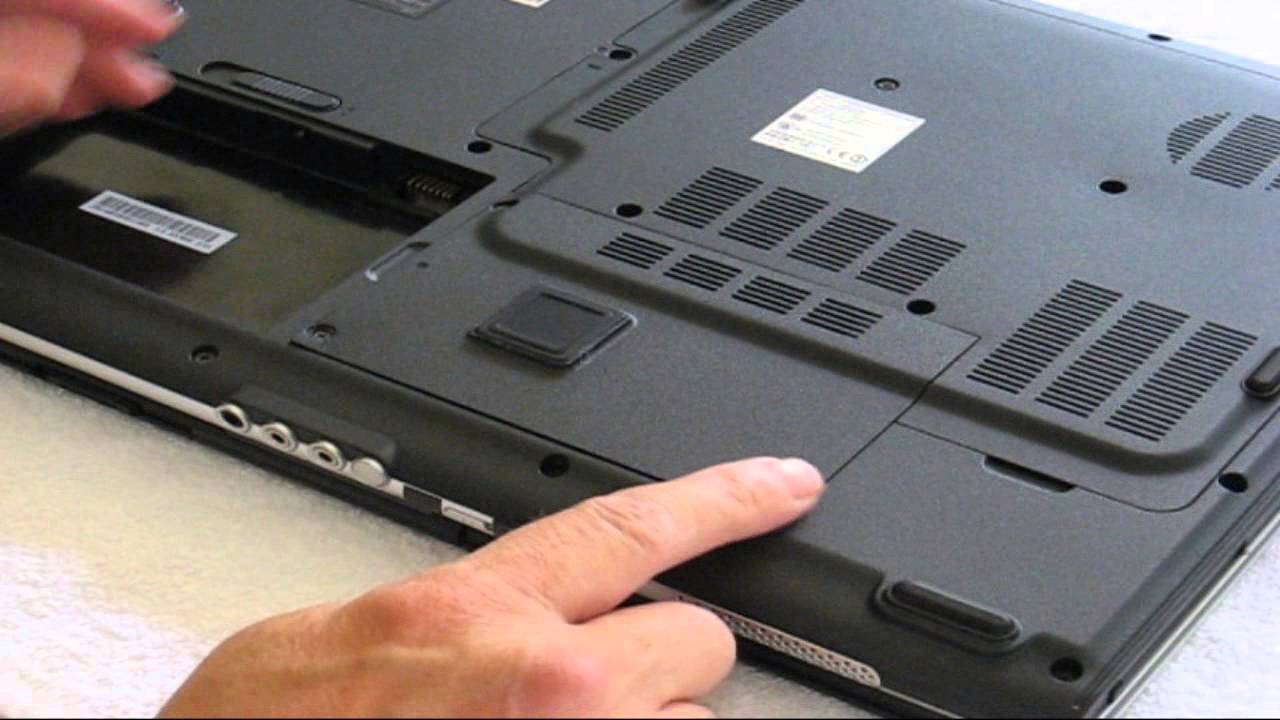
Step 3: Open the back panel
Use the correct screwdriver and remove the screws from the bottom cover or memory access panel. Keep the screws organized so you know where they came from. Some laptops use different screw lengths, so mixing them up can cause problems later.
If the panel does not lift easily, do not pry hard. Look for hidden screws or clips around the edges. A gentle approach is better than a broken tab.
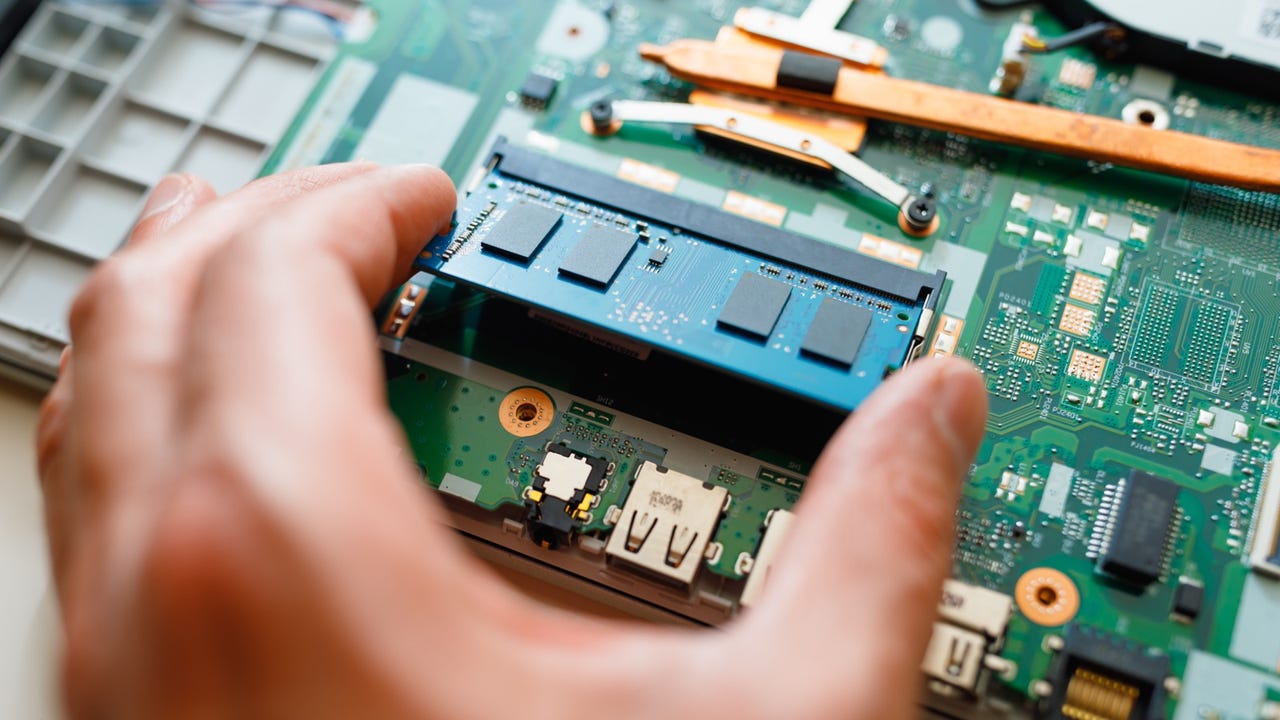
Step 4: Locate the RAM slots
RAM is usually held in place by small side clips. In many laptops, it sits under the bottom cover near the center of the board. If you see one module already installed, you may be able to upgrade by adding another or replacing it.
It helps to compare the old module with the new one before touching anything. The notch in the memory stick should line up only one way. That design prevents incorrect installation.
Step 5: Remove the old RAM
Push the side clips outward gently. The module should pop up at an angle. Then pull it out by the edges, not by the gold contacts.
If it does not move easily, do not force it. Recheck the clips and make sure they are fully released. I have learned that patience here is worth more than speed.
Step 6: Insert the new RAM
Line up the notch in the new module with the slot. Slide it in at the same angle the old stick came out. Press down gently until the side clips lock it in place.
You should feel a small snap when it seats properly. If it sits loose, it is not installed correctly. A module that is even slightly misaligned can stop the laptop from booting.
Step 7: Close the laptop and test it
Put the panel back on, tighten the screws, and reconnect the battery if needed. Then power on the laptop and check whether the system detects the new memory. On Windows, you can open Task Manager and look at the Memory section.
If the laptop does not start, turn it off and reseat the RAM. This fixes many first-time installation issues. In my experience, most failed boots after a RAM upgrade come from a module that is not fully clicked into place.
How to Choose the Right RAM for Your Laptop
The most important part of how to replace laptop RAM is buying the right module. A fast or expensive stick is useless if it is not compatible. Laptop memory is more specific than many people expect.
Check these details before buying:
- DDR generation, such as DDR3, DDR4, or DDR5
- Form factor, usually SO-DIMM for laptops
- Speed support, such as 2666 MHz, 3200 MHz, or 5600 MHz
- Maximum capacity per slot and total system limit
- Voltage and timing compatibility, if your laptop is older
Matching capacity also matters for dual-channel performance on many systems. Using two similar sticks can improve bandwidth and responsiveness. That is why some upgrades work best as a matched kit instead of a single random module.
If you are upgrading an older laptop, make sure the system can actually use the newer memory type you are considering. RAM generations are not interchangeable. A DDR4 slot will not accept DDR5, no matter how similar they may look.
Common Mistakes to Avoid
A lot of RAM upgrade problems come from small, avoidable mistakes. The good news is that they are easy to prevent once you know what to watch for. I’ve made a few of these myself early on, and they are usually simple to fix.
Avoid these mistakes:
- Buying the wrong DDR type
- Ignoring the laptop’s maximum RAM limit
- Touching the contacts instead of the edges
- Forcing the module into the slot
- Losing track of screws
- Forgetting to fully reseat the memory after installation
- Assuming all laptops support upgrades
One mistake I see often is people upgrading only one stick when the laptop performs better with a matched pair. Another is assuming that more RAM always means faster performance. That is not always true if the real bottleneck is storage, overheating, or a weak CPU.
Benefits of Replacing Laptop RAM
A RAM upgrade can make a laptop feel far less tired. It is one of the most cost-effective ways to improve performance on a machine that still has a solid processor and storage setup. For many people, that means getting a few more good years out of the same laptop.
Benefits can include:
- Faster multitasking
- Smoother browser use
- Better performance in creative apps
- Fewer freezes under load
- Improved gaming in memory-hungry titles
- Longer usable life for the laptop
That said, results depend on your starting point. Going from 4 GB to 8 GB can feel huge. Going from 16 GB to 32 GB may help only if your work is heavy enough to need it.

When Replacing Laptop RAM Will Not Help Much
RAM upgrades are useful, but they are not a cure-all. If your laptop has a slow hard drive, a weak battery, dust buildup, or thermal throttling, memory alone will not solve the whole problem. That is why a quick check of the full system matters.
Replacing laptop RAM may have limited impact if:
- You already have enough RAM for your tasks
- Your storage drive is the real slowdown
- The CPU is outdated or overloaded
- The laptop overheats and slows down
- The RAM is soldered and cannot be upgraded
I like to think of RAM as a wider desk. It gives you more room to work, but it does not make the computer smarter. If the chair is broken or the room is too hot, the desk alone will not fix everything.
Safety Tips and Best Practices
A careful upgrade is usually a successful one. Modern laptop memory is pretty durable, but the surrounding parts are still sensitive. A little caution goes a long way.
Helpful best practices include:
- Work on a clean, static-free surface
- Keep food and drinks away from the laptop
- Store screws in a small container
- Avoid touching chip surfaces
- Use gentle pressure only
- Test the laptop before fully tightening every screw, if the design allows it
If you are nervous, that is normal. I have worked with people who were sure they would break something, and most of them did just fine once they slowed down. The key is not being fearless. The key is being careful.
Frequently Asked Questions of How to Replace Laptop RAM
How do I know if my laptop RAM is upgradeable?
Check your laptop model on the manufacturer’s support page or service manual. If the memory is soldered to the motherboard, you cannot replace laptop RAM.
How much RAM should I install?
For basic use, 8 GB is often enough. For multitasking, creative work, or heavier browser use, 16 GB is a safer choice, and some users may benefit from 32 GB or more.
Will replacing laptop RAM make my laptop faster?
Yes, if your system is currently short on memory. It can improve multitasking, app switching, and overall responsiveness, but it will not fix every performance issue.
Can I mix different RAM sizes or speeds?
Sometimes yes, but it is not ideal. Matching modules usually gives better stability and better dual-channel performance, especially on laptops that support it.
What should I do if the laptop does not boot after installing RAM?
Power it off, unplug it, and reseat the memory module. If it still fails, test one stick at a time and confirm that the new RAM is compatible with your laptop.
Conclusion
Replacing laptop RAM is one of the simplest upgrades you can do, but it pays off only when you choose the right memory and install it with care. Once you understand your laptop’s limits, the process becomes much less intimidating. In many cases, this one upgrade can make an older machine feel far more usable.
If your laptop slows down during everyday tasks, this may be the best low-cost fix to try first. Take your time, check compatibility, and follow the steps carefully. If you found this guide useful, explore more upgrade tips, subscribe for future laptop repair advice, or leave a comment with your laptop model and I’ll help you think through the right RAM choice.

Similar Posts
































[…] because 8 GB is the constraint named most often in buyer complaints. The teardown guidance in our memory upgrade walkthrough explains what to look for inside a modern HP […]
[…] up to 64GB of DDR5 across two SO-DIMM slots. The 2025 model ships with 16GB, and owners describe adding more memory as a beginner-friendly project. Most report the bottom panel comes off without special tools, and […]
[…] it requires no internal changes. For owners who do want to work inside the chassis, our guide to swapping memory modules explains what to check […]
[…] off with standard Phillips screws, and inside you get a free SODIMM slot next to the 8GB stick. Adding another 8GB stick takes about 10 minutes and removes most of the […]