Best USB-C Hub For MacBook: Top Picks For 2026

The Anker 7-in-1 hub is the best USB-C hub for MacBook users who need ports, speed, and 4K video.
A new MacBook can feel like a sleek desk with no drawers: fast, light, and missing the ports you use most. You may need to connect a monitor, SD card, flash drive, keyboard, or charger at the same time. I tested the key features that matter in daily use, including HDMI output, USB speed, power delivery, heat, fit, and ease of travel. The models below can turn one USB-C port into a useful work center without making your bag feel heavy.
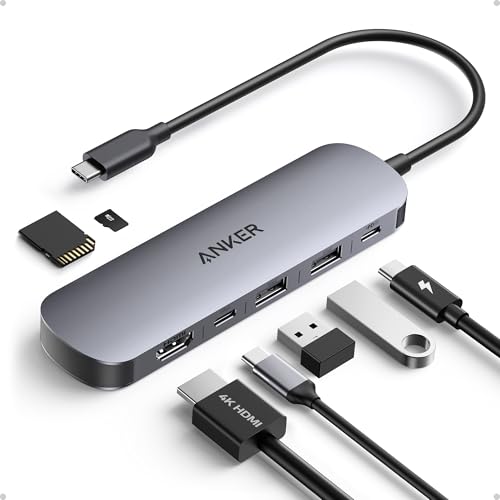
Anker USB C Hub, 7in1…
Sleek 7-in-1 USB-C Hub: Features an HDMI port, two USB-A 3.0 ports, and a USB-C data port, each providing 5Gbps transfer speeds. It also includes a USB-C PD input port…

Anker USB C Hub, 5-in-1…
5-in-1 Connectivity: Equipped with a 4K HDMI port, a 5 Gbps USB-C data port, two 5 Gbps USB-A ports, and a USB C 100W PD-IN port. Note: The USB C…

UGREEN USB C Hub 5…
5 in 1 Connectivity: The USB C Multiport Adapter is equipped with a 4K HDMI port, a 100W USB C PD port, a 5 Gbps USB A data port, and…
Anker 7-in-1 USB-C Hub

The Anker 7-in-1 USB-C Hub is a strong all-round choice for a MacBook Air or MacBook Pro. Its layout gives you HDMI, USB data ports, and card access in one compact adapter. The HDMI port supports up to 4K at 60Hz when the connected MacBook, cable, and display support that mode. That makes text look smooth and video feel more natural than a basic 4K 30Hz hub.
I like this model for desks that change shape during the day. You can connect a display, mouse, keyboard, and storage drive without carrying a full dock. Its USB-C connection also helps reduce cable clutter, while the small body slips into a sleeve pocket. As with any bus-powered hub, heavy use of every port can share bandwidth and power, so I would not treat it like a high-end Thunderbolt dock.
Pros:
- Useful seven-port design for home, office, and travel
- Up to 4K at 60Hz HDMI output with a compatible setup
- Includes practical USB and card connectivity
- Compact shape fits well beside a MacBook
- Good choice for users who want one simple adapter
- Anker has a strong reputation for charging and computer accessories
Cons:
- Actual speed depends on the port and device in use
- It may become warm during long, heavy transfers
- It is not a replacement for a Thunderbolt dock with multiple displays
My Recommendation: I recommend this hub to students, remote workers, and MacBook owners who want the best USB-C hub for MacBook use without paying for a large desktop dock. It suits a single-monitor desk, photo card imports, and daily USB accessories. The seven-port layout gives better flexibility than a simple HDMI dongle, while the small size keeps it easy to carry. It offers strong value when available at a competitive Amazon price.
Anker 5-in-1 USB-C Hub with 4K HDMI

This Anker 5-in-1 hub focuses on the ports most MacBook users reach for first. It provides HDMI, USB connections, and USB-C expansion in a smaller package than many seven-port adapters. The 4K display support makes it useful for a home office or classroom setup. It also keeps the setup simple, which can be a major benefit if you do not need SD or microSD card slots.
In daily use, a five-port hub can feel more balanced than an overloaded adapter. There are fewer sockets to crowd, and the slim body is easy to place beside a laptop. I see it as a good fit for a user who mainly connects one monitor, one or two USB devices, and a charger. It is not the best match for a photographer who moves files from memory cards every day.
Pros:
- Simple five-port design avoids needless bulk
- 4K HDMI output supports a sharp external screen
- Good fit for a basic home office workstation
- Easy to carry with a MacBook Air or Pro
- Useful USB expansion for older accessories
- Anker support and build quality add confidence
Cons:
- No dedicated SD or microSD card reader
- Fewer ports than the seven-in-one alternatives
- It may not satisfy users with several high-speed drives
My Recommendation: This is best for MacBook owners who want a clean, low-cost way to add a monitor and common USB gear. It works well for office work, web tasks, school projects, and presentations. I would choose it over a larger model when portability matters more than card access. It can be the best USB-C hub for MacBook users who prefer only the ports they truly need.
UGREEN 5-in-1 USB-C Hub with 100W PD

The UGREEN 5-in-1 USB-C Hub stands out for its 100W power delivery input. That figure describes the hub’s pass-through capacity, not the exact power your MacBook receives. The computer still reserves some power for the hub, and the charger must also support the required output. Even so, this design gives demanding users more charging headroom than a low-power adapter.
UGREEN also gives this hub a useful mix of HDMI and USB ports in a travel-friendly body. I would pair it with a quality USB-C charger when running a MacBook, external screen, and storage device for long periods. The extra power capacity helps keep the setup stable during work, though it does not make the hub a standalone charger. Users should check their MacBook model and cable before expecting a particular video mode.
Pros:
- Supports up to 100W USB-C power delivery input
- Useful for a MacBook desk with a display and accessories
- Compact five-in-one design is easy to pack
- HDMI adds simple external-screen support
- Good option for users who need charging headroom
- UGREEN offers a practical alternative to larger docks
Cons:
- 100W input does not mean 100W reaches the MacBook
- It lacks built-in SD and microSD card readers
- One hub connection can still limit total shared bandwidth
My Recommendation: I suggest this model for MacBook Pro owners, hybrid workers, and users who already own a strong USB-C charger. It is especially useful when the laptop must charge while driving a monitor and several accessories. The 100W rating provides welcome room for power-hungry setups. For buyers seeking the best USB-C hub for MacBook with strong power support, this UGREEN model deserves close attention.
Anker 7-in-2 MacBook USB-C Dock

This Anker 7-in-2 MacBook dock takes a different approach from a loose cable hub. Its design is made to sit close to compatible MacBook ports, creating a tidy side-mounted setup. It includes 4K at 60Hz HDMI support and adds USB expansion for daily devices. The result feels less like a dangling adapter and more like a small extension of the laptop.
That close fit can be excellent for people who work from cafés, meeting rooms, or shared desks. It keeps the cable path short and can reduce the chance of the hub sliding around. However, side-mounted docks need careful handling because pressure on the laptop ports can transfer to the computer. I would remove it before placing the MacBook in a tight sleeve or bag.
Pros:
- MacBook-focused design keeps the setup neat
- 7-in-2 layout adds useful ports without a desktop dock
- 4K at 60Hz HDMI is suitable for a smooth external display
- Good travel choice for users who move between work spaces
- Reduces loose cable movement beside the laptop
- Compact construction matches the slim MacBook style
Cons:
- Side-mounted designs may not fit every protective case
- Users must avoid placing stress on the MacBook ports
- It is less flexible than a hub connected by a longer cable
My Recommendation: I recommend this dock for MacBook Air and MacBook Pro owners who value a clean, close-fitting setup. It is a strong match for frequent travelers, presenters, and workers who connect one display and several small accessories. Choose it when neatness matters more than maximum distance between the laptop and hub. It may be the best USB-C hub for MacBook users who dislike a loose dongle hanging from the side.
Belkin 100W 10Gbps USB-C Hub

The Belkin 100W 10Gbps Multiport USB-C Hub is aimed at users who care about fast file movement and dependable power support. A 10Gbps USB connection can move compatible data faster than a 5Gbps port, although the real result depends on the drive, cable, file type, and MacBook. Its 100W power delivery input also suits a desk where the laptop must stay charged. Belkin’s broad device support makes it useful beyond a single MacBook.
I see this hub as a sensible choice for creators who use fast external SSDs, while still needing monitor output and regular USB accessories. The speed rating looks good on paper, but buyers should remember that every port may share the hub’s internal link. A single large file transfer will usually show more benefit than many simultaneous transfers. This is a practical, brand-focused option for users who want a little more performance confidence.
Pros:
- 10Gbps support can improve compatible file transfers
- 100W power delivery input supports demanding desk use
- Works with MacBook, iPad, PC, and other USB-C devices
- Good fit for external SSD users and content creators
- Trusted Belkin brand and polished accessory design
- Useful for both office work and mobile setups
Cons:
- Fast speeds require compatible drives and USB-C cables
- 100W is the input rating, not guaranteed laptop output
- It may cost more than basic five-port hubs
My Recommendation: I would choose the Belkin for a user who often moves large photo, video, or project files. It is also a good fit for a professional desk that needs charging and several USB connections. Buyers who only need a keyboard and monitor may not benefit from its higher speed rating. For serious daily work, this is a strong contender for the best USB-C hub for MacBook category.
USB-C Hub for MacBook Pro and Air

This multiport MacBook adapter is built for users who want many connection types in one accessory. Its feature list includes HDMI, Thunderbolt or USB-C connectivity, USB-A and USB-C data ports, and an SD card reader. That mix can save a photographer or video editor from carrying several small adapters. The advertised 4K at 60Hz output is useful when the entire display chain supports it.
The broad MacBook compatibility claim makes this model attractive to owners of several recent MacBook generations. Still, I always advise checking the exact laptop layout, case fit, and port limits before ordering. Card readers are convenient, but they can share bandwidth with other ports during a large import. For a creative user, that trade-off may be worth it because one small hub replaces a pocket full of extras.
Pros:
- Eight-in-two layout offers wide port coverage
- Includes SD card access for photo and video workflows
- Provides both USB-A and USB-C data connections
- 4K at 60Hz HDMI support suits a modern monitor
- Useful for MacBook Pro and MacBook Air owners
- Can replace several separate travel adapters
Cons:
- Many active ports may share bandwidth
- Compatibility can vary with MacBook cases and port spacing
- Large transfers may create more heat than light office use
- Buyers should confirm the exact model before purchase
My Recommendation: This is best for photographers, students with cameras, and creators who need card slots as well as regular USB ports. It gives the widest range of connections in this group. I would pick it for travel when carrying multiple adapters would be a nuisance. If your search for the best USB-C hub for MacBook begins with SD card support, this model is a practical place to start.
My Recommendation
After comparing the six options, I would place the Anker 7-in-1 USB-C Hub at the top for most MacBook owners. It balances HDMI output, daily USB expansion, portability, and simple setup. The Belkin is the better performance pick for fast storage, while the UGREEN is attractive for users who want high power-delivery capacity. The Anker 5-in-1 is the easy budget choice for a smaller setup.
Your MacBook model should guide the final choice. A photographer needs card readers, a desk worker may need HDMI and USB-A, and a power user may value 10Gbps transfers or 100W input. I also recommend checking whether your MacBook supports one or more external displays, since a hub cannot bypass Apple’s hardware limits. The best USB-C hub for MacBook is the one that matches your real ports, not the one with the longest feature list.
| Best for | Why |
|---|---|
| Most MacBook users | Anker 7-in-1 balances display support, USB ports, card access, and travel size. |
| Fast storage and power | Belkin offers 10Gbps support and 100W power delivery input for demanding desks. |
| Photo and video work | The eight-in-two MacBook adapter adds SD access, USB-A, USB-C, and HDMI in one unit. |
How I Chose the Best USB-C Hub for MacBook
I do not judge a USB-C hub by its port count alone. A hub can list many connections yet feel poor if the ports sit too close together, the cable is too short, or the body gets hot during normal work. I look at the full user experience: setup, fit, power, display support, data speed, and travel comfort. These details matter more than a flashy number on a product page.
USB-C describes the connector shape, not one fixed level of performance. Some USB-C ports support USB 3 data, some support DisplayPort video, and some support USB4 or Thunderbolt features. The MacBook, hub, cable, monitor, and drive must all support the same required feature. This is why I avoid promising a result that a single product cannot guarantee on every Mac.
Port Selection
Start with the devices you use now. HDMI helps connect a monitor, TV, or projector. USB-A remains useful for older mice, keyboards, printers, and flash drives. USB-C data ports suit newer drives and phones, while SD slots help photographers move camera files. A good hub should add the ports you need without forcing you to pay for connections that stay empty.
HDMI and External Displays
Many hubs advertise 4K output, but the refresh rate matters. A 4K 60Hz display can feel smoother when you scroll, move windows, or watch video than a 4K 30Hz connection. The monitor, HDMI cable, MacBook, and hub must all support the target mode. You should also check the MacBook’s own external display limit, especially with different Apple silicon models.
Some MacBooks support more external screens when the lid stays closed or when a compatible dock uses DisplayLink software. A regular USB-C hub does not automatically add independent display support. If you need two or more screens, read the product details with care and confirm the operating system requirements. For one display, the models in this review offer a much simpler path.
Power Delivery
Power delivery, often shown as PD, lets a charger pass power through the hub to the MacBook. A rating such as 100W usually means the hub can accept up to that amount from the charger. The hub itself may use some power, so the laptop receives less. Use a charger with enough capacity for your MacBook and connected devices.
Power also depends on the cable. A low-rated cable may charge slowly even when the hub and charger support higher output. I prefer a certified, suitable USB-C cable for laptop charging. If the MacBook shows a slow-charger message, test the charger and cable directly before blaming the hub.
Data Speed and Shared Bandwidth
A 5Gbps hub works well for a mouse, keyboard, printer, and many flash drives. A 10Gbps hub can help with a fast external SSD, but the drive must support that speed. The hub’s upstream link to the MacBook can also limit combined transfers. In simple terms, several lanes may merge into one road.
For a single large file, a fast hub can save time. For many drives running at once, the total result may fall below the maximum number printed on the box. I look for honest expectations here. A USB-C hub is a convenient bridge, not always a full-speed replacement for a direct port or Thunderbolt dock.
MacBook Fit and macOS Use
Most basic USB-C hubs work with macOS without a special driver. The Mac usually detects a keyboard, mouse, drive, card, or HDMI display within seconds. Some display technologies may require software, and those products deserve a separate check before purchase. I also recommend installing macOS updates because system fixes can improve accessory support.
Physical fit matters with side-mounted hubs. A thick case may prevent the connector from reaching both MacBook ports. A loose cable hub gives more freedom, but it can dangle from the desk. Before choosing a close-fitting model, measure the case edge and check the seller’s compatibility notes.
Heat and Long Sessions
Small aluminum hubs often feel warm during charging and data transfer. That is not always a fault. The body helps spread heat, but blocked airflow and heavy simultaneous use can make it warmer. Keep the hub on a hard surface instead of covering it with a cloth or placing it under the laptop.
If the hub disconnects, pauses transfers, or drops the display, unplug extra devices and test one at a time. A poor cable, weak charger, damaged drive, or overloaded port can cause similar symptoms. Simple testing often finds the cause faster than replacing the whole setup.
USB-C Hub Buying Guide for MacBook Owners
The right adapter depends on how you work. A student may need HDMI for a classroom screen and USB-A for a small mouse. A creator may need an SD reader and fast storage. A remote worker may care most about a stable monitor, charging, and a clean desk.
For MacBook Air Users
MacBook Air owners often benefit from a small five-in-one or seven-in-one hub. The laptop is light and portable, so a huge dock can defeat its purpose. Choose HDMI, USB-A, and charging support if those are your main needs. Add SD access only if you use a camera or card-based storage.
For MacBook Pro Users
MacBook Pro users may connect more demanding devices, including fast SSDs, audio tools, displays, and card readers. A hub with 10Gbps support or higher power input can make more sense here. Still, a desktop user who needs several screens and many drives may be happier with a powered Thunderbolt dock. The best USB-C hub for MacBook Pro is not always the same as the best travel hub.
For Photographers and Video Editors
Card access should be a top priority if you import camera files often. An SD reader saves time and removes the need for a separate reader. Look for a layout that leaves room for the card and another USB device. During a large import, avoid running several demanding drives through the same hub unless the design clearly supports that workload.
For Office and Remote Work
Office users often need one monitor, a webcam, a keyboard, a mouse, and charging. A seven-in-one unit can cover those needs without taking much desk space. HDMI makes setup fast, while USB-A supports familiar office tools. If your monitor also charges the laptop, check whether the hub still adds value or whether a direct connection is cleaner.
For Travel
Travel favors a small body, a sturdy cable, and the ports you can use in a hotel or meeting room. I would rather pack a compact five-port hub that solves a real problem than carry a larger unit with unused sockets. A soft case can protect the adapter from scratches and keep its cable from bending. Remember that a hub does not replace the charger, HDMI cable, or card you still need to bring.
Common Mistakes to Avoid
The first mistake is buying by port count. Ten ports sound impressive, but they do not help if you only need HDMI and two USB ports. The second mistake is confusing USB-C charging with USB-C data. A port may accept power but not connect to a drive, or it may handle data but not video.
The third mistake is assuming every MacBook can drive the same number of monitors. Apple hardware limits differ by model and chip. Check the exact MacBook year, screen size, and processor before ordering a multi-display setup. A hub can carry a signal, but it cannot change the computer’s built-in display rules.
The fourth mistake is using a cheap cable with a premium hub. The cable is part of the link. A weak cable can cause flicker, slow charging, or a drive that vanishes during transfer. I keep a known-good USB-C cable nearby when testing any new hub.
The fifth mistake is placing a busy hub where heat cannot escape. A hub that runs a display, SSD, card reader, and charger works harder than one connected to a mouse. Give it room and avoid stacking it under other warm electronics. Good placement costs nothing and can improve stability.
Setup Tips for a Reliable MacBook Hub
Begin with the MacBook, charger, and hub disconnected. Plug the charger into the hub’s power input, then connect the hub to the MacBook. Add the monitor next, followed by storage and small USB devices. This order makes it easier to see which connection causes a problem.
Set the display in macOS after the screen appears. Check the resolution and refresh rate in the display settings. If 4K 60Hz does not appear, test another HDMI cable and confirm that the monitor input supports the mode. Some monitors also need a setting changed in their own menu.
Use Finder to eject external drives and cards before removing them. This protects open files and reduces the risk of a damaged file system. Do not pull a card while the Mac is still copying data. A few extra seconds can protect hours of work.
If a hub stops responding, disconnect every accessory and restart the MacBook. Reconnect one device at a time. Test the hub with a different cable, charger, or display if possible. These steps help separate a hub issue from a faulty accessory.
FAQs Of Best USB-C Hub for MacBook
Do USB-C hubs work with all MacBook models?
Most USB-C hubs work with MacBooks that have compatible USB-C ports. Port features can differ by model, so video output, charging, and speed may not be identical. Check the exact MacBook specifications before buying.
Can a USB-C hub charge a MacBook?
Yes, if it has USB-C power delivery pass-through. Connect a suitable charger to the hub’s PD input. The MacBook may receive less power than the charger’s full rating because the hub uses some power.
Can I connect two monitors through one MacBook hub?
Not always. The answer depends on the MacBook model, hub design, display technology, and macOS support. Many standard hubs are best for one external display. Check Apple’s display limit and the hub’s multi-monitor requirements.
Does a 4K hub always run at 60Hz?
No. Some hubs support 4K at 30Hz, while others support 4K at 60Hz. The MacBook, hub, HDMI cable, and monitor must all support 4K 60Hz for that result.
Is a USB-C hub the same as a Thunderbolt dock?
No. A Thunderbolt dock usually offers higher bandwidth and more advanced display and storage options. A USB-C hub is often smaller, less costly, and better for common tasks. Choose a Thunderbolt dock only when your workflow needs its extra capacity.
Final Verdict: Which Should You Buy?
The Anker 7-in-1 is my top pick for the best USB-C hub for MacBook. It gives most users the right mix of HDMI, USB expansion, card access, and portability. Choose Belkin for faster storage work or UGREEN for stronger power support.
Match the hub to your MacBook model, monitor, charger, and daily devices. A careful match creates a tidy, flexible workspace and better long-term value.

Similar Posts































[…] who dock to two external monitors will want a USB-C hub for extra display outputs, and anyone heading to a co-working space can add a second portable […]