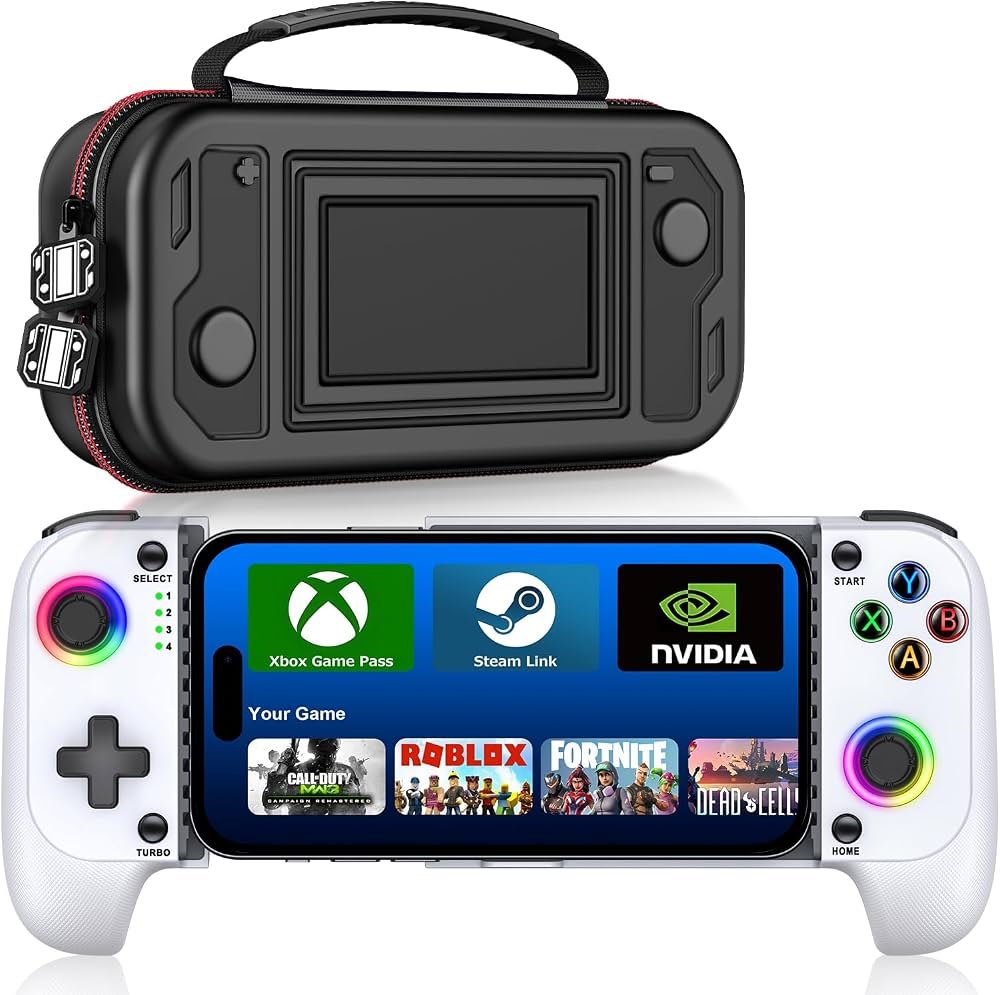
How To Connect A Game Controller: Easy Setup Guide
You can connect a game controller via Bluetooth, USB cable, or a wireless dongle in a few minutes.
If you have ever sat down to play and wondered why a controller will not pair, you are not alone. I have set up more controllers than I can count across consoles, PCs, phones, and tablets, and the process is usually simple once you know the right path. In this guide, I will walk you through how to connect a game controller the smart way, with clear steps, troubleshooting tips, and practical advice that helps avoid the usual headaches.
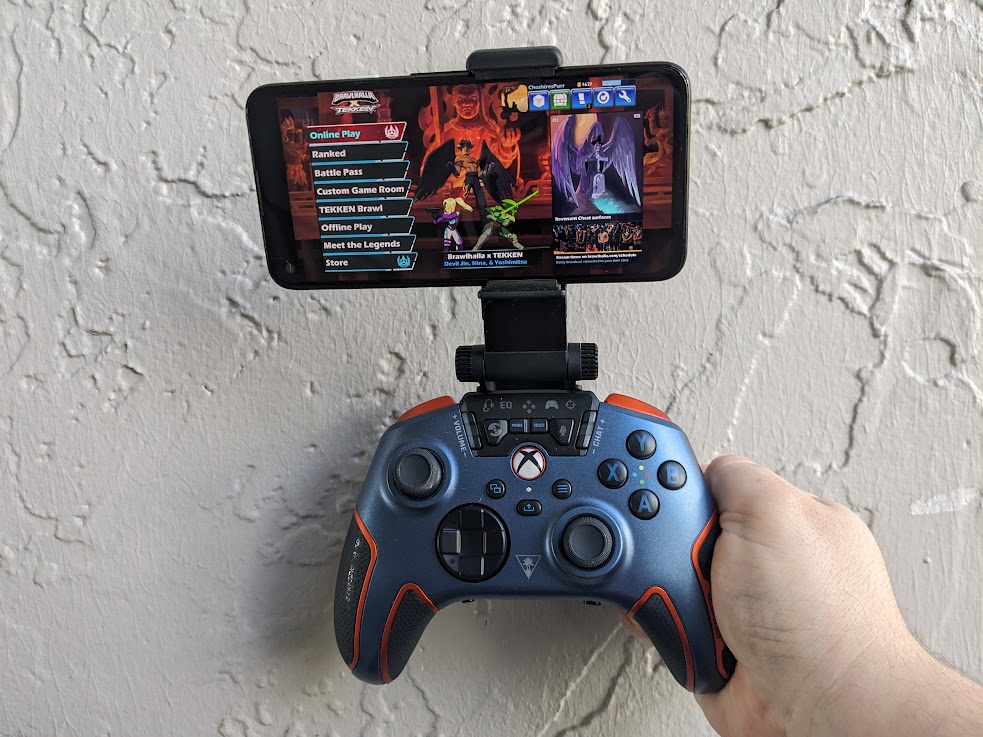
What You Need Before Connecting a Game Controller
Before you connect a game controller, it helps to check a few basics. A lot of pairing problems come from simple things like low battery, the wrong cable, or a device that does not support the controller mode you want.
Here is the quick checklist I use before every setup:
- A charged controller or fresh batteries
- The right cable, if you are using a wired connection
- Bluetooth turned on, if you are pairing wirelessly
- A supported device, such as a PC, console, phone, or tablet
- Updated firmware for the controller, if available
One lesson I learned the hard way: not every USB cable carries data. I once spent 20 minutes thinking a controller was broken when the cable was only charging it. That small mistake happens more often than people think.
How to Connect a Game Controller to a Console
Console setups are usually the easiest because the hardware and software are designed to work together. Still, the exact steps can vary depending on the brand and controller model.
PlayStation Controller Connection
To connect a PlayStation controller, start with a USB cable if it is your first setup.
- Plug the controller into the console with a USB cable.
- Press the PlayStation button in the center.
- Wait for the light bar or indicator to stop blinking.
- Once paired, you can disconnect the cable and use Bluetooth if supported.
For a DualSense controller on PS5, the console usually remembers the controller after the first connection. If the controller does not respond, I recommend fully powering down the console and trying again, since a restart often clears pairing glitches.
Xbox Controller Connection
Xbox controllers are also straightforward.
- Turn on the console.
- Press and hold the Pair button on the controller.
- Press the Pair button on the console.
- Wait until the Xbox logo stops flashing.
You can also connect with a USB cable. This is often the fastest option when you want zero delay and no pairing trouble. I often use wired mode for updates or when I am setting up a controller for the first time.
Nintendo Switch Controller Connection
Nintendo Switch supports Joy-Con, Pro Controller, and some licensed third-party controllers.
- Open System Settings.
- Go to Controllers and Sensors.
- Choose Change Grip/Order or Pair New Controller.
- Put the controller into pairing mode.
For Joy-Con, sliding them onto the console rails often pairs them automatically. For the Pro Controller, a USB cable can also make setup easier. If the buttons feel off at first, check the Switch’s calibration tools before assuming the controller is damaged.

How to Connect a Game Controller to a Windows PC
Connecting a game controller to a Windows PC is common for gaming on Steam, Xbox app, Epic Games, and emulators. In my experience, this is where most readers run into confusion, because Windows may detect the controller but still not map every button the way you expect.
Connect with USB
This is the most reliable method.
- Plug the controller into a USB port.
- Wait for Windows to install the driver.
- Open a game or controller test screen.
- Confirm the buttons and sticks respond correctly.
Windows often supports Xbox controllers with almost no setup. Some PlayStation controllers also work well through Steam or compatible software. If you want the least trouble, use a direct cable first.
Connect with Bluetooth
If your PC has Bluetooth, wireless setup is simple.
- Turn on Bluetooth in Windows Settings.
- Put the controller in pairing mode.
- Select the controller from the Bluetooth device list.
- Confirm the pairing code if one appears.
A PlayStation controller may show up as DualSense or Wireless Controller. An Xbox controller may need a newer model for Bluetooth support. I always tell people to keep the controller close to the PC during pairing, because weak signal can make the device fail to show up.
Connect with a Wireless Adapter
Some controllers work best with a proprietary wireless dongle.
- Insert the adapter into a USB port.
- Turn on the controller.
- Press the pairing button on both devices if needed.
- Wait for the lights to stop flashing.
This can give a steadier connection than Bluetooth in some setups. It is especially useful if your PC’s built-in Bluetooth is old or unstable.
How to Connect a Game Controller to a Mac
Mac support has improved a lot, especially for modern Bluetooth controllers. If you use Apple devices, the good news is that many current controllers pair quickly.
- Turn on Bluetooth in System Settings.
- Put the controller in pairing mode.
- Select it from the list of nearby devices.
- Test the input in a game or controller app.
PlayStation and Xbox controllers usually work well on macOS, especially in games that support standard input profiles. A wired USB connection can also work, but Bluetooth is usually the easiest route. If the controller connects but games do not recognize it, check whether the game supports controller input on Mac.
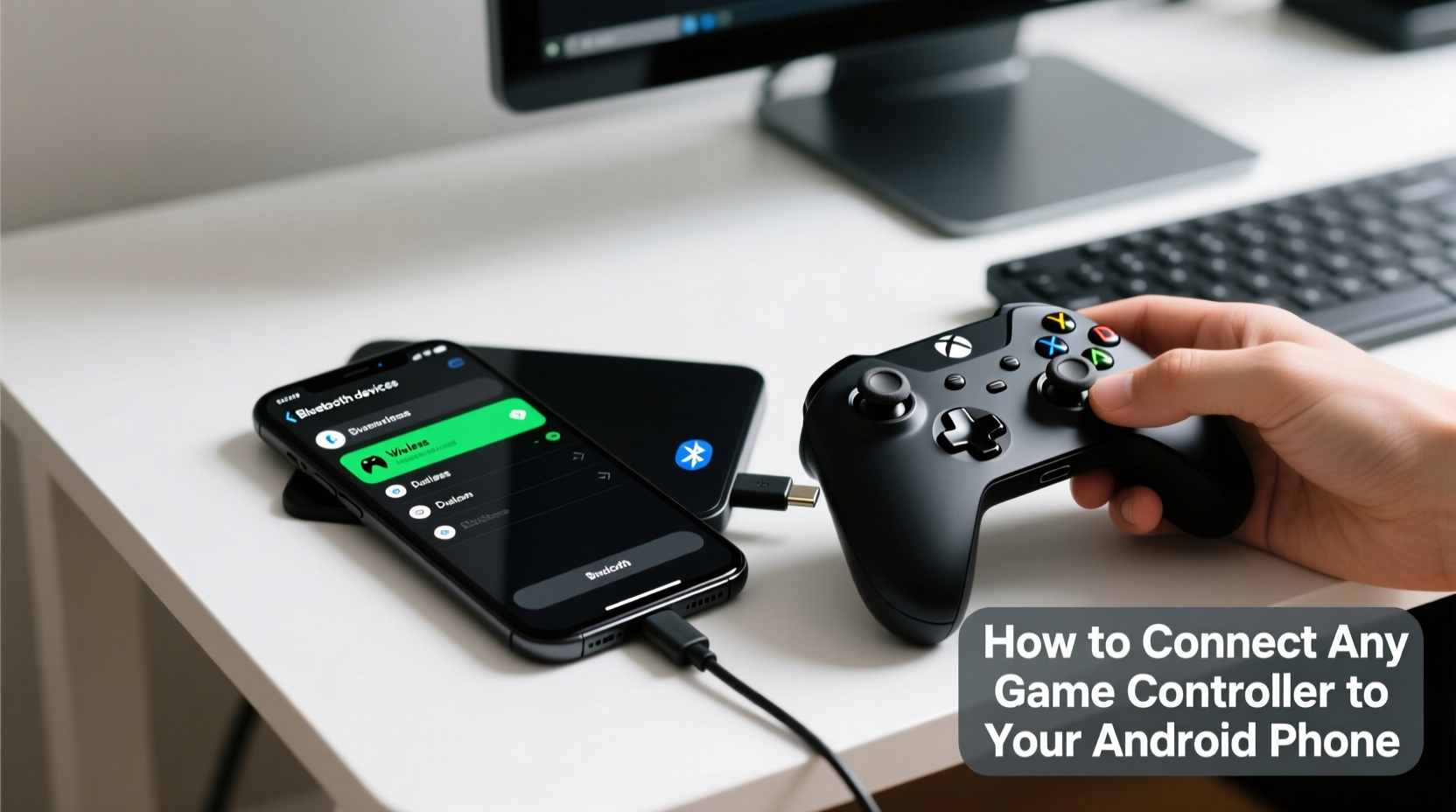
How to Connect a Game Controller to a Phone or Tablet
Mobile gaming is much better with a controller, especially for racing, action, and cloud gaming. I have used controllers with Android and iPhone devices, and the setup is usually quick once Bluetooth is on.
Android Devices
- Turn on Bluetooth.
- Put the controller in pairing mode.
- Open Bluetooth settings on the phone or tablet.
- Tap the controller when it appears.
Many Android games, cloud gaming apps, and emulators support controllers. Some phones also support USB-C wired controllers through OTG or direct cable use. If the game does not respond, check whether it supports gamepad input or only touch controls.
iPhone and iPad
- Open Settings and turn on Bluetooth.
- Put the controller in pairing mode.
- Select the controller under Other Devices or My Devices.
- Launch a supported game or app.
Apple supports many modern controllers through iOS and iPadOS. This makes mobile gaming feel more like console play. When I set up a controller for someone new to Apple devices, I always remind them to update the operating system first if pairing acts strange.
Troubleshooting When a Game Controller Will Not Connect
Even when you know how to connect a game controller, things can still go wrong. The most common issues are not dramatic. They are small, annoying, and usually easy to fix.
Try these steps in order:
- Charge the controller fully
- Restart the console, PC, or phone
- Remove the controller from Bluetooth settings and pair again
- Use a different USB cable or port
- Move closer to the device
- Update controller firmware and system software
- Check whether the controller is already paired to another device
One common mistake is leaving a controller paired to two devices at once. For example, a controller may keep reconnecting to a phone instead of the PC you want. Forgetting the device from the old system usually solves that fast.
Another issue is driver conflict on Windows. If Steam, Bluetooth, and old drivers all try to handle the controller at once, the system can act weird. In those cases, updating drivers and testing the controller in one app at a time helps narrow things down.
Best Practices for a Smooth Controller Setup
The best way to connect a game controller is to keep the process simple. That means starting with the most reliable method and only moving to wireless after everything works.
Here are a few habits that make setup easier:
- Start with USB if you are pairing for the first time
- Keep firmware and system software updated
- Use official or high-quality cables
- Label controllers if you have more than one
- Test the buttons and sticks after pairing
- Save battery by turning the controller off when not in use
In my own setup, I always test a controller in a menu before jumping into a game. That saves time and keeps the game session from turning into a troubleshooting session. It is like checking the lights before driving at night. A small check now prevents a bigger hassle later.
Benefits and Limits of Wired vs Wireless Connections
Both wired and wireless setups have real advantages. The right choice depends on how you play.
Wired connection benefits:
- Lower input lag
- No battery worries
- Easier first-time setup
- More stable for updates and troubleshooting
Wireless connection benefits:
- More freedom to sit back and play
- Cleaner desk or couch setup
- Better for portable devices
- Less cable wear over time
Wired connection limits:
- Cable length can restrict movement
- Ports can wear out over time
Wireless connection limits:
- Battery must be charged
- Bluetooth can be affected by interference
- Pairing issues can happen after updates
If you care about competitive play, wired is usually the safer choice. If you care about comfort, wireless wins for most people. That tradeoff is part of the decision when learning how to connect a game controller.
Frequently Asked Questions of How to Connect a Game Controller
How do I put my controller in pairing mode?
Most controllers enter pairing mode by holding the Pair button, Bluetooth button, or a special combination like the Share and PlayStation buttons. The light usually flashes when pairing mode is active.
Why is my controller connected but not working in a game?
The game may not support that controller type, or the wrong input mode may be selected. Try another game, restart the app, or check controller settings in Steam, Windows, or the game menu.
Can I use one controller on multiple devices?
Yes, but you usually need to re-pair it when switching devices. Some controllers remember several devices, while others reconnect to the last one they used.
Do all USB cables work for controllers?
No, some cables only charge and do not transfer data. If the controller does not show up through USB, try a known data cable.
Is Bluetooth worse than wired for gaming?
Bluetooth is not bad, but wired is usually more stable and can feel more responsive. For casual play, Bluetooth is often fine, especially on modern controllers and updated devices.
Conclusion
Knowing how to connect a game controller comes down to three things: the right connection method, the right device support, and a little patience during setup. Whether you are using a console, PC, Mac, phone, or tablet, the process is usually simple once you start with the basics and avoid common mistakes.
If your controller still gives you trouble, work from the easiest fix first: charge it, reconnect it, and test it with a cable before trying anything complex. Take the steps in this guide, try them on your own setup, and you will likely have a smooth connection in just a few minutes. If this helped, explore more gaming setup tips or leave a comment with your device and controller model.