How To Use A VR Headset: Simple Setup Guide
Using a VR headset means setting it up correctly, adjusting the fit, and learning the controls before you jump in.
If you want a smooth first experience, the details matter more than most people expect. I’ve tested enough headsets to know that comfort, calibration, and motion settings can make the difference between “wow” and “why do I feel sick?” In this guide on how to use a VR headset, I’ll walk you through the full process in a simple, practical way so you can enjoy VR with less confusion and more confidence.

What a VR Headset Does and Why It Feels Different
A VR headset puts digital images directly in front of your eyes and tracks your head movement in real time. That creates the feeling that you are inside the scene instead of just watching it on a screen.
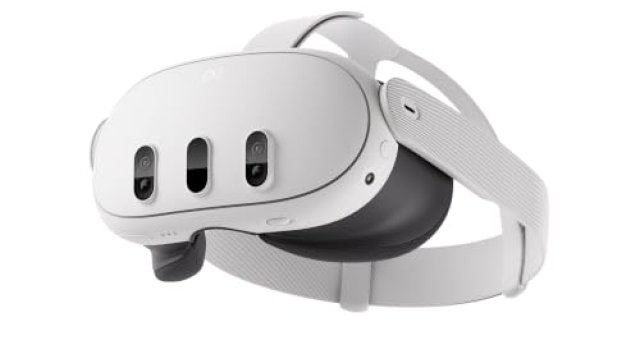
Most modern VR headsets use a mix of lenses, displays, motion sensors, and controllers. Some are standalone, like all-in-one devices. Others connect to a PC or game console for better graphics or more powerful apps.
Understanding this basic setup helps you use a VR headset the right way. It also makes it easier to fix problems when they show up.
How to Set Up a VR Headset
Before you start playing, take a few minutes to set things up the right way. That small effort usually saves a lot of frustration later.
Charge, update, and prepare the device
Start by charging the headset and controllers. A low battery can cause lag, disconnects, or random shutdowns, which is the last thing you want in the middle of a game.
Then update the headset software if needed. Updates often improve tracking, fix bugs, and add better support for apps.
Clear your play space
VR works best when your room is safe and open. Move away chairs, pets, sharp corners, and anything you could trip over.
A good rule is to leave enough room to stretch your arms fully in every direction. If your headset uses room-scale tracking, a clear play area is even more important.
Adjust the headset for your head and eyes
Fit matters a lot. If the headset sits too high, too low, or too loose, the image can look blurry or strain your eyes.
Adjust the straps so the headset feels snug but not tight. Then move the lenses if your model allows it. Many people skip this step and wonder why VR looks soft or uncomfortable.
Set up the controllers
Controllers are your hands in VR. Pair them with the headset and test the buttons, triggers, thumbsticks, and grip sensors before you begin.
I always recommend doing a quick button check in the menu first. It’s a simple habit, but it prevents confusion once you’re inside a game or app.

How to Use a VR Headset for the First Time
The first session should be slow and easy. Think of it like stepping into a new car and learning where everything is before driving fast.
Here’s the simplest way to begin:
- Put on the headset while seated or standing still.
- Tighten the straps until the image stays centered.
- Turn the device on and wait for the home screen.
- Follow the room setup or boundary instructions.
- Hold the controllers in a relaxed grip.
- Try a short tutorial or beginner app first.
When I first used a new headset, I made the mistake of jumping into an intense game right away. That was a bad idea. A calm tutorial helps you learn movement, menu selection, and comfort settings without feeling overwhelmed.
Learning the Basic Controls
If you know the controls, the headset becomes much easier to use. Most VR systems follow the same general pattern.
Head movement
Your head controls the camera view. Look around naturally, and the virtual world should move with you.
If the image lags or drifts, the headset may need recalibration or better lighting in the room.
Controller movement
Controllers usually let you point, grab, teleport, select, or interact with menus. Some games use thumbstick movement, while others use teleporting to reduce motion sickness.
It helps to practice in the home menu before opening a full game. That way, button presses feel familiar when the action starts.
Hand tracking
Some newer headsets support hand tracking instead of controllers. This can feel very natural, but it is not always as precise as holding controllers.
If your app supports both, test each option and use the one that feels easier and more stable.
How to Adjust VR for Comfort
Comfort is a huge part of learning how to use a VR headset well. A setup that feels fine for five minutes can become painful after twenty.
Fix lens position and clarity
If the image looks blurry, adjust the headset position first. Then check the interpupillary distance, often called IPD, if your device supports it.
IPD is the distance between your eyes. Matching it more closely can improve sharpness and reduce eye strain.
Balance the headset weight
A lot of discomfort comes from bad weight balance, not just tight straps. If the front of the headset pulls down, shift the strap until the load feels more even.
For some people, a top strap makes a big difference. It can reduce pressure on the face and make longer sessions feel easier.
Take breaks often
VR can be immersive, but your body still needs rest. Breaks help reduce eye strain, fatigue, and motion discomfort.
A simple habit is to pause every 20 to 30 minutes at first. Drink water, look at a distant object, and give your brain a reset.
How to Move Safely in VR
Safety is one of the most important parts of using a VR headset. Because you can lose awareness of your real room, small mistakes can turn into bumps, slips, or broken controllers.
Use boundaries and guardian systems
Most headsets include a boundary or guardian system. This creates a digital fence around your play area and warns you when you get too close to the edge.
Turn it on and check it before each session. I’ve seen people ignore boundary setup, then step straight into a coffee table. It’s a basic step that protects both you and your gear.
Choose the right movement style
If you feel dizzy, try teleport movement instead of smooth walking. Teleporting often feels easier for beginners because it reduces motion sickness.
If you prefer smooth movement, start slowly and keep sessions short. Your body may adapt over time, but you should never force it.
Stay aware of your surroundings
Even with a headset on, keep a few real-world habits in mind:
- Keep pets and kids out of your play space
- Remove loose rugs and cords
- Use a mat or rug to help you know where you stand
- Stop right away if you feel unsteady
How to Handle VR Motion Sickness
Motion sickness is one of the most common issues for new users. It happens when what your eyes see and what your body feels do not match well.
Common signs include:
- Nausea
- Sweating
- Dizziness
- Headache
- Eye strain
To reduce it, try these tips:
- Start with short sessions
- Use teleport movement
- Keep the frame rate smooth
- Sit down for certain apps
- Avoid fast turning at first
- Make sure the headset fits correctly
From experience, the best approach is to stop early instead of pushing through symptoms. If you wait too long, the discomfort can stick around and make VR feel worse than it really is.
Best Practices for Different Types of VR Headsets
Not every headset works the same way. Knowing the type you own helps you use it better.
Standalone VR headsets
Standalone headsets run on built-in hardware. They are usually easiest for beginners because there is no PC setup.
These are great for fitness apps, casual games, social apps, and short learning sessions. Just keep the battery charged and the storage clear.
PC VR headsets
PC VR headsets connect to a computer and often deliver higher-end graphics. They may need stronger hardware, more cables, and extra setup time.
Make sure your PC meets the headset’s requirements before you begin. Weak performance can cause lag, which makes the experience less comfortable.
Console VR headsets
Console-based systems often offer a more guided setup. They are a good middle ground for users who want simplicity with solid performance.
Always check compatibility with your console model and available accessories before buying or using one.
Good Habits for Longer and Better VR Sessions
Once you know the basics, a few habits can make VR much more enjoyable. These are the small things that separate a decent session from a great one.
- Keep the lenses clean with a soft microfiber cloth
- Store the headset in a dry, cool place
- Charge controllers before they die
- Wipe face pads after use if you share the device
- Use beginner-friendly apps before jumping into intense games
I also recommend testing each new app for comfort before a long session. Some games look calm but use motion in ways that can surprise you.
Common Mistakes to Avoid
A lot of new users make the same mistakes when learning how to use a VR headset. Luckily, most of them are easy to fix.
- Wearing the headset too loosely
- Skipping the room setup
- Starting with a fast-paced game
- Ignoring controller calibration
- Playing too long without breaks
- Using VR in a crowded or unsafe space
These may seem small, but they add up fast. A proper setup can turn a frustrating experience into a smooth one.
Benefits of Learning How to Use a VR Headset Properly
Using VR the right way gives you more than better gameplay. It also improves comfort, safety, and immersion.
Key benefits include:
- Better image clarity
- Less motion sickness
- More accurate tracking
- Safer movement
- Longer, more enjoyable sessions
- Better use of apps for fitness, learning, and work
VR is not just for gaming anymore. People use it for exercise, design, training, meditation, virtual meetings, and education. When you know how to use a VR headset well, those experiences become far more useful.

When a VR Headset May Not Be a Good Fit
VR is exciting, but it is not perfect for everyone. Some people need to be careful, especially if they are prone to motion sickness or eye strain.
You may want to limit or avoid VR if:
- You feel sick easily in moving environments
- You have strong balance problems
- You get headaches from screens often
- You have a condition that your doctor has warned may be affected by immersive displays
If you are unsure, start slow and talk to a medical professional when needed. That is the safest and most trustworthy path.
Frequently Asked Questions of How to Use a VR Headset
How do I start using a VR headset for the first time?
Charge the headset, pair the controllers, and follow the on-screen setup steps. Then set your play boundary and try a beginner app before moving to more active games.
Why does my VR headset look blurry?
Blurry images usually come from a bad fit, incorrect lens position, or the wrong IPD setting. Clean the lenses and readjust the headset before assuming something is broken.
How long should I use a VR headset at once?
Beginners should start with short sessions of 10 to 20 minutes. As your comfort improves, you can go longer, but regular breaks are still a smart idea.
Can I use a VR headset without a PC?
Yes, many standalone VR headsets work on their own without a computer. They are often the easiest option for new users because setup is simpler.
What should I do if I feel dizzy in VR?
Stop right away, remove the headset, and sit somewhere steady. Try shorter sessions next time, use teleport movement, and avoid fast camera motion until you adjust.
Conclusion
Learning how to use a VR headset is mostly about good setup, comfort, and pacing. Once you adjust the fit, protect your play space, and learn the controls, VR becomes much easier and far more fun.
The best results usually come from starting small and building up over time. If you take the setup seriously, you will get clearer visuals, smoother movement, and fewer headaches along the way.
Try the tips in this guide during your next session, and notice how much better the experience feels. If you want to keep improving, explore more VR setup guides, test beginner-friendly apps, and share your own tips in the comments.

Similar Posts