How To Pair A Wireless Controller: Easy Setup Guide
Pair a wireless controller by turning it on, entering pairing mode, and connecting it through your device’s Bluetooth or USB setup.
Getting a wireless controller connected should feel easy, not frustrating. Still, if you have ever sat there pressing buttons, watching lights blink, and wondering what went wrong, you are not alone. I have paired controllers for consoles, PCs, phones, and tablets, and the same small mistakes cause most connection problems every time. This guide will walk you through how to pair a wireless controller the right way, with simple steps, real-world tips, and fixes that actually help.

What “Pairing a Wireless Controller” Really Means
Pairing a wireless controller means linking it to a device so the two can talk to each other without a cable. Most controllers use Bluetooth, a USB dongle, or a console-specific wireless signal. Once paired, the controller usually reconnects on its own the next time you turn it on.
This matters because pairing is not always the same as charging or syncing. A controller can have power but still not be connected. That is why so many people think the controller is broken when it is really just waiting to be paired correctly.
A good pairing process should do three things:
• Put the controller into discovery or pairing mode
• Make the device find the controller
• Confirm the connection and test input
How to Pair a Wireless Controller on Different Devices
The exact steps depend on what you are using. A PlayStation controller, Xbox controller, Switch Pro Controller, or generic Bluetooth controller may all connect a little differently. The basic idea is the same, though: turn on pairing mode, open the device’s Bluetooth or controller settings, and connect.
How to Pair a Wireless Controller to a PC
On Windows, the easiest method is Bluetooth. I have found this works best when the controller is fully charged and no other paired devices are interfering.
Follow these steps:
- Turn on Bluetooth on your PC
- Put the controller in pairing mode
- Open Bluetooth settings and choose Add device
- Select the controller when it appears
- Wait for the connection confirmation
If your PC does not have Bluetooth, use the controller’s wireless adapter or a USB cable if the controller supports wired setup first. Some controllers, especially Xbox models, work best with the official wireless adapter because the connection is more stable for gaming.
How to Pair a Wireless Controller to a Mac
Mac pairing is usually simple, but some controllers need a fresh pairing attempt if they were used with another device before. Open Bluetooth settings, hold the controller’s pairing button, and wait for the name to appear.
A few practical tips:
• Keep the controller close to the Mac during setup
• Remove old pairings if the controller does not show up
• Restart Bluetooth if the connection stalls
How to Pair a Wireless Controller to PlayStation Consoles
For PlayStation systems, pairing is often easiest with a USB cable the first time. Plug the controller into the console and press the PS button. After that, it usually reconnects wirelessly when powered on.
If you are pairing a second controller, use the console’s accessory menu or simply repeat the same process. In my experience, a bad cable is one of the most common hidden problems here. If the controller will not pair, try another data-capable USB cable instead of assuming the controller failed.
How to Pair a Wireless Controller to Xbox Consoles
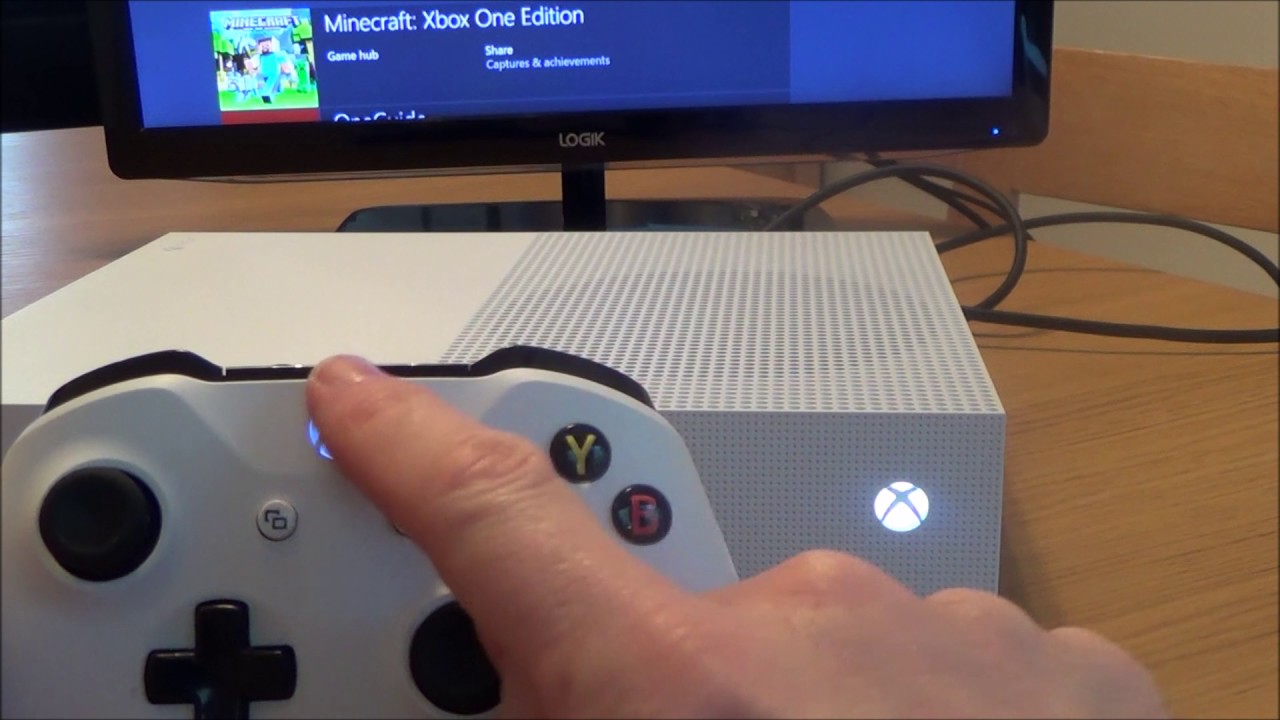
Xbox controllers are built for simple pairing, but the order matters. Turn on the console first, then hold the pairing button on the controller until the Xbox logo flashes. Press the console’s pairing button, and the devices should connect within seconds.
If pairing fails, check whether the controller was already connected to another device, such as a phone or PC. Xbox controllers can remember past devices, and that sometimes slows down the new connection. Removing old Bluetooth pairings often helps.
How to Pair a Wireless Controller to Nintendo Switch
The Nintendo Switch uses its own controller menu, so this setup feels a little different. From the Home screen, open Controllers, then choose Change Grip/Order. Put the controller in pairing mode, and the Switch should detect it.
This is a good moment to note that not every wireless controller supports every Switch feature. Some third-party controllers work well for gameplay but may not support motion controls, NFC, or wake functions. It is smart to check compatibility before buying.
How to Pair a Wireless Controller to a Phone or Tablet
Mobile pairing is very useful for cloud gaming, remote play, and emulators. Open Bluetooth settings on your phone or tablet, put the controller in pairing mode, and select it from the available devices list.
A few common use cases include:
• Playing mobile games that support controllers
• Using cloud gaming apps
• Streaming console games through remote play apps
I have noticed that mobile devices sometimes keep old Bluetooth profiles around. If the controller will not connect, forgetting the old device profile and trying again usually fixes it fast.

How to Put a Wireless Controller in Pairing Mode
Pairing mode is the key step most people miss. It usually means holding a specific button until a light flashes quickly or changes color. That blinking light is the controller saying, “I am ready to connect.”
Common pairing methods include:
• Holding the pairing button on the back or top of the controller
• Pressing a home button plus another button at the same time
• Connecting with a USB cable first, then removing it after setup
If you are unsure, check the controller’s light pattern. Slow blinking often means it is powered on, while fast blinking usually means pairing mode. The exact pattern depends on the brand, so it helps to learn your controller’s signals once and save time later.
Why a Wireless Controller May Not Pair
When a wireless controller will not connect, the issue is usually simple. It is rarely a hardware failure on the first try. More often, the problem is power, distance, interference, or a stale Bluetooth memory.
Here are the most common causes:
• Low battery or weak charge
• Controller already paired to another device
• Bluetooth turned off on the host device
• Too much distance between the controller and device
• Interference from nearby wireless devices
• Outdated firmware on the controller or system
• Using the wrong USB cable for first-time setup
One mistake I made early on was assuming every USB cable could transfer data. It cannot. Some cables charge only, and that leads to endless confusion during setup. If a controller does not pair through cable first, try a different one before doing anything else.
Best Practices for a Smooth Connection
A little prep makes pairing much easier. Think of it like setting a clean table before dinner. If everything is ready, the process feels smooth and fast.
Use these best practices:
• Charge the controller before pairing
• Stay within a few feet of the device
• Turn off other nearby controllers during setup
• Remove old Bluetooth pairings if needed
• Update console, PC, or controller firmware when possible
• Keep the controller and device free from physical blockage
It also helps to pair one device at a time. If your controller has been used with a console, PC, and phone, it may try to reconnect to the wrong one first. Clearing old connections can save a lot of time.
Troubleshooting Tips If the Controller Still Won’t Connect
If the controller still refuses to pair, do not panic. Start with the basics and move step by step. Most problems can be solved without replacing anything.
Try this order:
- Charge the controller fully
- Restart the device you are pairing to
- Turn Bluetooth off and back on
- Forget the controller from saved Bluetooth devices
- Re-enter pairing mode
- Use a different cable or USB port
- Update system and controller firmware
- Test the controller on another device
If the controller works elsewhere, the problem is likely with the original device, not the controller. If it fails everywhere, the battery, button, or wireless chip may need service. That is when repair or replacement starts to make sense.
Tips from Real-World Use
After pairing dozens of controllers over the years, I have learned that patience saves time. People often press buttons too fast or give up before pairing mode fully starts. A blinking light can take a few seconds to appear, so do not rush it.
A few real-world lessons stand out:
• Pairing is easier in a quiet wireless space
• Cheap cables cause more setup problems than most people expect
• Resetting both the controller and host device can clear stubborn errors
• The first pairing is often the hardest one
The best habit is to treat pairing like a checklist, not a guess. Once you know the order, the process becomes second nature.
Frequently Asked Questions of How to Pair a Wireless Controller
How do I know if my wireless controller is in pairing mode?
Most controllers show a fast blinking light or a special flash pattern when pairing mode is active. If the light stays solid or does not blink at all, it may just be on and not ready to connect.
Why is my controller not showing up on Bluetooth?
The most common reasons are low battery, old saved pairings, or Bluetooth being turned off on the device. Move the controller closer, re-enter pairing mode, and remove old device profiles if needed.
Can one wireless controller pair with multiple devices?
Yes, many controllers can pair with several devices, but they usually connect to only one at a time. If it keeps choosing the wrong device, delete the old pairing and set it up again.
Do I need a cable to pair a wireless controller?
Not always, but some systems use a cable for the first setup. This is common with certain consoles and can help the device recognize the controller faster.
Why does my controller pair once but not reconnect later?
This often happens when the controller lost its saved profile or connected to another device first. Re-pairing it usually fixes the issue, especially if you clear old Bluetooth records first.
Conclusion
Learning how to pair a wireless controller is really about knowing the right order and avoiding small setup mistakes. Once you understand pairing mode, device settings, and common connection issues, the process becomes much easier across consoles, PCs, phones, and tablets.
The good news is that most pairing problems are fixable with simple steps. Keep your controller charged, use the right cable when needed, and remove old connections when things get stubborn. If this guide helped, try the steps on your own device and share your experience or subscribe for more practical tech guides.