How To Replace Thermal Printer Paper: Easy Step-By-Step Guide
Replacing thermal printer paper is simple: open the printer, remove the old roll, load the new roll correctly, and test it.
If you’ve ever watched a receipt printer run out of paper at the worst possible moment, you know how small this task can feel and how urgent it becomes. I’ve handled enough point-of-sale and label printers to know that most paper jams and faded prints come from one thing: the roll was loaded the wrong way or the cover was not seated right. In this guide, I’ll walk you through how to replace thermal printer paper the right way, with clear steps, real-world tips, and the little mistakes that save you time when you know to avoid them.
What Thermal Printer Paper Is and Why It Matters
Thermal printer paper is a special coated paper that reacts to heat. Instead of using ink or toner, the printer applies heat to form text or images. That is why receipt printers, shipping label printers, and many kiosk printers use thermal paper.
There are two common types:
• Direct thermal paper, which darkens with heat and does not need ink ribbons
• Thermal transfer paper, which uses a ribbon and is common in some label systems
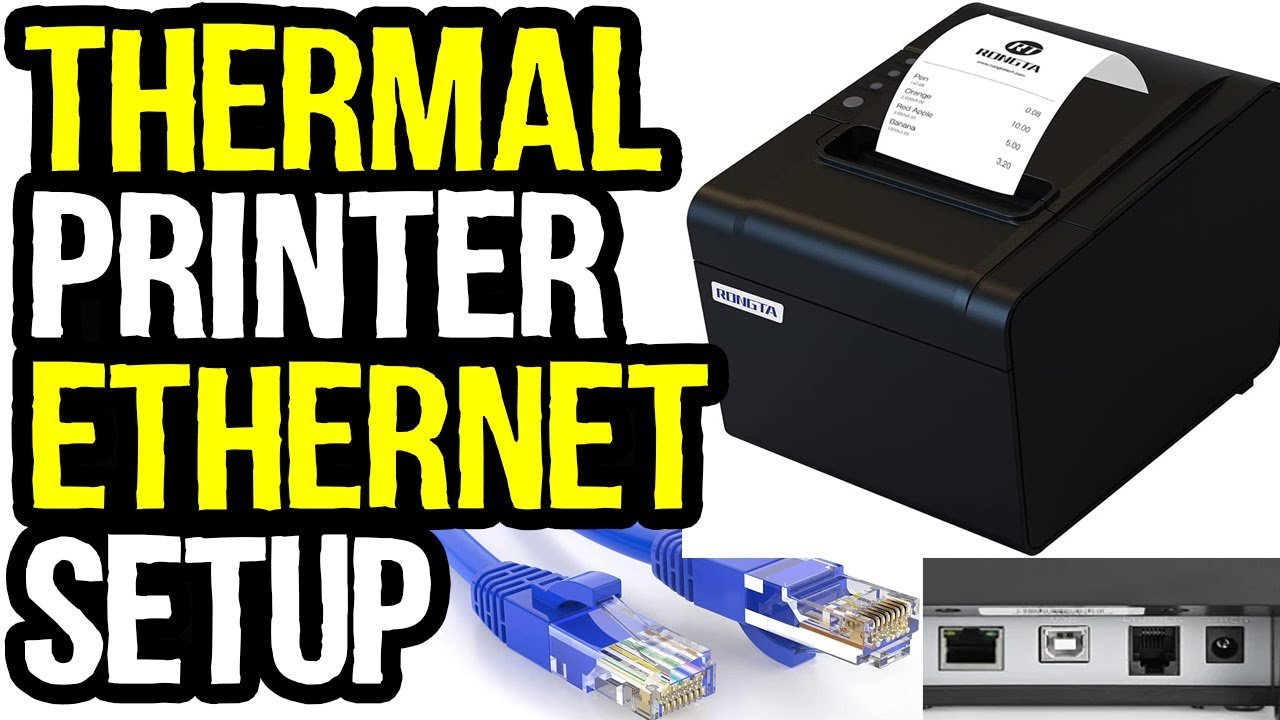
Most people searching for how to replace thermal printer paper are dealing with direct thermal receipt printers. These are common in stores, restaurants, offices, and shipping stations. If the roll is loaded wrong, the printer may feed blank paper, print on the wrong side, or jam.

Before You Replace Thermal Printer Paper
Before you open the printer, take a second to check the paper type. Not every roll fits every printer, and the wrong size can cause feed errors or poor print quality. I’ve seen people force a wider roll into a narrow compartment, and that almost always ends with a jam.
Here’s what to check first:
• Paper width and roll diameter
• Whether the printer uses direct thermal paper or thermal transfer labels
• Core size, if your printer has a spindle or holder
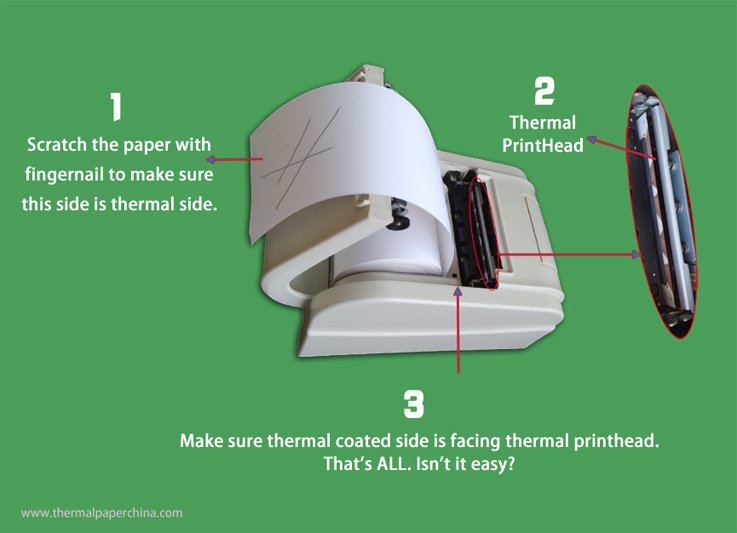
• Paper orientation, since thermal paper has a coated side and an uncoated side
A simple way to test the coating is to scratch the paper lightly with a fingernail. The side that darkens is usually the thermal side. Many printer makers also print instructions inside the cover, which is one of the easiest clues to follow.
How to Replace Thermal Printer Paper Step by Step
Replacing thermal printer paper is usually fast once you know the pattern. The exact design changes by brand, but the process is nearly always the same.
Turn off the printer if your model recommends it
This is not always required, but it helps prevent accidental feeding while you load the roll.Open the printer cover
Most thermal printers have a latch or lift-up lid. Open it gently so you do not crack the hinge.Remove the empty roll or leftover paper
Pull out any loose scraps. If the roll stub is stuck, lift it out carefully.Check the paper path
Make sure there are no bits of torn paper inside. Even a tiny piece can trigger a jam later.Place the new roll in the holder
Set the roll so it can feed smoothly. On many printers, the paper should unwind from the bottom or from the back, but this depends on the model.Feed the paper through the guide slot
Pull a short section of paper out past the cutter or front edge. Keep it straight and centered.Close the cover firmly
Press down until it clicks. If the lid is not fully closed, the printer may not feed correctly.Test the printer
Press the feed button or print a sample receipt or label. Check for clear text and proper alignment.
When I train staff, I tell them to think of the paper roll like a seatbelt. It has to sit in the right place, face the right way, and move freely. If any part is off, the whole system complains.
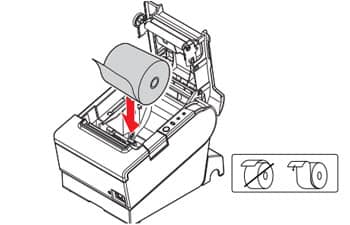
How to Know the Paper Is Loaded Correctly
A lot of printer issues are really loading issues in disguise. If you are learning how to replace thermal printer paper, this part matters more than people think.
The paper is loaded correctly when:
• It feeds straight without rubbing the sides
• The print comes out dark and sharp
• The paper advances smoothly when you press feed
• The cover closes without force
• The roll spins freely inside the compartment
If the print is blank, the roll may be upside down. If the paper curls, drags, or tears, the roll may be too tight or misaligned. If the printer flashes an error light, the cover may not be fully latched or the sensor may not detect the paper.
Common Mistakes to Avoid
Even simple tasks have small traps. I’ve made most of these mistakes myself at least once, and they are easy to avoid once you know what to watch for.
• Loading the roll backward, which causes blank prints
• Using the wrong paper width, which can damage the feed path
• Closing the lid without pulling paper past the cutter
• Touching the print surface too much, which can leave oils or marks
• Storing thermal paper in heat or sunlight, which can fade it early
One mistake that comes up often is assuming all thermal paper is the same. It is not. The coating, roll size, and sensitivity can vary. In a busy shop, that tiny difference can mean a clear receipt or a customer service headache.
Tips to Make Thermal Printer Paper Last Longer
Thermal printer paper is sensitive by nature, so storage matters. Industry guidance from print and labeling manufacturers consistently recommends keeping thermal media in a cool, dry place away from sunlight and heat.
To help the paper last longer:
• Store rolls in their original packaging when possible
• Keep them away from direct sun, heaters, and hot car interiors
• Avoid humid rooms or damp storage areas
• Do not handle the coated side too much
• Buy paper that matches your printer’s specifications
If you run a business, I also suggest keeping backup rolls near the printer but not directly beside a heat source. I once saw receipt paper fade in a supply drawer near a coffee machine, and the lesson was simple: thermal paper hates warmth as much as a snowman does.
When to Clean the Printer
If you replace thermal printer paper often, it helps to clean the printer on a regular schedule. Paper dust, adhesive residue, and tiny scraps can affect print quality over time. A clean printer also lowers the chance of jams.
Basic cleaning steps include:
• Turn off and unplug the printer
• Use a soft, lint-free cloth
• Remove dust from the paper path and sensors
• Use isopropyl alcohol only if the manufacturer allows it
• Let everything dry before reloading paper
I’ve noticed that printers used in restaurants and shipping stations need cleaning more often than office printers. Those environments move fast, and fast work creates more debris. A quick cleanup can save you from repeated loading problems later.
Troubleshooting After You Replace Thermal Printer Paper
If the printer still does not work after you load new paper, do not panic. Most problems are small and fixable.
Try these checks:
• Confirm the roll is facing the right way
• Make sure the lid is completely closed
• Check for paper jams or torn scraps inside
• Verify the paper matches the printer size requirements
• Print a self-test if your printer model supports it
If the print is faded, the paper may be low quality or the print head may need cleaning. If the printer will not feed at all, the sensor may not detect the paper or the cover latch may not be secure. In most cases, the fix is simple once you slow down and inspect the basics.
Why Proper Paper Replacement Matters in Daily Use
Knowing how to replace thermal printer paper is more than a small office skill. It helps keep lines moving, receipts clear, and operations smooth. In retail, shipping, food service, and healthcare, a few seconds matter.
A correct paper change helps you:
• Reduce paper jams
• Improve print quality
• Avoid wasted rolls
• Save time during busy shifts
• Extend the life of the printer
That is why this task feels minor until it is not. A five-second mistake can turn into ten minutes of troubleshooting, and nobody wants that when customers are waiting.
Frequently Asked Questions
How do I know which way to put thermal printer paper in?
Check which side darkens when scratched lightly. The coated thermal side should face the print head so the heat can create the image.
Why is my thermal printer printing blank receipts?
The roll is often loaded backward, or the paper type may not match the printer. It can also happen if the cover is not fully closed or the print head needs cleaning.
Can I use any paper roll in a thermal printer?
No, you should use the size and type recommended by the printer maker. The wrong width or core size can cause feed problems and poor print quality.
How often should I replace thermal printer paper?
Replace it whenever the roll runs out. In busy settings like retail or shipping, that may be several times a day, while light office use may need replacement far less often.
Does thermal printer paper expire?
Yes, thermal paper can fade over time, especially if stored in heat, sunlight, or humidity. For best results, keep it sealed and in a cool, dry place.
Why does my printer jam after I replace the paper?
The roll may be misaligned, the paper may be too wide, or small scraps may still be inside the paper path. Open the cover and check that the paper feeds smoothly and the lid closes fully.
Conclusion
Learning how to replace thermal printer paper is one of those small skills that pays off every day. Once you know the right loading direction, the correct roll size, and the common mistakes to avoid, the whole process becomes quick and easy.
A neat paper change can prevent jams, improve print quality, and keep your work moving without stress. If you use thermal printers often, practice the steps once or twice now so you are ready when the paper runs out at the worst time. For more practical printer tips, keep exploring, stay curious, and share your own loading tricks in the comments.

Similar Posts