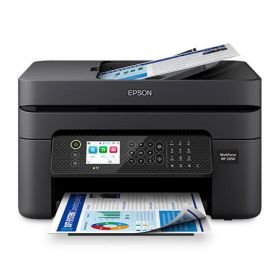
Epson Expression Home XP-4205 Troubleshooting: Quick Fixes
Most XP-4205 issues come from paper jams, connection errors, ink problems, or simple setup glitches.
If you are dealing with Epson Expression Home XP-4205 Troubleshooting, you are not alone. I have seen this compact all-in-one behave beautifully one minute and then act stubborn the next, usually for a simple reason that can be fixed fast. In this guide, I’ll walk you through the most common problems, the real causes behind them, and the practical fixes that actually save time.
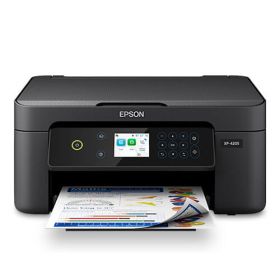
What the Epson Expression Home XP-4205 Usually Needs When It Acts Up
The Epson Expression Home XP-4205 is a small home printer, so most problems come from everyday use rather than serious faults. That means the fix is often simple, like checking ink levels, reseating paper, or reconnecting Wi-Fi.
In my experience, people often jump straight to advanced fixes when the real issue is much smaller. The best approach is to start with the basics and move step by step, just like checking the fuel before opening the engine.
Common trouble areas include:
• Paper feeding errors
• Wi-Fi connection loss
• Blank or faded prints
• Ink cartridge recognition issues
• Scanning or copying problems
• Printer not responding to commands
Epson Expression Home XP-4205 Troubleshooting Steps That Solve Most Problems
A good troubleshooting routine can solve a surprising number of issues without any tools. I usually tell people to think of printer repair like cleaning glasses before blaming your eyesight.
Start with these quick checks:
-
Restart the printer and your computer or phone.
Power cycling clears small software glitches and resets communication errors. -
Check the display and error lights.
The XP-4205 gives clues through warning icons, blinking lights, and messages on screen. -
Make sure the paper is loaded correctly.
Misaligned paper is one of the most common causes of jams and feed issues. -
Confirm the ink cartridges are seated properly.
A cartridge that is not locked in place can trigger false errors or poor print output. -
Reconnect the Wi-Fi if printing is failing wirelessly.
Network drops are common after router changes, updates, or weak signals. -
Run a nozzle check and print head cleaning.
This helps when prints look streaky, faded, or missing color. -
Update the printer driver and software.
Old drivers can cause communication problems, especially after OS updates.
These steps solve many Epson Expression Home XP-4205 Troubleshooting cases before you need deeper repairs.
Fixing Paper Jams and Paper Feed Problems
Paper jams can look serious, but they are often caused by tiny loading mistakes. A sheet that is bent, damp, or pushed too far into the tray can stop the whole job.
Here is how to fix feed problems safely:
• Turn the printer off before removing jammed paper.
• Pull paper out slowly in the direction of the feed path.
• Check both the rear and front access areas for torn scraps.
• Fan the paper stack before loading it again.
• Do not overload the tray.
• Use plain, dry, clean paper that matches the printer’s support specs.
If the printer keeps grabbing multiple sheets, the rollers may be dusty. In that case, gently clean them with a lint-free cloth lightly dampened with water. Let them dry fully before printing again.
Solving Wi-Fi and Wireless Printing Issues
Wireless problems are one of the top reasons people search for Epson Expression Home XP-4205 Troubleshooting. A printer can be fine physically but still “disappear” from your phone or laptop because the network changed.
Try these fixes:
• Make sure the printer and router are on and close enough.
• Confirm the printer is connected to the same Wi-Fi network as your device.
• Restart the router, printer, and device in that order.
• Re-enter the wireless setup if the network name or password changed.
• Avoid placing the printer near thick walls, microwaves, or cordless phone bases.
I’ve seen many cases where the printer was not broken at all. The router simply handed out a new network address, and the printer needed to be reconnected like a guest who forgot the new door code.
If wireless printing still fails, try a USB connection for testing. That helps you separate a printer problem from a network problem.

Fixing Ink Cartridge and Print Quality Problems
Poor print quality often comes from ink flow issues, not a defective printer. Faded pages, missing lines, and strange colors usually point to clogged nozzles or cartridges that need reseating.
Use these steps:
-
Remove and reinstall the cartridges.
This makes sure the printer detects them correctly. -
Check the ink levels.
Low ink can still print a little, but the results may be weak or uneven. -
Run the nozzle check pattern.
This shows whether certain colors are blocked. -
Perform print head cleaning.
Start with one cleaning cycle, then print a test page before repeating. Too many cleanings can waste ink. -
Use genuine or fully compatible cartridges.
Some off-brand cartridges work fine, but inconsistent chip detection can cause frustration. -
Print on the right paper settings.
Wrong media settings can make text look blurry or colors look dull.
A helpful rule from real-world use: if the output looks worse after a long pause in printing, the nozzles may have dried a bit. That is common with home inkjets, especially if they sit unused for weeks.
When the Epson Expression Home XP-4205 Won’t Turn On or Respond
If the printer will not power on, the issue may be simpler than it looks. Often, the power adapter, outlet, or power button is the real problem.
Check the following:
• Make sure the power cord is firmly connected at both ends.
• Try a different wall outlet.
• Avoid using a loose power strip during testing.
• Hold the power button for a few seconds.
• Look for any signs of physical damage on the cable.
If the printer powers on but freezes, unplug it for 60 seconds and plug it back in. That reset clears temporary memory issues in many Epson Expression Home XP-4205 Troubleshooting cases.
Fixing Scanner and Copier Problems
The XP-4205 is an all-in-one printer, so scanner issues can be just as annoying as print issues. A scan that fails may be caused by software, a bad connection, or a lid that is not closed fully.
Try this checklist:
• Confirm the scanning app is installed correctly.
• Check that the printer is selected as the active device.
• Close the scanner lid fully.
• Restart the Epson software and your computer.
• Reinstall the scan driver if the device is not detected.
If scans come out blank, place the original face down in the correct position on the glass. A simple placement mistake can waste a lot of time, and I’ve made that mistake myself more than once.
Driver, Firmware, and Software Updates
Outdated software is one of the most overlooked causes of printer trouble. After a Windows or macOS update, the printer driver may stop talking to the device the way it should.
A good update routine includes:
• Installing the latest printer driver
• Updating scanning software
• Checking for firmware updates
• Restarting the computer after updates
• Re-adding the printer if needed
Keeping software current can improve stability, fix bugs, and reduce random connection errors. It is not glamorous, but it is one of the strongest long-term solutions in Epson Expression Home XP-4205 Troubleshooting.
How to Reduce Future Problems
The best fix is the one you never need twice. A little care can prevent many common printer headaches.
Smart habits include:
• Print a small test page every couple of weeks
• Keep the printer in a dry, dust-free place
• Use quality paper that lies flat
• Turn the printer off properly instead of unplugging it often
• Replace ink before it runs completely dry
• Keep the firmware and drivers up to date
I’ve found that printers are a bit like bicycles. If you leave them unused for too long, they get cranky. A small amount of regular use keeps everything moving smoothly.
When to Contact Epson Support or Get Help
Some issues go beyond home troubleshooting. If you have tried the basic fixes and the printer still shows hardware errors, repeated jam alerts, or serious print head faults, it may be time for expert help.
Contact support if:
• The printer shows a persistent error code
• The same jam returns after careful cleaning
• No cartridges are recognized at all
• The printer will not connect even after reset and setup
• Print quality remains poor after repeated cleaning and alignment
At that point, the problem may involve a worn part, internal sensor issue, or print head failure. That does not always mean the printer is done, but it does mean deeper diagnosis is needed.
Frequently Asked Questions of Epson Expression Home XP-4205 Troubleshooting
Why is my Epson Expression Home XP-4205 not printing even though it is connected?
This often happens when the printer is connected to Wi-Fi but not set as the active printer on your device. It can also happen if the print queue is stuck, so clearing the queue and restarting both devices often helps.
Why does my XP-4205 print blank pages?
Blank pages usually mean the ink cartridges are low, not seated correctly, or the nozzles are clogged. Run a nozzle check first, then clean the print head if needed.
How do I reset the Epson Expression Home XP-4205?
A basic reset usually starts with turning the printer off, unplugging it for about 60 seconds, and plugging it back in. If you need a deeper reset, use the printer’s settings menu or the official setup software on your computer.
Why does my Epson XP-4205 keep showing a paper jam error?
The printer may still have a tiny torn piece of paper inside, or the rollers may be dirty. Check every access area carefully and reload clean, flat paper after removing any scraps.
Can I use the Epson Expression Home XP-4205 without Wi-Fi?
Yes, you can use it with a USB connection to a computer. This is a good test if you want to confirm whether your problem is network-related or printer-related.
Conclusion
Epson Expression Home XP-4205 Troubleshooting becomes much easier when you focus on the most common causes first. Paper handling, Wi-Fi issues, ink problems, and software glitches solve most everyday printer complaints, and each one can usually be fixed with a calm step-by-step approach.
The big takeaway is simple: start with the basics, test one change at a time, and do not rush to replace the printer too early. If this guide helped, try the steps on your own device, save it for later, and share your experience or questions in the comments.