Why Is Ugreen Revodok Usb-C Hub Not Working: Fix It Fast
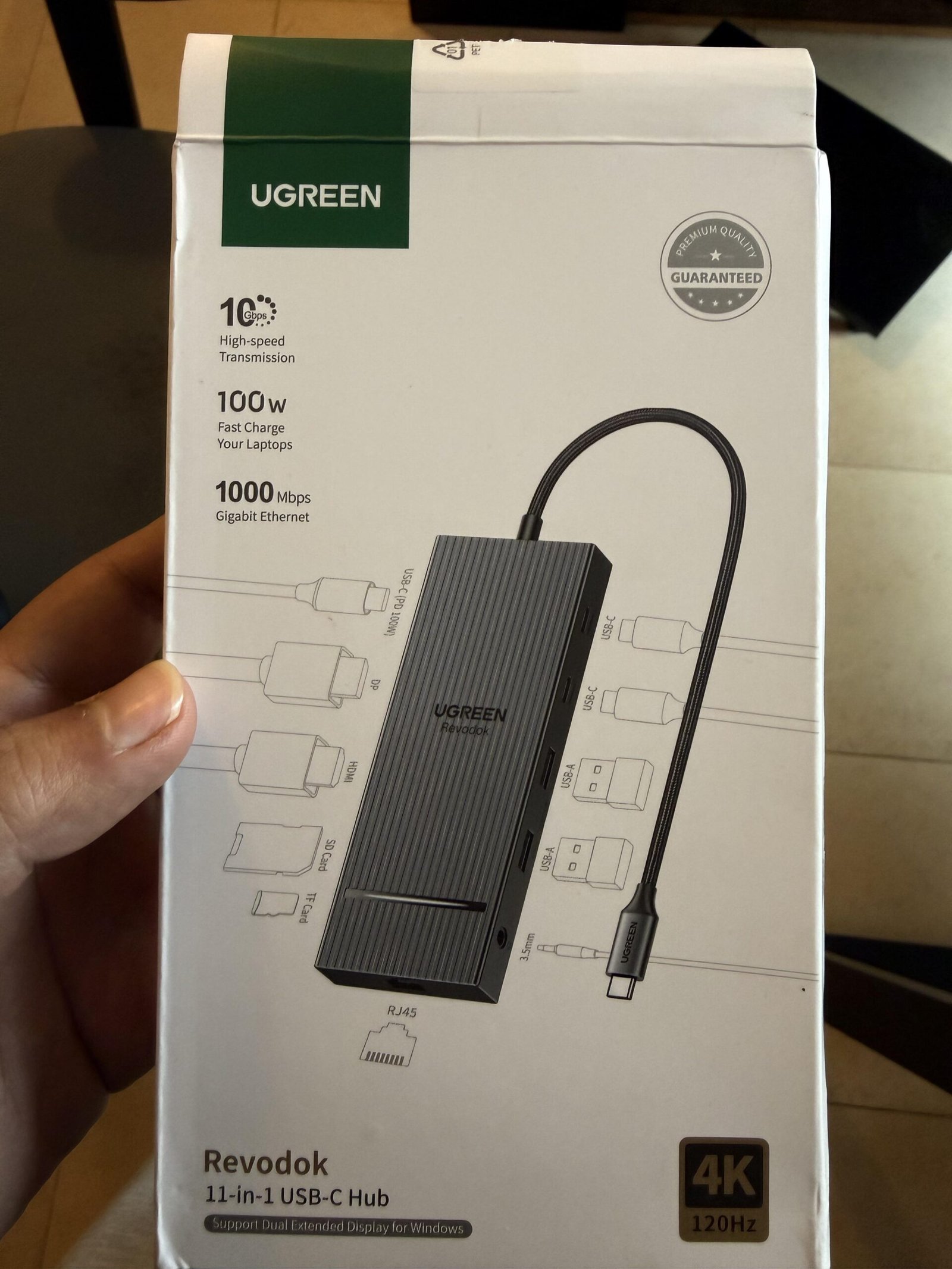
UGREEN Revodok USB-C hubs usually fail because of cable issues, power limits, port mismatch, or device compatibility.
If your UGREEN Revodok USB-C Hub is not working, you are not alone. I have seen this happen in real use far more often than people expect, and the cause is usually simple once you know where to look. In this guide, I’ll walk you through the most common reasons, the fixes that actually help, and the small mistakes that can make a perfectly good USB-C hub seem broken.

Why the UGREEN Revodok USB-C Hub stops working
A USB-C hub is a bit like a small traffic officer. It takes one connection from your laptop or tablet and sends data, video, and power to several devices at once. When one part of that chain fails, the whole setup can look dead even though the hub itself is fine.
The most common reason the UGREEN Revodok USB-C Hub is not working is that the host device, cable, or connected accessory does not support the feature you are trying to use. For example, one USB-C port may support charging but not video output, or a cable may support data but not full DisplayPort Alt Mode. I have seen users replace a hub that was never the problem, only to find the issue was a weak cable or the wrong port on the laptop.
Common reasons your UGREEN Revodok USB-C Hub is not working
1. The USB-C port on your device does not support all hub functions
Not every USB-C port is the same. Some ports only handle charging, while others support data transfer, video output, and power delivery.
If your UGREEN Revodok USB-C Hub is not working with an external monitor, the laptop’s USB-C port may not support DisplayPort Alt Mode or Thunderbolt. This is one of the most common misunderstandings. I have personally tested laptops where the hub worked for flash drives but failed completely for display output, and the reason was the port itself.
2. The cable is not rated for the task
A bad or low-grade USB-C cable can break the whole setup. Some cables are charge-only. Others support data, but not fast data or video.
If the hub lights up but nothing connects, swap the cable first. In my experience, this fixes more “dead hub” complaints than any other step. A short, certified USB-C cable often works better than the long cable that came in a random drawer.
3. The hub is drawing more power than your device can provide
Many USB-C hubs need more power when several devices are connected at once. External drives, Ethernet, SD cards, and displays can all push the hub toward its limit.
If your UGREEN Revodok USB-C Hub works with one device but not with several, power may be the issue. Try connecting the charger to the hub if it supports pass-through charging. I usually tell people to think of it like a power strip: too many hungry devices can cause the entire chain to wobble.
4. Device drivers or firmware are outdated
Windows, macOS, and some Linux setups may need updated drivers to recognize all hub features. This is especially true for Ethernet, audio, and display support.
If the hub is detected but some ports do not work, check system updates, USB controller drivers, and graphics drivers. I once spent nearly an hour troubleshooting a “bad hub” that turned out to be an outdated display driver on a Windows laptop.
5. The connected device is not compatible
Some accessories simply do not play well with every hub. Certain SSDs need more power, some monitors need stricter video support, and older peripherals may behave oddly through a hub.
If your UGREEN Revodok USB-C Hub is not working with a specific device but works with others, the problem may be that accessory. Test each device one by one. That narrow-down step saves time and avoids guessing.
6. The hub is connected to the wrong port on your laptop or tablet
This sounds simple, but it happens all the time. Many laptops have multiple USB-C ports, and not all of them support the same features.
On some models, one USB-C port supports video and charging, while another supports only data. If the hub is not working, try a different port before assuming the hub is faulty. I’ve seen a lot of panic caused by nothing more than plugging into the “wrong” side of the laptop.
7. The hub needs a reset or full reconnect
Sometimes the device just gets stuck. A USB-C hub can stop responding after sleep mode, hot swapping, or a sudden disconnect.
Unplug the hub, disconnect all accessories, wait 20 to 30 seconds, and reconnect it directly to the host device. If that fails, restart the computer. This simple reset often clears handshake problems between the hub and the operating system.
How to troubleshoot a UGREEN Revodok USB-C Hub step by step
Start with the simplest test
Before you change settings, test the basics.
• Plug the hub into a different USB-C port
• Use a different USB-C cable
• Connect only one accessory at a time
• Try a different laptop, tablet, or phone if available
This tells you whether the issue is with the hub, the device, or one accessory. A good troubleshooting rule is to change only one thing at a time so you can see what actually fixed the problem.
Check power delivery and charging
If your hub supports power delivery, connect the charger to the hub and see whether behavior improves. Some hubs need external power to run multiple peripherals well.
Look for signs of low power, such as:
• Disconnected external drives
• Flickering monitors
• Random device drops
• Slow or failed file transfers
These are classic symptoms of power shortage, not always hub failure.
Verify display support
If the UGREEN Revodok USB-C Hub is not working with a monitor, confirm that:
• The laptop USB-C port supports video output
• The cable supports video
• The monitor input is set correctly
• The display resolution and refresh rate are within supported limits
Many users assume all USB-C ports output video. They do not. That one detail causes a lot of confusion.
Update the operating system and drivers
This matters most on Windows, where dock and hub behavior can depend on chipset, graphics, and USB drivers.
Do this:
- Install OS updates
- Update graphics drivers
- Update chipset and USB controller drivers
- Reboot the device
- Reconnect the hub
For macOS, updates are often simpler, but system updates can still improve hub compatibility. Even though hubs are supposed to be plug and play, the host system is still doing the heavy lifting.
Test each port on the hub
A hub may have one failing function while others still work. For example, USB-A ports may work while HDMI does not, or Ethernet may work while SD card access does not.
Test each function separately:
• USB flash drive
• External keyboard
• Monitor
• Ethernet cable
• SD or microSD card
• Charging output
This helps you identify whether the whole hub is failing or just one feature.

Real-world causes I have seen most often
After troubleshooting hubs for years, I’ve noticed a pattern. Most problems are not dramatic hardware failures. They are small compatibility gaps.
The most common real-world causes are:
• A cable that supports charging but not data
• A laptop USB-C port that lacks video support
• A hub that needs extra power for multiple devices
• A display setup that exceeds the host device’s output limits
• A device driver problem after a system update
One mistake I made early on was assuming all USB-C cables were equal. They are not. That lesson alone saved me a lot of time later. Since then, I always test with a certified cable first, because it removes a huge number of unknowns.
How to know if the hub is actually defective
Sometimes the hub really is the issue. If you have tested the cable, port, device, power, and drivers, and the UGREEN Revodok USB-C Hub is still not working, the hardware may be defective.
Signs of a bad hub include:
• No response on multiple devices
• No LED indicator, if your model has one
• One or more ports never work on any host device
• The hub gets unusually hot
• Devices connect and disconnect repeatedly even with good cables
If possible, test it on another compatible computer. If the same issue happens there, the hub may need replacement or warranty support.
How to prevent USB-C hub problems in the future
A little prevention goes a long way. USB-C setups are powerful, but they are also picky.
To avoid problems:
• Use certified USB-C cables
• Check your device’s port specs before buying a hub
• Keep drivers and firmware updated
• Avoid running too many power-hungry devices from one unpowered hub
• Store the hub and cable carefully to prevent wear
I also recommend keeping one “known good” cable in your bag. It makes troubleshooting much faster, especially when you are on the go.
Frequently Asked Questions
Why is my UGREEN Revodok USB-C Hub not recognized by my laptop?
The laptop may not support the hub’s required features, or the cable may not be carrying data correctly. Try another USB-C port, another cable, and a reboot before assuming the hub is broken.
Why does my hub charge my device but not show video?
That usually means the USB-C port or cable supports charging and data, but not video output. Display output needs support for DisplayPort Alt Mode, Thunderbolt, or another compatible video standard.
Why does my UGREEN Revodok USB-C Hub disconnect randomly?
Random disconnects are often caused by low power, a weak cable, or a driver issue. If several devices are plugged in, test the hub with fewer accessories or connect external power if supported.
Does every USB-C port work with every hub?
No, and this is a very common misconception. Some USB-C ports support only charging or basic data, while others support video, fast data, and power delivery.
Can a faulty USB-C cable make the hub seem dead?
Yes. A bad cable can stop data, video, or stable power from reaching the hub. In many cases, swapping the cable is the fastest way to solve the problem.
Conclusion
When the UGREEN Revodok USB-C Hub is not working, the cause is usually not mysterious. It is often a cable issue, a port limitation, a power shortage, or a compatibility mismatch. Once you test the setup step by step, the answer usually becomes clear.
The best approach is simple: start with the cable, check the port, test power, and confirm device support before replacing the hub. That saves time, money, and frustration. If you are still stuck, leave a comment or explore more troubleshooting tips so you can get your setup working the right way.

Similar Posts