Brother HL-L3300CDW Troubleshooting: Fast Fixes Guide
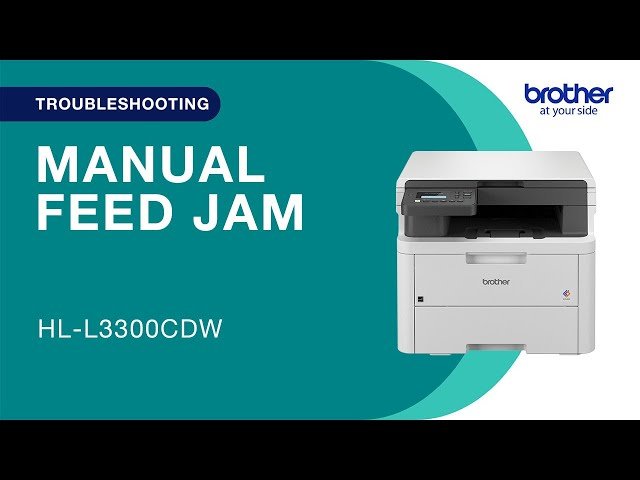
Brother HL-L3300CDW troubleshooting usually comes down to paper, connection, toner, or print settings.
If you own this compact color laser printer, you already know it can be a workhorse when it’s running well. I’ve worked through many Brother HL-L3300CDW troubleshooting cases over the years, and the good news is that most problems are fixable with a few smart checks and a calm, step-by-step approach.
Common Brother HL-L3300CDW Troubleshooting Issues
The Brother HL-L3300CDW is reliable, but like any printer, it can act up from time to time. Most issues fall into a few familiar buckets: paper jams, weak Wi-Fi, toner problems, poor print quality, and error messages.
When I first started helping people with Brother HL-L3300CDW troubleshooting, I noticed the same pattern again and again. The printer was not “broken” in the serious sense. It was usually reacting to a small setup issue, a dirty roller, or a mismatched print setting.
Here are the most common problems users report:
• Paper jams or “jam inside” messages
• Printer offline or not responding
• Wi-Fi connection failures
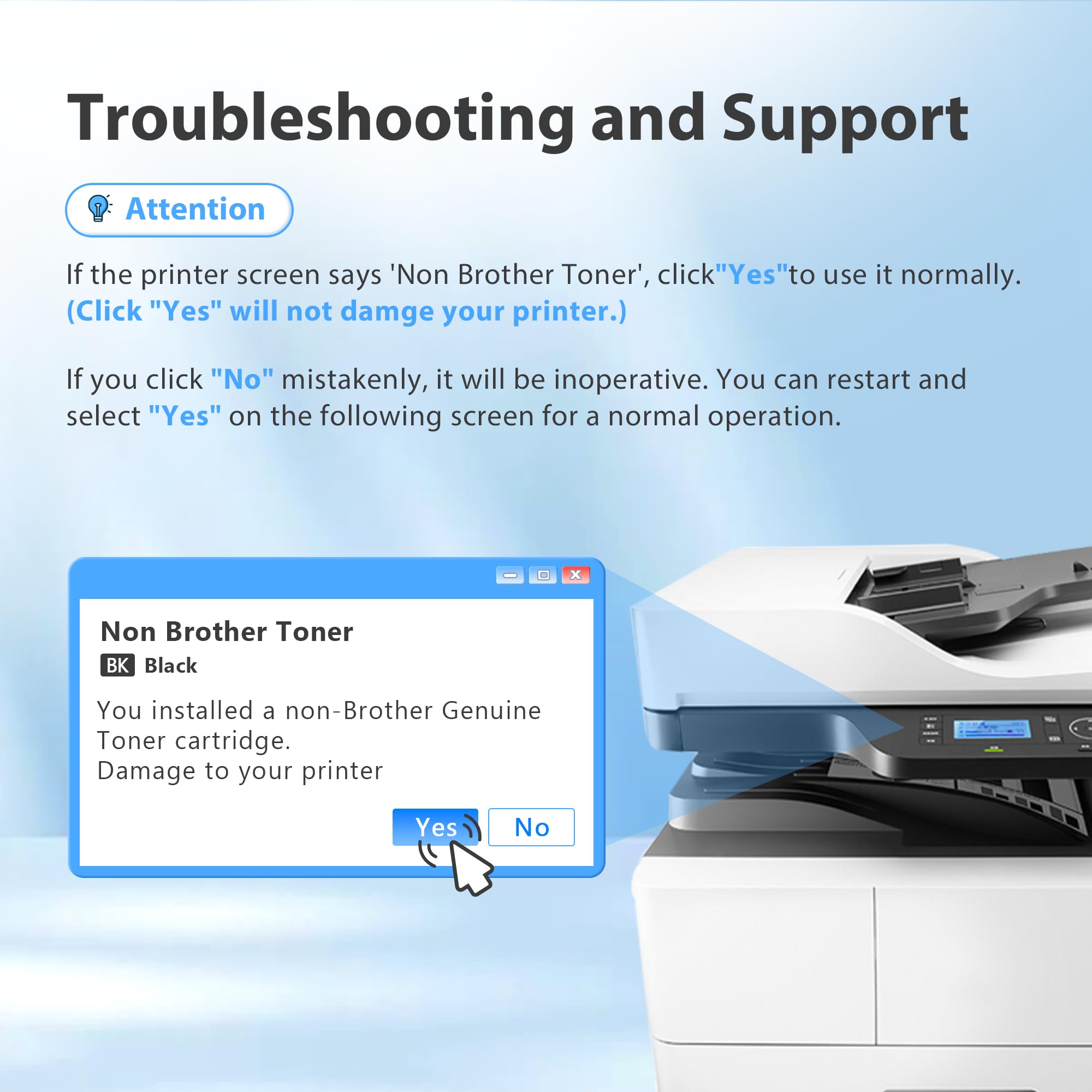
• Toner not detected or low toner warnings
• Streaks, faded print, or blank pages
• Slow printing or delayed jobs
• Driver or software issues on Windows or Mac
The best way to handle Brother HL-L3300CDW troubleshooting is to start simple. Check the basics first, then move into deeper fixes only if needed.
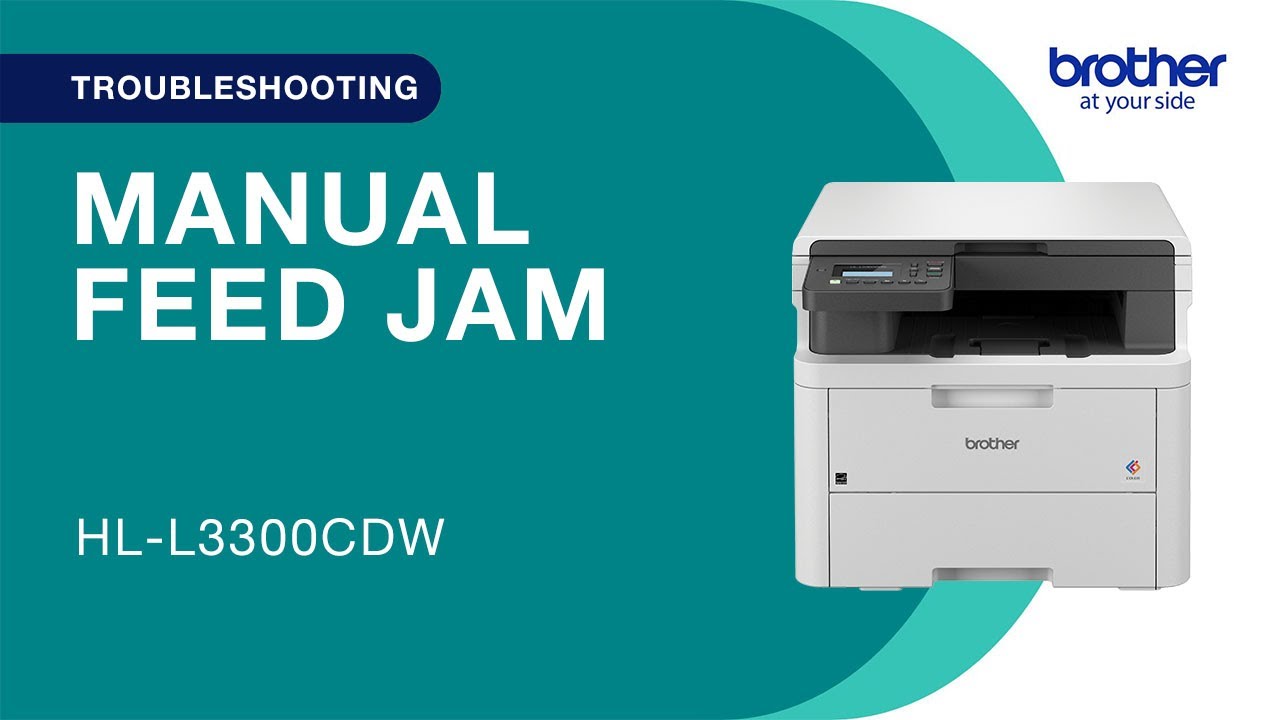
Start with the Basic Checks
Before you change settings or reinstall drivers, do a quick physical check. This saves time and often solves the problem right away.
I always tell people to treat the printer like a flashlight with a weak battery. Before assuming the device failed, make sure the power, paper, and connections are all solid.
Try these steps:
• Turn the printer off, wait 30 seconds, then turn it back on
• Check that the power cable is firmly plugged in
• Make sure the paper tray is loaded correctly
• Confirm the paper size matches the print job
• Remove any loose paper scraps from the tray or rear area
• Check that toner cartridges are seated properly
If the printer still shows an error, note the exact message. That message usually points to the real issue and makes Brother HL-L3300CDW troubleshooting much easier.
Fixing Paper Jams and Feed Problems
Paper jams are one of the most common Brother HL-L3300CDW troubleshooting issues. They often happen because the paper is curled, loaded wrong, or too full in the tray.
In my experience, most “jam” errors are caused by simple feed problems, not a major hardware failure. A slightly bent sheet can stop the whole machine, like one bad card blocking the deck.
Use these steps:
• Open the front cover and remove the toner and drum unit carefully
• Gently pull out any jammed paper in the direction of the paper path
• Check the rear cover if the paper is stuck near the back
• Fan the paper stack before reloading it
• Use plain, dry paper that is within the printer’s supported weight range
• Do not overfill the tray
Useful tips:
• Store paper in a dry place
• Avoid using wrinkled or curled sheets
• Make sure the side guides fit snugly, not too tight
• If jams happen often, clean the paper feed rollers
If your Brother HL-L3300CDW keeps jamming after you remove the paper, inspect for tiny torn pieces. Even one small scrap can keep triggering Brother HL-L3300CDW troubleshooting headaches.
Solving Wi-Fi and Network Connection Problems
Wireless issues are another big part of Brother HL-L3300CDW troubleshooting. The printer may show offline, disappear from your device, or fail to connect after a router change.
I’ve seen this happen most often after a Wi-Fi password update, router reset, or network band switch. Many printers prefer a stable 2.4 GHz connection, so network changes can confuse them.
Try this:
• Restart the printer and the router
• Confirm the printer is connected to the correct Wi-Fi network
• Print a network configuration report from the printer menu
• Move the printer closer to the router if the signal is weak
• Re-enter the wireless password if needed
• Remove and re-add the printer on your computer or phone
If the printer still will not connect:
• Temporarily disable VPN software on your computer
• Check for MAC address filtering on the router
• Make sure the router is not blocking new devices
• Update the printer firmware if available
A stable network matters more than speed for this printer. For Brother HL-L3300CDW troubleshooting, consistency usually beats fancy settings.

Fixing Printer Offline or Not Responding Errors
An “offline” message can be frustrating because the printer may still be powered on and ready. This issue usually means the computer and printer are not communicating properly.
The first time I ran into this, the printer looked fine on the desk but was stuck in a stale queue on the computer. That is common. The printer is there, but the device list did not refresh.
Try these steps:
• Make sure the printer is powered on
• Check that the USB cable is secure if you are using wired printing
• If wireless, confirm the printer and device are on the same network
• Clear stuck print jobs from the queue
• Set the Brother HL-L3300CDW as the default printer
• Restart the print spooler on Windows if needed
If you use Windows:
• Open the printer queue and cancel all pending jobs
• Remove the printer and add it again
• Check whether “Use Printer Offline” is enabled and turn it off
If you use Mac:
• Remove the printer from Printers & Scanners
• Add it back using the proper Brother driver or AirPrint, if supported
This type of Brother HL-L3300CDW troubleshooting is often about communication, not hardware.
Improving Print Quality Problems
Print quality issues are common in Brother HL-L3300CDW troubleshooting, especially with laser printers that sit unused for a while. You may see faded text, streaks, spots, ghosting, or uneven color.
I’ve found that print quality problems often start with toner, drum condition, or the wrong paper setting. Think of it like cooking with the wrong pan. The ingredients may be fine, but the result still looks off.
Check these items:
• Make sure the toner cartridges are installed correctly
• Remove and gently reseat the drum and toner unit
• Run the printer’s cleaning function, if available
• Check the print density setting
• Use the right paper type setting in the driver
• Replace worn toner or drum units when needed
Common print quality symptoms and causes:
• Faded pages: low toner, draft mode, or incorrect density
• Vertical lines: dirty drum or toner spill
• Smudges: paper path contamination
• Blurry print: wrong paper setting or worn components
• Blank pages: toner cartridge issue or driver problem
A good rule in Brother HL-L3300CDW troubleshooting is to test with a fresh page after each change. That makes it easier to see what actually worked.
Checking Toner, Drum, and Supplies
Many people assume a toner warning means the cartridge is empty. That is not always true. Brother printers may show low toner alerts before the print quality becomes unusable.
During Brother HL-L3300CDW troubleshooting, I always check whether the issue is the toner, drum, or the way they are installed. These parts work together, and one weak part can affect the whole print.
Do this:
• Remove the toner and drum unit
• Inspect for damage, leaks, or loose parts
• Shake the toner gently side to side if print looks uneven
• Reinstall the unit firmly
• Check the display for supply-related messages
• Replace the drum if the printer indicates its life is near the end
Keep in mind:
• Genuine or compatible supplies should match the printer model
• A poor-quality cartridge can cause streaks or recognition errors
• Drum units are separate from toner and have their own lifespan
If the printer says “replace toner” but output still looks fine, you may have some time before replacement. Still, for dependable Brother HL-L3300CDW troubleshooting, it helps to track supply life instead of waiting for a full failure.
Updating Drivers and Printer Software
Software problems can look like hardware failures. If your printer works from one device but not another, the driver or app may be the real issue.
This is one area where Brother HL-L3300CDW troubleshooting often gets overlooked. People spend hours checking the printer when the computer is simply sending the wrong instructions.
Try this:
• Download the latest Brother driver for your operating system
• Remove older printer entries before installing new software
• Restart the computer after installation
• Check whether the printer app needs an update
• Re-add the printer using the correct connection type
Helpful examples:
• A Windows update may break an old printer driver
• A Mac update may change AirPrint behavior
• A mobile device may need the Brother app refreshed
If you use your printer for both home and office tasks, keep the driver updated. It reduces many common Brother HL-L3300CDW troubleshooting problems before they start.
Resetting the Printer Safely
A reset can help when the printer keeps showing the same error after you have checked everything else. But it should be used carefully and only after simpler fixes.
I usually treat a reset like restarting a frozen phone. It is not magic, but it can clear a stuck state and let the machine breathe again.
Possible reset steps:
• Power cycle the printer
• Reset the network settings if Wi-Fi keeps failing
• Restore factory settings if the printer is badly misconfigured
• Reconnect the printer from scratch afterward
Before resetting:
• Save your Wi-Fi details
• Note any custom settings
• Be ready to reconnect devices
A reset will not fix damaged hardware, but it can help when Brother HL-L3300CDW troubleshooting points to a communication or configuration problem.
Preventing Future Problems
Good maintenance makes Brother HL-L3300CDW troubleshooting much less painful. A printer that is cared for tends to behave like a well-trained helper instead of a surprise guest.
Here are simple habits that help:
• Keep paper dry and flat
• Use the right paper size every time
• Print a test page once in a while if the printer sits idle
• Clean the rollers and paper path as needed
• Update software when major system changes happen
• Avoid forcing paper into the tray
Practical lesson from experience:
• Most recurring issues I have seen came from rushed setup, not bad hardware
• A five-minute check at the start can save an hour later
• Small dust buildup can become a big print-quality issue over time
Prevention is the quiet part of Brother HL-L3300CDW troubleshooting, but it pays off the most.
When to Contact Support or Replace Parts
Sometimes Brother HL-L3300CDW troubleshooting reaches the point where home fixes are not enough. If the printer keeps throwing the same error after careful checks, the issue may be with the drum, fuser, sensor, or logic board.
You should reach out for help if:
• The printer makes unusual grinding noises
• Error codes keep returning after resets
• Paper jams happen in the same spot every time
• Print quality does not improve after supply replacement
• The printer will not power on consistently
At that point, support or a technician can help confirm whether a part needs replacement. That is better than guessing and spending money on the wrong fix.
Frequently Asked Questions of Brother HL-L3300CDW Troubleshooting
Why is my Brother HL-L3300CDW not printing even though it is connected?
This usually happens because of a stuck print queue, an offline setting, or a driver issue. Check the printer status, clear pending jobs, and make sure the device is selected as the default printer.
How do I clear a paper jam on the Brother HL-L3300CDW?
Turn the printer off, open the covers, and gently remove the jammed paper in the direction of the paper path. Do not pull too hard, or you may tear the sheet and leave scraps behind.
Why does my Brother HL-L3300CDW print faded pages?
Faded pages are often caused by low toner, draft settings, or a dirty drum unit. Try reseating the toner, checking print density, and replacing supplies if needed.
How do I reset the Wi-Fi on my Brother HL-L3300CDW?
You can reset the network settings from the printer menu, then reconnect the printer to your Wi-Fi network. After that, remove and re-add the printer on your computer or phone.
What should I do if my Brother HL-L3300CDW shows offline?
Check the power, network connection, and print queue first. If needed, remove the printer from your device and add it again with the correct driver.
Can a bad toner cartridge cause Brother HL-L3300CDW troubleshooting problems?
Yes, a poor or improperly installed toner cartridge can cause streaks, low-quality print, and recognition errors. Reseating or replacing the cartridge often solves the issue.
Conclusion
Brother HL-L3300CDW troubleshooting gets much easier when you work through the basics in the right order. Start with paper, power, and network checks, then move to toner, drivers, and print settings before assuming there is a major fault.
From my experience, the printer usually gives clues early. If you pay attention to those clues and make one change at a time, you can solve most problems without stress. Try the fixes above, keep up with simple maintenance, and your Brother HL-L3300CDW will stay far more dependable.
If this guide helped, save it for later, share it with someone who owns the same printer, or leave a comment with the issue you are facing.

Similar Posts