Best Gaming Monitor: Top Picks For Smooth, Immersive Play
The best gaming monitor balances speed, sharp image quality, smooth motion, and comfort for long play sessions.
You know the feeling: your new graphics card runs a game at high frame rates, but your old screen still looks dull, tears during fast turns, or feels cramped during long matches. A good gaming monitor fixes that weak link. I compared screen size, resolution, refresh rate, response claims, curve design, ports, and daily comfort across these models. The right pick depends on your games, PC power, desk space, and budget. My guide below makes that choice simple, whether you play ranked shooters, open-world games, racing titles, or story-driven RPGs.

Samsung 27″ Odyssey G5 (G51F)…
QHD Resolution (2560 x 1440) has 1.7 times the pixel density of Full HD for incredibly detailed pinsharp images HDR10 provides brighter highlights and nuanced shadow for added depth -…
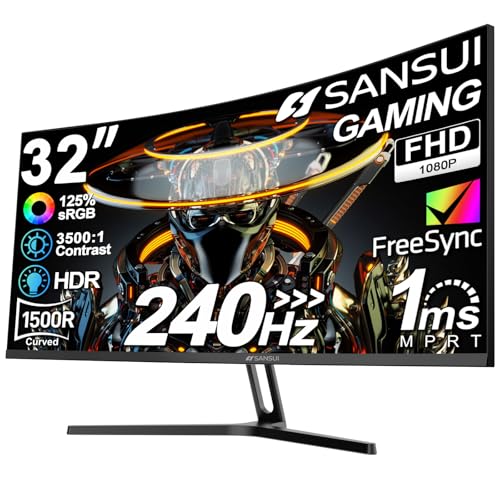
SANSUI 32 Inch Curved 240Hz…
32 Inch curved 1500R gaming monitor, 240Hz high refresh rate for gameplay Performance: 240Hz refresh rate, Full HD 1920*1080P resolution, 1ms MPRT response time, Built-in FreeSync technology, Anti-flicker, Low blue…

SANSUI 27 Inch Curved 240Hz…
27” 240Hz 1500R Curved FHD 1080P Gaming Monitor for Game Play. Prioritizes Gaming Performance: Up to 240Hz high refresh rate, more immersive 1500R Curvature, FreeSync, MPRT 1ms Response Time, Black…
Samsung 27″ Odyssey G5 QHD Monitor

The Samsung Odyssey G5 G51F is a strong all-around choice for gamers who want a clear 27-inch screen without moving to an oversized desk setup. Its QHD, or 1440p, resolution gives games more detail than standard Full HD. That extra space also helps with maps, menus, and work apps. I find this size and resolution pairing especially easy to recommend for mid-range and upper mid-range gaming PCs.
The high refresh rate helps motion look clean during quick camera moves and fast races. Its curved design can make the screen feel more focused, while adaptive sync support can help reduce tearing when frame rates change. The main trade-off is simple: 1440p needs more GPU power than 1080p. Still, for many players, this monitor offers the best balance of sharpness, speed, and desk-friendly size.
Pros:
- QHD resolution gives games a sharp, detailed image
- 27-inch size fits most gaming desks
- High refresh rate supports smooth play
- Curved panel adds an immersive feel
- Adaptive sync can reduce visible tearing
- Useful choice for both gaming and office work
Cons:
- Needs a capable graphics card for high QHD frame rates
- HDR impact may not match a premium display with local dimming
- Built-in speakers are not the main reason to buy it
My Recommendation
I recommend the Samsung Odyssey G5 to players who want one screen for competitive games, RPGs, streaming, and daily tasks. It is a smart fit for someone upgrading from a 1080p monitor but not ready to pay premium ultrawide or OLED prices. The 27-inch QHD format keeps text crisp and gives games a clear, rich look. In my view, it is one of the safest choices for shoppers seeking the Best Gaming Monitor for a balanced PC setup.
It also suits users who want a monitor that feels like a real upgrade without demanding a huge desk. Before buying, check your graphics card and the monitor’s included ports. If your system can drive QHD well, this Samsung offers strong overall value and is commonly easy to find through major online retailers.
SANSUI 32″ Curved 240Hz Gaming Monitor

The SANSUI 32-inch curved gaming monitor targets players who want a large view and very fast refresh performance at a lower cost. Its Full HD resolution keeps the workload light for the graphics card. That can help a budget or older gaming PC reach high frame rates. The large panel also makes games feel more open, although the image will not look as fine as a 27-inch QHD screen.
A 240Hz refresh rate is most useful in games that move quickly, such as competitive shooters and racing games. If your PC can produce close to that many frames per second, the screen can feel very responsive. I also like this size for split-screen play, casual viewing, and gaming from a little farther away. Its main limit is pixel density, so buyers who care most about small text and fine detail may prefer a QHD model.
Pros:
- 240Hz refresh rate suits fast competitive games
- Full HD resolution is easier for budget GPUs to drive
- Large 32-inch screen creates an engaging view
- Curved shape helps keep the wide panel comfortable to follow
- Good option for players who value speed over resolution
- Large display can work well for casual console gaming
Cons:
- Full HD looks less sharp on a 32-inch panel
- Requires strong frame rates to make full use of 240Hz
- Large size may feel too close on a shallow desk
My Recommendation
I would choose this SANSUI for a competitive gamer with a modest PC who wants very smooth motion. A lower resolution can be a benefit here because it places less strain on the graphics card. That leaves more room for high frame rates in esports titles. It is also a good pick for someone who likes a big screen but does not want to spend on a high-resolution ultrawide.
This is not my first choice for design work, high-detail adventure games, or close-up desktop use. At 32 inches, Full HD can look soft beside a QHD display. Yet for fast play, simple setup, and a large curved view, it provides a lot of screen for the money. It can be the Best Gaming Monitor for speed-focused players on a tighter budget.
SANSUI 27″ Curved 240Hz Gaming Monitor

The 27-inch SANSUI curved monitor is built around speed, color range, and a compact footprint. It uses a Full HD panel, so most gaming PCs can drive it at high frame rates without a costly graphics upgrade. The listed 240Hz refresh rate and fast MPRT response target players who want quick updates on screen. Its 1500R curve adds a gentle wraparound effect without feeling as dramatic as a very wide display.
The stated wide-gamut coverage can make colors look lively in games and video. The high contrast claim may also help dark scenes look deeper, though real results depend on room light, settings, and panel quality. FreeSync support is useful when the frame rate moves up and down. I see this model as a practical middle path between a small esports display and a large immersive monitor.
Pros:
- 240Hz refresh rate supports fluid competitive play
- 27-inch size works well on most desks
- Full HD resolution helps budget PCs reach high frame rates
- 1500R curve gives the screen a focused feel
- Wide color coverage can make games look more vivid
- Includes HDMI and DisplayPort connections for flexible setup
- Low-blue-light mode may help during long sessions
Cons:
- Full HD is less detailed than QHD at this screen size
- 240Hz matters less if your games run far below 200 frames per second
- Color performance may need adjustment for accurate creative work
My Recommendation
This SANSUI is best for esports players, students, and budget builders who want a quick 27-inch monitor. It gives you a useful mix of size, refresh speed, curve, and color at a sensible level. I would pair it with a PC built for high frame rates in games such as Valorant, Counter-Strike, Fortnite, or Overwatch. It can also serve well as a second monitor for chat, music, or a stream dashboard.
I would not buy it only because of the 1ms or 240Hz labels. Your graphics card, game settings, cable, and connection type all affect the final result. Still, with sensible expectations, this monitor is a strong value choice. For players who want the Best Gaming Monitor for high-speed Full HD play, it deserves serious attention.
Alienware 34″ WQHD 180Hz Monitor

The Alienware AW3425DWM is the most immersive screen in this group. Its 34-inch ultrawide format gives games a broad view and adds room for side-by-side windows. The WQHD resolution provides more detail than Full HD while keeping the image wide. A 1500R curve helps bring the outer edges into your field of view, which can feel natural during racing and exploration games.
Its 180Hz refresh rate is fast enough for serious play while giving the graphics card a more realistic target than 240Hz. Adaptive sync features can help the display stay in step with changing frame rates. I particularly like this type of monitor for driving games, flight games, open-world titles, and PC work that benefits from extra horizontal space. You should check that your desk is wide enough and that your graphics card supports the desired ultrawide resolution.
Pros:
- 34-inch ultrawide format creates a wide, cinematic view
- WQHD resolution offers clear detail without 4K-level GPU demand
- 180Hz refresh rate feels smooth in action games
- 1500R curve keeps the edges easier to see
- Useful for gaming, video work, and side-by-side apps
- FreeSync Premium and adaptive sync features help control tearing
- Premium Alienware design gives a polished desk setup
Cons:
- Needs more desk width than a standard 27-inch display
- Ultrawide support varies from game to game
- Some competitive players may prefer a smaller screen for focus
- Requires more GPU power than a standard Full HD monitor
My Recommendation
I recommend the Alienware AW3425DWM to players who want immersion first. It is a wonderful fit for racing wheels, open-world games, space simulators, and cinematic adventures. The wider view can make a game world feel like a window rather than a box. It also gives remote workers a useful replacement for two smaller displays.
This is not the most practical pick for every desk or every game. Some titles may show side borders, stretch poorly, or need a setting change. Competitive players may also prefer a smaller panel that keeps the whole match in one tight glance. If you have the space and the right GPU, though, this could be the Best Gaming Monitor for a rich ultrawide experience.
Samsung 27″ Essential S3 Curved Monitor

The Samsung Essential S3 is a simple 27-inch curved monitor for casual gaming, school, work, and home use. Its Full HD resolution is easy for nearly any modern gaming system to handle. The 1800R curve adds a small amount of depth without taking over the desk. This makes it a friendly choice for buyers who want a familiar screen with a more engaging shape.
This model is better suited to relaxed gaming than high-level esports. It can handle everyday games, videos, browsing, and console play without asking for a powerful graphics card. I also like its simple role as a first gaming monitor or a second display. Buyers should remember that it may not offer the same motion speed, resolution, or gaming features as the other models here.
Pros:
- 27-inch size is comfortable for gaming and daily work
- Full HD resolution works well with modest hardware
- 1800R curve adds mild viewing immersion
- Good fit for casual players and general home use
- Simple format suits small desks and basic setups
- Samsung branding offers a familiar support and design experience
Cons:
- Not designed for the fastest competitive gaming
- Full HD gives less desktop space than QHD
- May lack premium gaming extras found on Odyssey models
My Recommendation
The Samsung Essential S3 is best for casual gamers, students, office users, and families that need one affordable screen for many tasks. Choose it if you play at a relaxed pace and do not need a 240Hz refresh rate. It is also a good starter display for a new PC, especially when the budget must cover a keyboard, mouse, headset, and graphics card.
I would not select it for tournament play or a high-end gaming PC. In those cases, the Odyssey G5, either fast SANSUI model, or Alienware ultrawide offers more room to grow. For simple gaming and daily use, this Samsung remains a sensible value option and an easy entry point into the Best Gaming Monitor category.
How I Choose the Best Gaming Monitor
Buying a gaming monitor is not just about finding the biggest number on a product page. A 240Hz screen may sound better than a 180Hz screen, but only if your computer can produce enough frames to use it. A 1440p display may look sharper, but it needs more graphics power. I look at the full chain: the PC, the game, the cable, the desk, the room, and the person sitting in front of the screen.
Resolution and Screen Size
Full HD means 1920 by 1080 pixels. It remains a practical choice for affordable gaming PCs and competitive play. It can deliver high frame rates without placing heavy pressure on the GPU. On a 27-inch or 32-inch screen, however, Full HD looks less dense than it does on a smaller display.
QHD, also called 1440p, means 2560 by 1440 pixels. It gives a clear step up in detail and desktop space. A 27-inch QHD monitor is one of my favorite pairings because text looks crisp and games feel sharp without the heavy demands of 4K. The Samsung Odyssey G5 uses this balanced format.
Ultrawide displays change the shape as well as the resolution. The Alienware model gives you a wide WQHD view for games and work. This can improve immersion, but it also needs more desk space and may require extra settings in older games.
Refresh Rate and Response Time
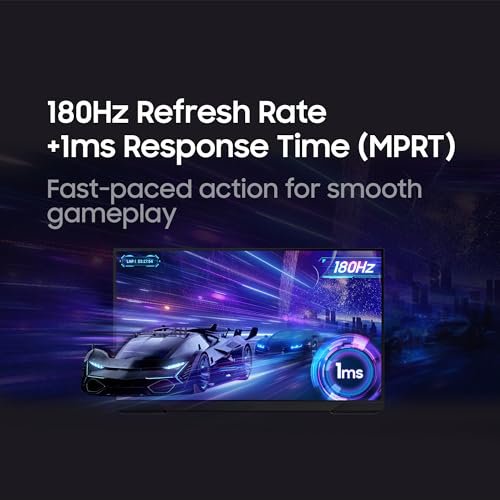
Refresh rate tells you how many times the monitor can update the image each second. A 60Hz display updates 60 times per second. A 180Hz display can update three times as often, while 240Hz goes even higher. Higher refresh rates can make mouse movement and camera pans look smoother.
The benefit depends on frame rate. If a game runs at 90 frames per second, a 240Hz monitor cannot create the missing frames. It can still provide a responsive display, but the full value of 240Hz appears when the computer pushes high frame rates. This is why Full HD 240Hz models can make sense for esports PCs.
Response time is more complex than one label. Brands may list a very low MPRT or gray-to-gray figure under certain test conditions. I treat that number as a guide, not a guarantee. Actual motion clarity depends on overdrive settings, refresh rate, frame pacing, panel behavior, and the game itself.
Adaptive Sync
Screen tearing happens when the display and graphics card send frames at different times. Adaptive sync can reduce this problem by letting the monitor adjust its refresh timing to match the GPU. AMD FreeSync is common in this class of monitor. Some displays also work with compatible NVIDIA graphics cards through a compatible mode, but you should confirm support for your setup.
Adaptive sync does not replace a high refresh rate. It works beside it. I suggest enabling it, setting a sensible frame limit when needed, and testing the game with your own hardware. Small changes in settings can make motion feel far better than a large number printed on a box.
Panel Type, Contrast, and Color
Panel technology affects contrast, color, viewing angles, and motion. VA panels often offer strong contrast and deep-looking blacks. They can suit dark games and movie watching. IPS panels often provide consistent color and wide viewing angles, while OLED panels offer exceptional black levels but usually cost more and require extra care.
The displays in this guide focus on value rather than premium OLED performance. Curved VA-style designs can make dark scenes look rich, but results vary by model. Look for even brightness and a useful range of settings. A wide color claim can make games vivid, but it does not always mean the screen is ready for professional color work.
HDR is another feature that needs context. A monitor may accept an HDR signal, but strong HDR usually requires high brightness, wide color, and good control over dark and bright zones. Without those traits, HDR may look only a little different from standard content. I recommend buying for the panel’s core quality first, then treating HDR as a bonus unless the display has serious HDR hardware.
Desk Space and Viewing Distance
A 27-inch display often fits a normal desk with room for speakers and a keyboard. A 32-inch screen needs more depth, especially when curved. An ultrawide display needs even more width and may require a strong stand or monitor arm. Measure before you buy.
Your viewing distance matters too. A large Full HD screen can look soft if you sit very close. A 27-inch QHD display often feels sharper at the same distance. Curves can help the edges feel closer, but they do not fix a poor size-to-resolution match.
Ports and Connections
DisplayPort is often the best choice for PC gaming at a high refresh rate. HDMI can work well too, but the exact version and bandwidth matter. Check the monitor specification and your graphics card output before assuming that every port supports the maximum resolution and refresh rate.
I also check whether the box includes the needed cable. A monitor may support a feature, yet the supplied cable or connected device may limit it. USB hubs, speakers, headphone jacks, and height adjustment can add daily value, but these features vary. Never pay a premium for a port you will not use.
Stand, VESA Support, and Comfort
A stable stand matters more than many buyers expect. A screen that wobbles when you type can become a daily annoyance. Height, tilt, swivel, and VESA support make it easier to place the monitor at eye level.
For long sessions, I prefer the top of the screen near eye height. I also lower brightness in a dark room and take short breaks. A low-blue-light mode may make evening use more comfortable, but it cannot replace good lighting and rest. Comfort is part of performance because tired eyes make every game feel harder.
Best For Comparison
| Best for | Why |
|---|---|
| Balanced PC gaming | Samsung Odyssey G5 combines 27-inch size, QHD detail, and smooth play. |
| Competitive gaming on a budget | The SANSUI 27-inch model offers 240Hz speed in a desk-friendly size. |
| Immersive ultrawide gaming | Alienware AW3425DWM gives racing, adventure, and work apps a broad WQHD view. |
Which Monitor Fits Your Gaming Style?
If you play competitive shooters, start with refresh rate and motion clarity. The SANSUI 27-inch and 32-inch models make the most sense when your PC can produce very high frame rates. The 27-inch version is easier to manage on a typical desk. The 32-inch version gives a larger view but may feel too broad for players who sit close.
If you play RPGs, strategy games, and open-world adventures, resolution and immersion may matter more. The Samsung Odyssey G5 gives crisp QHD detail in a practical shape. The Alienware ultrawide can make landscapes and racing tracks feel much more expansive. I would choose based on desk space and GPU power.
For a family PC or mixed-use setup, the Samsung Essential S3 keeps things simple. It works for games, homework, streaming, and general browsing. It does not chase every gaming feature, and that can be a strength for someone who wants easy setup and low cost.
For a workstation that also plays games, consider how many windows you use. An ultrawide can replace two screens for some tasks and reduce the need to move between panels. A 27-inch QHD display remains more flexible if you often share a desk or need a smaller footprint. Your daily work habits should guide the choice as much as your favorite games.
Gaming Monitor Setup Tips
Start by choosing the correct input. Use DisplayPort or the supported HDMI connection that can carry your target resolution and refresh rate. Then open your operating system display settings and select the highest supported refresh rate. Many monitors ship at a lower default setting, so this quick step can unlock the performance you paid for.
Next, enable adaptive sync in the monitor menu and graphics driver. Test a game with a stable frame limit if you notice flicker or uneven motion. Do not copy extreme settings from a competitive player without testing them. A smooth and stable 165 frames per second can feel better than an unstable 240.
Use the monitor’s overdrive setting with care. A stronger setting may reduce blur but can add bright trails or inverse ghosting. The middle option often works best. I check a moving object in a dark scene and a bright scene before I settle on a mode.
Set brightness for the room, not for a showroom. Very high brightness can cause eye strain at night. A small lamp behind or beside the monitor can reduce the harsh contrast between a bright screen and a dark room. Keep the display clean, and avoid pressing hard on the panel.
Finally, place the screen straight in front of you. Center the chair with the monitor, keep the top edge near eye level, and leave enough space to move the mouse. These small changes can improve aim, posture, and comfort more than a flashy accessory.
Common Mistakes to Avoid
The first mistake is buying refresh rate without checking frame rate. A 240Hz display is not automatically better for every person. If your favorite game runs at 80 frames per second, resolution, contrast, and comfort may offer a larger real-world gain.
The second mistake is choosing a large Full HD display for close viewing. Full HD is useful, but pixels spread across a larger panel. If sharp text matters, consider 27-inch QHD or move farther back from a 32-inch Full HD model.
The third mistake is ignoring the graphics card. QHD and ultrawide displays need more rendering power. Lowering game settings can help, but buyers should still check benchmarks for the games they play. A monitor lasts for years, so leave room for the GPU you plan to use next.
The fourth mistake is trusting every response-time claim. Numbers can come from ideal settings and may not reflect real play. Read the full specifications, use practical testing, and look for reports of ghosting or overshoot. I value consistent motion more than the smallest printed number.
The last mistake is forgetting the stand and return policy. A monitor can look perfect online but feel wrong on your desk. Check the adjustment range, mounting support, warranty terms, and return window. Those details matter if a panel has dead pixels, uneven lighting, or a poor fit.
FAQs Of Best Gaming Monitor
What is the best refresh rate for gaming?
A 144Hz to 180Hz monitor suits most PC gamers. Choose 240Hz if you play competitive titles and your computer can produce very high frame rates. For casual games, resolution and image quality may matter more than the top refresh number.
Is 1440p better than 1080p for gaming?
1440p looks sharper and gives you more desktop space. 1080p is easier for budget graphics cards to run at high frame rates. The better choice depends on your GPU, screen size, and game style.
Is a curved gaming monitor worth buying?
A curve can make a large or ultrawide screen feel more natural to follow. It is most useful on 32-inch and ultrawide displays. It is a comfort and immersion feature, not a guarantee of better image quality.
Do I need a 240Hz gaming monitor?
You do not need 240Hz for most games. It helps most in fast competitive games when your PC can deliver close to 240 frames per second. If not, a sharp QHD monitor with a 144Hz or 180Hz rate may be a better use of your money.
What size gaming monitor should I buy?
A 27-inch monitor is the safest choice for most desks. A 32-inch model gives a bigger view but needs more space and works best at a greater distance. Choose a 34-inch ultrawide if you want immersion, extra workspace, and have enough desk width.
Final Verdict: Which Should You Buy?
The Samsung Odyssey G5 is my top pick because its 27-inch QHD screen, smooth refresh rate, and curved design suit the widest range of gamers. Choose SANSUI for budget 240Hz play, Alienware for ultrawide immersion, or Essential S3 for simple casual use.
The Best Gaming Monitor is the one that matches your GPU, desk, games, and eyes. Check the current Amazon price, ports, and return terms before ordering.