Best 4K Monitor: Top Picks For Every Budget
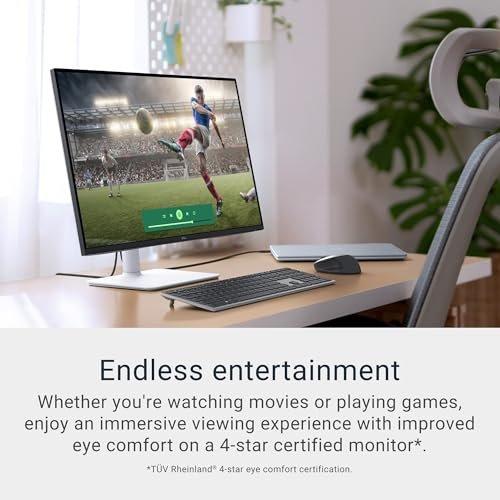
The Dell S2725QS stands out as the Best 4K Monitor for sharp detail, smooth motion, and everyday value.
A poor monitor can make work feel tiring, games look flat, and photos seem less true. I know the feeling of moving windows around a small screen or squinting at tiny text. A good 4K monitor fixes that with a crisp image, useful screen space, and better comfort. I reviewed these models for picture quality, refresh rate, ports, stand design, color, and daily use. This guide can help you choose the right screen for work, gaming, creative tasks, or a large smart display.

Dell 27 Monitor S2725QS, 4K…
Improved ComfortView Plus: Reduces harmful blue light emissions to ≤35%, for all-day comfort without sacrificing color accuracy. Refresh rate: A smooth, tear-free experience with AMD FreeSync Premium (refresh rate up…

Dell 27 Monitor S2725QC, 4K…
Low blue light: The improved ComfortView Plus reduces harmful blue light emissions to ≤35%, for all-day comfort without sacrificing color accuracy. Refresh rate: A smooth, tear-free experience with AMD FreeSync…

Dell 32 Monitor S3225QS, 4K…
Improved ComfortView Plus: Reduces harmful blue light emissions to ≤35%, for all-day comfort without sacrificing color accuracy. Refresh rate: A smooth, tear-free experience with AMD FreeSync Premium (refresh rate up…
Dell S2725QS: Best 27-Inch 4K Monitor

The Dell S2725QS is a strong all-round choice for people who want a clear 4K image without moving to an oversized screen. Its 27-inch IPS panel gives text a clean edge and keeps colors steady when I view the display from the side. The 3840 x 2160 resolution also gives plenty of room for documents, web pages, spreadsheets, and creative apps. At this size, the pixel density feels high, so photos and small type look refined.
The 120Hz refresh rate is a major step above common 60Hz office monitors. Scrolling feels smoother, and supported games look more fluid when paired with a suitable graphics card. The 5ms response time and FreeSync Premium support add value for casual gaming. I also like that the stand can support a more comfortable desk setup, while Dell’s comfort features help during long work sessions.
Pros:
- Sharp 4K resolution makes text and images look clean
- IPS panel provides wide viewing angles
- 120Hz refresh rate improves scrolling and motion
- FreeSync Premium helps reduce screen tearing
- 27-inch size fits most desks with ease
- Useful choice for work, streaming, and casual gaming
Cons:
- HDR performance is not designed for serious HDR viewing
- Built-in speakers may not replace a dedicated audio setup
- 4K gaming at 120Hz needs a capable graphics card
My Recommendation
I recommend the Dell S2725QS to most home users, office workers, students, and casual gamers. It balances the features that matter most without pushing the cost or desk space too far. The 4K IPS panel is excellent for reading and general visual work, while 120Hz gives the monitor a faster feel than basic office screens. If someone asks me for a sensible Best 4K Monitor for mixed use, this is one of the first models I would suggest.
| Best for | Why |
|---|---|
| Home office work | Sharp text, useful screen space, and a smooth 120Hz feel |
| Mixed daily use | Strong balance of image quality, size, and price |
| Casual gaming | FreeSync Premium and a fast refresh rate improve play |
Its main value comes from balance. It does not chase extreme gaming speed or professional color tools. Instead, it gives most people a polished screen that feels good every day. Check the current listing for exact port details, warranty terms, and availability before ordering.
Dell S2725QC: Best 4K Monitor With USB-C

The Dell S2725QC is aimed at users who want a clean 27-inch 4K display with a more modern connection setup. Its IPS panel produces a sharp image at 3840 x 2160, while the listed 99% sRGB coverage suits web work, office tasks, streaming, and basic photo editing. I find this type of color range useful because it looks natural without demanding a complex color workflow. The screen size also gives a good mix of detail and desk comfort.
Its 120Hz refresh rate makes the desktop feel lively. Moving a pointer, dragging a window, or scrolling through a long page feels less choppy than it does on a standard 60Hz panel. The 4ms response time and FreeSync Premium support make it more capable for casual PC gaming. For laptop owners, the USB-C feature can simplify a desk by allowing one cable to handle video and other supported functions, though I always advise checking the exact power delivery and port limits before purchase.
Pros:
- 4K IPS image looks sharp and consistent
- 99% sRGB coverage suits common creative and web tasks
- 120Hz refresh rate makes daily movement smoother
- USB-C can reduce cable clutter with compatible laptops
- FreeSync Premium supports smoother compatible gaming
- Compact 27-inch design works well on smaller desks
Cons:
- USB-C features may not replace a full docking station
- Serious color grading users may need a wider-gamut display
- 4K resolution can reduce game frame rates on modest laptops
My Recommendation
I would choose the S2725QC for a MacBook, Windows laptop, or compact home office where simple connectivity matters. It is especially useful for someone who moves between a laptop and a desktop and wants fewer cables on the desk. The 99% sRGB rating gives everyday color work a sound base, while the 120Hz rate adds a pleasant sense of speed. For many laptop users, this could be the Best 4K Monitor because it combines a sharp picture with practical USB-C support.
| Best for | Why |
|---|---|
| Laptop owners | USB-C can make a compatible one-cable desk setup easier |
| Home offices | Sharp text and a useful size support long work days |
| Light creative work | 99% sRGB gives dependable color for web and photo tasks |
This monitor has broad appeal because it solves a real desk problem, not just a specification problem. A USB-C display can make a work area feel less like a knot of wires. Still, confirm the computer’s USB-C video support and the monitor’s power delivery details on the live listing.
Dell S3225QS: Best Large 4K Monitor

The Dell S3225QS gives users more physical screen space without stepping up to an ultra-wide display. Its 32-inch 4K panel works well for side-by-side windows, large timelines, spreadsheets, and detailed game worlds. The VA panel can produce deeper dark tones than many basic IPS screens, which may help movies and darker games feel more immersive. The 3840 x 2160 resolution keeps the large image from looking coarse at normal desk distance.
Like the smaller Dell models, it offers a 120Hz refresh rate and FreeSync Premium support. That combination helps the desktop feel smooth and can make compatible gaming more enjoyable. The larger panel does need a deeper desk, so I would measure before ordering. Dell’s eye comfort focus is also useful for people who read or work for long periods, although good lighting and regular breaks still matter more than any single monitor feature.
Pros:
- 32-inch screen gives more room for multitasking
- 4K resolution keeps the large panel detailed
- VA technology can provide strong dark tones
- 120Hz refresh rate improves motion clarity
- FreeSync Premium supports smoother compatible games
- Large view works well for films, charts, and timelines
Cons:
- Needs more desk depth than a 27-inch monitor
- VA panels can show more dark-level smearing in some scenes
- Large size may feel too wide for close viewing
My Recommendation
The S3225QS is best for people who want one large screen for work and entertainment. I would consider it for spreadsheet-heavy jobs, video editing, media use, and gaming from a reasonable viewing distance. It is also a good choice for anyone who dislikes running two smaller monitors side by side. Among these displays, it may be the Best 4K Monitor for spacious multitasking, but buyers should make sure their desk can hold its 32-inch frame.
| Best for | Why |
|---|---|
| Multitasking | 32 inches makes side-by-side windows easier to manage |
| Movies and dark games | VA contrast can add depth to darker scenes |
| Large desk setups | Big 4K workspace replaces two smaller screens for some users |
This Dell is like adding a wide picture window to a desk. It gives space without the bezel gap of a dual-monitor setup. Value depends on your room and viewing distance, so check the latest Amazon price and return terms before committing to the larger format.
LG 27UP650K-W: Best Budget 4K Monitor

The LG 27UP650K-W is a practical 27-inch 4K monitor for buyers who care more about image detail and work comfort than high refresh gaming. Its IPS panel and 3840 x 2160 resolution make text, design files, photos, and video look crisp. The 60Hz refresh rate is standard, but it remains suitable for office work, school, streaming, and console use at supported settings. The white finish also gives a desk a bright and clean look.
LG adds several features that help the monitor fit different tasks. DisplayHDR 400 can add a wider brightness range than a basic SDR screen, though buyers should not expect the deep contrast of a premium HDR television. Reader Mode and Flicker Safe features are useful when I spend hours reading or writing. The stand supports tilt, height, and pivot adjustment, which is a meaningful advantage because a good viewing position can reduce neck strain.
Pros:
- Sharp 4K IPS picture suits work and media
- DisplayHDR 400 adds basic HDR support
- Reader Mode can make long text sessions more comfortable
- Height, tilt, and pivot adjustments improve desk setup
- Flicker Safe design supports extended viewing
- HDMI and DisplayPort provide common connection choices
Cons:
- 60Hz refresh rate is less smooth than newer 120Hz models
- HDR impact is limited compared with high-end HDR screens
- White housing may not suit every desk or setup
My Recommendation
I recommend the LG 27UP650K-W for students, writers, office users, and shoppers seeking a clear 4K image at a sensible level. It is also a good fit for someone who values a flexible stand more than a fast gaming panel. The height and pivot controls make it easier to set the screen at a healthy angle, while Reader Mode helps during text-heavy work. If your main goal is affordable detail, this LG can be a strong Best 4K Monitor contender.
| Best for | Why |
|---|---|
| Students and writers | 4K text detail, Reader Mode, and a flexible stand help with study |
| Budget buyers | Provides core 4K features without a premium gaming focus |
| Portrait work | Pivot adjustment helps with documents and long web pages |
The LG focuses on the basics that people notice every day. Its biggest trade-off is speed, not clarity. If you mostly edit documents, browse, watch video, or edit photos at a basic level, that trade may be easy to accept. Review the current listing for stock, stand details, and price changes.
ASUS ProArt PA279CRV: Best 4K Monitor for Creators

The ASUS ProArt PA279CRV is built for people who care about color and workflow. Its 27-inch 4K UHD panel gives photographers, designers, video editors, and Mac users a detailed canvas for precise work. The ProArt line is known for creator-focused controls and color tools, rather than gaming-first speed. That difference matters because a creative monitor should show a stable, predictable image across long editing sessions.
USB-C support can make it a helpful match for a modern laptop, especially when the computer supports video output through USB-C. The 4K resolution lets me view fine details in photos and edit a larger timeline without making the whole interface feel crowded. I would still calibrate the monitor when color accuracy is critical, since the monitor, computer, software, lighting, and viewing profile all affect the final result. For professional print or video work, calibration remains more important than a product label alone.
Pros:
- 4K resolution gives creators a detailed editing workspace
- ProArt design targets photo, video, and graphic work
- USB-C supports a cleaner compatible laptop setup
- 27-inch size offers strong pixel density
- Useful choice for Mac and Windows creative systems
- Color-focused controls suit more careful image work
Cons:
- Not the best choice for high-refresh competitive gaming
- Professional users may still need a colorimeter
- USB-C behavior depends on the connected computer
My Recommendation
The PA279CRV is best for photographers, designers, editors, content creators, and Mac users who need a serious 4K workspace. I would not choose it mainly for fast esports play, but I would choose it for a clean photo-editing desk or a compact video setup. Its creator focus gives it a different purpose from the Dell gaming-friendly models. For visual work, it may be the Best 4K Monitor here because it puts image control and detail ahead of flashy speed.
| Best for | Why |
|---|---|
| Photo editing | Detailed 4K canvas and creator-focused color features help image work |
| Mac workstations | USB-C can simplify connection with a compatible Mac |
| Graphic design | High resolution gives fine lines and small design elements more room |
This ASUS is a workbench for images. It is not simply a larger screen; it is a tool for people who judge small changes in color, tone, and detail. Check the active product page for the current price, included cables, and warranty information. Those details can change with the seller and region.
Samsung M7 M70F: Best 43-Inch Smart Monitor

The Samsung M7 M70F takes the 4K monitor idea in a larger and more flexible direction. Its 43-inch screen can act as a computer display, streaming screen, and large entertainment panel in one room. The 4K resolution helps keep the image detailed across the broad surface. This format can replace a small TV and monitor, which may appeal to users who want fewer devices.
A smart monitor also offers more freedom than a standard computer screen. You can use it for supported smart functions without keeping a computer on all the time, while a connected computer can handle work and browsing. The large panel is best when placed farther back than a normal 27-inch monitor. I would measure the desk, consider viewing distance, and think about glare before buying, because a 43-inch display can dominate a small room.
Pros:
- 43-inch 4K screen provides a very large viewing area
- Smart monitor design can reduce the need for a separate TV
- Useful for streaming, browsing, and computer work
- 4K resolution keeps the large image detailed
- Good option for shared rooms and entertainment spaces
- Can support a flexible screen setup with fewer devices
Cons:
- Large size may overwhelm a normal computer desk
- Not ideal for close viewing or competitive gaming
- Smart features depend on software, network access, and updates
- Buyers should check the exact refresh and port specifications
My Recommendation
I recommend the Samsung M7 M70F for users who want one screen for work and entertainment. It suits a bedroom office, studio, shared living space, or large desk where a normal monitor feels too small. It is not my first pick for a close-up professional editing station or competitive gaming. However, for flexible viewing and smart functions, it offers a different type of Best 4K Monitor value.
| Best for | Why |
|---|---|
| Work and streaming | One large 4K display can handle both tasks |
| Living spaces | Smart features may reduce the need for a separate TV |
| Large desks | 43 inches gives strong multitasking space with fewer bezels |
The M7 is like combining a work desk and a small theater screen. That can be convenient, but the room must fit the idea. Before ordering, check the physical dimensions, stand footprint, mounting needs, and current smart platform details on the live listing.
How I Choose the Best 4K Monitor
I do not judge a monitor by resolution alone. A 4K label means 3840 x 2160 pixels in the common UHD format, but the full experience also depends on panel size, viewing distance, brightness, contrast, color, and software scaling. A sharp screen can still disappoint if the stand sits too low or the ports do not match your computer. I look at the complete product, not one headline feature.
For office work, I give extra weight to text clarity, viewing comfort, stand movement, and screen size. A 27-inch 4K monitor often creates a crisp image and fits well on a standard desk. A 32-inch model gives more room but may need a little more distance. A 43-inch model can replace a TV, yet it needs careful planning before it arrives.
Refresh rate matters most when motion matters. A 60Hz panel can work well for documents and film, while 120Hz makes scrolling, cursor movement, and games feel smoother. The benefit also depends on the computer or console sending enough frames. A fast monitor cannot create detail or frame rate that the source device does not provide.
Panel type also shapes the buying choice. IPS panels often offer wide viewing angles and stable color. VA panels can offer stronger dark tones, but some models may show more dark motion blur. Neither panel type wins for every buyer. I match the panel to the task, room, and user rather than treating one technology as perfect.
4K Monitor Features That Matter Most
Resolution and screen size
4K resolution looks especially sharp on 27-inch and 32-inch screens. It gives you more pixels for small type, fine lines, and detailed images. Windows and macOS may use scaling to make text easier to read. That is normal. A good display should let you find a comfortable mix of sharpness and readable size.
Refresh rate
Refresh rate tells you how often the screen can update each second. A 120Hz monitor can look smoother than a 60Hz model when the computer supports it. This helps with scrolling and games. It does not automatically improve color or HDR quality, so do not buy a high refresh rate while ignoring the rest of the specification.
Color coverage
The Dell S2725QC lists 99% sRGB coverage, which is useful for web content and daily creative work. The ASUS ProArt model targets more serious creator use. Still, color numbers need context. Presets, calibration, ambient light, and the source file all affect what you see. If color matching is part of your job, use a proper calibration tool and a controlled work area.
HDR
HDR can make bright and dark parts of an image look more distinct. But basic HDR support does not guarantee a dramatic result. Peak brightness, local dimming, black level, and content quality all matter. A monitor with DisplayHDR 400 may offer a modest improvement, while a premium HDR display needs stronger hardware. I treat HDR as a bonus unless the full display system supports it well.
Ports and USB-C
Check the ports before buying. HDMI and DisplayPort cover many desktop and laptop needs, but USB-C can make a laptop setup simpler. USB-C video output requires support from the computer. Some USB-C monitors also provide power delivery, while others offer limited power or data features. Read the exact listing and manual if you want to connect one cable to a laptop.
Stand and ergonomics
A flexible stand is not a minor extra. Height adjustment helps place the top of the screen near eye level. Tilt helps reduce glare. Pivot helps with long pages and coding. If the stand lacks movement, a monitor arm can help, but that adds cost and needs a suitable mounting pattern. I value the LG’s height, tilt, and pivot support for this reason.
Which 4K Monitor Size Should You Buy?
A 27-inch model is the safest choice for most desks. It offers high pixel density and a clear image without requiring a deep tabletop. It works well for office work, school, browsing, and mixed use. The Dell S2725QS, Dell S2725QC, LG 27UP650K-W, and ASUS ProArt PA279CRV all fit this general role, though their features serve different users.
A 32-inch model gives a more open view. It can make timelines, spreadsheets, and two windows easier to see. The trade-off is a larger footprint and a need for sensible viewing distance. The Dell S3225QS makes the most sense for users who want a large work area but do not need a 43-inch screen.
A 43-inch monitor is a special choice. It can work well as a desk display from farther away, but it may feel too large for close reading. The Samsung M7 M70F is best for a hybrid room where smart functions and entertainment matter. Measure first. A tape measure can prevent an expensive lesson.
Best 4K Monitor for Work, Gaming, and Design
For office work, I favor the Dell S2725QS or LG 27UP650K-W. The Dell offers a smoother 120Hz experience, while the LG offers a flexible stand and reader-focused features. Both provide sharp text and a 27-inch format that fits many desks. Choose based on whether speed or ergonomic adjustment matters more.
For casual gaming, the Dell S2725QS, S2725QC, and S3225QS have the clearest advantage in this group because they list 120Hz and FreeSync Premium. Match the monitor to a graphics card that can produce suitable frame rates. For competitive gaming, I would look for a gaming-specific display with an even faster refresh rate and a response test from a trusted review lab.
For photo and design work, the ASUS ProArt PA279CRV is the natural fit. Its 4K detail and creator focus make it more suitable than a basic office panel. The Dell S2725QC can serve lighter creative work with its listed 99% sRGB coverage. For paid color-critical work, calibrate the display and judge the full workflow.
For a TV and monitor replacement, the Samsung M7 M70F is the clear choice. It provides the largest screen and smart functions. This is a lifestyle choice as much as a technical one. It makes sense when one large screen can replace two devices, not when your desk is built for a compact monitor.
Setup Tips for a Better 4K Monitor Experience
Start by placing the screen at a comfortable distance. A 27-inch display often works well at a normal arm’s length, while a 32-inch or 43-inch unit may need more space. Set the top edge near eye level and tilt the panel to control reflections. Use a lamp or soft room light rather than working in a dark room with a bright screen.
Next, set the operating system to a readable scale. Many people try to use tiny text because they expect 4K to show more content. That can lead to eye strain. Scaling gives you the benefit of sharp pixels while keeping text comfortable. I would rather use a clear 125% scale than squint at unreadable text.
Use the right cable and input mode. To reach a high refresh rate at 4K, the computer, cable, and monitor input must all support the needed bandwidth. If the screen only shows 60Hz, check the display settings, cable, graphics driver, and selected port. This simple check often solves what looks like a monitor fault.
Keep factory color modes in mind. A bright showroom mode may look exciting but can tire your eyes at home. Start with a standard or sRGB mode, then adjust brightness to match the room. Do not set brightness by a fixed number alone. The right level changes with daylight, lamps, and wall color.
FAQs Of Best 4K Monitor
Is a 4K monitor worth it for office work?
Yes. 4K can make text, charts, and images look sharper and gives you more workspace. It is most useful when the monitor size and software scaling suit your eyes.
Is 120Hz better than 60Hz?
120Hz feels smoother for scrolling, cursor movement, and games. For basic documents, 60Hz can still work well. Choose 120Hz if you notice motion or want a more fluid daily experience.
Should I buy a 27-inch or 32-inch 4K monitor?
Choose 27 inches for a normal desk and very sharp text. Choose 32 inches if you want more room for multitasking and can sit farther back.
Do I need USB-C on my 4K monitor?
No, but USB-C can simplify a compatible laptop setup. Check whether your laptop supports USB-C video and whether the monitor provides enough power for your needs.
Is HDR important on a 4K monitor?
HDR can improve bright and dark details, but basic HDR support may have a limited effect. Look at brightness, contrast, and local dimming instead of relying on the HDR label alone.
Final Verdict: Which Should You Buy?
The Dell S2725QS is my top pick for the Best 4K Monitor because it balances sharp detail, 120Hz motion, IPS quality, and daily comfort. Choose the ASUS for creative work, the LG for value, the S3225QS for size, or the Samsung for smart entertainment.
Match the screen to your desk and task. Check the latest Amazon price, ports, warranty, and stock before buying the Best 4K Monitor for your setup.

Similar Posts