Xerox Versalink C405 Troubleshooting: Quick Fix Guide
Xerox VersaLink C405 troubleshooting usually comes down to paper, network, firmware, or toner-related issues.
If you use this printer in a busy office, you already know how small problems can slow everything down. Xerox VersaLink C405 troubleshooting is not just about fixing one error message. It is about understanding the common causes, spotting the real issue fast, and using the right steps before the printer turns into a daily headache.
Xerox VersaLink C405 Troubleshooting Basics
The Xerox VersaLink C405 is a color multifunction printer built for small and mid-size workgroups. It can print, copy, scan, and fax, which also means more parts can fail or misbehave. When people search for Xerox VersaLink C405 troubleshooting, they are usually dealing with paper jams, print quality issues, Wi-Fi drops, scanning errors, or toner alerts.
In my experience, the fastest way to fix this model is to start simple. Most problems are not dramatic hardware failures. They are often caused by a loose cable, wrong paper settings, an outdated driver, or a printer that just needs a restart.
Here is the key idea: do not chase the error code first. Check the basics first, because the simplest cause is often the one hiding in plain sight.

Common Xerox VersaLink C405 Problems and What They Mean
A lot of Xerox VersaLink C405 troubleshooting becomes easier once you match the symptom to the likely cause. That saves time and stops you from replacing parts that are not broken.
Common problems include:
- Paper jams: Often caused by curled paper, wrong tray settings, or debris inside the paper path.
- Toner or imaging issues: Can show up as faded prints, streaks, or warnings about consumables.
- Network connection failures: Usually tied to Wi-Fi settings, IP conflicts, or router issues.
- Scan-to-email errors: Often related to mail server settings, authentication, or DNS problems.
- Slow printing: Can come from large files, driver issues, or a weak network connection.
- Touchscreen freezes: Sometimes fixed with a reboot, firmware update, or reset of user settings.
I have seen offices assume the printer was failing when the real issue was the paper stock. Slightly damp or warped paper can create jams that look like a mechanical fault. That is why a careful first check matters so much in Xerox VersaLink C405 troubleshooting.
Step-by-Step Xerox VersaLink C405 Troubleshooting
When you are under pressure, a clean process helps a lot. Use this order so you do not waste time.
1. Power cycle the printer
Turn the printer off, wait 30 seconds, and turn it back on. This clears many temporary faults, especially after a job freezes or the screen stops responding.
2. Check the control panel message
The printer often tells you exactly where the problem is. Look for tray numbers, jam locations, toner warnings, or scan error codes before doing anything else.
3. Inspect the paper path
Open the trays, check the bypass area, and look inside the rear cover if needed. Remove torn paper carefully so no scraps stay behind.
4. Confirm paper type and size
Make sure the tray settings match the paper loaded inside. A mismatch can trigger false jams, feed errors, or print alignment issues.
5. Test with a simple print job
Print a basic one-page document. If that works, the issue may be with the original file, app, or driver rather than the printer itself.
6. Restart the router or switch if the printer is on the network
If the printer is connected by Ethernet or Wi-Fi, the network can be the real problem. A quick router restart or IP refresh may restore printing.
7. Update firmware and drivers
Xerox VersaLink C405 troubleshooting often improves after updates. Firmware updates can fix bugs, improve stability, and help the printer work better with newer systems.
8. Reset settings only if needed
If the issue keeps returning, a deeper reset may help. I always recommend saving network details first, because resets can remove custom settings.
Fixing Paper Jams on the Xerox VersaLink C405
Paper jams are one of the most common reasons people need Xerox VersaLink C405 troubleshooting. They are annoying, but they are usually fixable without service.
Try this approach:
- Remove the jammed sheet slowly and in the direction of paper travel.
- Check the tray for overfilled paper.
- Fan the paper stack before loading it back in.
- Make sure the side guides are snug, not tight.
- Use clean, flat paper that meets the printer’s recommended specs.
One mistake I made early on was pulling paper too fast. That left a tiny torn piece inside the printer, and the jam came back every time. Since then, I always inspect the path with a flashlight after removing the main sheet.
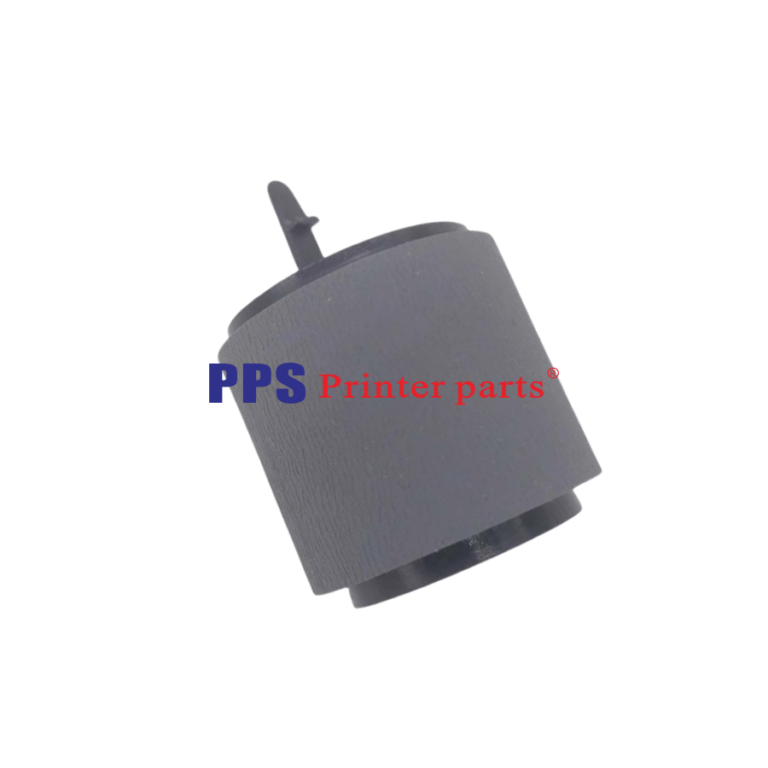
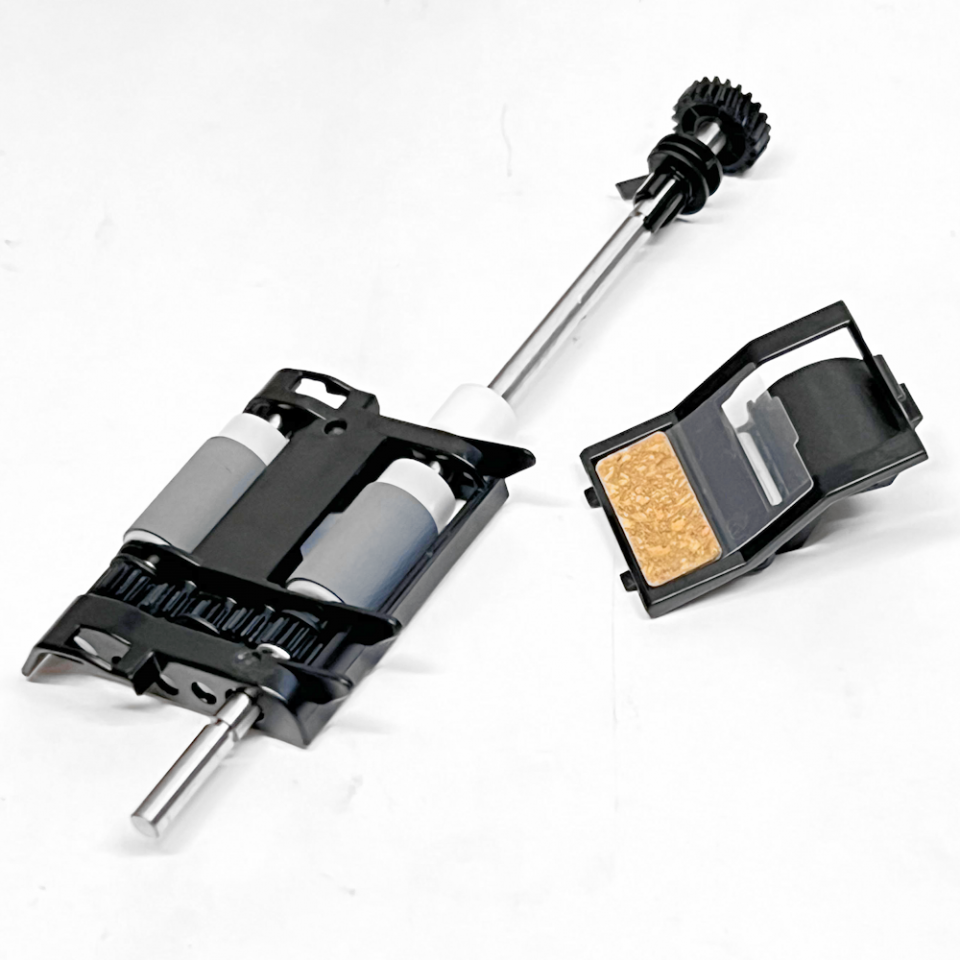
If jams keep happening in the same spot, look for worn rollers, damaged paper, or a misaligned tray. Repeated jams are often a sign of a feed problem, not just bad luck.
Xerox VersaLink C405 Print Quality Troubleshooting
Print quality issues can make a good printer look broken. With Xerox VersaLink C405 troubleshooting, the goal is to decide whether the problem is toner, calibration, settings, or hardware.
Common print quality symptoms include:
- Faded output: Often caused by low toner, toner distribution issues, or print density settings.
- Streaks or lines: May point to a dirty toner path, drum issue, or internal contamination.
- Smudging: Can happen if paper is wrong for the job or the fuser needs attention.
- Color mismatch: Often tied to calibration, driver settings, or image enhancements.
- Blurry text: May come from a low-resolution file, bad driver choice, or incorrect scaling.
Practical fixes include:
- Remove and reseat the toner cartridges.
- Run a print quality or calibration routine.
- Check driver settings for eco mode or draft mode.
- Replace low or empty toner.
- Clean any visible dust inside the printer, if safe and allowed by your office process.
I have noticed that people often blame toner too quickly. That is fair, because toner is an easy target. But sometimes the real issue is a bad print driver or a file that was exported with weak image quality.
Xerox VersaLink C405 Network and Wi-Fi Troubleshooting
Network issues are a big part of Xerox VersaLink C405 troubleshooting, especially in modern offices where people expect wireless printing to “just work.” When it does not, the problem is usually one of three things: the printer, the network, or the computer.
Start with these checks:
- Confirm the printer has a valid IP address.
- Make sure the printer and computer are on the same network.
- Restart the printer and the router.
- Check if the Ethernet cable is loose or damaged.
- Reconnect the Wi-Fi settings if the signal dropped.
If printing works for one user but not another, the problem may be on the device side. If nobody can print, the issue is more likely on the printer or network side.
For offices with managed networks, DNS and firewall settings can also interfere with scan and print services. That is one reason Xerox VersaLink C405 troubleshooting sometimes needs IT support, especially in larger environments.
Xerox VersaLink C405 Scan and Email Troubleshooting
Scan problems can be frustrating because the printer may seem fine in every other way. In Xerox VersaLink C405 troubleshooting, scan-to-email failures usually point to a settings issue, not a broken scanner.
Check the following:
- The email server address and port settings.
- Authentication credentials.
- The sender address.
- DNS and gateway settings.
- Whether the mailbox account has been locked or changed.
If scans fail to a folder or cloud service, the problem may be permissions. Confirm that the destination path still exists and that the printer has access rights.
A helpful test is to scan to a USB drive or local folder first. If that works, the scanner hardware is probably fine, and the issue is with the destination setup.
Xerox VersaLink C405 Toner, Drum, and Consumable Issues
Consumables matter more than many users expect. Good Xerox VersaLink C405 troubleshooting includes checking toner, imaging units, and other wear parts before assuming a serious fault.
Watch for these signs:
- “Replace toner” or “low toner” warnings
- Uneven color output
- Repeating marks on the page
- Ghosting or faded blocks
- Print defects that return after calibration
If you install a new cartridge and the warning stays on, reseat it and power cycle the printer. Sometimes the printer needs a clean reset to recognize the new part.
One thing I always tell office users is to keep spare consumables on hand if the printer is business critical. Waiting until the last page runs out can turn a five-minute fix into a half-day delay.
Xerox VersaLink C405 Firmware and Driver Troubleshooting
Outdated software is a silent problem. Many Xerox VersaLink C405 troubleshooting cases trace back to old drivers, old firmware, or mismatched printer settings.
Update the following when needed:
- Printer firmware
- PCL or PostScript drivers
- Scan software
- Operating system print support components
If a printer works on one computer but not another, compare driver versions. I have seen one machine print perfectly while another produced broken layouts because the driver was years behind.
Use the manufacturer’s recommended drivers when possible. Generic drivers may work, but they can limit features like finishing, color control, and scan options.
When to Reset the Xerox VersaLink C405
A reset can help, but it should not be your first move. In Xerox VersaLink C405 troubleshooting, use resets when you have already ruled out the basics and the problem keeps returning.
A reset may help when:
- The touchscreen freezes often
- Network settings are corrupted
- Print jobs stay stuck in the queue
- The printer acts unstable after a firmware change
- Custom settings have become confusing or inconsistent
Before resetting, save useful settings like:
- IP address details
- Wi-Fi credentials
- Scan destinations
- Admin passwords
- Tray and paper settings
Think of a reset like cleaning out a cluttered desk. It can help a lot, but only if you know what was on the desk in the first place.
Preventive Maintenance Tips for Xerox VersaLink C405
The best Xerox VersaLink C405 troubleshooting is the kind you do before something breaks. A little upkeep goes a long way.
Good habits include:
- Use quality paper that meets the printer’s spec
- Keep the printer in a dry, cool place
- Update firmware on a regular schedule
- Clean dust from trays and exterior areas
- Avoid overfilling paper trays
- Print a test page after replacing consumables
- Check error logs if problems repeat
In real office life, small habits save big time. I have seen printers run smoothly for years simply because someone treated them like tools, not magic boxes. A clean printer room and decent supplies matter more than people think.
Frequently Asked Questions of Xerox VersaLink C405 Troubleshooting
Why does my Xerox VersaLink C405 keep jamming?
Repeated jams usually come from paper that is curled, damp, or loaded wrong. Check the tray guides, remove scraps from the paper path, and make sure the paper type matches the printer settings.
How do I fix Xerox VersaLink C405 not printing?
Start by checking the printer status, connection, and print queue. Then restart the printer and computer, confirm the correct driver is installed, and make sure the printer has a valid network address if it is shared.
Why is my Xerox VersaLink C405 printing faded pages?
Faded pages often mean the toner is low, the cartridge is not seated properly, or the print density is set too low. Run a calibration and confirm the correct consumable is installed.
How do I reconnect Xerox VersaLink C405 to Wi-Fi?
Go into the network settings, select wireless setup, and reconnect using the correct SSID and password. If it still fails, restart the router and printer, then try again after confirming the signal is strong.
Why won’t my Xerox VersaLink C405 scan to email?
Scan-to-email problems usually come from email server settings, login errors, or network restrictions. Double-check the SMTP details, sender address, and authentication settings before testing again.
When should I call for service?
Call for service if the printer shows the same hardware error after cleaning, rebooting, and updating firmware. Persistent noises, repeated jams in the same spot, or major image defects can point to a part that needs replacement.
Conclusion
Xerox VersaLink C405 troubleshooting becomes much easier when you work in a simple order: check the message, inspect the paper path, confirm settings, test the network, and update software when needed. Most issues are not mysterious. They are usually the result of paper, power, connection, or consumable problems that can be fixed with a calm, step-by-step approach.
If you use this printer often, build a small habit of routine checks and updates. That one habit can save you hours later and keep the Xerox VersaLink C405 running the way it should. If this guide helped, save it for later, share it with your team, or leave a comment with the issue you are facing.