Xerox C235 Troubleshooting: Quick Fix Guide
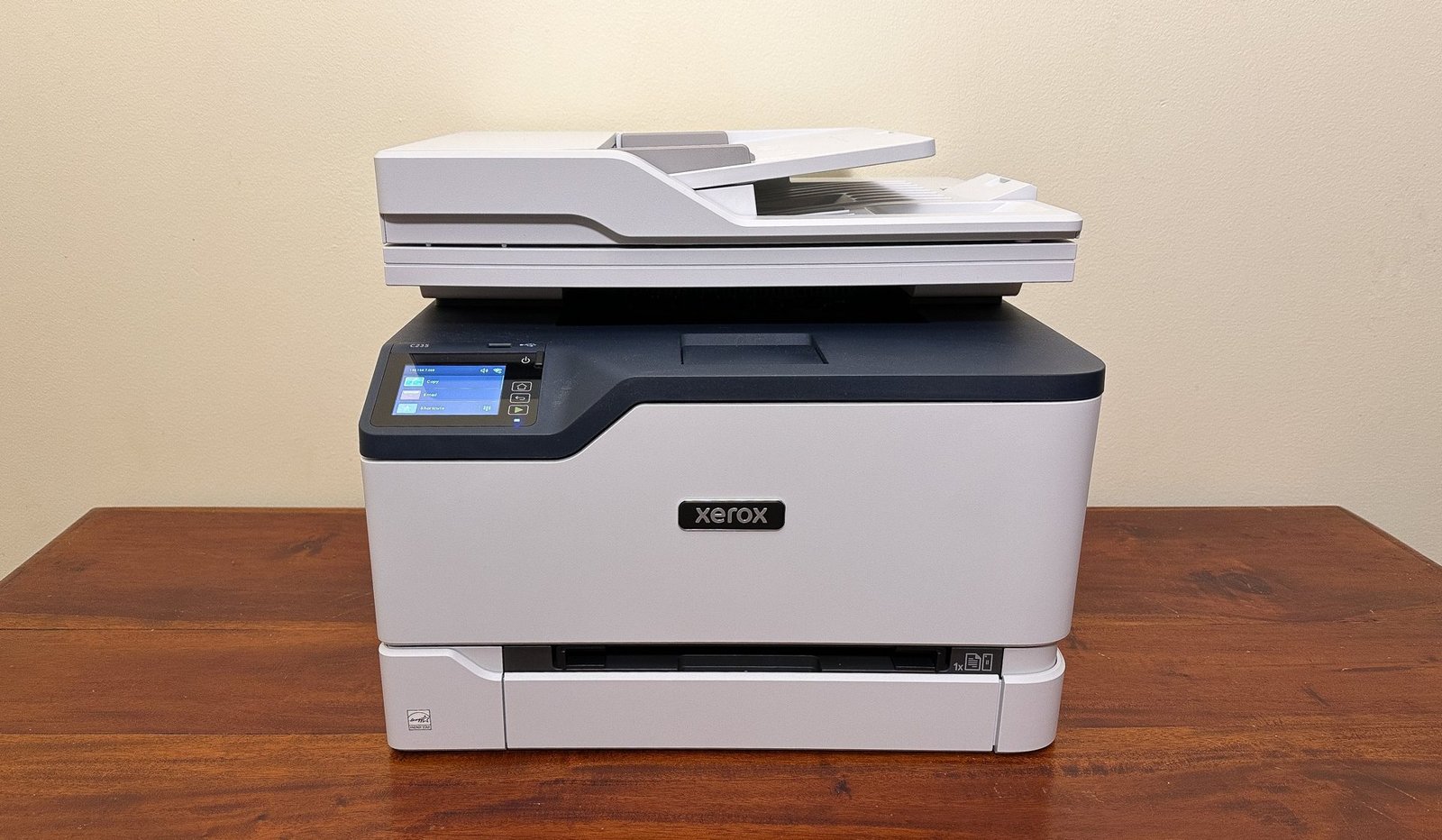
Xerox C235 troubleshooting usually comes down to paper, network, toner, or driver issues that are easy to isolate.
If you have been stuck with a Xerox C235 that will not print, keeps jamming, or refuses to connect, you are not alone. I have seen this model behave like a calm workhorse one minute and a stubborn mule the next, so this guide walks you through Xerox C235 troubleshooting with practical steps, real-world fixes, and clear checks that save time.

Common Xerox C235 Problems and What They Usually Mean
The Xerox C235 is a compact color multifunction printer, so most issues fall into a few familiar buckets. When something goes wrong, it is often a sign that one small part of the print chain is broken, not that the whole printer is failing.
Here are the most common Xerox C235 troubleshooting situations I see most often:
- Paper jams, misfeeds, or repeated jams
- Printer not printing from a computer or phone
- Wi-Fi or Ethernet connection problems
- Toner or imaging-related errors
- Poor print quality, like streaks or faded pages
- Scanner or copy functions not responding
- Slow printing or jobs stuck in the queue
A good rule I learned early is to start with the simplest layer first. Check power, paper, toner, and connection status before diving into driver resets or network settings.
Start with the Basics Before You Dig Deeper
A lot of Xerox C235 troubleshooting gets solved by a few simple checks. I have lost count of how many “major” printer issues turned out to be a loose cable or a badly seated toner cartridge.
Try this first:
- Turn the printer off and wait 30 seconds.
- Check the power cable and wall outlet.
- Make sure the paper tray is loaded correctly.
- Confirm the toner cartridges are seated properly.
- Look for any error message on the display.
- Restart the computer or mobile device you are printing from.
These steps may sound basic, but they matter. Printers often hold onto old error states until they are fully reset, like a browser stuck with too many tabs open.
Xerox C235 Paper Jam Troubleshooting
Paper jams are one of the most common Xerox C235 troubleshooting issues. The printer may stop mid-job, flash a jam message, or keep making a clicking sound.
To clear a jam safely:
- Turn off the printer and unplug it if needed
- Open the front cover and rear access area
- Remove any visible paper slowly and in the direction of the paper path
- Check the tray for curled, damp, or overfilled paper
- Inspect rollers for torn scraps or dust buildup
- Close all covers firmly and restart the printer
If jams keep happening, the cause is often not the printer itself. In my experience, the real problem is usually warped paper, paper loaded past the guide marks, or cheap media that does not feed cleanly.
Helpful prevention tips:
- Use fresh, dry paper stored in a closed package
- Fan the paper stack before loading
- Adjust the side guides snugly
- Do not mix paper sizes in the same tray
- Replace worn rollers if jams happen often
Xerox C235 Not Printing
When the Xerox C235 is powered on but nothing prints, the issue is usually communication, driver-related, or queue-based. This is one of the most frustrating Xerox C235 troubleshooting cases because everything may look fine on the surface.
Check these items in order:
- Confirm the printer is selected as the default printer
- Make sure the printer is not paused or offline
- Check the print queue for stuck jobs
- Restart the printer spooler on Windows if needed
- Reinstall or update the printer driver
- Test with a different document or app
If you are using a USB connection, unplug and reconnect the cable. If you are on Wi-Fi, print a network status page or check the printer’s IP address to make sure the device is still on the same network.
A mistake I have seen often is printing to a renamed copy of the printer that the system no longer talks to. It looks right in the menu, but the job disappears into a dead connection.
Xerox C235 Wi-Fi and Network Troubleshooting
Network issues can make the Xerox C235 feel broken even when the hardware is fine. Wireless printing depends on a stable router, a correct IP address, and a healthy driver connection.
Try these steps:
- Confirm the printer is connected to the correct Wi-Fi network.
- Restart the router and the printer.
- Move the printer closer to the router for testing.
- Re-enter the Wi-Fi password if the connection dropped.
- Print a network report and verify the IP address.
- Remove and re-add the printer on your computer.
If the printer keeps dropping off the network, DHCP changes may be part of the problem. In plain terms, the printer may be getting a new IP address from the router, which breaks the connection path your computer expects.
For stable office use, a static IP can help. That said, I only recommend it if you are comfortable making network changes or have IT support, because the wrong setup can make the issue worse.

Xerox C235 Toner and Cartridge Issues
Toner problems can trigger warnings, faded output, or no print at all. Since the Xerox C235 uses color cartridges, one bad cartridge can affect the whole job.
Watch for these signs:
- Toner low or toner empty messages
- Uneven color output
- Ghosting or light pages
- Printing stops after cartridge replacement
- Supplies not recognized
Troubleshooting steps:
- Remove each cartridge and reinstall it carefully
- Check for protective seals that were not removed
- Make sure you installed the correct cartridge type
- Gently shake the cartridge side to side if print is fading
- Clean any toner dust around the cartridge area
I once spent too long chasing a “defective printer” issue when the real culprit was a cartridge that was not fully clicked into place. It is a small thing, but it can block the printer from reading the supply correctly.
If a new cartridge still fails, the chip or contact area may be dirty or damaged. In that case, inspect the contacts and try another known-good cartridge if available.
Xerox C235 Print Quality Problems
Poor print quality is another common part of Xerox C235 troubleshooting. These issues can come from toner, paper, settings, or the printer’s internal imaging path.
Typical symptoms include:
- Faded text
- Streaks or lines on the page
- Smudging
- Blurry print
- Uneven color blocks
- Repeated marks down the page
What to do:
- Use the printer’s cleaning or maintenance function
- Check print density settings
- Try a different paper type
- Replace low toner
- Print a test page to compare results
- Inspect the drum or imaging components if the issue continues
If the problem happens only on one file, the document itself may be the issue. I have seen broken fonts, strange graphics, and corrupted PDFs cause output that looked like printer failure when it was really a file problem.
A practical tip is to print the same page from another app. If the output improves, the issue is probably in the software path, not the printer hardware.
Xerox C235 Scanner and Copy Troubleshooting
The Xerox C235 is a multifunction printer, so scan and copy issues can be just as disruptive as print problems. These usually point to software settings, feeder issues, or connection problems.
Check these areas:
- Make sure the scanner glass is clean
- Confirm the document is placed correctly
- Test the automatic document feeder with a single page
- Verify the scan destination folder or email settings
- Restart the scan software
- Make sure firewall settings are not blocking network scans
If copies work but scans do not, the scanner hardware is likely fine. That usually means the issue is with software permissions, scanning profiles, or network discovery.
For office setups, I recommend testing scan-to-computer before scan-to-email. It is a simpler path and helps narrow the problem faster.
How to Reset the Xerox C235 Safely
A reset can solve many stubborn Xerox C235 troubleshooting problems, but it should be done carefully. There is a big difference between a simple power cycle and a full settings reset.
Try this first:
- Turn the printer off
- Unplug it for 30 to 60 seconds
- Plug it back in and power it on
- Re-test the problem
If that does not work, check the printer menu for a network reset or factory reset option. Be aware that a factory reset may clear saved Wi-Fi settings, custom preferences, and stored network data.
I usually treat a reset like a last cleaning step. It can help, but if you do it too early, you may erase useful settings before you know what caused the issue.
Driver and Firmware Fixes That Often Help
Outdated drivers and firmware can create confusing Xerox C235 troubleshooting symptoms. The printer may work for some users and fail for others, which makes the issue feel random.
A clean software approach usually helps:
- Remove old printer drivers from the computer
- Install the latest compatible driver
- Update the printer firmware if available
- Reboot after updates
- Re-add the printer using the correct IP address or USB path
Driver mismatches are especially common after operating system updates. I have seen a perfectly healthy printer go silent just because the system switched to a generic driver that did not handle all features well.
Firmware updates can improve stability, but they should be done carefully. Use a stable power source and do not interrupt the printer during the update process.
When to Call for Service
Not every Xerox C235 troubleshooting issue should be handled alone. If you hear grinding, smell burning, or see repeated hardware errors after basic checks, it is time to stop testing and get help.
Call for support if:
- The printer shows a persistent error after reset
- Jams happen in the same spot repeatedly
- Print quality stays poor after cleaning and cartridge checks
- The scanner mechanism makes unusual noise
- The printer will not power on reliably
At that point, the issue may involve rollers, sensors, imaging hardware, or an internal part that needs repair. Pushing a machine too hard when it is already giving warning signs can turn a small fix into a bigger one.
Preventive Maintenance Tips for the Xerox C235
The easiest Xerox C235 troubleshooting is the kind you never need. A little care goes a long way, especially in shared home offices and small teams.
Good maintenance habits include:
- Keep the printer in a dry, dust-free place
- Use recommended paper types
- Close trays and covers gently
- Clean the scanner glass often
- Replace cartridges before they run fully empty
- Restart the printer once in a while to clear memory issues
I like to think of printer care like car care. You do not need to baby it, but ignoring the small signs usually leads to the biggest headaches.
Frequently Asked Questions
Why is my Xerox C235 not connecting to Wi-Fi?
The printer may be on the wrong network, the router may have changed settings, or the signal may be too weak. Restart both the router and printer, then confirm the printer has a valid IP address.
How do I clear a paper jam on the Xerox C235?
Turn the printer off, open the access covers, and remove the paper slowly in the direction of the paper path. Check for torn pieces and make sure the tray is not overfilled or loaded with curled paper.
Why does my Xerox C235 print faded pages?
Faded pages usually point to low toner, incorrect print settings, or a cartridge that is not seated correctly. Try reinserting the cartridge, checking print density, and printing a test page.
Why does my Xerox C235 show offline in Windows?
The printer may be paused, disconnected, or assigned a different IP address. Remove the offline status, confirm the network path, and re-add the printer if needed.
Can a firmware update fix Xerox C235 issues?
Yes, firmware updates can fix bugs, improve stability, and help with connection or compatibility problems. Just make sure the printer stays powered on during the update so the process is not interrupted.
Conclusion
Xerox C235 troubleshooting becomes much easier when you break it into small checks: paper, power, toner, network, drivers, and print settings. Most issues are not mysterious once you follow the path one layer at a time, and that simple approach saves a lot of time and stress.
If your printer is acting up right now, start with the basics, then move into the deeper fixes only if needed. A calm, step-by-step method usually beats random guessing every time, and it helps you get the Xerox C235 back to steady, reliable printing. If this guide helped, keep it handy, share it with someone else who is struggling, or leave a comment with the issue you want to solve next.

Similar Posts
































