Why Is SteelSeries Arctis Nova Pro Wireless Not Charging: Fixes
The headset usually is not charging because of a bad cable, dirty contacts, dock issues, or battery wear.
If your SteelSeries Arctis Nova Pro Wireless is not charging, you are not alone. I have seen this problem come up often with premium wireless headsets, and the fix is usually more simple than it first looks. The key is to check the power path step by step, because one small fault in the cable, base station, battery, or USB source can stop charging completely.

Why the SteelSeries Arctis Nova Pro Wireless Not Charging Issue Happens
The SteelSeries Arctis Nova Pro Wireless not charging problem usually points to a break in the charging chain. That chain includes the USB power source, the base station, the battery, the headset contacts, and sometimes the software setting that controls power behavior.
In real use, I have found that most charging issues fall into a few familiar buckets:
- The USB port is weak or unstable
- The cable is damaged or not fully seated
- The battery is not aligned correctly in the headset
- The charging contacts are dirty or slightly bent
- The base station is not supplying power properly
- Firmware glitches make the headset appear dead when it is not
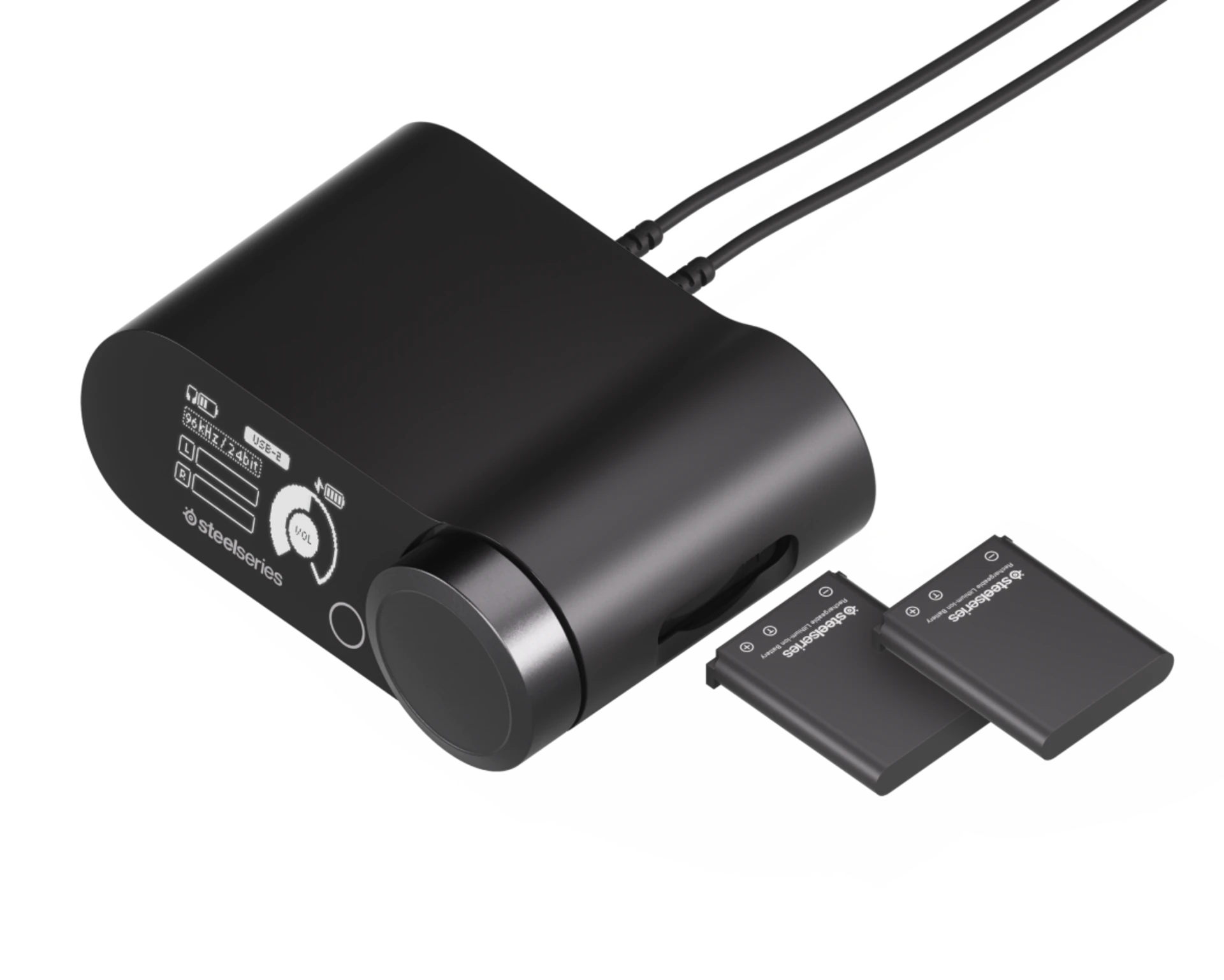
This headset is built with a hot-swappable battery system, which is very handy, but it also adds more points where charging can fail. That is why the SteelSeries Arctis Nova Pro Wireless not charging issue can feel confusing at first.
Common Reasons the SteelSeries Arctis Nova Pro Wireless Not Charging
There are several likely reasons the SteelSeries Arctis Nova Pro Wireless not charging problem appears. Some are simple hardware issues. Others are tied to power management or battery aging.
1. Faulty USB cable or power source
A weak cable can still light up the base station, but fail to deliver steady charging power. The same thing can happen if the headset is plugged into a low-power USB port on a monitor, hub, or console.
Try this:
- Use the original cable if possible
- Plug the base station into a rear motherboard USB port on a PC
- Avoid unpowered USB hubs
- Test a different USB-C cable if you have one
In many cases, the headset is fine. The power source is the real problem.
2. Battery not seated properly
The Arctis Nova Pro Wireless uses a swappable battery design. If the battery is not seated correctly, the headset may not charge even though it seems installed.
What I have noticed in practice is that the battery can look installed while still missing a proper contact point. That tiny gap is enough to stop charging.
Check for:
- Loose fit
- Dust in the battery bay
- Battery inserted backward
- Worn battery contacts
3. Dirty or oxidized charging contacts
Any metal contact can fail if it gets dirty, oily, or corroded. Sweat, skin oil, and dust build up over time and interfere with current flow.
Clean the contacts gently with:
- A dry microfiber cloth
- A cotton swab with a tiny bit of isopropyl alcohol
- Light pressure only
Do not scrape the contacts. That can make the problem worse.
4. Base station docking issue
Sometimes the headset seems like it is charging, but the dock is not making a stable connection. The base station may need a reboot, a different USB port, or a firmware update.
I have seen users blame the headset when the dock was the real weak link. Since the base station handles more than one function, a small issue there can look like a battery failure.
5. Firmware glitch or battery reading error
Wireless headsets often depend on firmware to report battery status correctly. If that software gets stuck, the headset can appear to not charge even when it is receiving power.
This can happen after:
- A firmware update
- A long period of use without restarting
- Switching between PC, console, and charging modes
A reset or firmware refresh can often clear the false reading.
6. Battery wear or failure
Rechargeable batteries do not last forever. Even good lithium-ion cells slowly lose capacity after many charge cycles. If your headset is older, the battery may no longer hold charge well.
Signs of battery wear include:
- Very short runtime
- Charge level drops fast
- Headset powers off suddenly
- Charging takes unusually long
If this is the cause, replacement may be the real fix.
How to Fix the SteelSeries Arctis Nova Pro Wireless Not Charging Problem
The best way to solve the SteelSeries Arctis Nova Pro Wireless not charging issue is to troubleshoot in a clean order. Start with the easy checks first. That saves time and avoids replacing parts that are still fine.
Step 1: Check the USB power source
Start with the simplest possible test. Plug the base station directly into a different USB port.
Use these best practices:
- Connect to a rear USB port on a PC
- Try a different wall adapter if charging from an outlet
- Avoid USB splitters
- Avoid charging through a monitor’s USB port
If the base station powers on differently after the switch, the original port was likely the issue.
Step 2: Inspect the charging cable
A damaged cable can look normal from the outside. I have personally seen cables fail near the connector even when there was no visible tear.
Look for:
- Bent ends
- Loose fit
- Frayed sections
- Intermittent power when moved
If possible, test with another USB-C cable that supports power delivery.
Step 3: Re-seat the battery
Remove the battery and place it back in firmly. Make sure it clicks into place and sits evenly.
A good habit is to:
- Remove the battery
- Wait 10 seconds
- Reinsert it
- Power the headset back on
This small reset can help if the headset or battery sensor got confused.
Step 4: Clean the contacts
Use a soft, dry cloth first. If needed, use a little isopropyl alcohol on a cotton swab.
Focus on:
- Battery contacts
- Headset contact area
- Base station docking points if relevant
Let everything dry before testing again.
Step 5: Power cycle the headset and base station
A full restart can clear temporary glitches.
Try this:
- Turn off the headset
- Disconnect the base station
- Wait 30 seconds
- Reconnect power
- Turn the headset on again
This is one of the easiest fixes, and it often helps more than people expect.
Step 6: Update firmware
If your SteelSeries software shows a firmware update, install it. Firmware updates often improve battery reporting and charging behavior.
Before updating:
- Use a stable USB connection
- Do not disconnect during the update
- Restart after the update finishes
A bad update path can create new issues, so be patient here.
Step 7: Test the other battery
This headset comes with a dual-battery setup, which is great for convenience. If one battery is failing, the other may still work normally.
If one battery charges and the other does not:
- The bad battery may be worn out
- The battery contacts may be the issue
- The battery itself may need replacement
This is one of the clearest ways to isolate the fault.
Step 8: Check for heat or swelling
If a battery feels hot, looks swollen, or behaves oddly, stop using it. Lithium-ion battery problems are not something to ignore.
Warning signs include:
- Bulging battery
- Burning smell
- Extreme heat during charging
- Fast drain even after a full charge
If you see any of these, replace the battery and follow safe disposal rules.
What I Learned After Troubleshooting Similar Charging Problems
One thing I learned over time is that headset charging issues often look bigger than they are. People see a dead battery icon and assume the product is broken, but the real issue is often something small like a loose cable or a dirty contact.
In one real-world case, the headset would only charge when the cable was twisted at a certain angle. The cable looked fine, but the connector had internal damage. In another case, the headset worked again after cleaning the battery contacts with alcohol and a microfiber cloth.
That is why I always recommend starting with the power path first. It is like checking whether a lamp is plugged in before replacing the bulb.
How to Prevent the SteelSeries Arctis Nova Pro Wireless Not Charging Issue
A few simple habits can help reduce future charging problems. These steps do not just help with this headset. They also help any rechargeable wireless device last longer.
Keep the contacts clean
Dust and skin oils build up slowly. A quick monthly clean can prevent weak contact problems.
Use stable power
Use a reliable USB source instead of a random hub or low-quality charger. Stable power is better for battery health too.
Avoid forcing the battery
If the battery does not fit easily, stop and check the alignment. Forcing it can damage the contacts.
Store the headset properly
Keep it in a dry place. Moisture and heat can shorten battery life.
Update firmware when available
Firmware updates often improve how the headset handles battery status and charging. Staying updated can save you headaches later.
When the Problem Is Probably the Battery
Sometimes the SteelSeries Arctis Nova Pro Wireless not charging issue is not a charging issue at all. It is a battery life issue.
If the headset only works for a very short time, charges slowly, or dies right after unplugging, the battery may be nearing the end of its life. That is normal for rechargeable batteries after repeated cycles.
Typical battery failure signs include:
- Short play time
- Slow charge progress
- Sudden shutdowns
- One battery works, the other does not
If you have ruled out cable, dock, and firmware problems, battery replacement is the most likely fix.
Useful Checks Before Contacting Support
If you need to reach support, do a few checks first. This saves time and helps the support team narrow down the problem.
Have this information ready:
- Serial number
- Battery behavior
- Whether both batteries fail
- USB cable and port you tested
- Firmware version
- Any error lights or messages
That kind of detail makes troubleshooting much faster.
Frequently Asked Questions
Why is my SteelSeries Arctis Nova Pro Wireless not charging in the dock?
The dock may not be making full contact with the headset or battery. Dirt, misalignment, or a weak USB power source can also stop charging. Try reseating the battery and testing a different USB port.
Can a bad cable cause the headset to stop charging?
Yes, a damaged or low-quality cable is one of the most common causes. Even if the headset powers on, the cable may still fail to deliver enough stable charging power. Testing another cable is one of the fastest ways to confirm this.
How do I know if the battery is dead?
If the headset charges very briefly, drains fast, or one battery works while the other does not, the battery may be worn out. A dead battery can also get warm too quickly or stop holding charge after a full cycle. Swapping batteries is the easiest test.
Should I reset the SteelSeries Arctis Nova Pro Wireless?
Yes, a power cycle is often worth trying. Turn the headset off, unplug the base station, wait about 30 seconds, then reconnect everything. This can fix temporary firmware or sensor glitches.
Is it safe to keep using the headset if it is not charging?
It depends on the cause. If the issue is only a cable or port, the headset is usually safe once the problem is corrected. If the battery is swollen, hot, or smells strange, stop using it right away.
Do firmware updates help charging problems?
They can. Firmware updates may improve battery reporting, charging behavior, and device stability. If your software shows an update, installing it is a smart step.
Conclusion
The SteelSeries Arctis Nova Pro Wireless not charging issue usually comes down to a small but fixable problem: a bad cable, weak USB source, dirty contacts, a misseated battery, firmware trouble, or battery wear. In most cases, you can narrow it down quickly by testing the power path one step at a time.
If you stay patient and work through the basics, you will often find the cause without much stress. Start with the cable and USB port, then check the battery and contacts, and only then look at firmware or replacement parts.
If this guide helped, try the troubleshooting steps today and see which fix works for your headset. For more practical headset repair tips and smart tech guides, keep exploring and leave a comment with what solved the issue for you.

Similar Posts