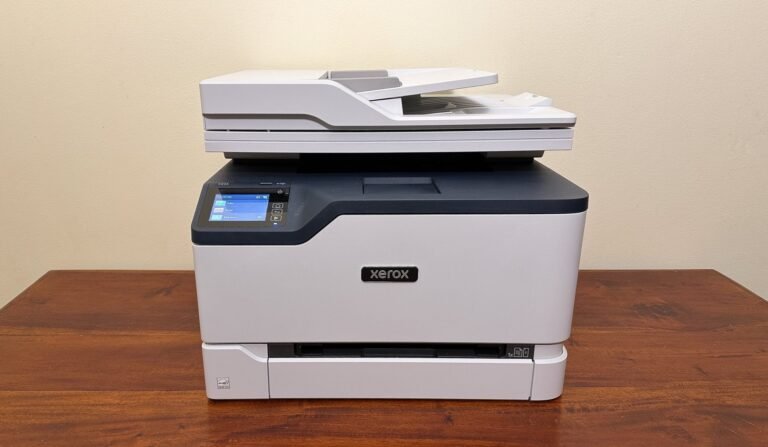
Samsung Xpress M2070FW Troubleshooting: Quick Fix Guide
Samsung Xpress M2070FW troubleshooting solves most print, scan, fax, Wi-Fi, paper, and toner problems with simple checks.
The Samsung Xpress M2070FW is a compact monochrome laser printer with print, scan, copy, fax, and wireless features. After working through many printer faults, I have found that most problems come from power, paper, connection, driver, or toner issues. This guide explains Samsung Xpress M2070FW troubleshooting in a clear order, so you can fix common faults without wasting time or replacing working parts.

Samsung Xpress M2070FW troubleshooting: Start with basic checks
Before changing drivers or opening the printer, check the simple causes first. A loose cable, open cover, low toner cartridge, or blocked paper path can make the printer appear to have a serious fault.
Use this quick inspection:
- Make sure the printer is connected to a working wall outlet.
- Press the Power button and wait for the printer to finish warming up.
- Check the display for an error message.
- Close the front cover, scanner lid, and rear cover.
- Remove any loose paper from the input tray.
- Confirm that the paper size matches the setting on your computer.
- Check whether the toner cartridge is seated correctly.
- Restart the printer and the connected computer.
Do not pull paper with force. Torn scraps can remain inside the printer and cause repeated jams. Use both hands when removing a large sheet, and pull slowly in the direction of paper travel.
A full power reset can also help. Turn off the printer, unplug it for about one minute, reconnect it directly to the wall, and turn it on again. Avoid testing through a damaged surge strip or a loose extension cord.

Samsung Xpress M2070FW not printing
When the Samsung Xpress M2070FW does not print, the cause may be the print queue, wrong printer selection, a paused service, or a connection issue. Start with the computer before assuming the printer has failed.
Check these items:
• Confirm that Samsung Xpress M2070FW is the selected printer.
• Open the print queue and cancel stuck documents.
• Make sure the printer is not set to Offline or Paused.
• Print a test page from the printer settings.
• Restart the printer, computer, and router if you use Wi-Fi.
• Try a short USB cable if wireless printing does not work.
A stuck print job can block every later document. On Windows, open the printer queue and cancel all pending jobs. If the queue will not clear, restart the Print Spooler service, then send a small test document.
On macOS, remove the printer from Printers & Scanners and add it again. Select the correct Samsung driver or compatible AirPrint option when available. A generic driver may print basic pages but fail with scanning, fax, or advanced print settings.
If the printer prints a test page but not a document, the problem is likely on the computer. Check the document’s page range, paper size, margins, and selected printer. This simple test separates a printer fault from a software fault.

Samsung Xpress M2070FW Wi-Fi connection problems
Wireless problems are common because the printer, router, and computer must all communicate correctly. The Samsung Xpress M2070FW usually works best on a standard 2.4 GHz wireless network. Some newer routers combine 2.4 GHz and 5 GHz under one network name, which can make setup harder for older printers.
Try these steps:
- Move the printer closer to the router during setup.
- Restart the router and printer.
- Print or view the printer’s network information page.
- Check the wireless network name and password.
- Reinstall the printer using the Samsung setup software.
- Temporarily disable a VPN on the computer.
- Check that the computer and printer use the same network.
- Create a separate 2.4 GHz network if the router supports it.
Do not confuse Wi-Fi Direct with normal wireless networking. Wi-Fi Direct lets a device connect directly to the printer, while regular Wi-Fi connects both devices through the router. Wi-Fi Direct can help when the router blocks printer discovery.
A changing IP address can also cause repeated connection loss. Assigning a reserved IP address in the router can improve stability. This option is helpful in a home office where several computers print to the same machine.
Security settings matter, too. Older printers may not support every modern wireless mode. If setup fails, check the router’s compatibility settings rather than lowering security across the entire network.

Samsung Xpress M2070FW paper jam fixes
A paper jam may occur in the input tray, cartridge area, rear section, or output path. The printer may continue showing a jam warning even after the main sheet is removed because a small piece of paper remains near a sensor.
Follow this safe method:
- Turn off the printer and let the inside cool.
- Remove paper from the input tray.
- Open the front cover and remove the toner cartridge.
- Look for loose paper and torn corners.
- Open the rear cover if the model has a rear access path.
- Pull paper slowly with both hands.
- Reinstall the toner cartridge.
- Close every cover firmly.
- Reload a small stack of clean paper.
- Turn the printer on and test it.
Use paper that is clean, dry, and within the supported weight range. Curled, damp, folded, or mixed paper can feed poorly. Do not overfill the tray, and adjust the paper guides until they touch the stack without squeezing it.
Repeated jams often point to worn feed rollers, a dirty separation pad, damaged paper, or a foreign object. If a jam happens in the same location every time, professional service may be more practical than repeated clearing.

Samsung Xpress M2070FW toner and print quality problems
Light printing, gray backgrounds, streaks, dots, and blank pages are usually linked to toner, the imaging system, paper, or print settings. The Samsung Xpress M2070FW uses a toner cartridge designed for monochrome laser printing, so inkjet cleaning methods do not apply.
Try these checks:
• Remove the toner cartridge and gently rock it from side to side.
• Reinstall the cartridge and make sure it locks into position.
• Check the toner level in the printer software.
• Print a configuration or test page.
• Use plain laser printer paper.
• Select the correct paper type in the print settings.
• Replace the cartridge if pages remain very light or show repeated defects.
Avoid touching the green imaging surface or exposing the cartridge to bright light. Fingerprints and strong light can affect print quality. Place the cartridge on a clean sheet of paper while checking it.
A vertical white stripe often suggests uneven toner distribution or a depleted cartridge. Repeated black marks at regular intervals may point to a damaged imaging surface or a dirty internal roller. Gray pages can result from poor-quality toner, unsuitable paper, or an environmental issue such as high humidity.
Third-party toner may cost less, but quality can vary. A cartridge that leaks toner can contaminate the printer and create marks on later pages. When print quality matters, use a reliable cartridge supplier and keep the receipt in case the cartridge needs replacement.
Samsung Xpress M2070FW scanning problems
The printer may print normally while scanning fails. This often happens because the scanner driver is missing, the wrong device is selected, or the scan application cannot access the printer.
Use this process:
- Confirm that the printer is powered on.
- Check the USB or Wi-Fi connection.
- Restart the printer and computer.
- Open the scanning application.
- Select Samsung Xpress M2070FW as the scanner.
- Reinstall the scan driver and printer software.
- Test with a simple black-and-white page.
- Check whether another program is using the scanner.
Place the original document face down on the scanner glass unless you are using an automatic document feeder. Clean the glass with a soft, lint-free cloth. Do not spray cleaner directly onto the glass or into the printer.
If the scan looks blurry, confirm that the document is flat and that the selected resolution is suitable. Text documents often work well at 300 dots per inch. Very high resolution creates large files and may slow older computers.
For wireless scanning, firewall software can block communication even when printing works. Add the printer software to the firewall’s allowed list, or test scanning briefly with the firewall rules adjusted. Restore normal protection after the test.

Samsung Xpress M2070FW fax troubleshooting
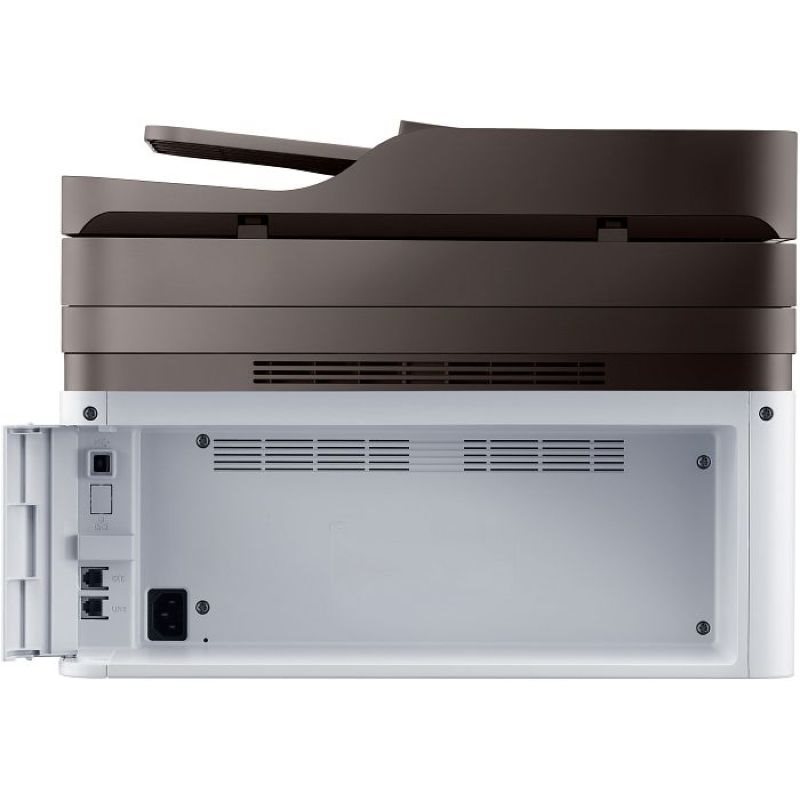
Fax problems can involve the phone line, cable, dialing method, paper, or fax settings. First, confirm that the telephone cable is connected to the printer’s LINE port, not an extension port intended for another device.
Check the following:
• Connect the printer directly to the telephone wall jack for testing.
• Remove splitters, filters, and extra phone devices.
• Confirm the fax number and dialing prefix.
• Check whether the line has a dial tone.
• Send a test fax to a known working number.
• Ask the recipient whether the fax arrived clearly.
Voice-over-internet phone services may work with fax, but reliability varies. Compression, call waiting, and network delay can interrupt fax tones. Turning off call waiting for fax calls and using the provider’s recommended settings may improve results.
If outgoing faxes work but incoming faxes fail, check receive mode, paper supply, memory, and whether the phone line is shared. If every fax fails, test the line with a regular telephone before blaming the printer.
Samsung Xpress M2070FW driver and software errors
The correct driver allows the operating system to control printing, scanning, and other functions. An outdated or damaged driver can cause missing features, incorrect page sizes, failed scans, or repeated print jobs.
A clean reinstall usually works better than installing the same driver over an old copy:
- Remove the printer from the computer.
- Uninstall old Samsung printer and scan software.
- Restart the computer.
- Download the driver that matches your operating system.
- Install the software with the printer disconnected if instructed.
- Connect the printer when the installer requests it.
- Print a test page and scan a document.
Download software only from the printer maker’s support page or a trusted operating system update channel. Avoid random driver websites. They may provide unsafe files or drivers for a different model.
Windows users should check whether the printer is using a standard TCP/IP port or a discovered WSD port. A fixed local IP and standard TCP/IP port can be more stable on some networks. Mac users should check the selected driver, scan source, and permissions for the scanning application.

Samsung Xpress M2070FW error messages and reset steps
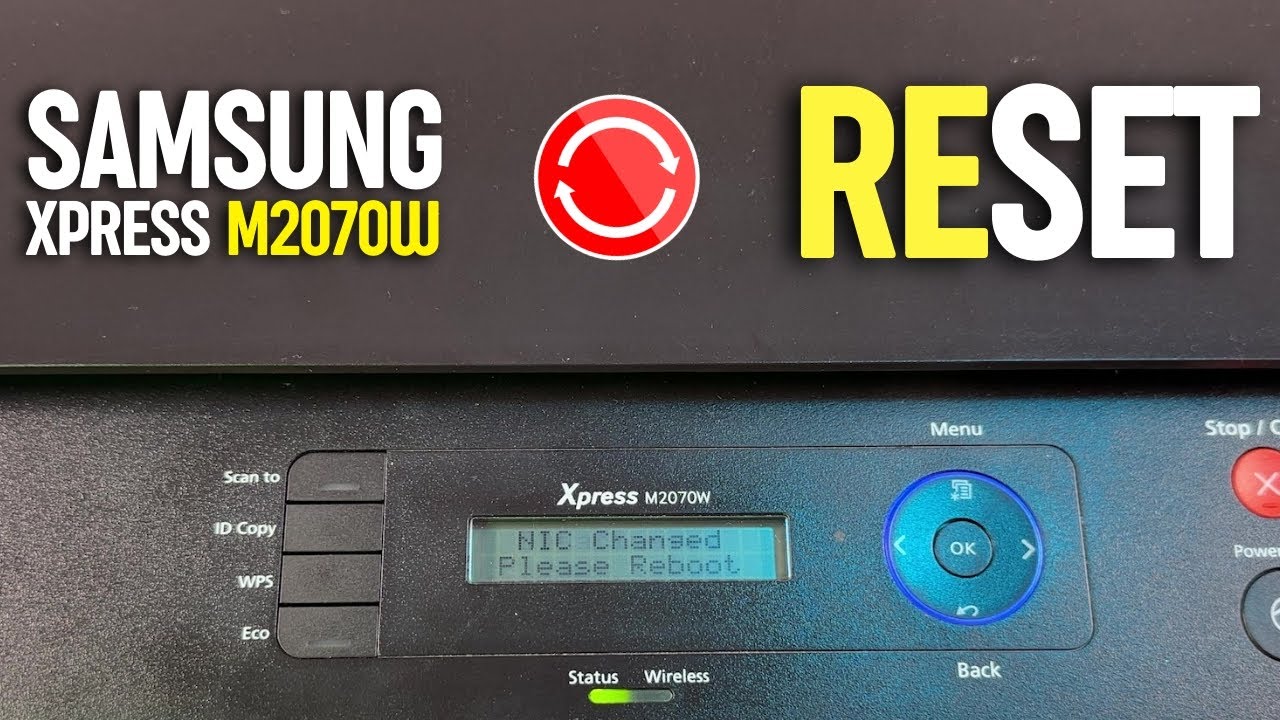
The display message is the best clue, but it may not identify the exact failed part. Messages about open covers, toner, paper, or paper size can often be corrected at home. Repeated hardware warnings need more care.
Try this general reset:
- Save any important work on the computer.
- Cancel pending print jobs.
- Turn off the printer.
- Disconnect the power cable.
- Wait one minute.
- Reconnect the cable directly to the wall.
- Turn on the printer.
- Check the display before sending a new job.
Do not reset network settings unless you know the wireless password. A network reset can remove the printer from every connected computer. It may solve configuration problems, but it also creates extra setup work.
Never bypass a safety switch or force a cover closed. If the printer smells burnt, makes grinding sounds, becomes unusually hot, or shows repeated electrical errors, unplug it and stop using it. A service technician should inspect it.
A practical Samsung Xpress M2070FW troubleshooting checklist
When several symptoms appear at once, use a fixed order. This prevents random changes and helps you identify the real cause.
Work through this checklist:
- Read the display message.
- Check power and covers.
- Remove paper jams.
- Check paper size and tray guides.
- Inspect and reseat the toner cartridge.
- Print an internal test page.
- Test with a USB connection.
- Reinstall the printer driver.
- Reconfigure Wi-Fi if needed.
- Test printing, scanning, copying, and faxing separately.
Copying is a useful diagnostic test. If the printer can copy a page from the scanner glass, the print engine probably works. If computer printing fails but copying works, focus on the driver or connection.
Scanning and faxing should also be tested as separate functions. One failed feature does not always mean the whole printer is defective. This step-by-step approach is one of the most useful Samsung Xpress M2070FW troubleshooting habits because it narrows the problem quickly.
In my experience, the biggest mistake is replacing the toner before printing a test page. A driver setting, dirty scanner glass, or paper problem can look like a toner fault. Test first, replace parts second.
How to prevent future printer problems
Good care reduces both paper jams and connection faults. The printer does not need complicated maintenance, but it does need a clean, dry working area and suitable supplies.
Follow these habits:
• Store paper flat in a dry room.
• Keep the printer away from steam, direct sunlight, and heavy dust.
• Do not mix different paper sizes in one tray.
• Remove empty toner cartridges promptly.
• Clean the scanner glass with a soft cloth.
• Keep the printer firmware and computer drivers current when updates are available.
• Print a page regularly if the printer is used only occasionally.
• Leave space around the printer for airflow and access.
Use the printer’s recommended paper settings. A thick sheet selected as plain paper may feed poorly or produce poor fusing. The correct setting helps the printer control heat and paper movement.
Keep a record of repeated faults. Note the error, paper type, connection method, and what solved it. This small habit can reveal patterns and gives a technician useful information if service becomes necessary.
When to repair or replace the printer
The Samsung Xpress M2070FW can remain useful for many years when its main parts are in good condition. Repair makes sense when the issue is a cable, driver, toner cartridge, paper roller, or simple network setting.
Professional service is more appropriate when:
• The printer repeatedly jams after careful cleaning.
• The paper path contains damaged rollers.
• The printer makes grinding or clicking sounds.
• The scanner lamp fails or stays unusually dim.
• The device shuts down during printing.
• The display shows a repeated internal error.
• Toner leaks inside the printer.
Compare the repair cost with the price of a current multifunction laser printer. Also consider fax needs, wireless security, replacement toner cost, and the number of pages printed each month. A low purchase price does not always mean a low long-term cost.
Avoid opening the power supply or working near high-voltage parts. Even after unplugging, some components may hold electrical charge. Safe Samsung Xpress M2070FW troubleshooting means knowing when home testing should stop.
Frequently Asked Questions of Samsung Xpress M2070FW Troubleshooting
Why is my Samsung Xpress M2070FW not printing?
Check the selected printer, print queue, paper supply, toner cartridge, and connection. Print an internal test page; if it works, the problem is likely the computer, driver, or network.
How do I clear a paper jam on the Samsung Xpress M2070FW?
Turn off the printer, remove the toner cartridge, and inspect the input, front, rear, and output paths. Pull paper slowly without tearing it, then check for small scraps before restarting the printer.
Why does my Samsung Xpress M2070FW print faint pages?
Faint pages can result from low toner, an uneven cartridge, unsuitable paper, or incorrect print settings. Gently reseat the cartridge and print a test page before replacing it.
How can I reconnect the Samsung Xpress M2070FW to Wi-Fi?
Restart the printer and router, confirm the network name and password, and run the wireless setup again. A 2.4 GHz network or a reserved printer IP address may improve compatibility and stability.
Why can I print but not scan with the Samsung Xpress M2070FW?
Printing and scanning use different drivers and software. Reinstall the scan driver, select the correct scanner in the application, and check firewall or permission settings.
Why does the printer show a toner error after I install a cartridge?
The cartridge may not be seated correctly, may be incompatible, or may have a damaged detection contact. Remove and reinstall it carefully, then test with a known compatible cartridge if the error remains.
Should I reset the Samsung Xpress M2070FW?
A power reset is safe for many temporary faults, but a network reset removes wireless settings. Use a network reset only when normal connection checks and driver setup do not solve the problem.
Conclusion
Samsung Xpress M2070FW troubleshooting is easiest when you start with power, paper, toner, covers, and connections. Then test each feature separately, such as printing, copying, scanning, faxing, and Wi-Fi. This method avoids needless part replacement and makes complex faults easier to understand.
Keep the printer clean, use dry paper, install the correct drivers, and stop testing if you notice heat, burning smells, or serious mechanical noise. Work through the checklist today, and share your result or question in the comments so other M2070FW users can benefit from your experience.