Kyocera ECOSYS M2040dn Troubleshooting: Easy Fixes

Most Kyocera ECOSYS M2040dn problems come from paper jams, toner issues, driver errors, or network settings.
The Kyocera ECOSYS M2040dn is a fast monochrome multifunction printer built for busy offices. Still, even a reliable printer can show error codes, print blank pages, refuse jobs, or lose its network link. This Kyocera ECOSYS M2040dn troubleshooting guide explains the likely causes and gives safe, practical steps to restore printing, copying, and scanning.

Kyocera ECOSYS M2040dn Troubleshooting: Start With the Basics
Before changing settings or replacing parts, check the simple causes first. Many printer problems begin with a loose cable, an open cover, low paper, or a toner cartridge that is not seated correctly.
Use this quick check:
- Confirm that the printer is powered on.
- Check the display for an error message or code.
- Make sure all covers and trays are fully closed.
- Confirm that paper is loaded in the correct direction.
- Check the USB or Ethernet cable.
- Restart the printer and the computer.
- Print a status page or configuration page.
- Check whether the problem affects one computer or every device.
A restart can clear a temporary memory or communication fault. Turn off the printer with the power switch, wait about 30 seconds, and turn it on again. Do not unplug the printer while it is writing data or completing a print cycle.
For accurate Kyocera ECOSYS M2040dn troubleshooting, always read the exact message on the control panel. “Paper jam,” “Add toner,” and “Check cassette” point to different solutions. Guessing can waste time and may cause damage.
How to Fix Kyocera ECOSYS M2040dn Paper Jams
Paper jams are among the most common Kyocera ECOSYS M2040dn problems. A jam may happen in the paper cassette, manual feed tray, duplex path, or rear output area.
Follow these steps:
- Stop the print job from the computer.
- Open the cover or tray shown on the display.
- Remove paper slowly with both hands.
- Pull the sheet in the direction of paper travel when possible.
- Check for small torn pieces inside the printer.
- Close each cover firmly.
- Reload fresh paper and try a test page.
Never force a stuck sheet. A torn corner can remain inside the paper path and cause repeated jams. A flashlight can help you find small scraps, but keep it outside the printer and do not touch hot internal parts.
Paper quality also matters. Damp, curled, folded, or very thin paper can slip or stick together. Store paper flat in a dry room, and fan the stack before loading it.
Check the paper guides as well. They should touch the paper lightly without pressing against it. Guides that are too tight can bend sheets, while loose guides can feed paper at an angle.
If the printer jams during duplex printing, inspect the rear path and duplex unit. A jam that happens only on both-sided jobs may point to a curled sheet, the wrong paper type setting, or debris in the duplex path.

Kyocera ECOSYS M2040dn Not Printing
When the Kyocera ECOSYS M2040dn does not print, first find out whether the issue is with the printer, computer, or network.
Print a copy directly from the printer. If copying works, the print engine is likely fine. The problem may be a driver, print queue, connection, or application setting.
If a computer sends a job but nothing happens, check the following:
• Make sure the correct Kyocera printer is selected.
• Clear paused or stuck jobs from the print queue.
• Confirm that the printer is not set to “Use Printer Offline.”
• Restart the Print Spooler service in Windows.
• Check the USB cable or Ethernet connection.
• Print a configuration page to confirm the IP address.
• Reinstall or update the printer driver from a trusted Kyocera support page.
A stuck print queue can make later jobs appear lost. Delete the old jobs, restart the computer, and send one small test document. Sending many files at once can make diagnosis harder.
For network printing, compare the printer’s IP address with the port listed in the computer’s printer properties. If the address changed after a router restart, the computer may be sending jobs to the old address. A reserved DHCP address or a fixed address managed by an administrator can prevent this issue.
Avoid installing random drivers from third-party websites. The wrong driver may print strange symbols, ignore duplex settings, or fail to support the printer’s features.

Kyocera ECOSYS M2040dn Offline or Network Connection Problems
The Kyocera ECOSYS M2040dn usually connects through USB or Ethernet. It does not rely on Wi-Fi in the same way as a wireless home printer, so network problems often involve the cable, IP address, router, or print server.
Check the link in this order:
- Inspect both ends of the Ethernet cable.
- Look for link lights on the printer or network switch.
- Print the network status or configuration page.
- Check the IP address, subnet, and gateway.
- Test the address from a computer on the same network.
- Confirm that the computer uses the correct printer port.
- Check firewall or print server rules.
An IP address beginning with “169.254” often means the printer did not receive a valid address from the network. In that case, check the Ethernet connection and DHCP service. If the printer is managed by an office network, ask the administrator before changing TCP/IP settings.
The printer may also appear offline after a computer update. Remove the old printer entry and add it again using the correct driver and port. This is often faster than repeatedly sending test jobs to a broken queue.
For secure offices, network policies may block printer discovery. Manual installation by IP address can work better than automatic detection. Keep a record of the printer’s current IP address and configuration so future support is easier.
Kyocera ECOSYS M2040dn Print Quality Problems
Poor print quality can include light text, dark backgrounds, streaks, gray pages, repeated marks, or uneven toner. Kyocera ECOSYS M2040dn troubleshooting should begin with the print sample and the direction of the defect.
Try these steps:
• Print a status page or internal test page.
• Remove and gently shake the toner container if the manual permits it.
• Confirm that the toner cartridge is genuine and correctly installed.
• Check the paper type setting.
• Clean the slit glass and document glass for copy lines.
• Run the printer’s available cleaning or calibration process.
• Replace the toner or maintenance part only when the evidence supports it.
A pale page often indicates low toner, incorrect density, unsuitable paper, or a toner cartridge problem. A repeating mark at regular intervals may point to a drum, roller, or fuser issue. Do not touch the drum surface with your fingers. Oil from skin can affect print quality.
If copies show a dark line but computer prints look normal, clean the narrow slit glass used by the document feeder. Dust on this glass acts like a tiny stamp and repeats the same line on each page.
If every page is gray or heavily shaded, stop printing and check the toner system, drum area, and printer settings. Continued use may spread toner inside the machine. A qualified technician should inspect internal components when cleaning does not help.
The manufacturer’s service guidance should take priority over general advice. Some maintenance tasks require trained service staff because the fuser becomes hot and internal parts may carry electrical risk.

Kyocera ECOSYS M2040dn Toner and Cartridge Errors
A toner warning does not always mean the cartridge is completely empty. It may mean the toner container is not detected, the cartridge is not seated, or the printer has reached a toner replacement point.
Use this process:
- Open the toner access area.
- Remove the cartridge carefully.
- Check for protective tape or packing material.
- Confirm that the cartridge matches the M2040dn model and region.
- Reinstall it until it locks into place.
- Close the cover and wait for the printer to initialize.
Do not shake a leaking cartridge. Toner dust can irritate the eyes and airways. If toner spills, avoid blowing it into the air. Use a suitable toner vacuum or follow the cartridge maker’s cleanup instructions.
Third-party toner can cost less, but quality and compatibility vary. A poor cartridge may cause gray backgrounds, leaks, messages that will not clear, or inconsistent page coverage. For an office that depends on steady output, a reliable cartridge often costs less than repeated downtime.
The page yield printed on a cartridge package is an estimate. Actual yield depends on text coverage, graphics, print density, paper type, and how often the printer warms up. A business that prints heavy reports may use toner faster than a light home user.
Kyocera ECOSYS M2040dn Scanning and Copying Issues
The Kyocera ECOSYS M2040dn can scan and copy through its document feeder and flat glass. Problems may include blank scans, crooked pages, lines, slow transfers, or files that never reach the computer.
For copy problems, check:
• The original is face up or face down in the correct position.
• The document feeder guides fit the page.
• The document glass is clean.
• The selected paper size matches the original.
• The exposure and density settings are suitable.
For computer scanning, confirm that the correct scan software, driver, or network scan setup is installed. A printer may copy normally but fail to scan to a computer because the scan destination is unavailable.
If scans are blank, check whether the original is loaded on the wrong side. Also verify that the document feeder is pulling the page through. If the feeder moves a sheet but produces a blank image, the scanner setting or glass path may need attention.
Lines on every scanned page usually indicate dirt on the slit glass or feeder roller area. Clean the glass with a soft, lint-free cloth. Do not spray cleaner directly onto the glass or into the machine.
For scan-to-email or scan-to-folder, verify the destination path, login details, server name, and network connection. Security changes on an email server can also stop scanning without any hardware fault.

Kyocera ECOSYS M2040dn Slow Printing or Loud Noises
The M2040dn may print slowly when it handles large files, duplex jobs, high-resolution images, or documents with many fonts. The first page can also take longer while the printer warms up.
To improve performance:
- Print a simple text page.
- Compare it with a large image file.
- Check whether the job uses duplex or special paper.
- Reduce unnecessary print resolution.
- Update the driver if large files fail.
- Avoid sending several large jobs at the same time.
A loud clicking, grinding, or scraping sound is different from normal operating noise. Stop the printer if the sound continues. Check for paper scraps, loose packaging, or a poorly seated toner cartridge, but do not force internal gears.
A squeal may come from a roller or fan. Repeated mechanical noise can signal wear in the feed system, drum unit, or fuser. Recording a short sound clip can help a service technician identify the fault.
One practical lesson from office printer support is that waiting too long with a strange noise rarely saves money. Small feed problems can become larger failures when worn rollers continue to operate.
Kyocera ECOSYS M2040dn Error Codes and Maintenance Messages
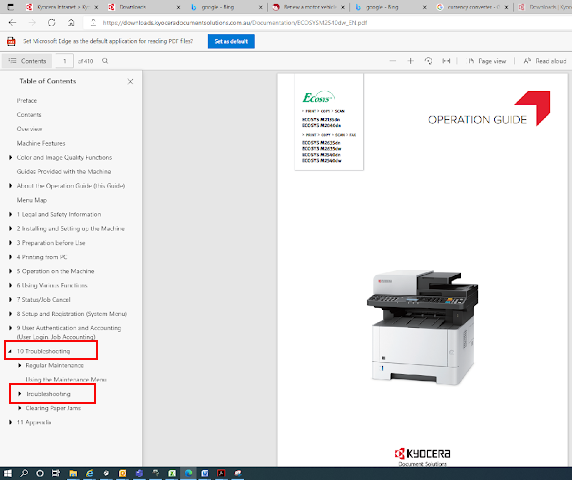
The display message is the best starting point for Kyocera ECOSYS M2040dn troubleshooting. Write down the full code before clearing it, especially if the error returns.
Use this approach:
• Read the entire message, not just the number.
• Check the user guide for the exact code.
• Follow the listed cover, tray, or consumable instruction.
• Restart only after removing the stated cause.
• Contact service if the message refers to a fuser, drive motor, scanner, or internal hardware.
Maintenance messages may appear when a component reaches its expected service interval. Resetting a message without replacing the worn part may hide the problem rather than solve it.
Do not enter service-mode codes found on random websites. Some reset procedures are intended for trained technicians. An incorrect reset can erase settings, create new errors, or affect safety controls.
Record the error date, job type, paper used, and steps already taken. This small log helps support staff diagnose intermittent problems much faster.
Preventive Maintenance for the Kyocera ECOSYS M2040dn
Good maintenance prevents many printer faults. Think of it like caring for a car: clean supplies, correct settings, and early attention reduce larger repairs.
Follow these habits:
- Keep the printer in a dry, well-ventilated area.
- Store paper sealed until needed.
- Remove dust from the exterior and glass.
- Keep the output area clear.
- Use the correct paper size and type settings.
- Avoid overfilling the cassette.
- Install trusted toner supplies.
- Keep firmware and drivers managed by an administrator.
- Print a test page after major changes.
- Follow the manufacturer’s maintenance schedule.
Do not place the printer near a heater, open window, or area with heavy dust. Heat and moisture can affect paper movement and toner performance.
Use the correct power source and avoid overloaded power strips. If the printer repeatedly loses power, investigate the electrical supply rather than repeatedly restarting it.
Preventive maintenance has limits. Cleaning cannot repair a damaged fuser, worn roller, failed network port, or defective control board. When a problem returns after proper cleaning and setup, professional service is the safer choice.
When to Contact a Kyocera Service Technician
Some problems are safe for users to solve. Others need trained service support.
Contact a qualified technician when:
• A fuser or high-temperature warning appears.
• The printer repeatedly jams after the paper path is clear.
• A burning smell, smoke, or sparking occurs.
• Internal gears make severe grinding sounds.
• The printer shows a persistent hardware error.
• Toner leaks inside the machine.
• Print quality remains poor after a genuine toner replacement.
• The device shuts down or restarts by itself.
Turn off and unplug the printer if you notice smoke, sparks, or a burning odor. Do not open electrical panels or touch hot internal parts.
A service visit may cost more than a simple cartridge replacement, but the right diagnosis prevents unnecessary parts. Give the technician the model, serial information, error code, sample page, and troubleshooting steps already completed.
Frequently Asked Questions About Kyocera ECOSYS M2040dn Troubleshooting
Why is my Kyocera ECOSYS M2040dn not printing?
Check the print queue, printer status, cable, IP address, and selected driver. Print a copy or internal status page to determine whether the fault is in the printer or the computer.
How do I clear a paper jam on the Kyocera ECOSYS M2040dn?
Open the area shown on the display and remove the sheet slowly in the paper path direction. Check for small torn pieces before closing the covers and reloading fresh, flat paper.
Why does the Kyocera ECOSYS M2040dn say “Add toner” after replacement?
The toner may be incompatible, incorrectly seated, or still covered by packing material. Remove and reinstall it carefully, then confirm that the cartridge is designed for the M2040dn.
How do I fix light printing on the Kyocera ECOSYS M2040dn?
Check the toner level, print density, paper type, and cartridge installation. If pages remain light with a reliable cartridge, the drum or another internal component may need service.
Why does my Kyocera ECOSYS M2040dn show offline?
The computer may use an old IP address, a disconnected Ethernet cable, or a paused printer queue. Print a network configuration page and compare its IP address with the port used by the computer.
Why are copies showing a black line?
Dust on the document glass or narrow feeder glass is a common cause. Clean both glass areas with a soft, dry, lint-free cloth and test another copy.
When should I stop troubleshooting the printer myself?
Stop when you see smoke, smell burning, hear severe grinding, or receive a fuser or internal hardware error. These conditions can create safety risks and require qualified service.
Conclusion
Kyocera ECOSYS M2040dn troubleshooting is easier when you follow a clear path: read the display message, check paper and toner, test the printer directly, verify the connection, and avoid unsafe repairs. Most routine issues come from paper handling, print queues, network settings, dirty glass, or consumable installation.
Keep paper dry, use compatible supplies, record recurring error codes, and act early when noise or print defects appear. Apply these steps one at a time, then consult the official user guide or a qualified technician for persistent hardware faults. If this guide helped, share it with a colleague or explore more printer maintenance resources for your office.

Similar Posts