Canon Pixma TS6420A Troubleshooting: Easy Fixes

Most Canon PIXMA TS6420a problems come from paper jams, network issues, ink errors, or driver glitches.
If you are dealing with Canon PIXMA TS6420a troubleshooting, you are not alone. This printer is reliable for home and small office use, but like any wireless all-in-one, it can run into hiccups that stop printing, scanning, or connecting at the worst time. I have seen the most common fixes come down to a few simple checks, and once you know where to look, the machine becomes much easier to manage.

Common Canon PIXMA TS6420a Problems and What They Mean
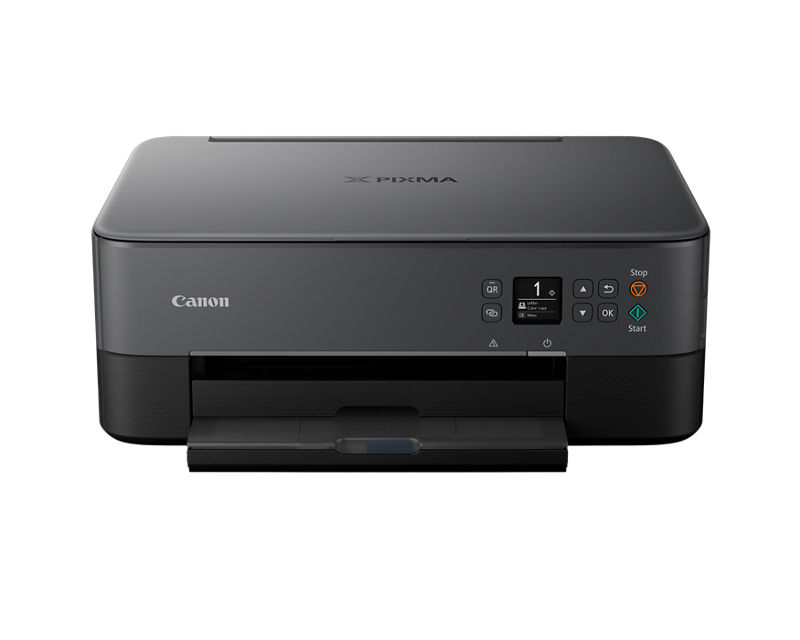
The Canon PIXMA TS6420a is a compact inkjet printer, scanner, and copier. That means issues can come from hardware, software, or your Wi-Fi setup. In my experience, most users start troubleshooting in the wrong place, when the real problem is often something small like a weak signal, a loose paper load, or a clogged print head.
Here are the most common symptoms people see:
- Printer will not turn on
- Printer is offline or not responding
- Wi-Fi connection keeps dropping
- Paper is jammed or not feeding
- Printing is blank, faded, or streaked
- Scanner does not work
- Error codes appear on the display
- Ink cartridges are not detected
A good troubleshooting process saves time and prevents unnecessary resets. Think of it like checking the easy locks on a door before replacing the whole door. That simple order matters a lot with Canon PIXMA TS6420a troubleshooting.
Start with the Basics Before You Reset Anything
Before you jump into advanced fixes, check the simple stuff first. Many printer problems look serious but are caused by basic setup issues.
Try these first:
- Make sure the printer is plugged into a working wall outlet.
- Check that the power button is lit.
- Confirm that paper is loaded correctly in the rear tray.
- Open the ink cover and make sure each cartridge is seated properly.
- Restart both the printer and the computer or phone.
- If you print over Wi-Fi, confirm your router is on and working.
I learned this lesson the hard way once when a printer looked dead, but the outlet strip had been switched off by accident. It is a small thing, but in printer troubleshooting, small things cause big delays.
If the printer still does not respond after these checks, move into the specific area that matches your symptom.

Fix Canon PIXMA TS6420a Power and Startup Issues
If the Canon PIXMA TS6420a will not power on, the issue is usually power-related rather than a deep hardware failure. Start by checking the power cable, outlet, and adapter connection if your setup uses one. A weak or unstable power source can make the printer appear dead.
Try this step-by-step:
- Unplug the power cord from both the printer and the outlet.
- Wait at least 60 seconds.
- Plug it back in firmly.
- Press the power button once and wait for the display to light up.
- Test a different outlet if nothing happens.
If the printer powers on but shuts off unexpectedly, unplug other devices from the same power strip. Overloaded strips can cause unstable current, especially in home offices with multiple electronics. If the issue continues, the internal power board may need service.
Resolve Canon PIXMA TS6420a Wi-Fi and Offline Problems
Wireless issues are among the most common Canon PIXMA TS6420a troubleshooting headaches. The printer may say it is connected, but your phone or computer still cannot find it. That usually means the printer and device are not truly on the same network path.
Check these points:
- Make sure the printer is connected to the same Wi-Fi network as your computer or phone
- Avoid connecting to a guest network
- Move the printer closer to the router if the signal is weak
- Restart the router, printer, and device
- Re-add the printer in your device settings if it shows offline
- Update the printer driver if your computer is using an old one
If you use a 2.4 GHz and 5 GHz dual-band router, connect the printer to the 2.4 GHz band if needed. Many home printers work more reliably there because the signal travels farther. I have found that when a printer keeps dropping offline, the issue is often not the printer itself but how the router handles connected devices.
Fix Paper Jams and Paper Feeding Problems
Paper jams can feel annoying, but they are usually easy to clear if you stay patient. Do not yank the paper fast, because that can tear it and leave scraps inside the machine. A small torn piece can lead to repeat jams.
Use this process:
- Turn the printer off.
- Open the rear cover and inspect the paper path.
- Gently remove any stuck paper with both hands.
- Check the front tray and output area for scraps.
- Reload plain paper neatly and do not overfill the tray.
- Turn the printer back on and test again.
To reduce future jams, use clean, flat paper and store it in a dry place. Humidity can curl sheets just enough to confuse the feed rollers. That is one of those boring little details that causes real-world printer trouble.
Handle Print Quality Problems Like Blurry, Faded, or Streaky Pages
When print quality drops, the problem is often ink, nozzle clogging, or paper settings. This is especially true if the printer has sat unused for a while. Inkjet printers like the Canon PIXMA TS6420a need regular use to keep ink flowing smoothly.
Try these fixes:
- Check ink levels in the printer menu or app
- Replace any low or empty cartridge
- Run a nozzle check or print head cleaning
- Use the correct paper type setting
- Make sure you are not printing on damp, warped, or low-quality paper
If the page has white lines or missing text, a deep cleaning may help. In my experience, one cleaning cycle often helps, but repeated cleaning cycles can waste ink fast. If the printer still prints poorly after two or three tries, let it rest for a few hours and try again, because stubborn clogs sometimes loosen over time.
Fix Scanner and Copy Problems on the Canon PIXMA TS6420a
The scanner can fail even when printing works fine. That usually points to software, app permissions, or a communication issue between the printer and computer. For scan jobs, the machine needs a stable connection and the right scanner software.
Check the following:
- Confirm the scanner lid is closed properly.
- Make sure the document is placed face down and aligned.
- Use the correct scan app or Canon software.
- Allow scanner permissions on your computer or mobile device.
- Restart the printer and the device if the scanner is not detected.
If the copier works but scanning does not, the hardware is probably fine. The problem is often on the software side. I have seen people spend an hour on the printer when the real fix was simply granting the app permission to access the scanner.
Update Drivers and Software for Better Stability
Outdated drivers cause many printer errors, especially on Windows and macOS. If your Canon PIXMA TS6420a is working one day and failing the next after a system update, the driver may be the weak link. Printer software needs to match the operating system closely.
What to do:
- Remove old printer entries from your device list
- Install the latest Canon driver package for your system
- Update the Canon utility or printer app
- Restart after installation
- Reconnect the printer after the update
A fresh driver often fixes offline errors, scanning issues, and print queue problems at the same time. This is one of the most reliable steps in Canon PIXMA TS6420a troubleshooting because it clears out old software conflicts. If you have recently upgraded your operating system, this step matters even more.
Reset the Canon PIXMA TS6420a When Needed
A reset can help when the printer is stuck in a strange state. This is useful for stubborn wireless problems, error messages, or settings that seem corrupted. Still, I recommend using reset steps only after you have tried the basic fixes first.
Common reset approach:
- Turn the printer off.
- Unplug it for about one minute.
- Plug it back in and restart.
- If needed, use the printer’s network reset option from the settings menu.
- Reconnect to Wi-Fi after the reset.
Be careful with full resets because they may erase saved network settings. That is not a bad thing if you need a clean start, but it does mean you will need to reconnect the printer again. Think of it like clearing a cluttered desk so you can begin fresh.
Prevent Future Problems with Simple Maintenance
Good maintenance reduces the need for constant Canon PIXMA TS6420a troubleshooting. A few easy habits can keep the printer in better shape and improve day-to-day reliability.
Helpful habits include:
- Print a test page every week or two
- Keep the printer in a clean, dry place
- Use recommended or high-quality ink cartridges
- Close the paper tray when not in use
- Do not leave paper sitting in humid rooms
- Check for firmware updates once in a while
One mistake I see often is letting an inkjet sit unused for long stretches, then expecting perfect output right away. Inkjet printers are a bit like bikes for your printer life: if they sit too long, they need a quick tune-up before they run smoothly again.
When to Contact Canon Support or Get Service
Sometimes the problem is bigger than a home fix. If you have tried power checks, Wi-Fi resets, driver updates, and print head cleaning, but the printer still fails, it may need professional support. This is especially true if the display shows a persistent error code, the printer makes unusual noises, or you suspect internal hardware damage.
You may need service if:
- The printer does not power on after outlet testing
- Repeated jams happen even with fresh paper
- Ink cartridges are not recognized after replacement
- The scanner motor fails or makes grinding sounds
- The same error keeps coming back after reset
At that point, it is better to stop guessing. A clear, documented issue is easier to solve than repeated trial and error. Keep track of the exact error message and what you already tried before contacting support.
Frequently Asked Questions of Canon PIXMA TS6420a Troubleshooting
Why is my Canon PIXMA TS6420a not printing?
It is often caused by an offline connection, paper jam, empty ink, or a stuck print queue. Start by restarting the printer and checking Wi-Fi, then confirm the ink and paper are loaded correctly.
How do I reset the Canon PIXMA TS6420a?
Turn the printer off, unplug it for about one minute, then plug it back in and restart it. If you need a network reset, use the settings menu so you can reconnect the printer to Wi-Fi afterward.
Why does my Canon PIXMA TS6420a print blank pages?
Blank pages usually point to empty cartridges, clogged nozzles, or cartridges that are not seated right. Check ink levels first, then run a nozzle check and cleaning cycle if the cartridges look fine.
Why does my Canon PIXMA TS6420a keep going offline?
This usually happens when the printer loses Wi-Fi or the device and printer are on different networks. Restart the router and printer, then reconnect both to the same network and reinstall the printer if needed.
How do I fix scan problems on the Canon PIXMA TS6420a?
Make sure the scanner software is installed and the app has permission to use the printer. If the scanner still does not work, restart both devices and test with a different document scanning app.
Why is my Canon PIXMA TS6420a making a paper jam error with no paper stuck?
Tiny scraps of paper or roller feed issues can trigger the error even when no full sheet is visible. Check the paper path carefully, clean the rollers if needed, and reload fresh paper without overfilling the tray.
Conclusion
Canon PIXMA TS6420a troubleshooting gets much easier when you work step by step and start with the basics. Most problems come from power, Wi-Fi, paper feed, ink, or software, and many of them can be fixed without stress if you stay patient and methodical.
The big takeaway is simple: small checks can prevent big headaches. Keep your printer updated, use clean paper, print regularly, and do not rush to reset everything at once. If this guide helped, bookmark it, try the steps on your printer, and share your experience or questions in the comments so others can learn from it too.

Similar Posts
































