Ricoh P C301W Troubleshooting: Quick Fix Guide
Most Ricoh P C301W problems come from simple power, paper, toner, network, or driver issues.
Ricoh P C301W troubleshooting is easier when you check the basics before changing advanced settings. This guide uses a clear, step-by-step method for print errors, paper jams, poor color, wireless problems, offline messages, and maintenance alerts. It also explains when a repair is safer than a home fix.
Start with basic Ricoh P C301W troubleshooting
Begin with the printer itself. Many faults come from a loose cable, a sleep mode, or a door that is not fully closed.
Follow these checks:
- Make sure the power cord fits tightly in the printer and wall outlet.
- Press the power button and wait for the printer to finish its startup cycle.
- Check the display for an error message or warning icon.
- Confirm that the paper tray is pushed in fully.
- Open and close each access door with care.
- Remove any loose paper near the input tray or output area.
- Check that the toner cartridges are seated correctly.
- Restart the printer and the computer or phone that sends the print job.
If the printer does not turn on, test the wall outlet with another device. Do not keep pressing the power button if you smell burning, see smoke, or notice a damaged power cord. Unplug the printer and arrange qualified service.
A useful habit is to change only one thing at a time. If you change the driver, network settings, and toner at once, you may not know which step solved the issue.
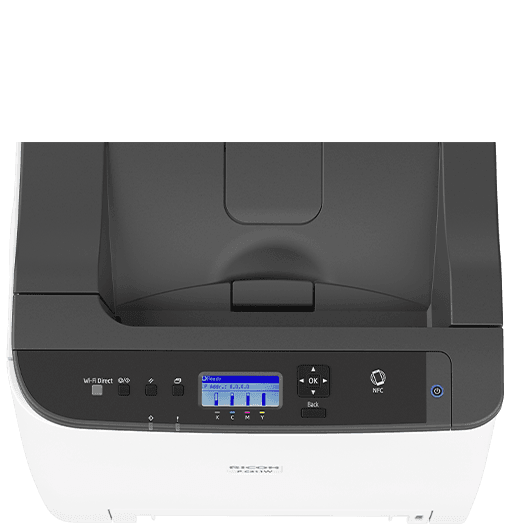
Ricoh P C301W troubleshooting for paper jams
Paper jams are among the most common Ricoh P C301W problems. A jam may occur in the tray, feed path, fuser area, or rear cover.
Use this safe removal process:
- Cancel the print job from the computer.
- Wait for the printer to cool if it was printing for a long time.
- Pull out the paper tray and remove loose sheets.
- Open the covers shown by the printer’s jam message.
- Pull paper slowly in the direction of normal paper travel.
- Check for small torn pieces.
- Close every cover fully.
- Reload fresh paper and try a one-page test.
Never force paper through the printer. Torn scraps can stay inside and cause repeated jams. Keep your fingers away from the fuser area because it can remain hot after printing stops.
Paper choice also matters. Use clean, dry paper that matches the tray setting. Curled, damp, very thick, or mixed-size sheets can cause feed errors.
To prevent future jams:
• Store paper flat in a dry room.
• Fan the stack before loading it.
• Do not fill the tray above its limit.
• Adjust the paper guides so they touch the stack without squeezing it.
• Set the correct paper size and type in the print driver.
• Avoid mixing old and new paper in one tray.
If jams happen with every paper type, inspect the feed rollers for dust or wear. Do not apply household oil or cleaning fluid to the rollers.
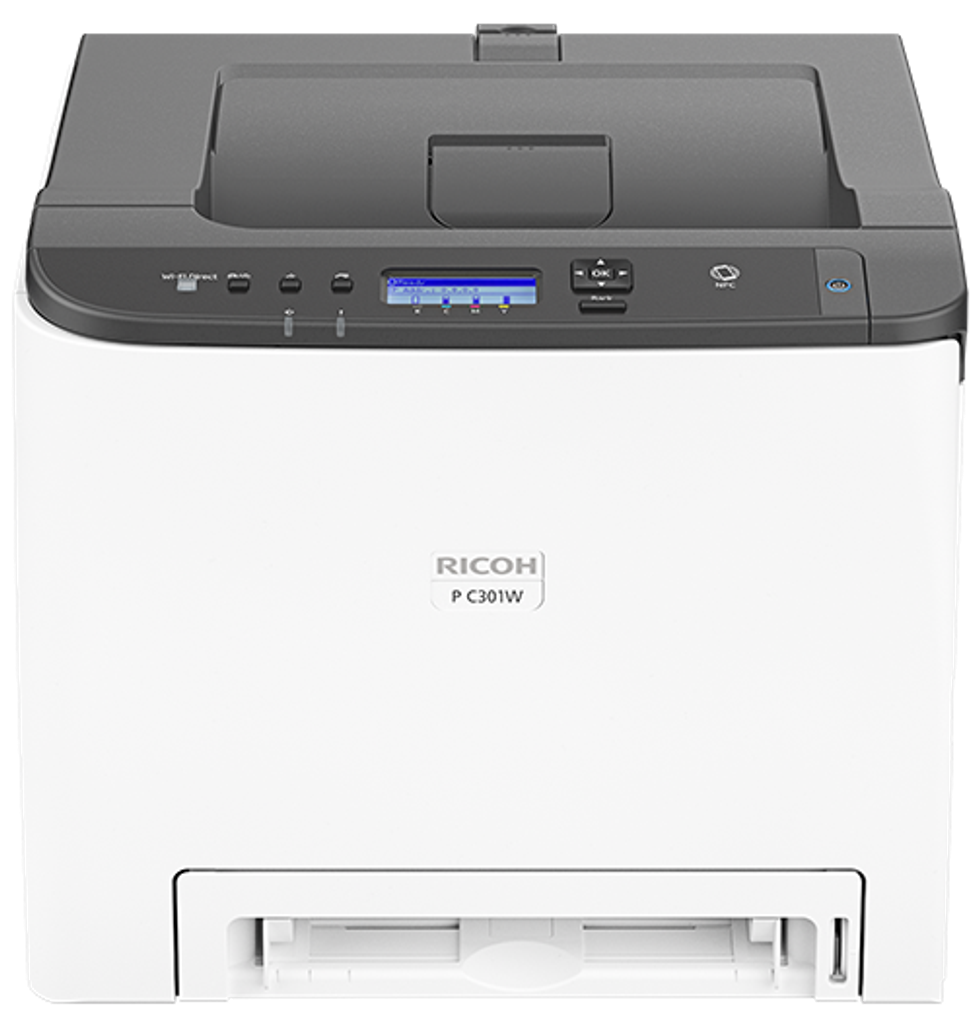
Ricoh P C301W troubleshooting for offline and connection errors
A printer can be powered on but still appear offline. This usually means the computer cannot reach the printer through USB, Wi-Fi, or the local network.
First, check the connection path:
• For USB, connect the cable directly to the computer instead of using a hub.
• For Wi-Fi, confirm that the printer and computer use the same network.
• For Ethernet, check both ends of the cable and the network port lights.
• Restart the printer, router, and computer in that order.
• Remove duplicate printer entries from the operating system.
• Set the correct Ricoh printer as the default device.
A changing IP address can also make the printer seem offline. If the printer works for a day and then disappears, check its IP address in the printer network settings. A reserved address on the router can help, but the exact process depends on the router model.
For wireless setup, keep the printer near the router during installation. Thick walls, metal cabinets, and crowded wireless channels can weaken the signal. The printer may connect successfully but still print slowly if the signal is poor.
If the printer connects to Wi-Fi but a phone cannot print, check whether the mobile device and printer are on the same private network. Guest networks often block device-to-device communication.
Use the printer’s configuration or network report when available. It can show the IP address, connection status, and wireless details. This report is often more useful than guessing from the computer’s printer screen.
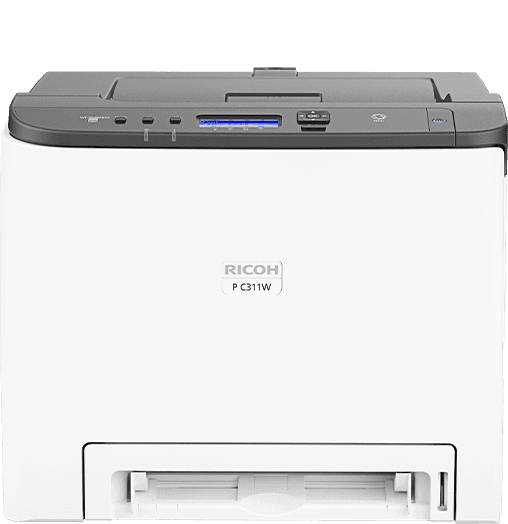 connection errors”
style=”max-width: 100%; height: auto; border: 2px solid black; border-radius: 10px; display: block; margin: 0 auto;”
loading=”lazy”
/>
Fix Ricoh P C301W driver and print queue problems
The print driver tells the operating system how to communicate with the printer. A damaged, old, or incorrect driver can cause blank pages, wrong colors, missing settings, or a printer that stays offline.
Try these steps:
- Open the computer’s printer settings.
- Cancel all pending print jobs.
- Restart the print spooler or print service.
- Remove duplicate Ricoh P C301W entries.
- Download the driver that matches your operating system and printer model.
- Install the driver from a trusted Ricoh support source.
- Restart the computer after installation.
- Print a simple test page.
Do not choose a driver for a similar model just because its name looks close. Small model differences can affect toner control, paper sizes, duplex printing, and color settings.
If one program prints and another does not, the printer may be fine. Check the problem application’s page size, margins, color mode, and selected printer. A PDF reader may also use a different print setting than a word processor.
A stuck queue can block every later job. Cancel old jobs first. If one job refuses to clear, restart the print service before reinstalling the entire printer.
For a shared office printer, check permissions and the print server as well. A local driver reinstall will not fix a server-side issue.
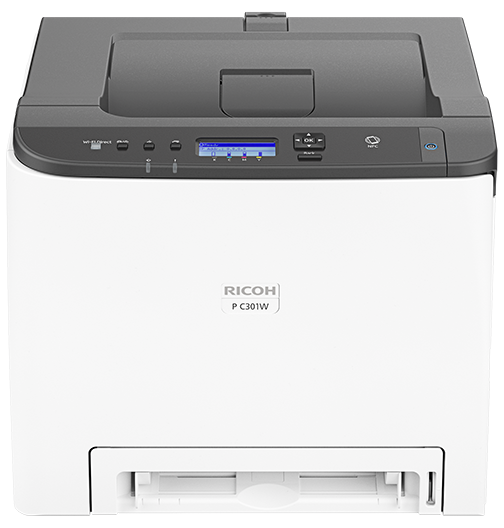
Ricoh P C301W troubleshooting for poor print quality
Poor print quality can appear as faded text, streaks, spots, uneven color, lines, or incorrect shades. Start by deciding whether the problem affects one color or the whole page.
Use this quick guide:
• Faded pages may point to low toner, an unsuitable print mode, or poor media.
• A single color missing may indicate an empty or poorly seated cartridge.
• Repeated spots can come from toner contamination or a damaged internal part.
• Vertical lines may relate to a cartridge, roller, or imaging component.
• Blurred text can result from damp paper, incorrect paper settings, or a fuser issue.
• Wrong colors may come from driver settings, color profiles, or an incorrect cartridge.
Remove and reseat the toner cartridge only as the user guide explains. Avoid touching the imaging surface. Light can damage some imaging components, and fingerprints can affect print quality.
Check the print quality settings in the driver. Draft or economy modes use less toner but may look lighter. For important documents, choose a normal or higher quality mode and use the correct paper type.
Print a configuration page or test page. If the test page also shows the fault, the problem is likely inside the printer. If the test page looks normal, review the document, application, or driver.
Do not shake toner cartridges aggressively. This can spread toner inside the printer. Replace cartridges with the correct Ricoh-compatible type and follow local rules for cartridge recycling.
If a new cartridge causes a problem, remove it and check the protective seal and packaging. A cartridge that is not fully prepared or seated may produce poor output.

Fix color, blank page, and smearing issues
Color printing depends on four toner colors working together. A small problem with one cartridge can change the whole image.
When colors look wrong, check the following:
- Confirm that color printing is selected in the print settings.
- Check whether the document uses a special color profile.
- Print a test page from the printer.
- Reseat the affected cartridge.
- Check for a low-toner or replace-toner warning.
- Compare plain text with a color image.
Blank pages can result from an empty cartridge, a protective seal left in place, or a print job that contains no visible content. Try a basic text document and a printer test page before replacing parts.
Smearing often means toner is not bonding to the paper correctly. Check the paper type setting first. Thick paper, labels, envelopes, and coated media may need a matching setting. If toner still rubs off after the correct setting is used, the fuser may need service.
Avoid cleaning internal parts with a vacuum made for home use. Loose toner can spread, and static may damage electronic components. Use only cleaning methods approved for the printer.
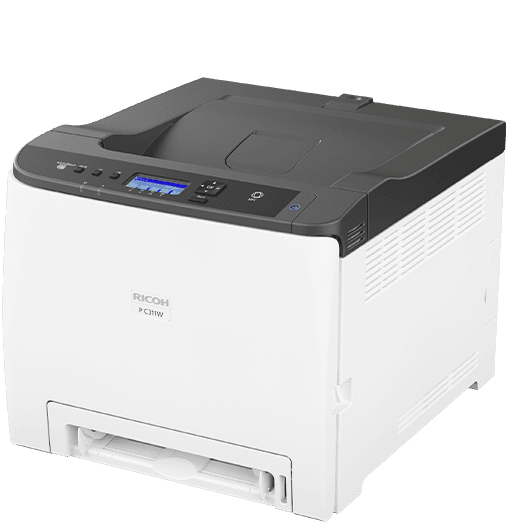
Ricoh P C301W troubleshooting for toner and supply warnings
A toner warning does not always mean the cartridge is completely empty. It may indicate that the printer expects a replacement soon.
Check each cartridge position and color. A cartridge may look full but fail to work if it is not locked into place or if its contact area is dirty. Follow the printer manual before attempting any cleaning.
Keep these points in mind:
• Use cartridges made for the Ricoh P C301W or clearly certified for this model.
• Do not mix loose toner from different cartridge types.
• Store cartridges in their original packaging until needed.
• Keep toner away from heat and direct sunlight.
• Replace a cartridge when print quality drops or the printer gives a clear replacement message.
Some compatible cartridges may cost less, but quality can vary. Poor-quality supplies can cause leaks, color shifts, and repeated warnings. For business records, labels, or customer documents, reliable supplies are often worth the extra cost.
If the printer still shows a supply warning after replacement, turn it off, wait briefly, and restart it. Check that the cartridge is the correct color and fully installed. If the warning remains, the cartridge sensor or internal supply system may need professional attention.
Solve slow printing and incorrect paper size
Slow printing is not always a fault. Large color images, high-resolution files, and complex PDF documents require more processing time than plain text.
To improve print speed:
• Lower the print quality for drafts.
• Reduce image resolution before printing large photos.
• Use a wired connection when Wi-Fi is weak.
• Close unused print jobs.
• Check whether the printer is using a quiet or energy-saving mode.
• Print one copy first when testing a large document.
Incorrect paper size often comes from a mismatch between the document, driver, and tray. For example, a document set to Letter may not print correctly when the tray is set to A4.
Confirm the size in three places:
- The document page setup.
- The printer driver.
- The physical paper tray setting.
If the printer stops and asks for paper, do not repeatedly press print. Check the requested size and load the correct media. This prevents wasted toner and paper.
Duplex printing can also affect speed. The printer must move the page through its internal path a second time. A short delay is normal, but repeated pauses or jams may indicate a paper path problem.
Reset and maintain the Ricoh P C301W safely
A restart clears many temporary faults, but a factory reset is more serious. It can remove network settings, stored preferences, and other configuration data.
Use this order:
- Cancel active print jobs.
- Restart the printer normally.
- Check cables, paper, toner, and error messages.
- Review network settings.
- Update or reinstall the driver.
- Use a reset only when the manual or support instructions call for it.
Before resetting network settings, record the Wi-Fi name, password, IP details, and any office print server information. Otherwise, you may fix one problem and create another.
Routine care helps prevent Ricoh P C301W problems:
• Keep the printer on a stable, dust-free surface.
• Leave space around vents and access doors.
• Clean the exterior with a soft, dry cloth.
• Keep paper sealed when not in use.
• Run a test page after replacing supplies.
• Install firmware only from a trusted manufacturer source.
• Keep a note of error codes and the steps already tried.
A service visit is wise when the printer makes grinding sounds, repeatedly jams after careful cleaning, overheats, shows electrical damage, or produces serious defects on every test page. Some internal parts require special tools and calibration.
A practical diagnostic method
Good Ricoh P C301W troubleshooting follows a process. Think of it like finding a leak in a garden hose. You start at the tap, then follow the water path instead of replacing the whole hose at once.
Use this five-step method:
-
Identify the exact symptom.
Write down what happens, when it happens, and whether the issue affects every document. -
Check the printer’s own test page.
This separates printer hardware problems from computer or application problems. -
Test one variable.
Use plain Letter or A4 paper, a short text file, and a direct connection if possible. -
Record the result.
Note error codes, flashing lights, toner colors, and paper locations. -
Escalate when needed.
Stop if the issue involves heat, electrical damage, repeated mechanical failure, or internal parts.
One practical lesson from printer support work is that people often replace toner too soon. If a test page prints well but one PDF is blank, the cartridge is probably not the first thing to replace. Check the file, driver, and application settings first.
Another common mistake is repeatedly sending the same job after an error. This fills the queue and makes recovery harder. Clear the queue, solve the printer fault, and then send one small test job.
When professional service is the better choice
Some Ricoh P C301W issues are not suitable for home repair. Stop troubleshooting and seek qualified help when:
• The power cord, plug, or outlet is damaged.
• You smell burning or see smoke.
• The printer becomes unusually hot.
• A grinding or cracking sound continues.
• Paper jams return after careful removal.
• Toner leaks inside the machine.
• A service message appears repeatedly.
• Print defects remain after new supplies and correct settings.
Keep the error code and configuration page for the technician. This can reduce testing time and prevent repeated guesses.
The manufacturer’s user guide is the best reference for cover locations, approved media, error messages, and reset steps. Firmware, driver names, and menu options can change by operating system or region, so use current support instructions when an exact menu path differs.
Frequently Asked Questions of Ricoh P C301W Troubleshooting
Why is my Ricoh P C301W offline?
The printer may be offline because of a lost Wi-Fi connection, a changed IP address, a bad USB cable, or a stuck print queue. Restart the printer and router, confirm the connection, remove duplicate printer entries, and print a test page.
How do I clear a paper jam on the Ricoh P C301W?
Cancel the print job, open the cover shown by the error message, and pull the paper out slowly in the normal paper path direction. Check for small torn pieces, close all covers, and reload dry paper with the guides set correctly.
Why is my Ricoh P C301W printing faded pages?
Faded output can result from low toner, economy mode, damp paper, or a cartridge that is not seated correctly. Check the toner warning, print quality setting, paper condition, and cartridge position before ordering parts.
Why does the Ricoh P C301W print blank pages?
A blank page may come from an empty cartridge, an unremoved cartridge seal, an incorrect driver, or a document with no visible content. Print the printer’s test page to determine whether the fault is inside the printer or in the computer file.
How do I reconnect the Ricoh P C301W to Wi-Fi?
Confirm the wireless network name and password, then use the printer’s network setup menu to select the correct network. Keep the printer near the router during setup and make sure the computer or phone is on the same private network.
Should I reset my Ricoh P C301W to fix an error?
Try a normal restart and basic checks before a factory reset. A full reset can erase wireless settings and other preferences, so record your network details first and use the reset procedure in the current user guide.
Conclusion
Effective Ricoh P C301W troubleshooting starts with simple checks: power, paper, toner, cables, network access, and the print queue. A test page is one of the best tools because it shows whether the problem belongs to the printer or the device sending the job.
Use a slow, careful process, change one setting at a time, and avoid forcing paper or opening hot internal areas. With the right steps, many Ricoh P C301W issues can be solved without a service call. Save this guide for your next printer problem, and explore the current user manual or Ricoh support resources for model-specific updates.