Ricoh P 501 Troubleshooting: Fix Common Issues
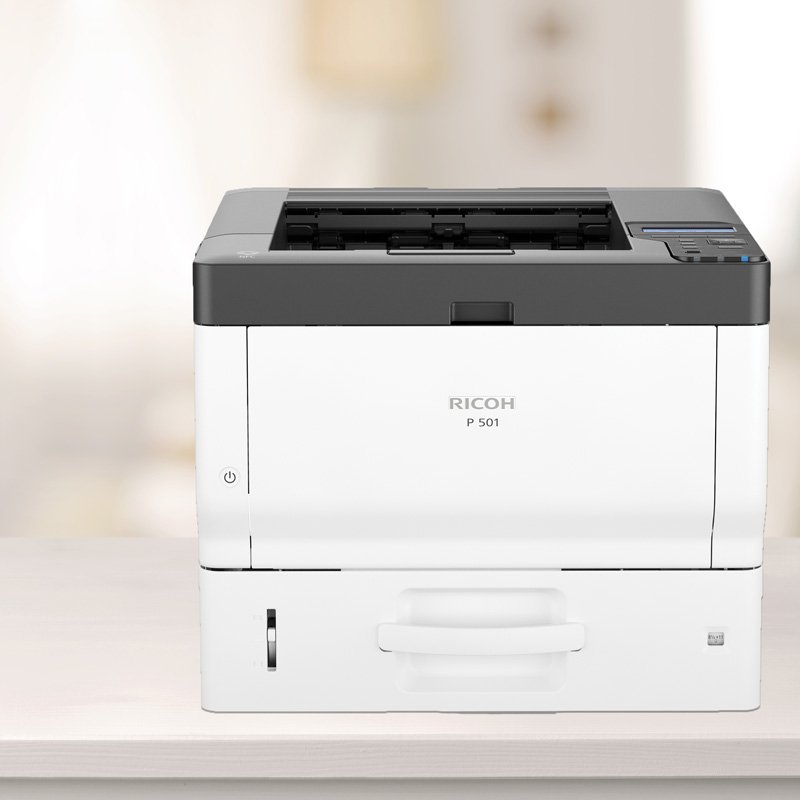
Most Ricoh P 501 problems come from paper, toner, network settings, driver errors, or overdue maintenance.
Ricoh P 501 troubleshooting is much easier when you follow a clear order instead of changing many settings at once. This guide uses practical printer service methods to explain common faults, likely causes, safe fixes, and the signs that your Ricoh P 501 needs professional attention.
Ricoh P 501 Troubleshooting: Start With the Basics
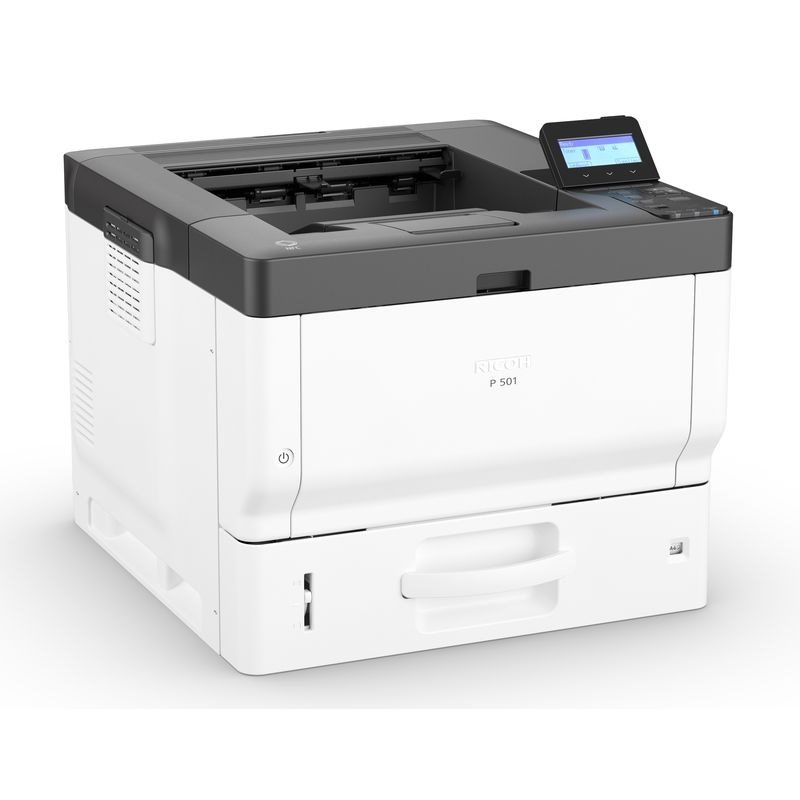
Before testing advanced settings, check the simple causes first. Many Ricoh P 501 problems are caused by a loose power cable, an open cover, an empty toner cartridge, or paper loaded in the wrong direction.
Use this quick checklist:
- Confirm that the printer is switched on.
- Check the power cable and wall outlet.
- Read the message on the printer display.
- Make sure every cover is fully closed.
- Check the paper tray for the correct paper size.
- Confirm that the toner cartridge is installed correctly.
- Look for a paper jam inside the printer.
- Check whether the printer is paused or offline on your computer.
Restarting the printer can clear a temporary memory or communication error. However, do not restart it repeatedly if it shows a fuser, electrical, or service error.
A useful service habit is to change one thing at a time. If you remove the toner, change the paper, reset the network, and reinstall the driver together, you may not know which action solved the problem.
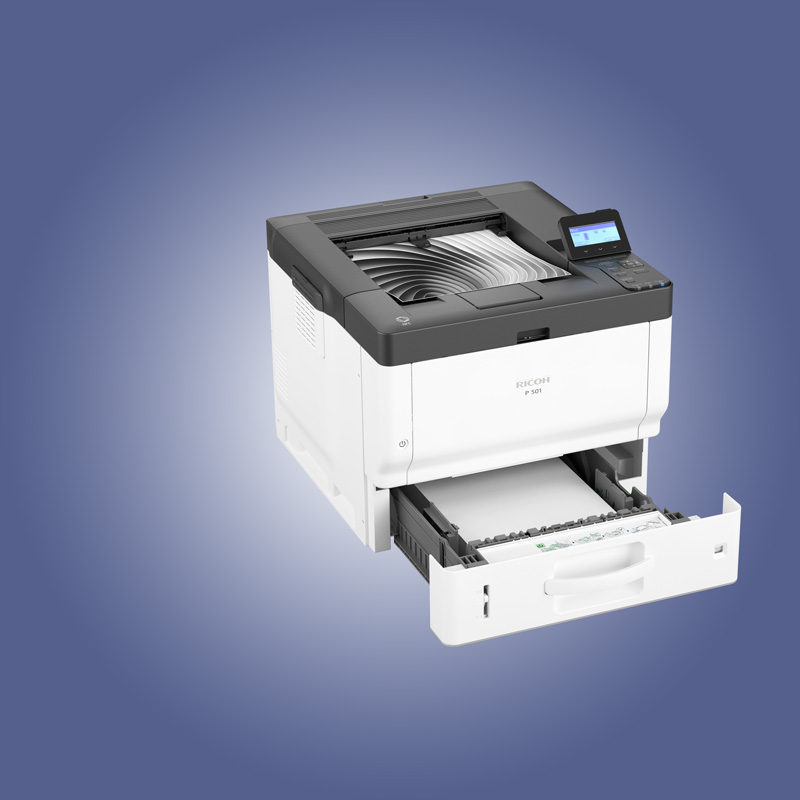
Ricoh P 501 Will Not Turn On
When a Ricoh P 501 does not power on, begin with the electrical path. The issue may be outside the printer.
Follow these steps:
- Push the power cable firmly into the printer and the wall outlet.
- Test the wall outlet with another device.
- Check for a damaged cable, burned smell, or unusual heat.
- Disconnect the printer for several minutes.
- Reconnect it directly to a wall outlet instead of a power strip.
- Turn it on and wait for the normal startup process.
Do not open the power supply area. Laser printers contain high-voltage parts, and some components can remain dangerous even after the printer is unplugged.
If the display stays blank after these checks, the problem may involve the power board, control panel, or internal fuse. Ricoh P 501 troubleshooting should stop at this point, and a qualified technician should inspect the unit.
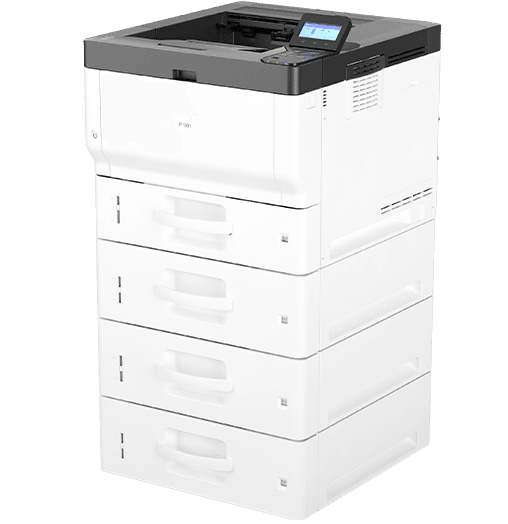
Ricoh P 501 Displays an Error Message
The display message is often the best clue. Read the full message before pressing buttons or opening covers.
Common message types include:
- Paper size errors
- Paper tray errors
- Toner errors
- Cover-open messages
- Paper jam messages
- Fuser or temperature errors
- Network or job-processing errors
- Service-call messages
If the printer asks you to open a specific cover, follow the display instructions. Pulling paper from the wrong area can damage sensors or leave small scraps behind.
For a code that is not clear, record the exact text and number. Then check the official Ricoh P 501 user documentation or contact Ricoh support. Error codes can vary by firmware version, accessory, and printer condition, so guessing the meaning may waste time.
A soft reset can help with a temporary fault:
- Cancel waiting print jobs.
- Turn the printer off using the power switch.
- Wait until the printer fully stops.
- Disconnect power only if the display allows it.
- Wait about one minute.
- Reconnect power and start the printer.
Do not reset the printer while it is updating firmware or processing a critical internal operation.
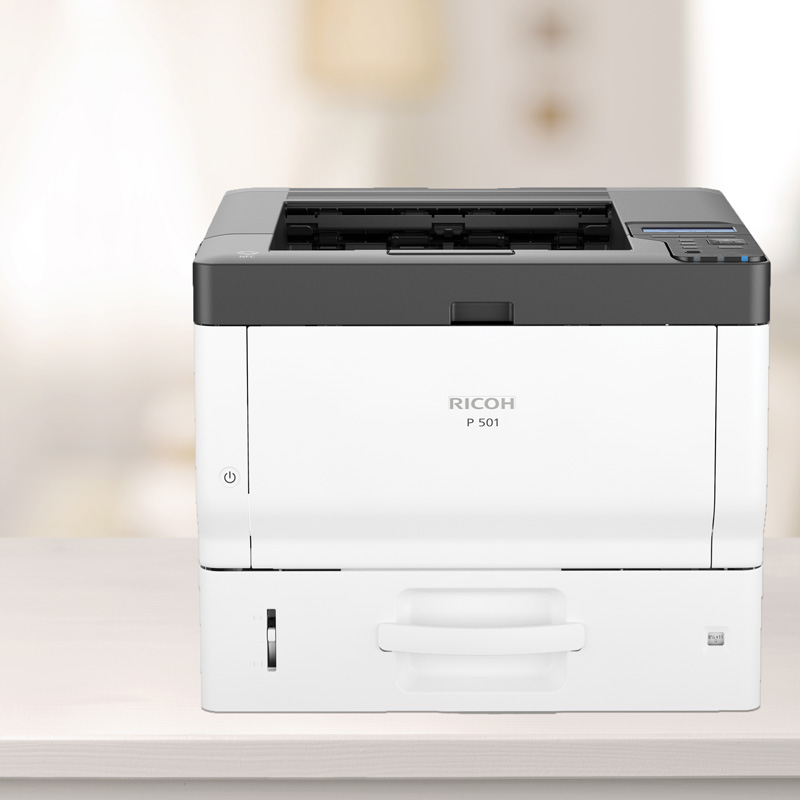
Ricoh P 501 Paper Jam Fix
Paper jams are among the most common Ricoh P 501 troubleshooting issues. A jam does not always mean that one sheet is stuck in plain view. Small pieces can remain near the feed rollers, duplex path, or fuser area.
Use this safe removal method:
- Stop the print job.
- Open the cover shown on the printer display.
- Remove the toner cartridge if the instructions require it.
- Pull the paper slowly in the direction of paper travel.
- Check the paper path for torn pieces.
- Close each cover completely.
- Reinstall the toner cartridge.
- Load fresh paper and print a test page.
Avoid pulling paper sharply. A torn corner can stay inside the printer and cause repeated jams.
Check these common causes:
- Damp or curled paper
- Overfilled paper trays
- Mixed paper sizes
- Incorrect paper guides
- Low-quality paper dust
- Worn feed rollers
- A blocked duplex path
- Paper loaded above the tray limit
Store paper in a dry room. Let newly opened paper adjust to the room before loading it, especially after delivery during cold or humid weather.
If jams happen in the same location each time, note the location. A repeated jam near the tray may suggest a feed roller issue, while a repeated jam near the exit may point to the fuser or exit rollers.

Ricoh P 501 Paper Feed Problems
A printer may show no jam but still fail to pick up paper. This can happen when the tray is overloaded or the paper surface is too smooth.
Try the following:
- Remove the paper from the tray.
- Fan the stack gently.
- Tap the edges on a flat surface.
- Reload fewer sheets.
- Adjust the paper guides so they touch the stack without pressing it.
- Confirm that the tray setting matches the paper size.
- Test a new, dry pack of suitable printer paper.
Do not mix letter, legal, A4, envelopes, and specialty media in one tray unless the tray is configured for that media. The printer uses paper-size information to control its feed and print path.
If the Ricoh P 501 feeds several sheets at once, the separation pad or pickup roller may be worn. Cleaning may provide temporary help, but worn parts usually require replacement.
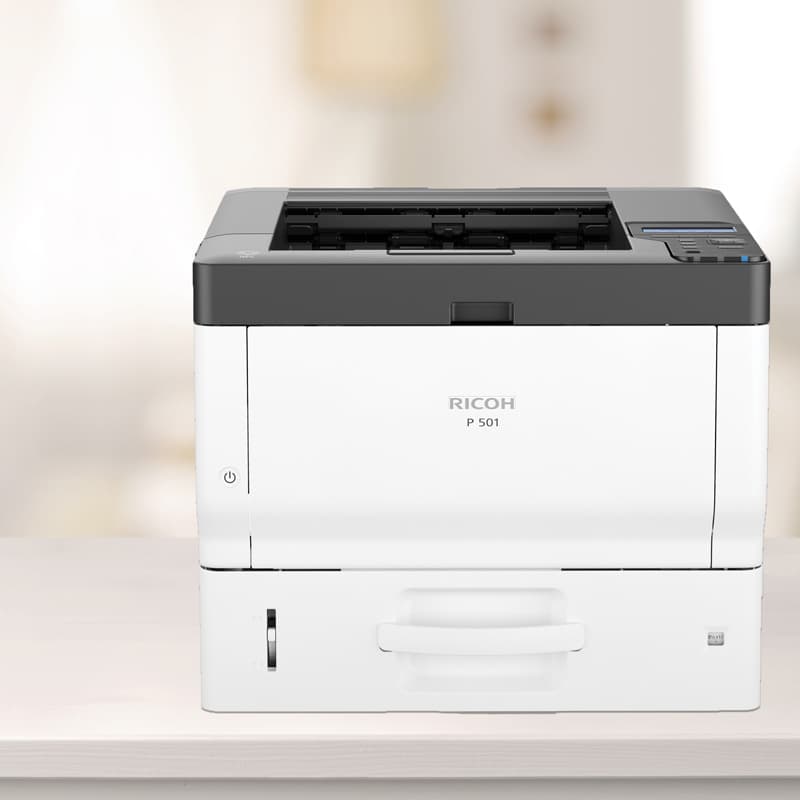
Ricoh P 501 Toner and Cartridge Problems
A low toner warning does not always mean that the cartridge is empty. The printer may detect the cartridge through its chip, position, or toner sensor.
For toner-related Ricoh P 501 troubleshooting, check these points:
- Use a toner cartridge made for the Ricoh P 501.
- Confirm that all protective packaging has been removed.
- Install the cartridge straight and fully.
- Close the front cover firmly.
- Do not touch the drum surface.
- Follow the printer display before replacing the cartridge.
- Shake or rotate a cartridge only when the cartridge instructions allow it.
Third-party toner may reduce cost, but quality can vary. Poor toner can cause gray backgrounds, weak text, streaks, excess dust, or repeated toner warnings. Ricoh’s recommended consumables are the safest choice when print quality and equipment life matter.
Never place a leaking cartridge in the printer. Toner dust can spread through the paper path and may require careful cleaning by a trained technician.
Ricoh P 501 Prints Blank Pages
Blank pages can come from a missing toner cartridge, a blocked print job, or a problem in the driver. Start with the printer itself.
Print a configuration or test page from the printer control panel if that option is available. If the internal page is also blank, inspect the toner cartridge and imaging path. If the internal page prints correctly, the issue is more likely related to the computer, document, or print driver.
Check these causes:
- Toner cartridge is empty or not seated.
- Protective strip remains on the cartridge.
- Document contains blank pages.
- Wrong printer is selected.
- Print settings use a separator page.
- The driver is damaged or incorrect.
- The application is sending a failed print job.
Restart the computer and clear the print queue. Then print a simple one-page text document. This test helps separate a printer fault from a file or software problem.
Ricoh P 501 Faded, Gray, or Uneven Printing
Faded text often suggests low toner, an unsuitable cartridge, or a print-density setting. Gray backgrounds can also appear when the drum or other imaging parts are contaminated or worn.
For this Ricoh P 501 troubleshooting issue, try these steps:
- Print several test pages.
- Check the toner level.
- Remove and reinstall the toner cartridge.
- Review print-density or quality settings.
- Test standard plain paper.
- Compare a printer test page with a computer document.
- Replace the cartridge if the test page remains faint.
A vertical white line may indicate a toner distribution issue or a damaged imaging surface. A repeating mark at regular intervals can point to a roller or drum defect.
Do not use household cleaners, water, or rough cloths inside the printer. These materials can damage sensors and imaging parts. Use only cleaning methods approved in Ricoh documentation.
Ricoh P 501 Smudges, Black Lines, or Repeating Marks
Smudges usually mean toner is not being fixed correctly or is being transferred from a dirty internal part. The fuser is responsible for bonding toner to the page, so fuser faults need special care.
Common causes include:
- Damaged toner cartridge
- Dirty transfer area
- Wrong paper type
- Damp paper
- Worn drum or roller
- Fuser temperature problem
- Toner buildup inside the paper path
Print a few pages on fresh standard paper. If the mark repeats at the same distance on every page, measure the spacing and record it for a technician. Repeating patterns can help identify the affected roller.
If pages come out with loose toner, stop using the printer if the problem is severe. Do not touch the fuser area because it can remain hot after printing.
Ricoh P 501 Prints Slowly
The Ricoh P 501 is designed for fast black-and-white office printing, but real speed depends on the document and settings. The first page may take longer because the printer must warm up and process the job.
Check these possible causes:
- The document contains complex graphics.
- High print quality is selected.
- Duplex printing is enabled.
- The printer is processing several jobs.
- The computer sends data slowly.
- The network connection is unstable.
- The printer is in energy-saving mode.
- A low-quality or universal driver is being used.
Large PDF files can take longer than simple text pages. Test a basic text document to compare performance. If simple pages also print slowly, restart the printer and computer, then check the print queue and connection.
Avoid sending many large jobs at the same time. A busy print server or shared office network can make a healthy printer appear slow.
Ricoh P 501 Offline or Not Printing Over a Network
Network problems are often mistaken for printer faults. A Ricoh P 501 may be ready at the control panel but unreachable from a computer.
Start with a local check:
- Print a configuration page.
- Confirm that the printer has an IP address.
- Check the network cable or wireless bridge.
- Make sure the computer is on the same network.
- Verify the printer port in the operating system.
- Remove paused jobs from the print queue.
- Restart the printer and network equipment if permitted.
If the IP address changed, the installed printer port may still point to the old address. Updating the port or reinstalling the printer can restore communication.
For a shared office printer, ask the network administrator before changing TCP/IP, DNS, gateway, or security settings. A wrong network change can affect more users than the original fault.
You can also test the printer by opening its web management page through its IP address. If the page does not load, the problem may involve the network path. If it loads but printing fails, check the driver, port, queue, or print permissions.
Ricoh P 501 Driver and Print Queue Errors
A bad driver can cause missing pages, incorrect paper selection, wrong fonts, or jobs that remain stuck. These symptoms often appear after an operating system update.
Use this process:
- Cancel all pending print jobs.
- Restart the print spooler or computer.
- Confirm the correct Ricoh P 501 is selected.
- Install the current driver for your operating system.
- Remove duplicate printer entries.
- Recheck paper size, tray, duplex, and resolution settings.
- Print a test page.
Use the official driver when possible. Universal drivers can be useful in larger environments, but they may not expose every Ricoh P 501 feature.
If only one program fails, test from another application. A faulty PDF, browser setting, font, or application profile may be the real cause.
Ricoh P 501 Duplex Printing Problems
Duplex printing saves paper, but it uses more rollers and a longer paper path. Misfeeds may occur when paper is damp, curled, too thin, or not suitable for automatic two-sided printing.
If duplex pages jam or print incorrectly:
- Test one-sided printing first.
- Use standard paper approved for duplex work.
- Replace curled or damp paper.
- Confirm that the document orientation is correct.
- Check the selected paper size.
- Reduce the number of pages in the test job.
- Inspect the duplex path for scraps.
If one-sided printing works but duplex printing fails every time, the duplex unit or its sensor may need service. Avoid forcing paper through the duplex path.
Ricoh P 501 Maintenance and Cleaning
Regular care can prevent many Ricoh P 501 troubleshooting calls. Keep the printer in a clean, dry, well-ventilated place with enough space around its vents and covers.
A simple care plan includes:
- Remove paper dust from the tray area.
- Keep paper covered when not in use.
- Clean the outside with a soft, dry cloth.
- Follow Ricoh instructions for internal cleaning.
- Replace toner and maintenance parts as indicated.
- Keep firmware and drivers managed by an authorized user.
- Record recurring jams and error messages.
Do not use compressed air inside the printer unless the service instructions specifically permit it. Air can push toner and dust deeper into sensors and moving parts.
A good maintenance record should include the date, page count if available, error message, paper type, toner brand, and repair action. This record helps reveal patterns before a small fault becomes a major outage.
When to Contact a Ricoh Technician
Some problems are not suitable for home or office troubleshooting. Contact qualified service support when the printer shows a service-call message, produces smoke, smells hot, trips a circuit, or repeatedly jams after proper cleaning.
Professional service is also appropriate when:
- The fuser appears damaged.
- The printer makes grinding or clicking sounds.
- Paper jams at the same internal point.
- Toner leaks inside the machine.
- Print defects repeat after a new cartridge.
- The printer loses power during operation.
- Network settings require administrative access.
- Internal parts need replacement.
Tell the technician what you already tested. Give the exact error message, paper type, cartridge type, and location of any jam. Clear information can shorten diagnosis time and reduce unnecessary part replacement.
One lesson learned from real printer service work is that repeated symptoms matter more than one isolated error. A single jam may be bad paper. A jam in the same place every day usually deserves a deeper inspection.
A Practical Ricoh P 501 Troubleshooting Workflow
Use this workflow when you are unsure where to begin:
- Read the display message.
- Check power, covers, toner, and paper.
- Remove visible paper carefully.
- Print an internal test or configuration page.
- Test a simple one-page document.
- Check the driver and print queue.
- Test the network connection.
- Record the exact result.
- Repeat only the step that matches the symptom.
- Contact service when the fault involves heat, power, or internal damage.
This method prevents random changes. It also creates a clear record for support staff.
The most common mistake is replacing toner before checking the paper path and driver. The second is changing network settings when the real issue is a paused print queue. Slow, simple testing usually solves Ricoh P 501 troubleshooting faster than guesswork.
Frequently Asked Questions About Ricoh P 501 Troubleshooting
Why is my Ricoh P 501 not printing?
Check the display, paper, toner, covers, and print queue first. If the printer is ready but the computer cannot send a job, verify the selected printer, driver, and network port.
How do I clear a paper jam on a Ricoh P 501?
Open the cover shown in the printer instructions and pull the paper slowly in the direction of travel. Check for small torn pieces before closing the covers and restarting the print job.
Why does my Ricoh P 501 print faded pages?
Faded pages may result from low toner, an incorrectly installed cartridge, unsuitable paper, or worn imaging parts. Print an internal test page to determine whether the issue comes from the printer or the computer.
How do I fix a Ricoh P 501 that is offline?
Check the network cable, IP address, printer port, and print queue. If the printer received a new IP address, update the computer’s port or reinstall the printer using the correct address.
Can I use third-party toner in a Ricoh P 501?
Some third-party cartridges may work, but quality and chip compatibility can vary. For reliable print quality and fewer toner errors, use a cartridge approved for the Ricoh P 501.
When should I stop troubleshooting the Ricoh P 501?
Stop when you notice smoke, burning smells, electrical faults, severe toner leaks, or a service-call message. These conditions require a qualified technician and should not be handled by opening high-voltage or hot areas.
Conclusion
Effective Ricoh P 501 troubleshooting starts with simple checks and moves toward advanced testing only when needed. Paper quality, toner installation, print drivers, network ports, and internal maintenance account for many common faults.
Use the printer display as your first guide, change one thing at a time, and record repeated symptoms. With a calm process, you can solve many issues quickly and know when professional service is the safer choice. Bookmark this guide for future Ricoh P 501 troubleshooting, and share your printer problem or solution in the comments.

Similar Posts