Lexmark MB3442adw Troubleshooting: Easy Fixes Fast
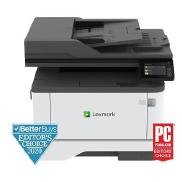
Most Lexmark MB3442adw issues come from paper paths, network settings, toner, or simple firmware glitches.
If you’re dealing with Lexmark MB3442adw troubleshooting, you’re not alone. I’ve seen this model behave a lot like a busy office worker on a Monday morning: usually reliable, but a little stubborn when paper, Wi-Fi, or settings get out of sync. In this guide, I’ll walk you through the real causes, the fixes that actually help, and the small checks that save the most time.

Common Causes of Lexmark MB3442adw Troubleshooting
The Lexmark MB3442adw is a compact monochrome multifunction printer, so its problems often fall into a few predictable buckets. In my experience, most issues are not “printer death” problems. They are usually connection, supply, or paper handling issues.
Here are the most common causes:
- Paper jams or misfeeds from damp, curled, or overfilled paper
- Weak Wi-Fi signal or a changed network password
- Outdated firmware or driver conflicts
- Low toner or improperly installed cartridge
- Incorrect printer settings on a PC or mobile device
- Dirty rollers or dust buildup inside the paper path
A simple rule helps here: start with the easiest checks first. That means paper, power, toner, and network before you dive into advanced settings. With Lexmark MB3442adw troubleshooting, the fastest fix is often the boring one.
First-Step Checks Before Deeper Troubleshooting
Before you change software settings, do a quick physical reset. This sounds basic, but I’ve lost count of how many “major” printer problems turned out to be a loose cable or a half-seated toner cartridge.
Try this first:
- Turn the printer off
- Unplug it for 30 seconds
- Check the power cable and wall outlet
- Remove and reinstall the toner cartridge
- Open each access door and look for jammed paper
- Make sure the paper tray is not overfilled
- Use fresh, dry paper if the stack feels curled or damp
If the printer still acts up, print a status or configuration page. That page helps you tell whether the problem is hardware, network, or software. It’s one of the simplest ways to narrow down Lexmark MB3442adw troubleshooting without guessing.
.jpg)
Fixing Paper Jams and Paper Feed Problems
Paper issues are among the most common reasons people search for Lexmark MB3442adw troubleshooting. The printer may grab two sheets at once, stop halfway, or show a jam message when you cannot see any paper stuck inside.
To fix paper jams:
- Turn the printer off.
- Open the front and rear access areas.
- Gently remove any visible paper in the direction of the paper path.
- Check for tiny torn pieces near the rollers.
- Reload the tray with clean, flat paper.
- Fan the paper stack before loading it.
A few habits make a big difference:
- Do not mix paper sizes in one tray
- Do not overload the tray
- Store paper in a dry place
- Avoid wrinkled, glossy, or curled sheets unless the printer supports them
If jams keep coming back, inspect the rollers. Worn rollers lose grip over time, especially in busy environments. I’ve seen printers act “possessed” when the real issue was just a tired feed roller.
Solving Wi-Fi and Network Connection Issues
Wireless problems are another big part of Lexmark MB3442adw troubleshooting. The printer may disappear from your device list, stop printing after a router change, or fail to connect after a restart.
Start with these checks:
- Confirm the printer is connected to the same Wi-Fi network as your computer or phone
- Restart the router and the printer
- Re-enter the Wi-Fi password if the network changed
- Move the printer closer to the router for testing
- Check that the router is broadcasting on a supported band
If the printer keeps dropping off the network, a static IP can help in some office setups. That keeps the printer address from changing after a reboot. For home users, reconnecting the printer through the control panel often solves the issue faster than deeper router changes.
A good test is to print a network report. If the printer sees the network but cannot reach it, the issue is likely signal strength, password, or router settings. If it cannot see the network at all, the wireless setup may need to be redone from scratch.
Resolving Driver and Software Problems
Driver problems can make the printer look broken even when the hardware is fine. If documents sit in the queue, print incorrectly, or fail with no clear reason, driver conflict is often the cause.
Try this:
- Remove the printer from your computer
- Reinstall the latest Lexmark driver for your operating system
- Restart both the computer and the printer
- Clear the print queue
- Make sure you are using the correct print profile
I’ve also seen old drivers cause strange issues after operating system updates. That is why Lexmark MB3442adw troubleshooting sometimes requires a clean reinstall instead of a simple “update.” If the printer works from one device but not another, the problem is probably local to that computer.
If you print from a mobile device, check your print app permissions and make sure the device and printer are on the same network. Small mismatch, big headache.
Toner, Print Quality, and Blank Page Issues
When print output looks faded, streaked, or blank, the toner system is a likely suspect. On monochrome printers like the Lexmark MB3442adw, even small toner issues can show up fast.
Common print quality symptoms include:
- Light print
- Vertical streaks
- Gray background shading
- Smudges on the page
- Completely blank pages
Here’s what to do:
- Remove the toner cartridge and reinstall it carefully
- Shake the cartridge gently side to side if the manual allows it
- Check for protective seals that were not removed
- Run a print quality or cleaning cycle
- Replace the toner if it is low or empty
Sometimes the issue is not the toner itself but the drum or transfer path. In that case, cleaning cycles may help for a short time, but a replacement part may eventually be needed. When working through Lexmark MB3442adw troubleshooting, I always recommend testing with a fresh cartridge before assuming something deeper is wrong.
Fixing Scanner and Copier Problems
Because the MB3442adw is a multifunction device, scanner issues can be just as frustrating as printing issues. The scanner may not be detected, may produce blank scans, or may show poor image quality.
Try these steps:
- Make sure the scanner lid is fully closed
- Clean the scanner glass with a soft, lint-free cloth
- Check the scan app or TWAIN/WIA source selection
- Confirm the correct destination folder or email setting
- Restart the computer and printer
If scans look blurry or have lines, dust on the glass is a likely cause. I once thought a scanner was failing, only to find a tiny fingerprint near the edge of the glass. That small spot was enough to create a line on every scan. It’s a good reminder that Lexmark MB3442adw troubleshooting is often about tiny details, not big failures.
Firmware Updates and Reset Options
Firmware updates can fix bugs, improve compatibility, and reduce odd behavior. They are worth checking if the printer keeps freezing, disconnecting, or acting inconsistently after updates or power outages.
What to do:
- Check whether a firmware update is available
- Install it only from a trusted source or official support channel
- Keep the printer powered on during the update
- Do not interrupt the process once it starts
If problems continue, a reset may help. There are usually different reset levels, from network resets to full factory resets. A network reset is useful if Wi-Fi settings are corrupted. A full reset is stronger and should be used carefully because it may erase saved settings.
From experience, I suggest starting with the smallest reset that matches the problem. That keeps you from losing useful settings you may need later. In Lexmark MB3442adw troubleshooting, the right reset can save hours, but the wrong reset can create new work.
How to Improve Day-to-Day Reliability
A lot of printer trouble can be avoided with simple habits. Think of it like basic maintenance on a car: no one loves doing it, but it prevents bigger problems later.
Good habits include:
- Use quality paper that matches the printer’s specs
- Keep the printer in a clean, dry space
- Restart the printer once in a while
- Update firmware and drivers when needed
- Avoid overloading the input tray
- Remove print jobs that get stuck in the queue
It also helps to watch for early warning signs. Slow startup, faint prints, and repeated “paper empty” messages often show up before a bigger fault. Catching those signs early makes Lexmark MB3442adw troubleshooting much easier.
When to Contact Support or Replace Parts
Not every problem should be solved at home. If the printer shows repeated hardware errors, strange noises, or persistent jam messages after cleaning, it may need service. The same goes for repeated network failure after all settings have been checked.
You may need professional help if:
- The printer makes grinding or clicking sounds
- Paper jams keep returning in the same spot
- The display shows a hardware error code
- Print quality stays poor after a new toner cartridge
- Scans or prints fail on every device
In my experience, many users wait too long before asking for help. That can make a small part issue turn into a larger repair. If you’ve already done the basics of Lexmark MB3442adw troubleshooting and the issue remains, it is smart to stop guessing and escalate.
Frequently Asked Questions of Lexmark MB3442adw Troubleshooting
Why is my Lexmark MB3442adw not printing?
This usually happens because of a network issue, a stuck print queue, or the wrong driver. Start by restarting the printer and computer, then check the connection and reinstall the driver if needed.
How do I clear a paper jam on the Lexmark MB3442adw?
Turn the printer off, open all access doors, and remove the paper slowly in the direction of the paper path. Check for tiny scraps left behind, because even a small piece can trigger another jam.
Why is my Lexmark MB3442adw printing blank pages?
Blank pages often point to toner problems, an improperly installed cartridge, or a printer setting issue. Remove and reinstall the toner first, then test with a fresh cartridge if the problem continues.
How do I reconnect the Lexmark MB3442adw to Wi-Fi?
Use the printer’s control panel to run the wireless setup again and enter the correct network name and password. If it still fails, restart your router and printer, then try again from scratch.
Why is my scanner not working on the Lexmark MB3442adw?
The scanner may not be selected correctly in your software, or the glass may be dirty. Make sure the lid is closed, the correct scan source is chosen, and the scanner glass is clean.
Conclusion
Lexmark MB3442adw troubleshooting becomes much easier when you work in the right order. Start with paper, power, toner, and network, then move to drivers, firmware, and resets if needed. Most problems are fixable without stress once you know where to look.
The best approach is simple: stay calm, test one thing at a time, and avoid changing too many settings at once. If you keep a small routine for cleaning, updates, and paper handling, your printer will usually stay far more reliable.
If this guide helped, try the steps that match your issue and keep notes on what changed. If you still need help, leave a comment or explore more printer support resources so you can get your Lexmark MB3442adw back to steady, hassle-free printing.

Similar Posts