Ricoh IM C300 Troubleshooting: Quick Fixes & Expert Tips
Most Ricoh IM C300 problems come from paper paths, network settings, toner, or simple maintenance needs.
Ricoh IM C300 troubleshooting becomes much easier when you check the simplest causes first. This guide uses practical service habits to explain error codes, paper jams, print defects, scan failures, network issues, and maintenance needs in clear steps. You will also learn when a safe user fix is enough and when a trained technician should take over.
Ricoh IM C300 Troubleshooting: Start With the Basics
The Ricoh IM C300 is a color multifunction printer. It can print, copy, scan, store documents, and connect to a business network. Since many systems work together, one small issue can appear as a larger fault.
For example, a scan failure may come from a network problem rather than the scanner. A faded page may come from the wrong paper setting rather than low toner. Good Ricoh IM C300 troubleshooting follows a calm, step-by-step process.
Before changing settings, note what happened:
• What function failed: print, copy, scan, or fax?
• Did the issue begin after a paper refill, software change, or power outage?
• Is there an error code on the screen?
• Does the problem affect one user or every user?
• Does the issue happen with every document or only one file?
Write down the exact message when possible. Error text can help identify the related unit, such as the fusing unit, paper feed system, toner system, or network interface.

Safe First Steps for Ricoh IM C300 Problems
Begin with checks that do not change important settings. These steps often solve temporary faults and help you avoid making the issue worse.
-
Check the display panel for an alert or instruction.
-
Confirm that all doors and covers are fully closed.
-
Check the paper trays and remove loose sheets.
-
Confirm that the correct paper size and type are loaded.
-
Look for toner or waste toner warnings.
-
Check whether the printer is online and connected.
-
Restart the print job from the computer if only one file failed.
If the screen asks you to open a cover, follow the displayed path. Do not pull hard on a sheet. Torn paper can leave small pieces inside the machine and cause repeated jams.
When restarting the Ricoh IM C300, cancel active print jobs first when possible. Then use the normal power control. Avoid unplugging the device during a firmware update, storage operation, or active shutdown.
A useful service habit is to change only one thing at a time. If you change the paper, driver, network, and machine settings at once, you may not know which action solved the problem.
Ricoh IM C300 Troubleshooting for Power and Startup Issues
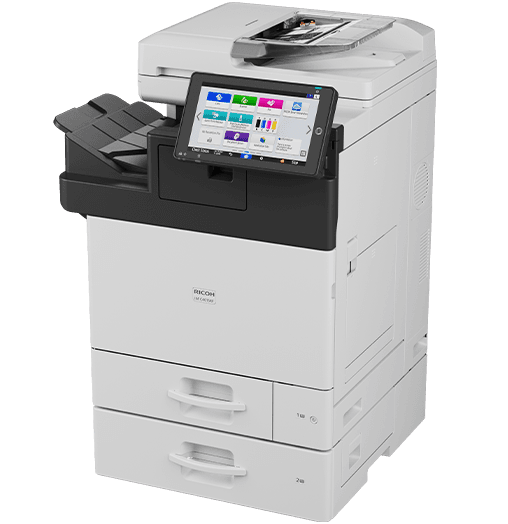
If the Ricoh IM C300 does not start, first check the wall outlet and power cable. Make sure the cable is firmly connected to both the printer and the outlet. If the device uses a power strip, test the outlet directly if your workplace policy allows it.
Check whether the display is fully blank or only slow to respond. A blank display may point to a power problem. A frozen display may be a temporary control panel or system issue.
Try these steps:
• Confirm that the main power switch is on.
• Check for a tripped circuit breaker.
• Wait several minutes after shutdown before restarting.
• Disconnect unnecessary USB devices.
• Restart the printer using its normal power procedure.
If the machine repeatedly shuts down, smells hot, makes unusual electrical sounds, or shows signs of overheating, stop using it. Contact an authorized service provider. Do not open electrical covers or attempt internal repairs.
Some startup delays are normal after a full shutdown. The printer may be loading applications, checking its storage, or preparing print and scan services. Give it time before pressing buttons repeatedly.
How to Fix Ricoh IM C300 Paper Jams
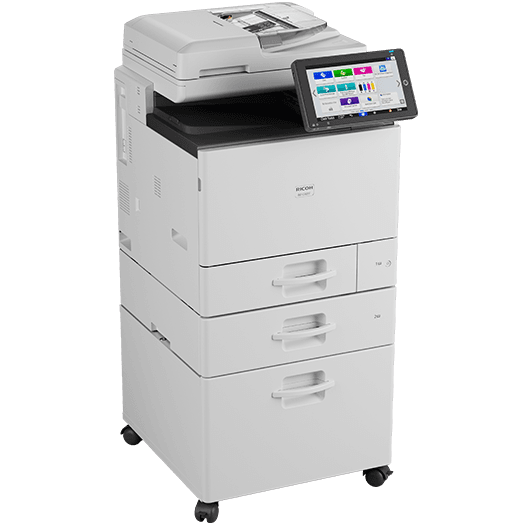
Paper jams are among the most common reasons people search for Ricoh IM C300 troubleshooting. Most jams result from poor paper storage, an incorrect tray setting, overfilled trays, or paper left inside the machine.
Follow the path shown on the display. Open only the covers named in the instructions. Remove paper slowly and in the direction of normal paper travel when possible.
Check these areas:
• Paper trays
• Bypass tray
• Duplex unit
• Registration area
• Fuser or exit area
• Automatic document feeder
Never use a sharp tool to remove paper. A knife or screwdriver can damage rollers, sensors, and covers. If a sheet tears, inspect the path carefully for small scraps.
After clearing the jam, check the paper itself. Damp, curled, folded, or mixed-size paper can cause repeated feed errors. Store paper flat in its sealed package until needed.
Also confirm the tray guides. The guides should touch the paper without pressing it tightly. Overfilled trays can prevent sheets from separating correctly.
If jams continue in one tray, move the same paper to another approved tray. If the jam follows the paper, replace the paper. If the jam stays with one tray, the feed rollers, sensors, or tray mechanism may need service.

Ricoh IM C300 Print Quality Troubleshooting
Poor print quality can include faded colors, streaks, spots, uneven density, lines, incorrect colors, or repeated marks. Ricoh IM C300 troubleshooting works best when you first identify whether the defect appears during printing or copying.
Make a copy from the document glass. Then print an internal test page or a known good file. This simple comparison helps separate scanner problems from print engine problems.
Use these checks:
• Confirm that the correct paper type is selected.
• Make sure the paper is suitable for color laser printing.
• Check toner levels and replace empty cartridges.
• Run the printer’s automatic quality adjustment if available.
• Clean the document glass for copy and scan marks.
• Check the print driver color settings.
• Try a different file or application.
If every page has the same line or mark, the source may be a roller, drum-related component, transfer system, or fuser. Repeated marks at regular intervals often suggest a rotating internal part.
If only one application produces poor color, check its color management and driver settings. A PDF, image editor, and web browser may handle color in different ways.
Do not shake toner cartridges aggressively or touch sensitive internal surfaces. Follow the replacement instructions shown on the panel. Use supplies that match the device model and regional specifications.
A practical lesson from printer service work is to avoid replacing parts too early. Paper type, driver settings, and calibration solve many quality complaints without a repair visit.
Fixing Color, Streaks, Spots, and Faded Pages
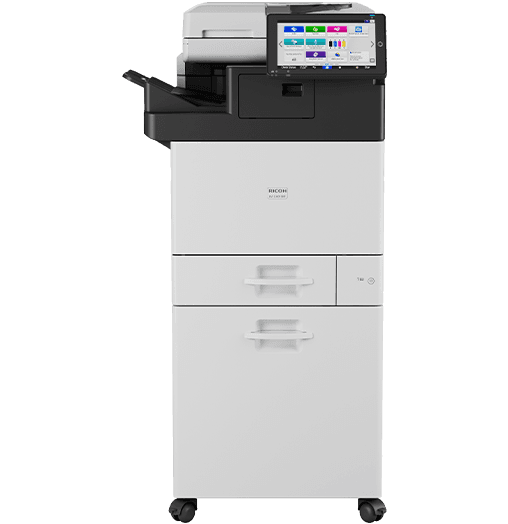
Color problems deserve a separate check because the Ricoh IM C300 uses several color channels. A problem with one color may appear as a tint, missing color, or uneven image.
If red looks weak, for example, check whether magenta and yellow are printing correctly. If blue appears green, the cyan or magenta channel may not be working as expected.
Try this process:
-
Print a color test page.
-
Compare the color blocks.
-
Check the toner status for each color.
-
Run color registration or image density adjustment.
-
Print the test page again.
-
Replace supplies only when the machine indicates a need or the test confirms a supply issue.
Vertical streaks may come from the print path or imaging system. Dark spots can result from dirty rollers or paper dust. Faded output may be linked to low toner, incorrect media settings, or a component that needs service.
The exact menu names may differ by firmware version and administrator settings. Use the on-screen help and the device guide for your configuration.
Ricoh IM C300 Scanning and Copying Problems
When copying fails, check whether the original is placed on the document glass or in the automatic document feeder correctly. Remove clips, staples, and folded corners before feeding pages.
For streaks on copies, clean the glass strip used by the automatic document feeder. A tiny mark on this narrow strip can create a long vertical line across every scanned page.
For scan-to-email or scan-to-folder problems, check:
• The destination address
• The network connection
• The date and time on the device
• The server name or IP address
• The folder path and access rights
• The scan file size
• The selected file format
• SMTP or authentication settings
A scan may complete at the printer but fail at delivery. In that case, the scanner is working, but the destination or network service is not accepting the file.
Large, high-resolution color scans can create large files. Try a lower resolution or a different format if the destination rejects large attachments. Ask the network administrator to confirm server limits and security rules.
Scan-to-email settings may also fail after a mail provider changes its authentication or encryption policy. This is usually an administrator task, not a basic panel repair.
Ricoh IM C300 Network and Printing Problems
Network problems often look like printer problems. If the Ricoh IM C300 is missing from a computer, first check whether the device is powered on and connected to the correct network.
Print a configuration or network page if your administrator allows it. Review the IP address, subnet information, gateway, and connection status. The printer and computer must be able to communicate on the same network or through an approved route.
Try these checks:
• Restart the print application.
• Confirm the selected printer name.
• Remove paused or stuck jobs.
• Check whether the printer is set to offline.
• Test another computer.
• Test another print file.
• Ask whether the IP address changed.
A changed IP address can break a printer port. This often happens after a router replacement or network redesign. A network administrator may need to update the printer port or create a reserved address.
Wireless and wired network policies can also block printing, scanning, or device discovery. Firewalls, VLANs, access controls, and print servers may affect communication.
Do not change network settings randomly. Record the original values first, and involve the network administrator when the device uses a managed business network.
Ricoh IM C300 Driver and Print Queue Troubleshooting
If the printer works from the control panel but not from a computer, the driver or print queue is a likely cause. Start by checking whether other users can print.
A single failed document may contain unsupported fonts, damaged images, or unusual page settings. Try printing a simple text document. If that works, the original file may be the issue.
For a stuck queue:
-
Cancel the failed job.
-
Wait for the queue to clear.
-
Restart the print application.
-
Restart the computer if needed.
-
Send a small test page.
If many computers fail at once, check the print server and network before reinstalling drivers. If one computer fails while others work, repair or reinstall the approved Ricoh driver on that computer.
Use the driver recommended by your organization. A generic driver may print basic pages but miss finishing, color, paper, or accounting features.
Toner, Supplies, and Maintenance Alerts
Toner messages are important, but they do not always mean the machine has stopped. Some alerts warn that a supply is low. Others require replacement before normal operation continues.
Check the exact message on the panel. Replace toner according to the displayed color and procedure. Keep the cartridge level and avoid touching the toner outlet.
The Ricoh IM C300 may also show alerts related to waste toner, the fuser, imaging parts, or scheduled maintenance. These parts require more care than a simple toner replacement.
Use this approach:
• Read the full alert.
• Check the matching supply or unit.
• Confirm the correct model and color.
• Follow the replacement instructions.
• Close every cover fully.
• Run a test print.
Do not reset a maintenance counter just to remove a warning. The counter helps track service intervals. Resetting it without completing the work can hide a real maintenance need.
Regular cleaning also matters. Keep the glass, document feeder area, output tray, and paper trays free from dust. Clean only the areas described in the device instructions.
Ricoh IM C300 Error Codes and Warning Messages
An error code is a clue, not a complete diagnosis. Write down the code, the wording, and when it appeared. Also note whether the printer was warming up, printing, scanning, or feeding paper.
Search the code in the official device documentation or service support system. Error codes can vary by firmware, configuration, and machine condition, so guessing from a similar model can lead to the wrong repair.
Before calling for service, collect:
• The exact error code
• A photo of the display, if allowed
• The time and date
• The function being used
• Any recent jam or supply replacement
• The steps already tried
If the message returns after a normal restart, stop repeating the restart. Repeated power cycling rarely fixes a mechanical or sensor fault. It may also interrupt jobs or create additional system issues.
Some codes involve high-temperature areas, electrical parts, or internal drive systems. Users should not remove covers or bypass safety switches. A trained technician should handle those faults.
When to Call a Ricoh Service Technician
Basic Ricoh IM C300 troubleshooting can solve many paper, driver, and setting problems. Service is the safer choice when the issue returns, affects internal components, or creates a safety concern.
Contact support when:
• The same jam returns after careful clearing.
• The printer shows a persistent service code.
• Print quality remains poor after approved adjustments.
• The machine makes grinding or clicking sounds.
• There is smoke, heat, or an electrical smell.
• A cover, hinge, or tray is damaged.
• The printer cannot complete startup.
• Scan delivery fails after network settings are verified.
Give the technician useful details. Saying “it does not work” is less helpful than saying “the machine jams at the exit area after five pages from tray two.”
In my experience with office printer issues, clear evidence saves time. A photo of the error, a sample page, and the exact paper tray involved can prevent repeated questions and speed up diagnosis.
A Simple Ricoh IM C300 Troubleshooting Checklist
Use this checklist before escalating a routine problem:
-
Read the display message.
-
Identify the affected function.
-
Check paper, tray guides, and covers.
-
Inspect for visible toner or supply alerts.
-
Test a simple copy or print.
-
Try another tray or document.
-
Check the network or print queue.
-
Restart the affected application.
-
Use the approved device guide for adjustments.
-
Record the error if the problem continues.
This process is useful because it moves from low-risk checks to more detailed checks. It also prevents random changes that make diagnosis harder.
Keep a small record of repeated problems. If jams happen only with one paper brand or print jobs fail after a network change, the pattern may reveal the cause.
Frequently Asked Questions of Ricoh IM C300 Troubleshooting
Why does my Ricoh IM C300 keep showing a paper jam?
A hidden paper scrap, curled paper, dirty feed roller, or incorrect tray setting may cause repeated jams. Clear every section shown on the display and test with fresh, correctly loaded paper.
How do I fix faded printing on the Ricoh IM C300?
Check the toner level, paper type, and print quality settings first. Run the approved image density or color adjustment, and replace the indicated toner only when the machine requires it.
Why can I copy but not print from my computer?
Copying uses the printer’s internal controls, while computer printing depends on the network, driver, port, and print queue. Check the selected printer, clear stuck jobs, and ask an administrator to verify the printer connection.
Why does scan-to-email fail on the Ricoh IM C300?
The scan may fail because of an incorrect email address, server setting, authentication rule, file size, or network connection. Test a smaller file and ask the email or network administrator to verify the configured mail service.
How do I clear a Ricoh IM C300 error message?
Follow the panel instructions and correct the stated issue, such as a jam or open cover. If the message returns after a normal restart, record the code and contact authorized support instead of repeatedly resetting the device.
Can I remove the Ricoh IM C300 fuser myself?
The fuser becomes very hot and is not a normal user-serviceable part. Allow the machine to cool and contact a trained technician for fuser warnings, damage, or persistent related errors.
Why does the Ricoh IM C300 print with streaks?
Streaks may come from the document glass, scanner strip, paper path, imaging system, or transfer components. Clean the user-accessible glass and run an approved test, but request service if the streak remains on printed pages.
Conclusion
Effective Ricoh IM C300 troubleshooting starts with the display message, paper path, supplies, print queue, and network connection. Test one change at a time, use fresh paper, protect the machine from unsafe repairs, and record error codes clearly.
Small habits can prevent many repeat problems. Keep the device clean, load paper correctly, use approved supplies, and involve an administrator or technician when the fault reaches internal hardware or managed network settings.
Save this guide for the next printer problem, and explore your device documentation or authorized Ricoh support when a warning does not clear.