Zebra ZD621 Troubleshooting: Fix Common Printer Issues
Zebra ZD621 troubleshooting usually starts with checking media, settings, connections, printhead condition, and indicator lights.
The Zebra ZD621 is a fast, reliable desktop label printer, but even a small media, driver, or calibration issue can stop a busy workflow. This Zebra ZD621 troubleshooting guide explains the most common faults, safe fixes, setup checks, and maintenance steps in clear language.
Zebra ZD621 troubleshooting basics
Before changing settings, check the simple things first. Many Zebra ZD621 problems come from an open media cover, a loose cable, the wrong label size, or media loaded on the wrong path.
Use this quick inspection:
• Confirm the printer has power and the power light is on.
• Check that the media cover is fully closed.
• Make sure labels are loaded under the media guides.
• Confirm the labels match the printer type: direct thermal or thermal transfer.
• Check the USB, Ethernet, Wi-Fi, or Bluetooth connection.
• Remove labels that are stuck near the printhead or platen roller.
• Confirm the correct Zebra printer driver is selected on the computer.
If the printer recently worked, think about what changed. A new label roll, software update, network change, or driver installation often points to the cause.
One lesson I have seen often in printer support is that users replace parts too soon. A quick check of media direction and label settings can solve the problem in less than five minutes.
Zebra ZD621 not turning on
If the Zebra ZD621 has no lights and makes no sound, begin with the power source. Plug the printer directly into a known working wall outlet. Avoid testing through a damaged power strip or an overloaded extension cord.
Check the power supply and cable for cuts, bent pins, or loose connections. The ZD621 uses an external power supply, so both ends must be firmly connected. Do not use a power adapter from another printer unless its voltage and power rating match Zebra’s specifications.
Try this restart process:
Turn the printer off.
Disconnect the power cable from the printer.
Wait about 30 seconds.
Reconnect the power cable.
Turn the printer on again.
If the printer remains completely dead, the problem may involve the power adapter, mainboard, or internal hardware. Stop using the unit if you smell burning, see melted plastic, or notice unusual heat. A qualified service technician should inspect it.

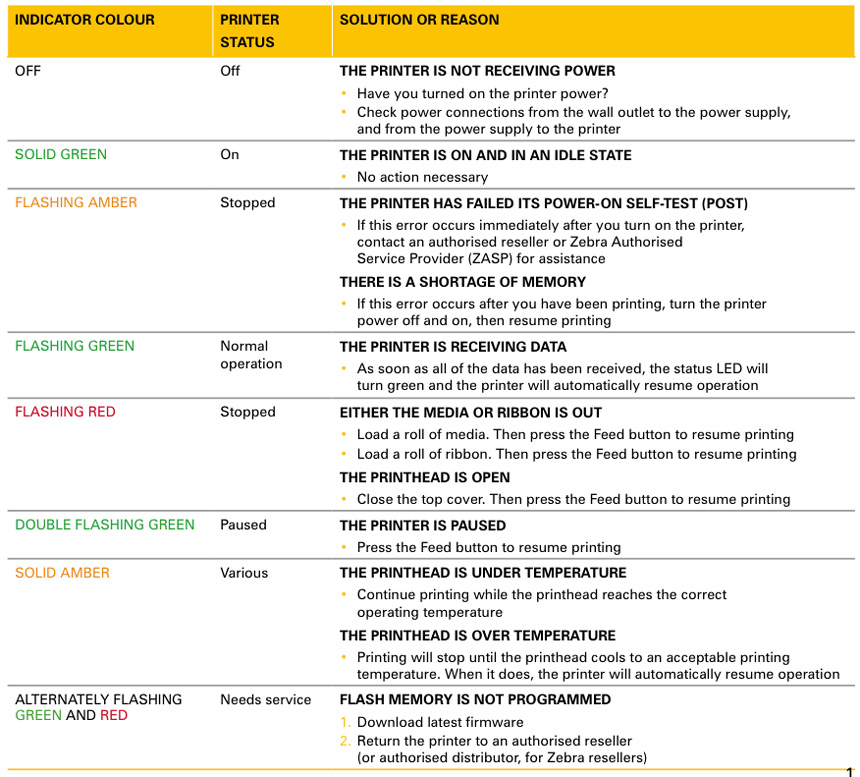
Zebra ZD621 flashing lights and error indicators
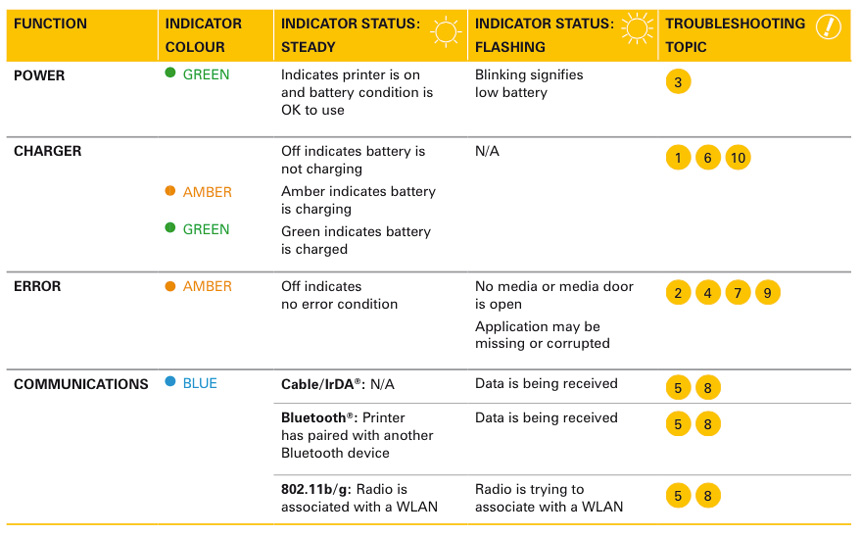
The status light gives useful clues during Zebra ZD621 troubleshooting. The exact light pattern can vary by printer configuration and firmware, so compare the behavior with the user guide for your model.
Common causes include:
• Media is missing or loaded incorrectly.
• The top cover is not closed.
• The printer needs calibration.
• The printhead is open or overheated.
• A pause or media-out condition is active.
• The printer has a communication or firmware fault.
A red or amber status light does not always mean the printer is damaged. First, open the cover and check the media path. Remove torn labels, close the cover firmly, and press the appropriate feed or pause button once.
If the light continues to flash, power cycle the printer. Then print a configuration report if the control buttons allow it. This report can show the printer’s model, firmware, darkness, speed, network settings, and sensor information.
Do not repeatedly press buttons at random. During Zebra ZD621 troubleshooting, random button presses can start calibration, reset settings, or pause the printer without making the cause clear.
Zebra ZD621 not printing
A common Zebra ZD621 troubleshooting complaint is that the computer sends a print job, but no label comes out. Start by checking whether the job is stuck in the operating system’s print queue.
Cancel old jobs, then send one small test label. If the queue fills again, confirm that the correct printer is selected. A label designed for another printer language or driver can also create confusing results.
Check these settings:
• Printer name and port.
• USB, Ethernet, Wi-Fi, or Bluetooth connection.
• Label width and height.
• Media type.
• Print darkness and speed.
• Printer language, such as ZPL or another supported format.
• Application page size and orientation.
If you use ZebraDesigner, BarTender, a warehouse system, or custom software, verify that the label format matches the physical label. A small mismatch can make the printer feed blank labels or print outside the label.
For network printers, print a configuration label and confirm the IP address. A changed IP address can make the printer appear offline even though the printer itself works correctly.
Zebra ZD621 feeding blank labels
Blank labels usually point to the wrong print method, incorrect media sensing, or labels that are not designed for the selected printer type.
The ZD621 is available in direct thermal and thermal transfer versions. Direct thermal labels react to heat and do not use a ribbon. Thermal transfer labels need a compatible ribbon. Using the wrong media setting can produce blank output.
Check the following:
• Direct thermal mode is selected for heat-sensitive labels.
• Thermal transfer mode is selected when a ribbon is installed.
• The ribbon is loaded with the coated side facing the label.
• The labels are placed between the media guides.
• The media sensor sits over the correct gap, notch, or black mark.
A simple test helps identify direct thermal media. Scratch the surface of the label with a fingernail. If the mark turns dark, it is likely direct thermal media. This test is not perfect, but it can offer a useful clue.
If the printer feeds one or more blank labels after every print, run a media calibration. Calibration teaches the printer where one label ends and the next begins.

Zebra ZD621 calibration and label skipping
Incorrect calibration can cause the Zebra ZD621 to skip labels, stop in the wrong place, or display a media-out error when labels are loaded.
Before calibration, load the media correctly. The label roll should turn freely, and the guides should touch the edges without squeezing the labels. Remove any loose or damaged labels from the path.
A typical calibration process is:
Load the correct media.
Close the printhead and media cover.
Turn the printer on.
Start the media calibration procedure from the printer menu, driver, software utility, or approved button sequence.
Allow the printer to feed several labels.
Print a test label.
The best calibration method depends on the printer’s firmware and control panel. Use the method listed for your exact ZD621 configuration.
Calibration may fail if the sensor cannot detect the label gap or black mark. Transparent labels, narrow labels, reflective stock, and irregular shapes may need a different sensor position or media setting.
Zebra ZD621 poor print quality
Poor print quality can appear as faint text, dark bands, missing dots, blurred barcodes, or uneven lines. The right fix depends on the pattern.
For faint printing:
• Increase print darkness in small steps.
• Reduce print speed.
• Confirm the correct media type.
• Clean the printhead.
For dark or smudged printing:
• Reduce print darkness.
• Increase print speed only if quality remains acceptable.
• Check for excessive heat or pressure.
• Confirm that the ribbon is compatible and correctly installed.
For missing lines or repeated white marks:
• Clean the printhead.
• Check for dirt on the platen roller.
• Inspect the printhead for scratches or damaged elements.
Use a soft, lint-free cloth and an approved cleaning method. Zebra commonly recommends cleaning supplies designed for thermal printheads. Turn the printer off and let the printhead cool before cleaning.
Never scrape the printhead with a knife, screwdriver, or other hard object. One scratch can create a permanent white line across every label.

Zebra ZD621 printhead and platen roller care
The printhead and platen roller are the two parts most involved in everyday printing. The printhead applies heat, while the platen roller pulls the media through the printer.
Clean the printhead when you change media, after a long print run, or whenever print quality drops. Clean the platen roller if you see repeating marks, slipping, or adhesive buildup.
A safe cleaning routine includes:
Turn off the printer and unplug it.
Open the media cover.
Let the printhead cool.
Remove the media and ribbon if fitted.
Clean the printhead from end to end.
Rotate the platen roller by hand and clean its surface.
Allow all parts to dry fully.
Reload the media and test the printer.
Avoid touching the printhead with bare fingers. Skin oils can affect heat transfer and attract dust. Replace the platen roller if it is cracked, badly worn, or permanently coated with adhesive.
During Zebra ZD621 troubleshooting, repeated print defects in the same location often indicate a physical problem rather than a software setting.
Zebra ZD621 connection and network problems
Connection problems are common when a printer moves between offices, warehouses, or computer stations. The printer may work over USB but remain unavailable over Ethernet or Wi-Fi.
For USB problems, try a different cable and another computer port. Avoid very long or damaged cables. Confirm that the printer appears in the operating system and that the correct driver uses the correct USB port.
For Ethernet problems:
• Check link lights on the printer and network switch.
• Confirm the printer’s IP address.
• Print a network configuration report.
• Check whether the IP address changed.
• Test the printer from another computer.
For Wi-Fi problems, confirm the network name, password, security mode, and signal strength. Some business networks block new devices until an administrator approves the printer’s MAC address.
Bluetooth connections can fail when the printer is paired with another nearby device. Remove old pairings, restart Bluetooth, and pair the printer again.
Do not change advanced network settings without recording the original values. A written note or photo of the configuration can save time if you need to restore it.
Zebra ZD621 driver and software troubleshooting
A printer can be mechanically healthy but still fail because of a driver or label design issue. This is especially common after upgrading Windows, moving to a new computer, or installing a second Zebra printer.
Install the driver made for the ZD621 and the operating system in use. Keep the printer language and driver settings consistent. If your application sends raw ZPL, avoid routing that job through a driver that changes the format.
Check the label size in both places:
• The printer driver.
• The label design software.
For example, a 4-inch by 6-inch label must use the same width and height in the driver, application, and printer format. If one setting uses a different size, the printer may cut off text, shift the image, or feed extra labels.
Print a Windows test page or a configuration label. If the test page works but the business application fails, focus on the application template, permissions, print processor, or printer language.
Zebra ZD621 resetting and restoring settings
A reset can help when settings are confused, but it should not be the first step. A reset may erase network details, darkness, speed, calibration data, and custom preferences.
Before resetting, record:
• IP address and network mode.
• Print speed and darkness.
• Media type and sensor setting.
• Label width and height.
• Printer language.
• Any custom settings used by the application.
Use the printer menu, Zebra setup utility, or the approved reset procedure for your exact model. After the reset, reload the media, calibrate the printer, restore the driver settings, and print a test label.
If a reset solves the problem only for a short time, look for the deeper cause. A damaged label format, unstable network, failing sensor, or outdated firmware may still be present.
Zebra ZD621 firmware and advanced faults
Firmware updates can improve compatibility, fix bugs, and support newer features. However, firmware should be handled carefully. An incorrect file or interrupted update can make a printer unusable.
Before updating:
• Confirm the exact ZD621 model and configuration.
• Record the current firmware version.
• Use a reliable power source.
• Keep the connection stable.
• Follow Zebra’s official update instructions.
Do not disconnect power during an update. If the printer freezes, displays a persistent error, or fails after an update, contact Zebra support or an authorized service provider.
Hardware service may be needed when the printer has a damaged printhead, failed platen motor, broken latch, faulty sensor, or repeated communication errors. Keep a record of the error light pattern and the steps already tried. This helps a technician find the fault faster.
A practical Zebra ZD621 troubleshooting checklist
Use this order when you need the printer working quickly:
Check power and cables.
Confirm the cover is closed.
Reload the media.
Check direct thermal or thermal transfer mode.
Clean the printhead and platen roller.
Run media calibration.
Print a configuration or test label.
Check the driver and label size.
Test the connection.
Reset settings only after recording them.
This order moves from simple, low-risk checks to more advanced actions. It also prevents a common mistake: changing several settings at once and losing track of what fixed the problem.
In a busy shipping area, I recommend keeping a small troubleshooting card beside the printer. It should show the correct media path, label size, sensor type, and support contact. Clear instructions reduce rushed errors, especially during peak order periods.
How to prevent future Zebra ZD621 problems
Good maintenance prevents many printer failures. Store labels and ribbons in a clean, dry place. Dust, moisture, heat, and adhesive residue can affect print quality and sensor readings.
Use media that matches the printer’s specifications. Poorly made labels may have inconsistent gaps, weak adhesive, or excessive liner dust. These issues can look like a printer fault.
Create a basic maintenance plan:
• Clean the printhead at regular intervals.
• Inspect the platen roller.
• Check cables and network status.
• Keep drivers and approved firmware current.
• Save a copy of working printer settings.
• Train users to load media correctly.
• Replace worn parts before they damage print quality.
A barcode scanner is also a useful test tool. A label that looks acceptable may still fail if the barcode has low contrast, poor edge definition, or incorrect dimensions. Always verify important barcodes with the scanner used in your real workflow.
Frequently Asked Questions of Zebra ZD621 Troubleshooting
Why is my Zebra ZD621 printing blank labels?
Blank labels often result from the wrong print method, incorrect media, or a ribbon loaded incorrectly. Check whether the printer uses direct thermal or thermal transfer mode, then verify the media and run calibration.
How do I calibrate my Zebra ZD621?
Load the media correctly and use the calibration option in the printer menu, driver, or Zebra printer utility. Let the printer feed several labels, then print a test label to confirm that it detects the gaps or marks correctly.
Why does my Zebra ZD621 keep saying media out?
The sensor may not detect the label gap, notch, or black mark. Reload the media, position the sensor correctly, check the media setting, and run calibration.
How can I fix faint printing on a Zebra ZD621?
Clean the printhead first, then check the media type and print speed. You can increase darkness slightly, but excessive darkness can cause smearing and shorten printhead life.
Why is my Zebra ZD621 offline?
Check the selected printer, cable, port, and network address. For network models, print a configuration report and confirm that the computer is using the printer’s current IP address.
When should I replace the Zebra ZD621 printhead?
Replace the printhead when it has damaged elements, permanent white lines, or defects that remain after careful cleaning. Use a compatible replacement and follow the service instructions for the exact configuration.
Conclusion
Effective Zebra ZD621 troubleshooting starts with simple checks: power, media loading, print mode, calibration, cleaning, driver settings, and connectivity. Most everyday faults can be found by changing one factor at a time and testing with a small label.
Keep the media path clean, record working settings, and avoid unsafe tools or rushed resets. Work through the checklist in this guide, and contact qualified support when the fault points to hardware or firmware.
Save this guide for your next printer issue, and share your Zebra ZD621 troubleshooting experience in the comments.

Similar Posts