HP Sprocket Studio Troubleshooting: Easy Fixes That Work
Most HP Sprocket Studio problems come from power, Bluetooth, paper, app, or cartridge issues.
HP Sprocket Studio Troubleshooting is usually simple once you check the problem in the right order. This guide explains why the printer may not connect, print, charge, or produce clean photos, with practical steps based on common HP support guidance and real setup experience.
Start with these quick checks
Before changing app settings, check the basics. Many Sprocket Studio issues are caused by a loose power cable, a weak phone connection, or paper loaded the wrong way.
Try these steps first:
- Turn off the HP Sprocket Studio.
- Unplug the power cable for 30 seconds.
- Restart your phone.
- Check that Bluetooth is on.
- Open the HP Sprocket app.
- Make sure the printer is close to your phone.
- Confirm that the paper and cartridge are made for Sprocket Studio.
- Check for a firmware or app update.
Do not repeatedly press print while testing. A print job may stay in the app queue and produce several unwanted photos when the connection returns.
When I troubleshoot a Sprocket Studio, I start with power and supplies. This avoids wasting time on advanced settings when the real problem is an empty cartridge or incorrect paper pack.

HP Sprocket Studio will not turn on
A printer that does not power on may have a cable, outlet, or internal power issue. The Sprocket Studio must receive steady power during startup and printing.
Follow this sequence:
- Plug the power adapter into a different wall outlet.
- Push the connector firmly into the printer.
- Inspect the cable for cuts, bends, or loose ends.
- Disconnect USB devices or power strips if you are using them.
- Leave the printer connected to power for a few minutes.
- Press the power button once and wait.
Use the original HP power adapter when possible. Some phone chargers provide power in a different way and may not supply what the printer needs.
If the printer turns off during printing, let it cool for several minutes. Dye sublimation printers use heat to transfer color, so repeated print jobs can raise the unit’s temperature. The printer may pause to protect itself.
Do not open the printer or attempt an electrical repair. If a known working outlet and adapter do not help, contact HP support or an authorized service provider.
HP Sprocket Studio is not connecting to Bluetooth
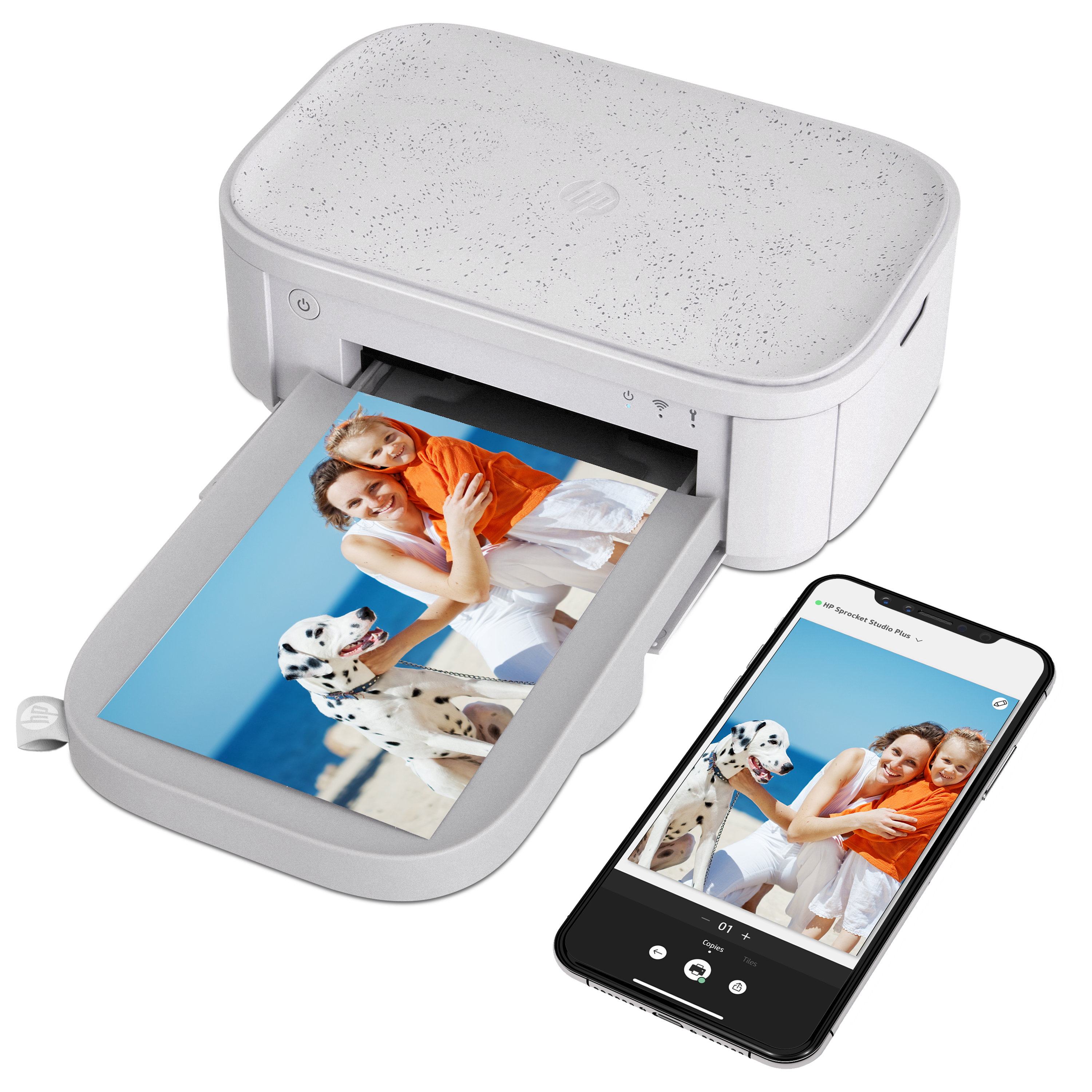
The Sprocket Studio connects through the HP Sprocket app, not through a normal phone pairing process alone. A phone may show the printer in Bluetooth settings but still fail to print until the app completes the connection.
For reliable HP Sprocket Studio Troubleshooting, use this order:
- Turn Bluetooth off on your phone.
- Wait about 10 seconds.
- Turn Bluetooth on again.
- Close the HP Sprocket app.
- Reopen the app.
- Select the printer from the app’s printer list.
- Keep the phone within a few feet of the printer.
If the printer was connected to another phone, close the app on that device. The Sprocket Studio may not respond as expected when another nearby phone is trying to use it.
On an iPhone, check Bluetooth permission for the HP Sprocket app in Settings. On Android, allow nearby device access when requested. Some Android versions also require location permission for Bluetooth discovery.
If the printer still does not appear, remove its saved Bluetooth entry from the phone, restart both devices, and connect again through the app. Avoid pairing only from the phone’s Bluetooth menu.

HP Sprocket Studio app problems
The HP Sprocket app controls photo selection, editing, print jobs, and printer updates. An outdated app can cause freezing, missing printer options, or failed print commands.
Try the following:
• Update the HP Sprocket app through the Apple App Store or Google Play.
• Force close the app, then open it again.
• Sign out and sign back in if the app uses an account on your device.
• Check that the app has access to photos and Bluetooth.
• Clear the app cache on Android if the app is slow or frozen.
• Reinstall the app if normal steps do not work.
Before deleting the app, make sure edited photos are saved to your phone. App drafts may not return after reinstalling.
Keep your phone’s operating system current, but remember that a new operating system can sometimes create short-term compatibility problems. If the issue began after a phone update, check HP’s current support notes for your Sprocket Studio model.
A useful habit is to test one small photo first. If that print works, the problem may relate to a large image, an unsupported file, or a stuck queue rather than the printer itself.
HP Sprocket Studio prints do not start
A print job can fail even when the printer appears connected. The app may be waiting for the printer, the paper tray may be empty, or the cartridge may not be installed correctly.
Use this HP Sprocket Studio Troubleshooting checklist:
- Open the app and confirm that the correct printer is selected.
- Cancel old print jobs.
- Turn the printer off and on.
- Remove and reload the paper.
- Check the cartridge door and cartridge position.
- Confirm that the paper pack matches the Sprocket Studio.
- Send one photo again.
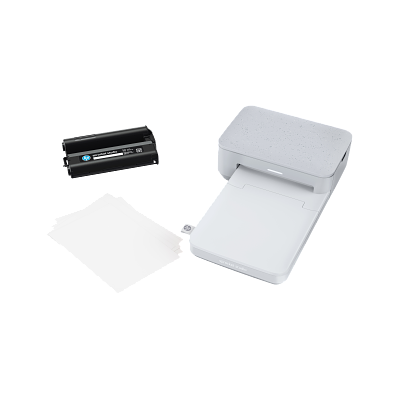
Use HP Sprocket Studio paper and cartridge packs designed for the printer. Paper from another Sprocket model may look similar but may not fit or work correctly.
Do not force the paper tray. If the tray does not slide in smoothly, remove it and check for a bent sheet, loose paper, or an object inside the path.
If the app says the printer is offline, reconnect from inside the app. The Bluetooth symbol on your phone does not always mean the app has an active print connection.

Paper jams, feeding errors, or blank prints
Paper feeding problems are among the most common Sprocket Studio complaints. The printer needs clean, flat paper and a properly installed cartridge to move each sheet through its print path.
Check these points:
• Use fresh paper from a sealed package.
• Do not mix paper from different packs.
• Keep the paper flat and dry.
• Load the stack in the direction shown on the tray.
• Do not touch the printable surface.
• Do not fill the tray above its marked limit.
• Make sure the cartridge matches the paper pack.
If a sheet stops inside the printer, turn the unit off before removing it. Pull the sheet out slowly and evenly. Do not use sharp tools, as they can damage the rollers or the heat area.
A blank print may happen when the cartridge is empty, the cartridge is not seated, or the paper pack is incorrect. Replace the complete paper and cartridge set if the pack is near its end or has been stored in heat or moisture.
The included calibration sheet is important. Some Sprocket Studio paper packs use a calibration sheet to help the printer adjust color and feed settings. Let the printer process it as directed instead of removing it early.

Poor color, lines, or faded photos
Dye sublimation printing applies color in several passes. The photo may look incomplete during the process, but the final print should show smooth and balanced color.
If the finished image has lines, faded sections, or unusual colors, try this:
- Check that the cartridge is installed correctly.
- Use a new matching paper and cartridge pack.
- Confirm that the calibration sheet was processed.
- Keep the printer on a stable, clean surface.
- Avoid opening the printer while a photo is moving.
- Print a different image to compare results.
Do not clean the print path with water or household chemicals. Moisture can harm the printer and affect the paper. Follow HP’s cleaning instructions for the exact model.
Screen brightness is not the same as print brightness. Phone displays use light, while printed photos reflect light. A photo that looks bright on a phone may appear slightly darker on paper.
For better results, use a well-lit original photo and avoid extreme edits. Very dark images often print with less visible detail, especially in shadows.
HP Sprocket Studio prints the wrong photo
The app may send an older print job if several photos were selected or if a previous job remained in the queue. This can make the printer seem unreliable.
Try this method:
- Cancel every pending print job.
- Close the HP Sprocket app.
- Restart the printer.
- Reopen the app.
- Select one photo only.
- Confirm the preview before printing.
Check the photo preview carefully. Cropping, borders, stickers, and layouts can change the final result. A selected collage may also print several images in a single job.
If the wrong photo continues to print, update the app and clear its cache. On some phones, sharing a photo from another app can send a different image than the one selected in the Sprocket app.
My practical lesson here is simple: test with one photo before printing a whole event album. It saves paper, cartridge ink, and frustration.

Printer disconnects during a print
A weak Bluetooth link can interrupt a print job. Distance, walls, wireless congestion, and battery-saving settings can all affect communication between the phone and printer.
For better stability:
• Keep the phone close to the printer.
• Remove thick objects or metal items between both devices.
• Turn off Bluetooth on nearby devices that are not needed.
• Keep the app open until printing finishes.
• Disable battery saving for the HP Sprocket app during testing.
• Avoid switching between many apps while the print is active.
Large images can also take longer to process. Wait for the app to finish sending the job before trying again.
If the printer disconnects every time, forget the device in the phone’s Bluetooth settings, restart both devices, and reconnect through the HP Sprocket app. If another phone connects normally, the original phone may have a Bluetooth or permission issue.
How to reset HP Sprocket Studio
A reset can clear a temporary connection or software error. It should not be the first step, but it can help after normal HP Sprocket Studio Troubleshooting fails.
Start with a simple power cycle:
- Turn off the printer.
- Unplug it.
- Wait 30 to 60 seconds.
- Plug it back in.
- Turn it on.
- Reconnect through the app.
You can also restart the phone and reinstall the app. These steps often fix temporary communication errors without changing printer settings.
Avoid pressing hidden buttons or using unofficial reset methods unless HP lists them for your exact model. Different Sprocket products have different controls, and the wrong process may not help.
If the problem returns after every reset, record the error message, light pattern, paper type, phone model, and app version. This information helps HP support identify the fault faster.
When to contact HP support
Contact HP when the printer will not power on with a known working adapter, repeatedly jams with correct supplies, or shows the same error after a reset.
Before contacting support, collect:
• The exact Sprocket Studio model.
• Your phone model and operating system.
• The HP Sprocket app version.
• The paper and cartridge pack details.
• A description of the light or error message.
• The steps you already tried.
Do not continue printing if you smell burning, see damaged plastic, or notice unusual heat. Unplug the printer and seek professional help.
Warranty coverage may depend on the purchase date, region, and type of fault. Keep your receipt and packaging if available. HP support can confirm repair or replacement options more accurately than a general troubleshooting article.
Prevent future HP Sprocket Studio problems
Good storage and simple habits can prevent many printer errors. Keep paper and cartridges sealed until needed, and store them in a cool, dry place away from direct sunlight.
Use these habits for smoother printing:
- Keep the printer on a clean, level surface.
- Use only compatible HP supplies.
- Avoid overfilling the paper tray.
- Update the app when a stable release is available.
- Let the printer complete each job.
- Keep the app open during printing.
- Clean the outside with a soft, dry cloth.
- Do not pull paper while the printer is running.
Think of the printer like a small photo lab. It needs clean supplies, steady power, and enough time to complete each stage. Rushing one step often creates a larger problem.
The best HP Sprocket Studio Troubleshooting routine is preventive: use the right supplies, protect the Bluetooth connection, and respond to errors calmly.
Frequently Asked Questions About HP Sprocket Studio Troubleshooting
Why is my HP Sprocket Studio not connecting?
Make sure Bluetooth is on and that the HP Sprocket app has Bluetooth or nearby device permission. Restart the phone and printer, then connect from inside the app rather than only from the phone’s Bluetooth menu.
Why does my HP Sprocket Studio print blank photos?
A blank print can result from an empty or poorly seated cartridge, incorrect paper, or a paper pack that was stored in poor conditions. Install a matching paper and cartridge pack, and allow the included calibration sheet to process as directed.
Can I use paper from another HP Sprocket printer?
No. Sprocket paper packs are designed for specific printer models and sizes. Using the wrong paper can cause feeding errors, poor color, or failure to print.
How do I fix a paper jam in HP Sprocket Studio?
Turn off and unplug the printer before removing a visible jam. Pull the paper slowly without using sharp tools, then check for bent sheets and reload fresh, flat paper.
Why is my HP Sprocket Studio printing faded colors?
Check the cartridge, paper match, and calibration sheet first. A new compatible pack often fixes faded or uneven color, while very dark source photos may also look less detailed in print.
Does HP Sprocket Studio need Wi-Fi?
The printer generally uses Bluetooth through the HP Sprocket app, so a standard Wi-Fi connection is not required for normal printing. Your phone may still need internet access for app downloads, updates, or account features.
How can I cancel a stuck print job?
Cancel pending jobs in the HP Sprocket app, close the app, and restart the printer. If the job returns, restart the phone and reconnect the printer through the app.
Conclusion
Most HP Sprocket Studio Troubleshooting cases begin with four checks: power, Bluetooth, compatible supplies, and the HP Sprocket app. Restart both devices, clear stuck jobs, reload the paper correctly, and use a matching cartridge before trying advanced steps.
Handle the printer gently, follow the paper pack instructions, and contact HP when the issue involves power damage, repeated jams, or persistent errors. Try these steps with one test photo first, then share your experience or explore more HP support resources for your specific model.