Munbyn RW401AP Troubleshooting: Easy Fixes For Common Issues
Most Munbyn RW401AP problems come from power, label alignment, connection settings, or an incorrect printer driver.
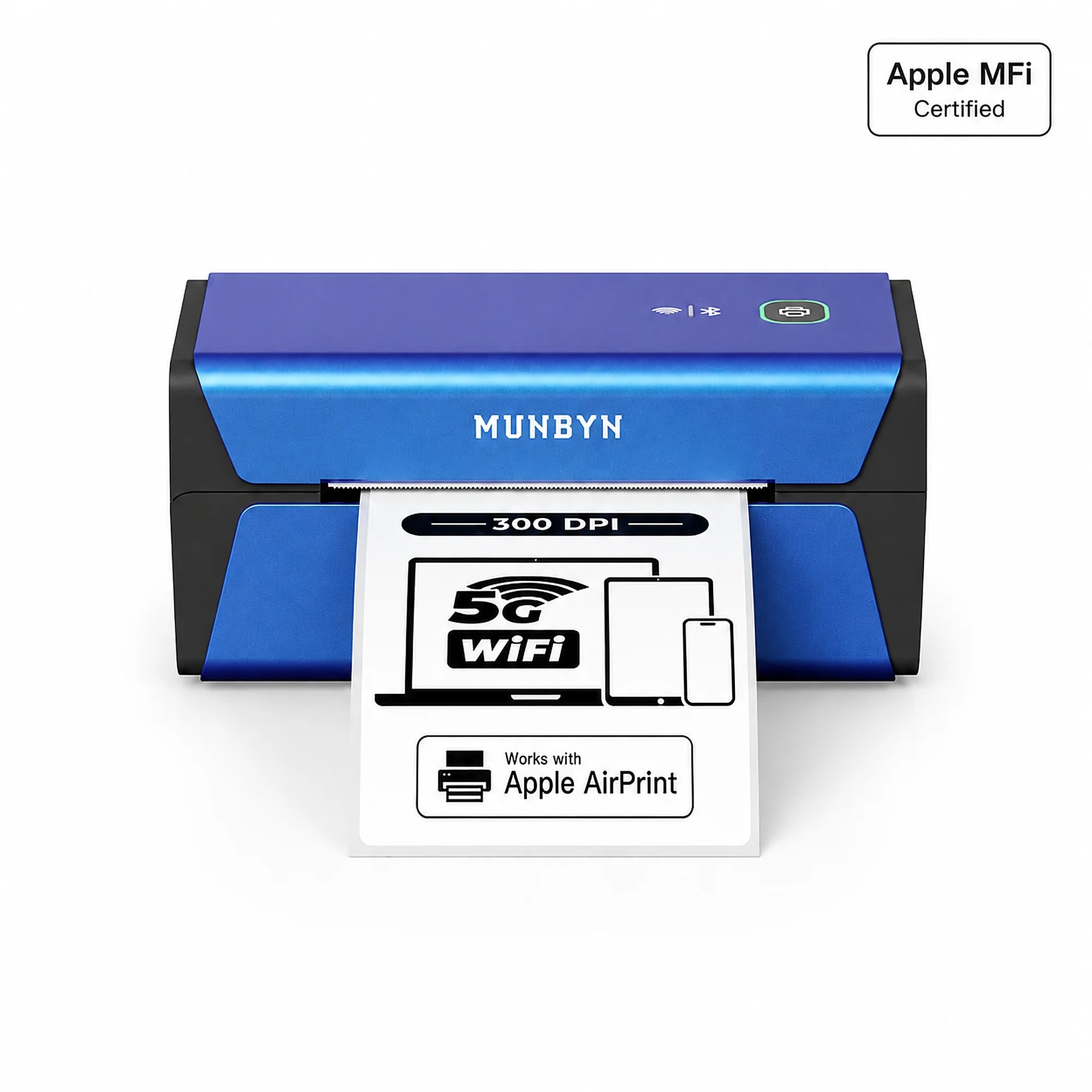
The Munbyn RW401AP is a handy thermal label printer, but small setup errors can cause blank labels, poor print quality, paper jams, or lost connections. This Munbyn RW401AP troubleshooting guide explains the likely causes and gives clear steps for Windows, Mac, mobile devices, and common shipping platforms.
Munbyn RW401AP Troubleshooting: Start With the Basics
Before changing drivers or resetting the printer, check the simple items first. Many printing problems come from a loose cable, the wrong label type, or labels that are not loaded correctly.
Use this quick check:
- Turn the printer off.
- Remove the power cable for 30 seconds.
- Confirm that the power adapter is firmly connected.
- Check that the label roll is the correct size and type.
- Load the labels with the printable side facing up.
- Close the printer cover until it clicks.
- Turn the printer on again.
- Run a test print or calibration.
The printer should sit on a flat, dry surface. Keep it away from heat, dust, and direct sunlight. Dust on the thermal print head can reduce print quality and may look like a software problem.
One useful lesson from label printer support is to change only one thing at a time. If you replace the labels, reinstall the driver, and switch connection methods at once, it becomes much harder to find the real cause.
How to Calibrate the Munbyn RW401AP
Calibration helps the printer detect the gap, size, and position of each label. You may need calibration after changing label sizes, loading a new roll, or seeing labels feed too far.
Follow these steps:
- Load a roll of compatible labels.
- Make sure the label guides touch the roll without pressing it tightly.
- Close the cover.
- Turn the printer on.
- Press and hold the feed button for a few seconds.
- Release the button when the printer begins feeding labels.
- Allow it to stop on its own.
The exact button timing can vary by firmware version. If the printer feeds several labels or stops between labels, repeat the process with the roll centered and the cover fully closed.
Calibration will not fix labels that have no clear gap or black mark. The RW401AP must be able to detect where one label ends and the next begins. Continuous paper and some unusual label designs may require a different media setting.

Munbyn RW401AP Prints Blank Labels
Blank labels are one of the most common issues with direct thermal printers. The RW401AP does not use ink or toner. It creates an image by heating special thermal material.
Check these points:
• Use direct thermal labels, not plain paper or inkjet labels.
• Turn the label roll over and test again if the printing side is unclear.
• Scratch the label lightly with a fingernail. A compatible thermal label usually creates a dark mark.
• Clean the print head after turning the printer off and letting it cool.
• Confirm that the document is being sent to the RW401AP printer.
A simple test can identify the problem. Print a small black square or a short line. If the printer feeds the label but produces no mark, the label material may be wrong, the print head may be dirty, or the printer may need service.
Do not scrape the print head with a knife or metal tool. Use a soft, lint-free cloth or a cleaning pen made for thermal printers. Harsh cleaners can damage the print head coating.
Munbyn RW401AP Prints Faint or Uneven Labels
Faint text often points to low print density, poor label quality, a dirty print head, or an unsuitable print speed. Very fast printing can make small text look weak.
Try the following:
- Open the printer settings on your computer.
- Increase print density one step.
- Reduce print speed if that option is available.
- Clean the thermal print head.
- Test with a fresh roll of known compatible labels.
- Print a basic black rectangle to compare results.
Store labels in a cool, dry place. Moisture, heat, and age can affect thermal coating. Avoid leaving rolls in a vehicle, especially during hot weather.
If only one side of the label is faint, check whether the roll is tilted. A misaligned roll can create uneven pressure across the print head. If the same area remains faint with several new rolls, the print head may have a damaged section.
Munbyn RW401AP Prints Too Light or Too Dark
The best print setting depends on the label material. A high density setting may make text darker, but it can also produce thicker lines, slower output, and more heat at the print head.
For balanced results:
• Begin with the default density.
• Increase density in small steps.
• Use the lowest setting that produces clear text.
• Avoid printing large, solid graphics for long periods.
• Let the printer cool if it has been working continuously.
Shipping labels should have sharp barcodes with strong contrast. A barcode scanner may fail if the code is blurred, stretched, or printed too lightly. Always test a sample label with the scanner used in your workflow.
The printer’s resolution and the design file also matter. A low-resolution logo may look rough even when the printer is working correctly. Use a clean label template and avoid enlarging small images.
Munbyn RW401AP Feeds Multiple Labels
If the printer pulls two or more labels at once, it may not detect the label gap correctly. This issue is usually caused by poor loading, the wrong media mode, or labels with unusual spacing.
Try this process:
- Remove the label roll.
- Tear off any crooked or damaged labels.
- Reload the roll so it sits straight.
- Adjust the guides so they lightly hold the roll.
- Close the cover firmly.
- Run the calibration process.
- Print one test label.
Check the back of the labels for adhesive residue. Glue can collect near the sensor and interfere with label detection. Turn the printer off before cleaning the area.
If your labels use black marks instead of gaps, the printer may need a black-mark setting. Standard gap labels and black-mark labels use different detection methods. Check the label specification and the printer settings before changing hardware.
Munbyn RW401AP Does Not Feed Labels
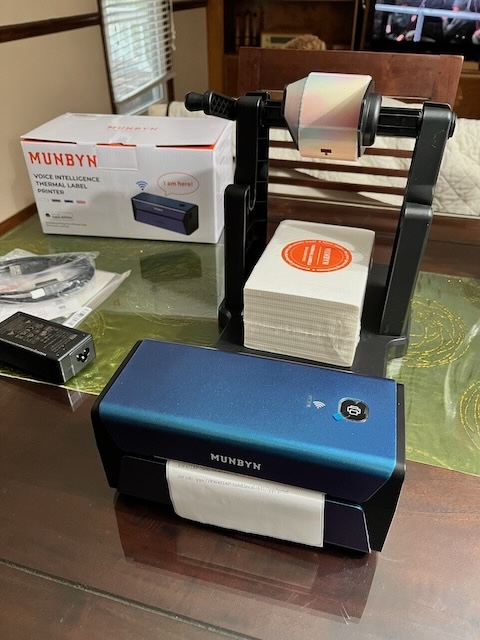
A printer that makes noise but does not feed paper may have a jam, a closed cover, a worn roller, or labels stuck inside the path.
Use these steps:
- Power off the printer.
- Open the cover.
- Remove the roll.
- Pull out loose or torn labels slowly.
- Check the roller for adhesive.
- Reload a straight roll.
- Close the cover.
- Turn the printer on and press the feed button.
Never pull a badly stuck label with force. Pulling hard can stretch the label, move the roller, or leave adhesive behind. A small amount of label adhesive can act like glue on the feed path.
If the motor runs but the roller does not turn, the problem may be mechanical. Stop using the printer and contact Munbyn support if cleaning and correct loading do not help.
Munbyn RW401AP Is Not Detected by a Computer
When a computer cannot find the printer, begin with the physical connection. A USB cable may provide power but fail to carry data if it is damaged or designed only for charging.
Check the following:
• Connect the printer directly to the computer instead of a USB hub.
• Try another USB port.
• Test with a different data-capable USB cable.
• Restart both the printer and computer.
• Remove duplicate RW401AP entries from the printer list.
• Install the driver designed for your operating system.
On Windows, open the printer settings and confirm that the RW401AP appears without an error symbol. On macOS, check the Printers & Scanners area and remove an old entry before adding the device again.
Use the driver and setup files intended for the exact model. A driver for another Munbyn printer may install successfully but still produce the wrong page size, missing output, or poor alignment.
Munbyn RW401AP Connection Problems
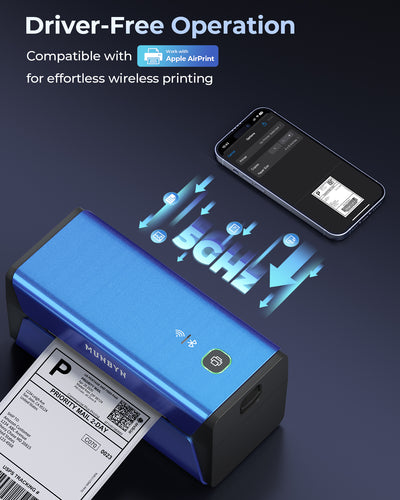
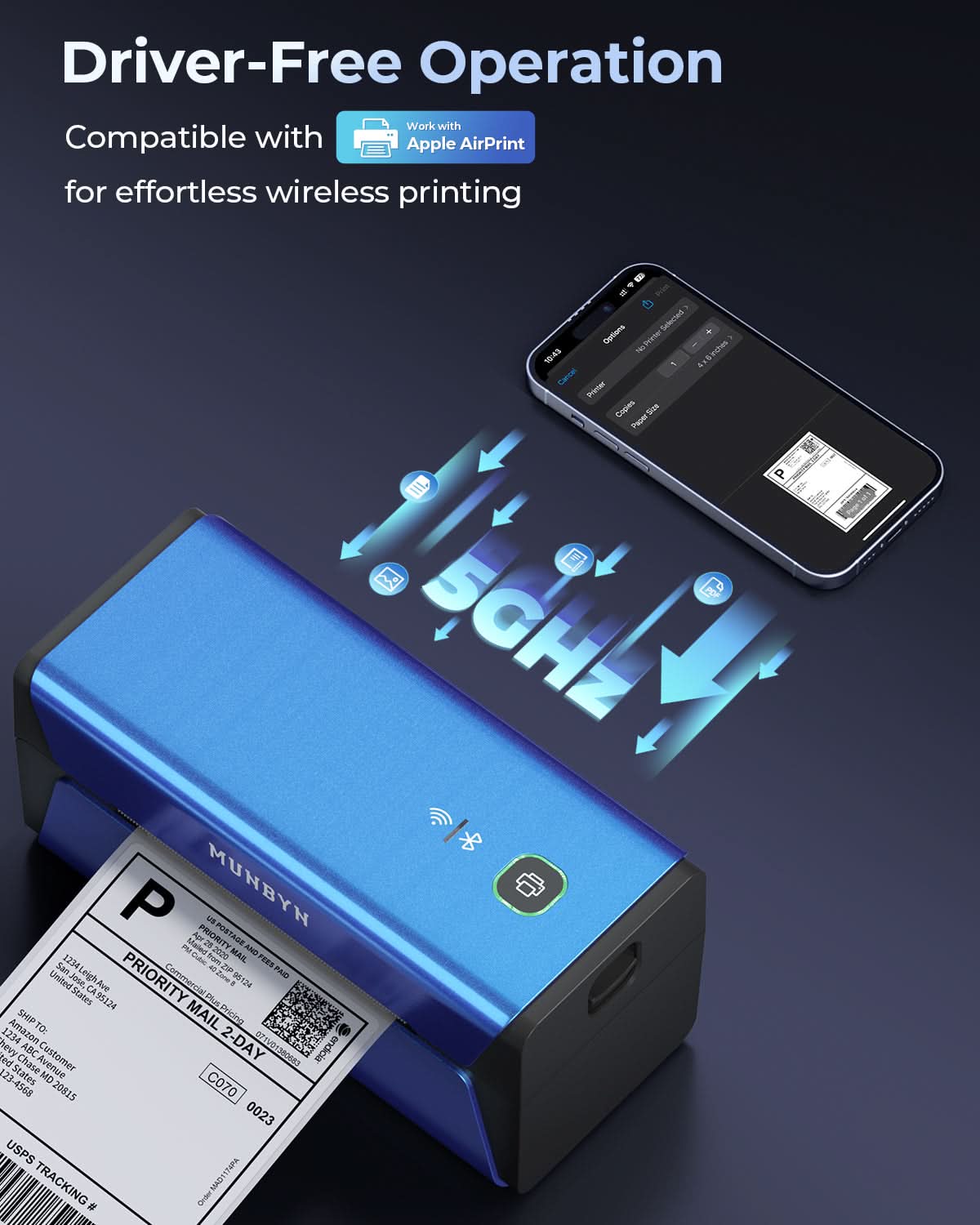
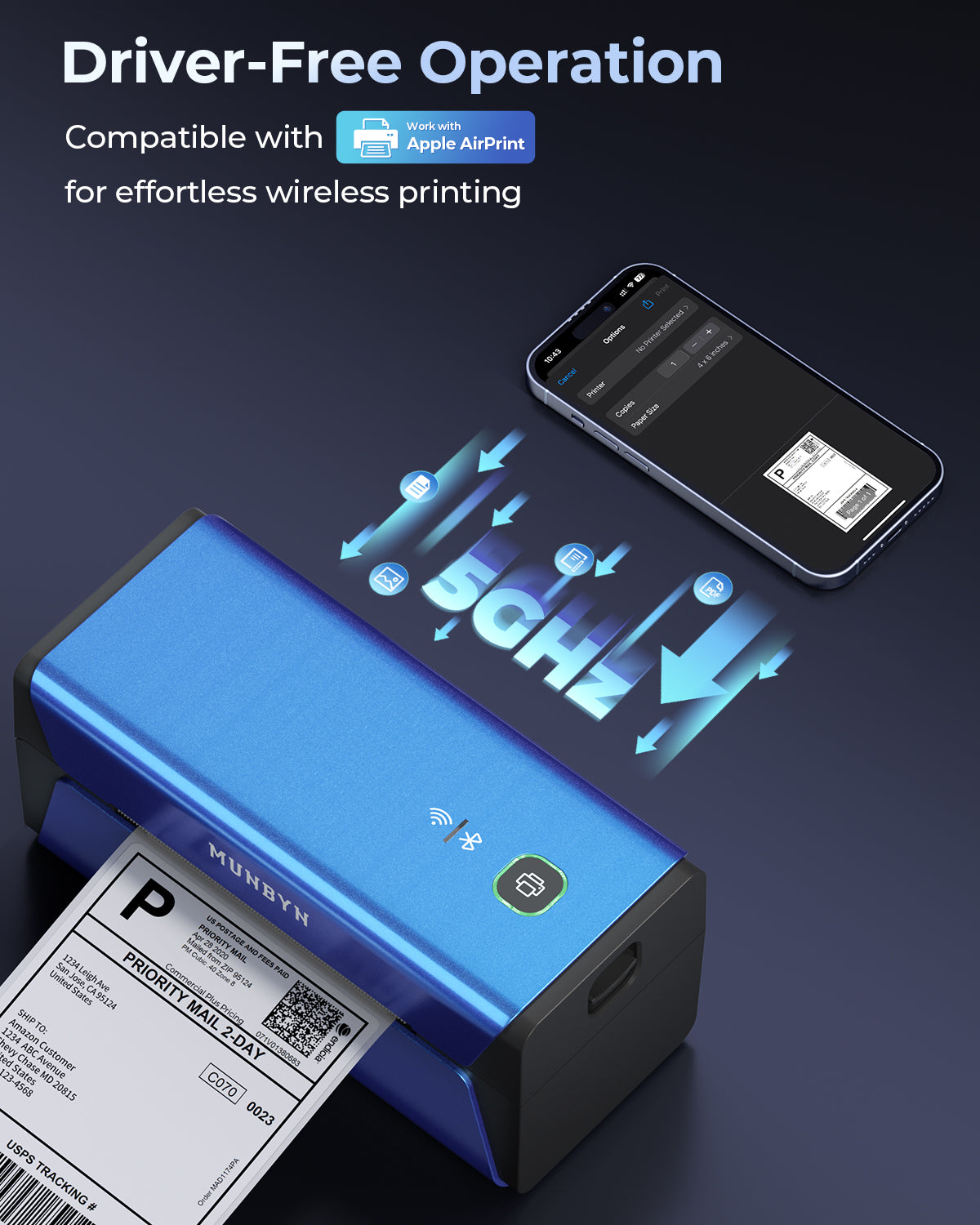
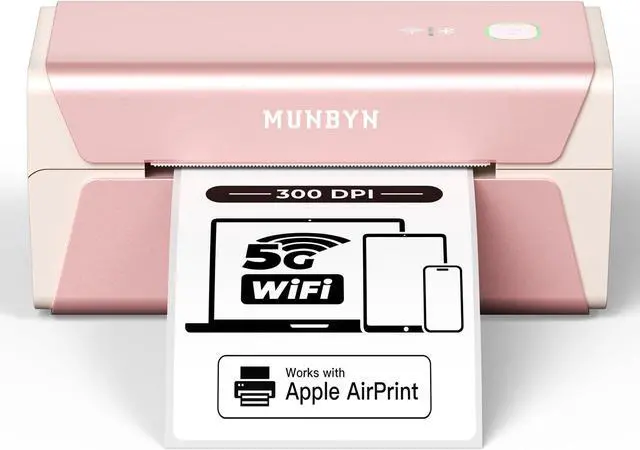
Some RW401AP setups use USB, while other versions or bundles may support wireless features. Connection steps can differ by model and operating system, so first confirm the connection method shown in your product documentation.
For a USB setup:
- Connect the printer directly to the computer.
- Turn it on before opening the printing application.
- Select the RW401AP as the active printer.
- Print a small test page.
For a wireless setup, keep the printer and device on the same network when required. A guest network, VPN, firewall, or weak signal can prevent discovery. Avoid pairing with several devices during setup because the printer may send jobs to an unexpected connection.
A useful troubleshooting rule is to test USB first when possible. A direct cable test separates printer hardware problems from wireless network problems.
Fix the Munbyn RW401AP Driver and Queue
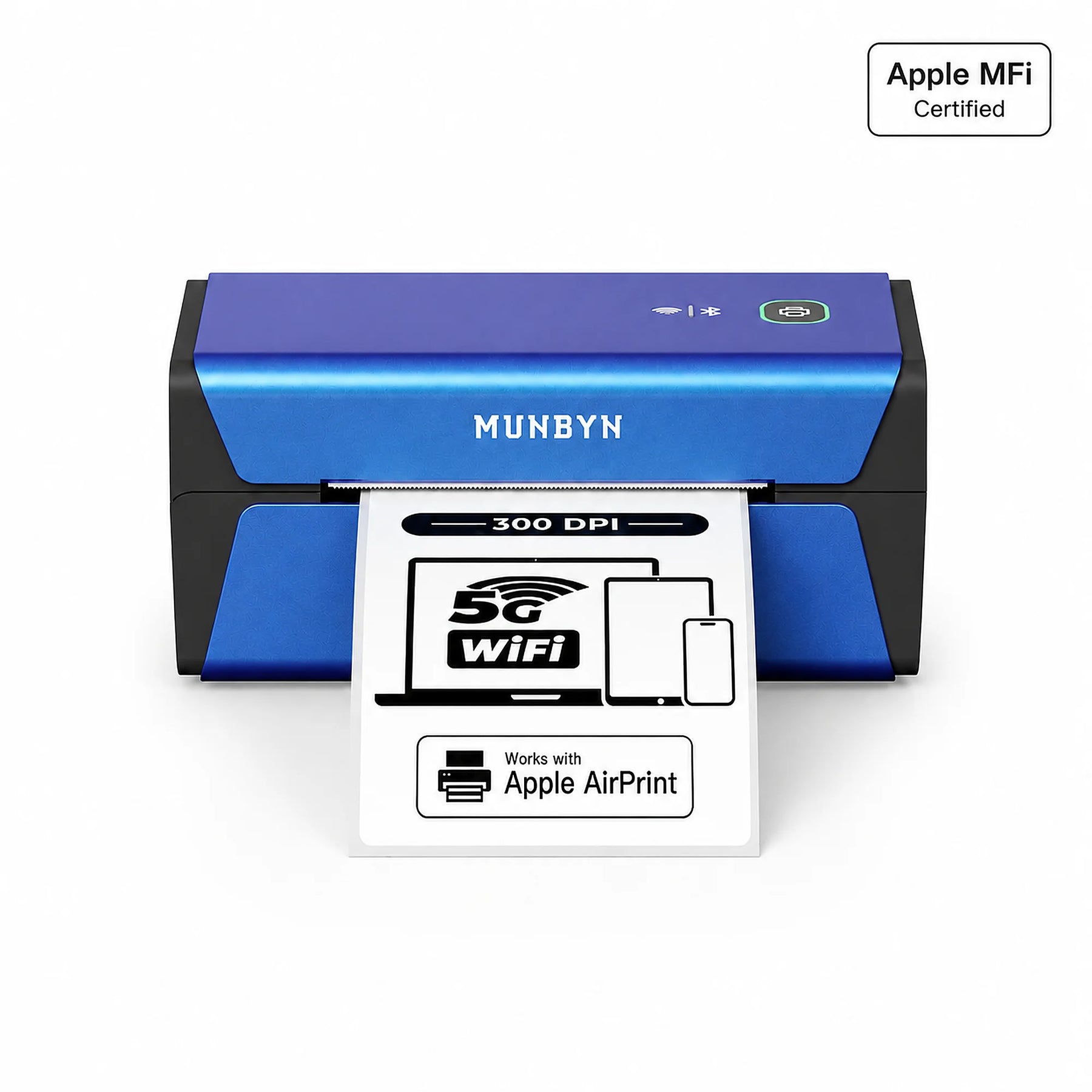
A stuck print queue can make the printer appear broken. The computer may show that a job is printing even though the printer does nothing.
Try this sequence:
- Cancel all pending print jobs.
- Turn off the RW401AP.
- Restart the computer.
- Turn the printer back on.
- Select the correct printer entry.
- Send a one-page test job.
If the queue continues to freeze, remove the printer and add it again. Reinstall the current driver only after deleting old or duplicate entries.
On Windows, a printer may be set to offline mode or paused. On macOS, an old printer profile can point to a device that no longer exists. Removing that profile often resolves repeated “unable to print” messages.
Do not install drivers from unknown download sites. Unofficial packages may contain outdated files or unwanted software. Use the manufacturer’s official support page or the operating system’s trusted printer setup tools.
Correct Munbyn RW401AP Label Size and Alignment
Incorrect label dimensions can cause cut-off text, large blank spaces, or content that prints across two labels. The label size must match in three places:
• The physical label roll
• The printer driver
• The shipping, design, or document application
For a common 4 × 6-inch shipping label, select a 4 × 6-inch media size when that is the size of your roll. Do not rely on “fit to page” if the label must preserve an exact barcode size.
If the label is shifted:
- Check the document page size.
- Turn off automatic scaling.
- Set margins as required by the template.
- Confirm the printer orientation.
- Calibrate the printer.
- Print a test label.
A browser may add its own scaling. In a print dialog, choose the actual size option when available. Preview the label before printing to confirm that the barcode and address fit inside the printable area.
Munbyn RW401AP Prints Half a Label or Cuts Off Text
This problem usually comes from a mismatch between the label size and the page size. It can also happen when a 4 × 6-inch label is sent as a letter-size document.
Check the print preview first. If the preview already cuts off the design, fix the document or shipping platform. If the preview looks correct but the printed label is wrong, review the printer driver settings.
Make sure:
• The correct paper size is selected.
• The page orientation matches the label.
• Scaling is set to 100 percent or actual size.
• The correct printer is selected.
• The application is not adding extra margins.
Test with a basic label containing only text. If the basic label works, the issue is likely in the original PDF, browser, template, or shipping software rather than the printer itself.
Munbyn RW401AP Prints Strange Symbols or Random Text
Random symbols often mean the print job used the wrong driver or communication setting. The printer may be receiving data it cannot interpret.
Fix it by removing the current printer entry and installing the correct driver for the RW401AP. Restart the computer after installation, then add the printer again.
Also check whether the application is sending a raw or specialized print format. A normal PDF test helps isolate the issue. If a PDF prints correctly but a shipping platform does not, review that platform’s printer selection and label format.
Avoid sending jobs to a generic text printer unless the software specifically requires it. Thermal printers depend on the right driver to convert the document into a format the device understands.
Munbyn RW401AP Is Offline or Shows an Error
An offline message does not always mean the printer has failed. It may indicate a lost connection, a paused queue, an incorrect port, or a printer that was turned off during setup.
Use this checklist:
- Confirm that the power light is on.
- Check the cable or network connection.
- Clear paused print jobs.
- Set the printer as the default device.
- Restart the printing service or computer.
- Remove and re-add the printer.
- Print a system test page.
If the status changes between online and offline, inspect the USB cable and port. Intermittent connections are often caused by loose plugs or damaged cables.
When the error appears after every job, check the label sensor, cover, and media settings. The printer may be waiting for the correct label position rather than reporting a serious hardware fault.
How to Clean the Munbyn RW401AP
Routine cleaning can prevent many print quality problems. Turn the printer off and allow the print head to cool before opening the cover.
Clean these areas carefully:
• Thermal print head
• Platen roller
• Label sensor area
• Interior label path
Use a lint-free cloth or a suitable thermal printer cleaning pen. Remove dust and adhesive with gentle strokes. Do not pour liquid inside the printer, and do not use sharp objects.
Cleaning frequency depends on use. A busy shipping desk may need regular checks, while occasional home use may need attention only when print quality changes. Always follow the care instructions for your model.
Munbyn RW401AP Troubleshooting for Shipping Platforms
Shipping websites may create problems that look like printer faults. The printer may work correctly while the platform sends the wrong label size or selects another device.
Check these settings:
- Select the RW401AP in the platform’s printer menu.
- Choose the correct label format.
- Confirm the label dimensions.
- Disable browser scaling.
- Use the platform’s test label option.
- Print from a saved PDF to compare results.
If the PDF prints correctly but the website does not, clear the browser cache, try another supported browser, or review the platform’s local print utility. Some shipping services require a separate desktop printing application.
Always scan a test barcode before printing a large batch. One early test can prevent dozens of unusable labels and wasted shipping time.
When to Reset or Contact Munbyn Support
A reset may help after a failed setup or a confusing connection change, but it should not be the first step. Record your current settings before resetting, especially if the printer works with more than one computer.
Contact support when:
• The printer has no power with a known-good adapter.
• The print head has a damaged or permanently blank area.
• The roller does not move after clearing a jam.
• The printer repeatedly loses connection with different cables and devices.
• Calibration fails with several compatible label rolls.
• A warning light remains after correct loading and cleaning.
Have the model name, operating system, connection method, label size, and a description of the error ready. A photo of the printed label can also help support staff identify alignment or print head issues faster.
A Simple Munbyn RW401AP Troubleshooting Order
Use this order when you need a fast and safe diagnosis:
- Check power.
- Check the label direction and size.
- Inspect the cover and label path.
- Run calibration.
- Clean the print head and roller.
- Test another label roll.
- Test another USB cable or port.
- Check the driver and print queue.
- Confirm page size and scaling.
- Contact support if the fault remains.
This order starts with low-risk fixes and moves toward software changes. It also prevents unnecessary driver installs when the real issue is a roll loaded backward.
Frequently Asked Questions About Munbyn RW401AP Troubleshooting
Why is my Munbyn RW401AP printing blank labels?
The most likely causes are labels loaded on the wrong side, non-thermal labels, a dirty print head, or an incorrect print job. Test the label with a fingernail, clean the print head, and confirm that the RW401AP is selected.
How do I calibrate the Munbyn RW401AP?
Load the labels correctly, close the cover, and press and hold the feed button until the printer begins feeding. Let it stop on its own, then print a test label.
Why does the Munbyn RW401AP keep feeding labels?
The printer may not detect the label gaps because of poor loading, an incorrect media type, dirt near the sensor, or unusual label spacing. Reload the roll, clean the sensor area, and run calibration again.
What should I do if my Munbyn RW401AP is not detected?
Try a different USB data cable and port, connect directly to the computer, restart both devices, and remove duplicate printer entries. Then install the correct driver for your operating system and model.
Why is my Munbyn RW401AP printing labels too far to one side?
Check the page size, margins, orientation, and scaling in both the printer driver and the application. Make sure the label guides hold the roll straight, then calibrate the printer.
Can I use regular paper with the Munbyn RW401AP?
No. The printer requires compatible direct thermal media. Regular paper will feed through but will not produce a normal printed image.
How often should I clean the Munbyn RW401AP?
Clean it whenever you notice fading, lines, adhesive buildup, or feeding problems. High-volume users should inspect the print head and roller more often than occasional users.
Conclusion
Most Munbyn RW401AP issues have a practical fix. Start with power, label loading, calibration, cleaning, and the correct media. Then check the driver, connection, page size, and print queue.
The best Munbyn RW401AP troubleshooting method is calm and systematic. Test one change at a time, print a small sample, and confirm the barcode before starting a full batch. Save this guide for your next setup problem, and explore the manufacturer’s support resources when a hardware fault continues.

Similar Posts