Epson PictureMate PM-400 Troubleshooting: Easy Fixes
Most Epson PictureMate PM-400 problems come from paper, ink, Wi-Fi, power, or print settings.
Epson PictureMate PM-400 troubleshooting is often simple once you check the printer in the right order. This compact photo printer can produce bright 4 × 6 and 5 × 7 prints, but small issues such as dusty rollers, a weak Wi-Fi signal, or the wrong paper setting can stop a print job. This guide explains the likely causes, safe fixes, and practical lessons that help you get back to printing without wasting ink or paper.
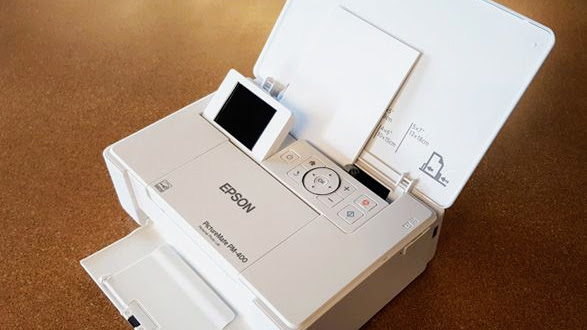
Start with these Epson PictureMate PM-400 troubleshooting steps
Before changing drivers or opening the printer, check the basic setup. A short inspection often solves the problem in less time than a full reset.
- Turn off the Epson PictureMate PM-400.
- Unplug the power cable for about 60 seconds.
- Remove any loose paper from the input slot.
- Check that the ink cartridge is installed correctly.
- Reload a small stack of compatible PictureMate photo paper.
- Turn the printer on and wait until it finishes its startup cycle.
- Try a small test print.
This restart clears temporary errors. It also gives the printer time to reset its paper path and communication system.
If the printer shows an error, read the exact message on the LCD screen. Do not pull paper with force. A torn sheet can leave scraps inside the printer and create a second problem.
In my troubleshooting routine, I always test one simple photo first. A small test print tells you whether the issue is with the printer, the computer, the phone, or the original photo file.
Epson PictureMate PM-400 will not turn on
A printer that does not power on may have a loose cable, a damaged outlet, or an internal power fault. Start with the easy checks.
• Push the power cable firmly into the printer and wall outlet.
• Test the outlet with a lamp or another device.
• Remove power strips and extension cords for the test.
• Press the power button once, then wait several seconds.
• Disconnect USB devices before trying again.
If the LCD remains blank, unplug the printer and leave it disconnected for a few minutes. Then connect it directly to a known working wall outlet.
Do not use a cable that looks burned, cracked, or loose. Stop using the printer if you smell smoke, hear repeated clicking, or see signs of overheating. A power fault is not a good do-it-yourself repair.
The Epson PictureMate PM-400 may also appear unresponsive during startup if it is completing an internal process. Give it a little time before pressing the power button several times.

Epson PictureMate PM-400 is not printing
When the printer accepts a job but does not print, check the print queue first. A paused queue can make the printer look broken.
Check the print queue
On Windows, open your printer settings and remove old jobs. Make sure the Epson PictureMate PM-400 is not set to “Use Printer Offline” or “Pause Printing.”
On macOS, open Printers & Scanners, select the printer, and review the queue. Delete stuck jobs, then send one new test print.
A phone may also send the job to a different printer with a similar name. Confirm that the selected device is the Epson PictureMate PM-400.
Check the connection
For USB printing, connect the printer directly to the computer. Avoid a USB hub during testing.
For wireless printing, confirm that the printer and device use the same Wi-Fi network. A guest network may block communication between devices.
Restart these items in order:
- Router
- Printer
- Computer or mobile device
This order often restores a lost network path.
Check the paper and cartridge
The Epson PictureMate PM-400 will not print normally if it detects an empty cartridge, a paper feed problem, or an open cover. Close every cover and follow the screen instructions.
If the printer still refuses to print, remove and reinstall the cartridge. Do not touch the shiny contacts or ink outlet. Oils from your fingers can affect the connection.

Epson PictureMate PM-400 paper feed problems
Paper feed errors are among the most common Epson PictureMate PM-400 troubleshooting issues. The printer needs clean, flat, correctly loaded paper.
Paper will not feed
Use paper designed for the PictureMate PM-400. Load the printable side in the correct direction and place the stack against the guide. Do not overfill the paper holder.
Try these steps:
• Remove the entire stack.
• Check for curled, damp, bent, or damaged sheets.
• Fan the paper gently.
• Reload only 5 to 10 sheets.
• Move the paper guide so it touches the stack without squeezing it.
Photo paper can stick together in humid rooms. Store unused paper in its original package and keep it flat. Heat, moisture, and dust can change how the sheets move through the printer.
Paper jams inside the printer
If paper jams, follow the LCD instructions. Pull the sheet slowly and evenly. If it tears, inspect the paper path with a light and remove every visible piece.
Never use sharp tools inside the printer. A screwdriver or metal pick can damage rollers, sensors, and the print head.
After removing a jam, restart the Epson PictureMate PM-400 and run one test print. If jams happen with fresh paper and a small load, the rollers may be dirty or worn.
Prints come out crooked
Crooked prints often point to a misaligned paper guide or a curled sheet. Reload the paper and make sure the guide rests lightly against the edge.
If every sheet comes out at the same angle, stop repeated printing. The feed path may need professional service.

Epson PictureMate PM-400 prints blank pages
Blank prints usually relate to the ink cartridge, print head, or an incorrect cartridge installation.
First, check the ink level shown on the printer. A cartridge can appear installed while the printer cannot read it correctly. Turn off the printer, remove the cartridge, and reinstall it according to the user guide.
Do not shake or squeeze a cartridge. This can cause leaks or uneven ink flow.
If the cartridge is new, confirm that all required protective material has been removed. Do not remove anything that the installation guide says to keep.
Run a nozzle check if the printer menu provides that option. If the nozzle check is faint or blank, use one cleaning cycle. Wait before running another cycle. Repeated cleaning uses ink and may not solve a mechanical blockage.
A useful Epson PictureMate PM-400 troubleshooting lesson is to avoid running many cleaning cycles in a row. One or two checks are reasonable. After that, let the printer rest and inspect the cartridge and paper settings.
Epson PictureMate PM-400 has faded or poor-quality prints
The Epson PictureMate PM-400 is made for photo printing, so faded color is easy to notice. Poor results can come from low ink, the wrong media, an old photo file, or blocked nozzles.
Fix light or uneven colors
Try the following:
• Check the ink level.
• Confirm that the paper type matches the loaded paper.
• Select the correct print quality.
• Run a nozzle check.
• Clean the print head only when needed.
• Use fresh, dry photo paper.
If the nozzle check has gaps, run the printer’s cleaning function. Follow the screen instructions and allow the printer to complete the process.
Do not print several large photos during cleaning tests. Use one small image so you can judge the result without wasting supplies.
Fix lines or banding
Horizontal lines may indicate clogged nozzles or paper feed problems. Vertical marks may come from dust, a dirty roller, or a damaged sheet.
Handle the paper by its edges. Fingerprints and dust can create marks that look like ink defects.
If lines remain after a proper nozzle check and cleaning cycle, the print head may need service. At that point, more cleaning is unlikely to help.
Fix wrong colors
Color problems may result from an incorrect color setting. Check whether the app or computer is applying color correction and whether the printer is applying it again.
For normal home printing, use one color-management method. For advanced photo work, use a calibrated display and the correct paper profile when available.

Epson PictureMate PM-400 wireless connection problems
Wireless Epson PictureMate PM-400 troubleshooting starts with the network, not the printer driver. The printer and sending device must be able to see each other.
Confirm the Wi-Fi setup
Check these points:
• The printer is connected to the intended Wi-Fi network.
• The phone or computer uses the same network.
• The router is not blocking local device communication.
• The Wi-Fi signal is strong where the printer sits.
• The network name and password are correct.
A printer placed behind a thick wall or near large appliances may have a weaker signal. Move it closer to the router during setup.
Some modern routers combine network bands under one name. If setup fails, temporarily use the router’s compatible band or follow the Epson setup instructions for your network.
Reconnect the printer
Remove the old printer entry from the computer or mobile app. Add the Epson PictureMate PM-400 again as a new printer.
This helps when the router has assigned the printer a new network address. It also removes outdated connection details.
Use USB as a test
A direct USB connection is useful for diagnosis. If USB printing works but Wi-Fi printing does not, the printer is probably fine and the issue is related to network setup, software, or router settings.
If neither connection works, focus on the printer’s paper, ink, and error messages.

Epson PictureMate PM-400 driver and software issues
A driver tells the computer how to communicate with the printer. An old or incorrect driver can cause missing options, failed jobs, poor colors, or an offline message.
Download software only from Epson’s official support resources. Choose your exact operating system and model. Avoid random driver websites because they may provide unsafe or mismatched files.
Before installing a new driver:
- Remove the old Epson PictureMate PM-400 entry.
- Restart the computer.
- Install the current compatible software.
- Connect the printer when the installer requests it.
- Print a test page or photo.
Operating system updates can change printer behavior. If the PM-400 is an older model, some newer systems may offer limited support. In that case, USB printing may work better than wireless printing.
On a phone, update the printing app and the phone’s operating system. Also check photo permissions. An app without access to your photos cannot send them to the printer.
Epson PictureMate PM-400 does not recognize the ink cartridge
An ink cartridge error can occur when the cartridge is not seated correctly, the contacts are dirty, or the cartridge is not compatible.
Turn off the printer before removing the cartridge. Reinstall it firmly and make sure the cover closes fully.
Check the cartridge label and part number. Do not rely only on appearance. Similar Epson cartridges can fit physically but still be incompatible with a specific model or region.
If the printer reports that a new cartridge is empty, remove and reinstall it once. If the message remains, the cartridge may be defective or its electronic chip may not be readable.
Avoid touching the metal contacts. Also avoid third-party ink unless you accept the risks. Non-genuine supplies may produce uneven color, recognition errors, or reduced print reliability.
Epson PictureMate PM-400 LCD errors and warning lights
The LCD message is the best starting point because it describes the condition detected by the printer. Write down the message before restarting the device.
Common warning types include:
• Paper out: Load the correct paper and adjust the guide.
• Paper jam: Remove paper carefully and inspect for scraps.
• Ink problem: Check the cartridge and its installation.
• Cover open: Close the cover until it latches.
• Communication error: Check USB or Wi-Fi connections.
• Maintenance error: Stop repeated attempts and contact Epson support if the message continues.
A warning light does not always mean the printer has suffered major damage. It may simply report an empty tray or open cover.
However, repeated errors after correct paper, ink, and connection checks can indicate a sensor, roller, or print-head issue. Professional support is safer than forcing parts or opening the printer.
Safe cleaning and maintenance for the PM-400
Good maintenance prevents many Epson PictureMate PM-400 troubleshooting problems. Keep the printer on a stable, dry surface and cover it when it is not in use.
Use a clean, dry, lint-free cloth for the outside. Do not spray cleaner into the printer. Do not pour liquid near the paper path, cartridge area, or control panel.
Helpful habits include:
• Keep paper sealed until use.
• Store paper flat.
• Print occasionally if the printer sits unused for long periods.
• Keep dust away from the paper holder.
• Use the printer’s built-in cleaning tools only as directed.
• Replace supplies with the correct model and size.
One mistake I often warn people about is cleaning too aggressively. More force does not mean better maintenance. Small parts inside a photo printer are precise, so gentle care is the better approach.
When to stop Epson PictureMate PM-400 troubleshooting
Home troubleshooting is useful for setup, paper, ink, and software issues. It has limits.
Contact Epson support or a qualified technician when:
• The printer smells burned.
• The power cable or casing is damaged.
• The print head makes unusual grinding sounds.
• Paper jams continue with clean, flat paper.
• Ink leaks inside the printer.
• Error messages return after a full restart.
• The printer will not power on from a known working outlet.
Keep the model name, serial number, error message, operating system, and steps already tried. This information helps support staff diagnose the issue faster.
Repair cost also matters. Since the PM-400 is an older compact printer, compare service costs with the price of a replacement photo printer before approving major repairs.
How to prevent future PM-400 printing issues
Prevention is easier than repeated Epson PictureMate PM-400 troubleshooting. A few simple habits protect both the printer and your photo paper.
• Use the correct PictureMate media.
• Keep paper away from moisture and heat.
• Do not overload the input tray.
• Keep the printer level.
• Use a stable power source.
• Update software when compatible updates are available.
• Remove completed print jobs from the queue.
• Run a test print after long storage.
Also keep a small record of the cartridge model and paper type that work well for you. This makes future supply purchases easier and reduces trial and error.
Frequently Asked Questions About Epson PictureMate PM-400 Troubleshooting
Why is my Epson PictureMate PM-400 not printing?
Check the paper, ink cartridge, LCD message, and print queue first. Then confirm that the printer is online and connected to the correct computer, phone, or Wi-Fi network.
How do I fix a paper jam in the Epson PictureMate PM-400?
Follow the LCD instructions and pull the paper slowly without using sharp tools. Inspect the paper path for torn scraps before restarting the printer.
Why are my PM-400 photos coming out with lines?
Lines can result from clogged nozzles, dust, poor paper, or a feed problem. Run a nozzle check, use one cleaning cycle if needed, and test with fresh compatible photo paper.
Can I use the Epson PictureMate PM-400 with Wi-Fi?
Yes, the PM-400 supports wireless printing when it is correctly connected to a compatible local network. The printer and sending device normally need to use the same network.
What should I do if the PM-400 does not recognize a new ink cartridge?
Turn off the printer, remove the cartridge, and reinstall it firmly. Confirm that the cartridge part number matches the PM-400 and avoid touching its electronic contacts.
How do I fix faded prints from the Epson PictureMate PM-400?
Check the ink level, paper type, print quality, and nozzle condition. Use fresh paper and run a nozzle check before using the printer’s cleaning function.
Is it safe to clean the PM-400 with water?
Do not spray or pour water inside the printer. Clean the outside with a dry or lightly damp lint-free cloth, and follow Epson’s maintenance instructions for internal cleaning.
Conclusion
Epson PictureMate PM-400 troubleshooting works best when you follow a clear order: check the error message, paper, ink, power, connection, and software. Most basic issues do not require a repair shop, but repeated jams, ink leaks, unusual sounds, and power faults need professional attention.
Use small test prints, handle photo paper gently, and avoid repeated cleaning cycles. These habits save supplies and protect the printer. Try the steps in this guide, consult the official user guide when needed, and share your results or questions in the comments.

Similar Posts