How To Improve WiFi Signal: Easy Speed Boost Tips
A stronger WiFi signal usually comes from better router placement, less interference, and smarter settings.
If your internet feels slow, drops during video calls, or dies in the next room, you are not alone. I have seen this problem in homes, apartments, and small offices more times than I can count. The good news is that how to improve WiFi signal is usually not a mystery, and you often do not need expensive gear to fix it. With the right changes, you can make your connection faster, steadier, and far more reliable.
What WiFi Signal Strength Really Means
WiFi signal strength is the quality of the wireless link between your device and your router. A strong signal does not always mean fast internet, but it does usually mean fewer drops, lower lag, and a more stable connection.
Think of it like a conversation across a room. The farther apart you are, and the noisier the room gets, the harder it is to hear clearly. WiFi works the same way, which is why how to improve WiFi signal often starts with understanding distance, walls, and interference.
A weak signal can come from many things:
• Too much distance between the router and your device
• Thick walls, floors, or metal surfaces blocking the signal
• Interference from microwaves, Bluetooth devices, or neighboring networks
• Outdated router hardware or old WiFi standards
• Poor router settings, such as a crowded channel or bad band selection

Why Your WiFi Signal Gets Weak
Before you fix the problem, it helps to know what is causing it. In my own work, I have often found that people blame the internet provider when the real issue is inside the house.
Here are the most common causes:
• Router placement is poor. Putting a router in a closet, behind a TV, or in a corner can cut coverage fast.
• Building materials block signal. Brick, concrete, tile, and even mirrors can weaken WiFi.
• Too many devices are connected. Smart TVs, phones, cameras, and speakers all share the same bandwidth.
• Interference is everywhere. Nearby routers, cordless phones, and household appliances can disrupt the signal.
• The router is old. Older models may not handle modern speeds or crowded homes well.
A 2024-style home network is often much busier than people expect. The average home now has dozens of connected devices, so even a decent router can struggle if it is poorly placed or overloaded.
How to Improve WiFi Signal at Home
The best part about how to improve WiFi signal is that many fixes are simple and low cost. Start with the basics before you spend money on new hardware.
Move the router to a better spot
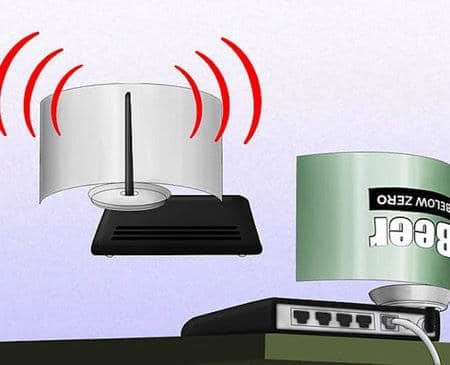
Router placement matters more than most people think. Put the router in a central, open location, ideally on a shelf or table and not on the floor.
Try to avoid these spots:
• Inside cabinets
• Near thick walls
• Behind large TVs
• Next to metal objects
• In corners of the house
When I first helped a friend fix a weak signal, the router was hidden in a media cabinet. Moving it to an open shelf in the hallway improved coverage almost instantly.
Raise the router
WiFi signals spread outward and downward, so height helps. A router on a table or wall mount often performs better than one on the floor.
This small change can make a real difference in multi room homes. It is one of the easiest ways to improve WiFi signal without buying anything.
Keep the router away from interference
Some devices can create noise that interferes with wireless signals. Microwaves, baby monitors, cordless phones, and even some Bluetooth devices can cause trouble.
Keep the router away from:
• Kitchen appliances
• Thick aquariums
• Wireless speakers
• USB 3.0 hubs and cables
• Large metal shelving
I have also seen signal issues caused by a router sitting right next to a smart TV and game console. Once moved, the connection became much steadier.
Restart the router regularly
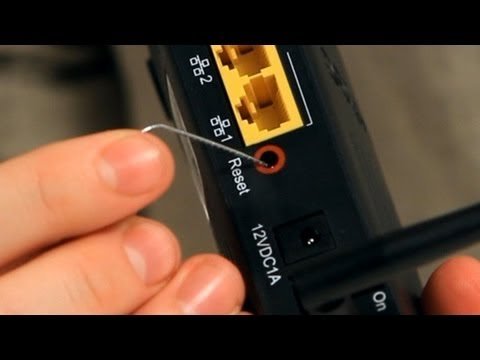
A router is basically a small computer, and like any computer, it can slow down over time. Restarting it clears minor glitches and can help restore performance.
A simple weekly restart is often enough for many homes. It will not fix every issue, but it is a good habit when learning how to improve WiFi signal.
Update router firmware
Router makers release firmware updates to fix bugs, improve stability, and patch security issues. If you have not updated your router in a long time, you may be missing performance improvements.
Check the router admin page or the official app. Updates usually take only a few minutes, and they can make the network more reliable.
Use the right WiFi band
Most modern routers support both 2.4 GHz and 5 GHz, and some also support 6 GHz. Each band has tradeoffs.
• 2.4 GHz travels farther and handles walls better, but it is slower and more crowded
• 5 GHz is faster, but it has a shorter range
• 6 GHz is very fast and clean, but it works best close to the router
If you are far from the router, 2.4 GHz may give you a better signal. If you are nearby, 5 GHz can feel much faster. This choice is a core part of how to improve WiFi signal in real life.
Change the WiFi channel
If your neighbors are using the same channel, your WiFi can get crowded. That is especially common in apartments and dense neighborhoods.
Switching to a less crowded channel can reduce interference and improve stability. Many router apps can show which channels are busiest, and some routers can choose the best one automatically.
Secure your network
An open or poorly protected WiFi network can let neighbors or strangers use your bandwidth. That can slow your network and make your signal feel worse than it is.
Use WPA2 or WPA3 security, and set a strong password. This protects speed, privacy, and trust at the same time.
Best Router Settings for a Stronger Signal
Knowing how to improve WiFi signal also means adjusting the router itself. A few settings can help a lot, especially if your home has many devices.
Enable automatic channel selection
Some routers can scan for the cleanest channel and switch by themselves. This helps if your area is crowded with many wireless networks.
If your router supports it, turn on automatic optimization. It is one of the easiest ways to reduce interference without much effort.
Turn on Quality of Service
Quality of Service, often called QoS, helps your router prioritize important traffic. This is useful if someone is gaming, video calling, or streaming while others are downloading files.
It does not increase raw internet speed, but it can make the experience smoother. For many families, that matters more than a speed test number.
Set a strong WiFi password
A weak password makes it easier for unwanted users to join your network. Even a few extra devices can affect performance in a busy home.
Use a long password with letters, numbers, and symbols. It is a small step, but it supports both speed and security.
Use smart band steering if available
Band steering lets the router move devices between 2.4 GHz and 5 GHz based on signal and load. That can help devices stay connected to the best band automatically.
It is especially useful if you move around the house a lot. It removes some guesswork from how to improve WiFi signal.
Hardware Upgrades That Can Help
Sometimes the issue is not settings. Sometimes the router is just not strong enough for your home.
Replace an old router
If your router is several years old, it may not support newer standards like WiFi 5 or WiFi 6. Older hardware can struggle with speed, range, and many devices at once.
A newer router can improve coverage, reduce lag, and support more traffic. This is often the best long term fix for people living in larger homes.
Add a mesh WiFi system
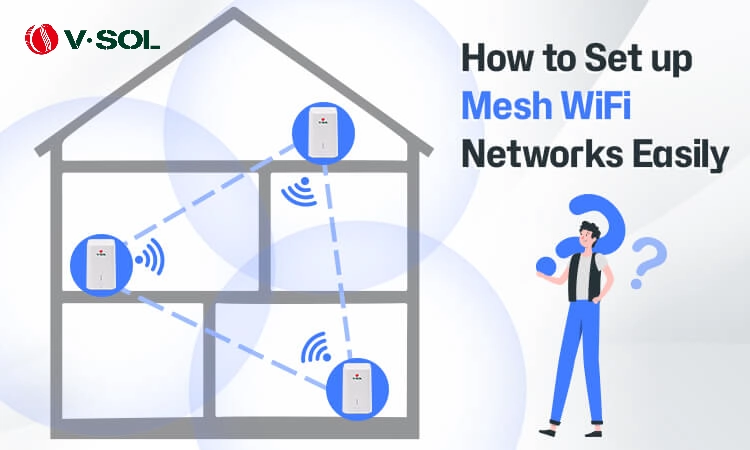
Mesh systems use multiple units to cover a large area more evenly. They work better than a single router in many homes with dead zones.
I have seen mesh systems completely change the experience in two story homes. Instead of one strong room and three weak ones, the signal stays more even throughout the house.
Use a WiFi extender carefully
Extenders can help reach a dead zone, but they are not always the best solution. Some extenders repeat the signal and can reduce speed if placed poorly.
If you use one, place it where it still gets a good signal from the router. An extender in a weak spot will usually give weak results.
Consider wired backhaul where possible
If your mesh system supports Ethernet backhaul, use it. A wired link between nodes is often faster and more stable than a wireless one.
This is one of the smartest upgrades for people who want strong coverage and low latency. It matters a lot for gaming, work calls, and streaming.
How to Improve WiFi Signal in Different Rooms
Different rooms create different problems. A fix that works in the living room may not help a basement or upstairs bedroom.
In the living room
The living room often has lots of electronics that create interference. Keep the router away from TVs, consoles, speakers, and metal furniture.
If the signal is still weak, adjust the router angle and location before buying anything else. Small changes often help more than people expect.
In a bedroom
Bedrooms are often farther from the router and may have thick walls or closed doors. If possible, keep a mesh node or extender nearby.
Also check whether the door is closed all the time. Even a simple open door can slightly improve coverage.
In a basement
Basements are tough because signal must travel through floors and sometimes concrete. A mesh node or wired access point often works better than a basic extender.
If you use the basement often, it may be worth giving it its own network access point. That is usually the cleanest fix.
On an upper floor
WiFi often weakens as it travels upward through floors. Place the router in a central location, but not too low, and consider a node on the upper floor.
If you work upstairs, a mesh system can make a huge difference. It keeps calls from dropping and pages from lagging.
Common Mistakes People Make
When people ask how to improve WiFi signal, they often focus on speed before signal quality. That can lead to wasted money.
Avoid these mistakes:
• Buying a faster internet plan before fixing the home network
• Hiding the router in a cabinet or closet
• Using an extender in a weak signal area
• Ignoring firmware updates
• Assuming one router can cover every large home
One mistake I made early on was chasing a bigger internet package when the real problem was my router placement. Once I moved the router and changed the channel, the network improved without any plan upgrade.
When to Call Your Internet Provider
Sometimes the problem is outside your home. If your connection is still unstable after you try the basics, the issue may be your modem, line quality, or service plan.
Call your provider if:
• Your speed is much lower than what you pay for
• The connection drops even when you are near the router
• The modem shows warning lights
• Other devices in the home are also having problems
• You notice outages at the same time each day
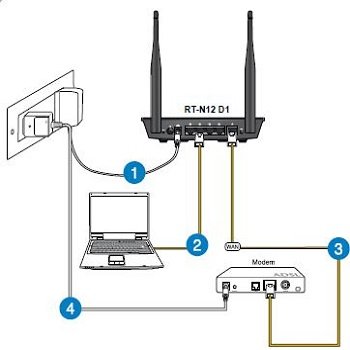
It helps to test with a wired connection first. If wired internet is also bad, the issue is less likely to be WiFi and more likely the service itself.
A Simple Step by Step Plan to Improve WiFi Signal
If you want a practical path, start here. This is the order I usually recommend because it saves time and money.
- Move the router to a central open spot
- Raise it off the floor
- Restart it and update firmware
- Switch to the best WiFi band
- Check for interference
- Change the wireless channel
- Secure the network with a strong password
- Add a mesh node or extender if needed
- Replace old hardware if the router still struggles
This approach works because it starts with the easiest wins first. Most homes see improvement before step 9.
Frequently Asked Questions of How to Improve WiFi Signal
Why is my WiFi strong near the router but weak in other rooms?
WiFi weakens with distance and obstacles like walls, floors, and furniture. The further the device is from the router, the more the signal drops.
Does turning the router off and on really help?
Yes, a restart can clear small glitches and refresh the connection. It will not fix a bad layout or old hardware, but it often helps with temporary slowdowns.
Is a WiFi extender better than a mesh system?
A mesh system is usually better for whole home coverage. Extenders can help in small cases, but they often do not perform as well in large or crowded homes.
Can too many devices slow down WiFi?
Yes, many connected devices can share bandwidth and make the network feel slower. Smart home gear, streaming devices, and laptops all add load to the router.
What is the best place to put a router?
The best place is a central, open, elevated spot away from walls and electronics. Try to keep it out in the open so the signal can spread more evenly.
Conclusion
Improving your WiFi signal is usually about smart placement, cleaner settings, and the right hardware for your space. Start with the simple fixes first, because they often solve the biggest problems without spending much money.
If you have dead zones or constant drops, work through the steps one by one and test after each change. A better connection can make daily life easier, from work calls to movie nights, and the difference is often bigger than people expect. Try a few of these tips today, and if you want, explore more network advice or share your own WiFi fix in the comments.