How To Reset A WiFi Router: Easy Steps For Fast Fixes
Resetting a WiFi router means restoring it to working order by using a reboot, factory reset, or both.
If your internet keeps dropping, your router feels sluggish, or your home network has gone a little “wonky,” knowing how to reset a WiFi router can save you a lot of time and frustration. I’ve dealt with plenty of homes and small offices where a simple reset fixed problems that looked much bigger than they really were. In this guide, I’ll walk you through how to reset a WiFi router the right way, when to use each reset method, what to expect afterward, and the mistakes you should avoid so you do not end up making the problem worse.
What It Means to Reset a WiFi Router
A WiFi router reset can mean two very different things, and this is where a lot of people get confused. A restart, also called a reboot, simply turns the router off and on again. A factory reset wipes the router’s custom settings and returns it to its original state.
In everyday life, I like to think of a reboot like giving your router a short nap. A factory reset is more like moving into a brand-new apartment and losing your old furniture and notes. Both can help, but they solve different problems.
If your connection is acting strange, start with the gentlest fix first. Many issues come from temporary memory glitches, overheated hardware, or a bad connection from your internet service provider. A reboot often clears those up without touching your settings.

When You Should Reset a WiFi Router
You do not need to reset a WiFi router every time the internet slows down. In many cases, the real issue is something simple, like too many devices connected, a loose cable, or a modem problem. Still, there are clear signs that a reset may help.
Common situations where a reset makes sense include:
- The WiFi name shows up, but no device can connect
- The internet keeps disconnecting randomly
- The router is frozen and not responding
- Speed is far below what you normally get
- The admin page will not load
- You forgot the router password and need access again
- You are setting up the router for a new home or new network plan
In my experience, the biggest mistake people make is jumping straight to a factory reset. That can erase custom names, passwords, parental controls, and port settings. A restart is usually the better first move.
How to Restart a WiFi Router
A restart is the easiest and safest way to refresh your router. It does not erase settings, and it often solves basic connection issues in just a minute or two.
Follow these steps:
- Unplug the router’s power cable from the wall or power strip.
- Wait 30 seconds to 1 full minute.
- Plug the power cable back in.
- Wait for the lights to stabilize, which may take 2 to 5 minutes.
- Test the connection on your phone, laptop, or smart TV.
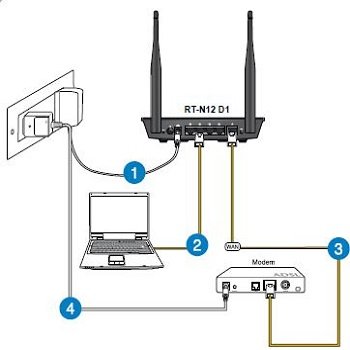
If you have a separate modem and router, restart both. Unplug the modem first, then the router. After 30 to 60 seconds, plug the modem back in and wait until it is fully online. Then plug the router back in.
This order matters because the modem provides the internet signal, and the router shares it with your devices. If one is still booting while the other is already trying to connect, the network can get stuck in a bad state.
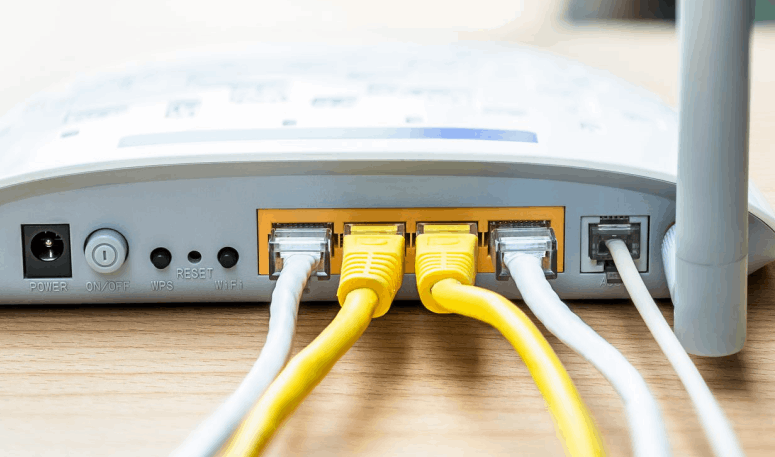
How to Factory Reset a WiFi Router
A factory reset should be used only when you truly need to erase the router’s settings. This is helpful if the router is badly misconfigured, you no longer know the admin password, or you are handing the router to someone else.
Here is the general process:
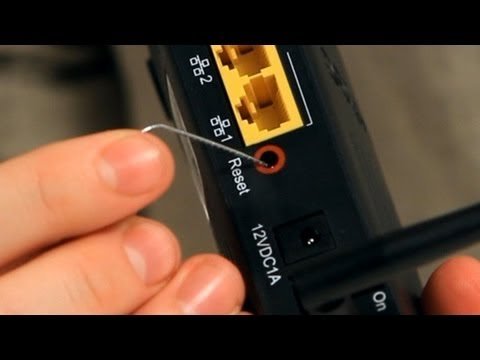
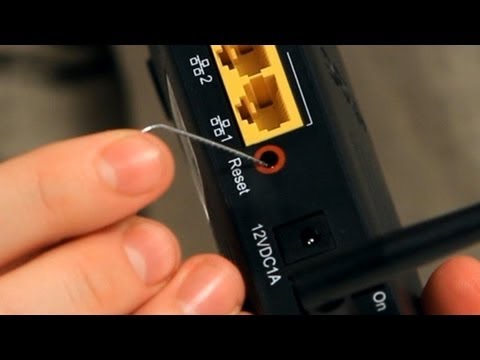
- Find the reset button on the back or bottom of the router.
- Use a paperclip, pin, or similar tool if the button is recessed.
- Press and hold the reset button for about 10 to 30 seconds.
- Release it when the lights blink, change, or the router restarts.
- Wait several minutes for the router to fully reboot.
After a factory reset, the router goes back to its default settings. That usually means the WiFi name, password, and admin login return to what is printed on the label or documented by the manufacturer.
One thing I always tell people: do not factory reset unless you are ready to set the router up again. I once saw someone do this late at night just to “fix the WiFi,” then realize they had no clue what their old network password was and no record of the ISP settings. That turned a 5-minute issue into a long support call.
What Happens After a Factory Reset
After a factory reset, your router will not look or act the same as before. The settings are erased, which can be helpful, but it also means you may need to reconfigure the device from scratch.
You may need to set up:
- The WiFi network name, also called the SSID
- The WiFi password
- The router admin username and password
- Parental controls
- Guest network settings
- Port forwarding rules
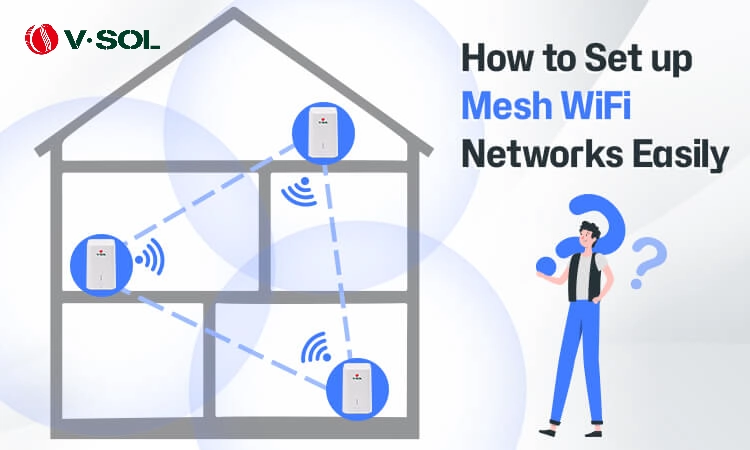
- Mesh or extender connections
If your internet service uses special login settings, such as PPPoE credentials, you may also need to enter those again. Some internet providers require specific modem or router setup steps, so keep your account details handy.
For many users, the factory reset is the last step, not the first. It is powerful, but it comes with a tradeoff.
How to Reset a WiFi Router Safely
Resetting a router is simple, but doing it safely avoids unnecessary problems. A little preparation goes a long way.
Before you reset, try these steps:
- Check that the power cable is secure
- Inspect the Ethernet cable from the modem to the router
- Restart the modem and router first
- Note your current WiFi name and password
- Save any settings you may need later
- Make sure you have your ISP login details if needed
If you are resetting a router in a business or shared home, tell others first. During the process, everyone connected will lose internet access. That small warning can save a lot of frustration.
I also recommend waiting at least 2 to 3 minutes after the router comes back online before testing. Routers often need a little time to reconnect to the modem and rebuild the network.
Common Problems a Reset Can Fix
A router reset is not magic, but it can solve a lot of everyday issues. It works especially well when the problem is caused by temporary software errors, memory buildup, or connection confusion.
A reset may help with:
- Slow WiFi speeds
- Internet drops
- Device connection errors
- Frozen router lights
- Trouble reaching the router dashboard
- A failed firmware update
- Conflicting network settings
That said, a reset will not fix everything. If the problem is with your ISP, a damaged cable, or outdated hardware, the issue may return. In other words, a reset can clear the path, but it cannot repair a broken road.
Mistakes to Avoid When Resetting a WiFi Router
A lot of router trouble comes from avoidable mistakes. The good news is that most of them are easy to prevent.
Avoid these common errors:
- Holding the reset button too briefly when a factory reset is needed
- Factory resetting when a simple reboot would be enough
- Unplugging the router during firmware updates
- Forgetting to write down the WiFi password before a reset
- Not restarting the modem too
- Ignoring overheating or bad ventilation
- Leaving the router in a closed cabinet where airflow is poor
I have seen routers fail because they were packed behind TVs, stacked under papers, or buried in a hot corner. Heat can make network gear unstable, much like a phone battery acting up on a summer sidewalk. Good airflow matters more than people think.
Best Practices to Keep Your WiFi Router Stable
Once you know how to reset a WiFi router, it helps to reduce how often you need to do it. A few good habits can keep your network smoother over time.
Try these best practices:
- Place the router in an open, central spot
- Keep it away from microwaves, cordless phones, and thick walls
- Restart it once in a while if performance starts to dip
- Update firmware when your router manufacturer recommends it
- Use a strong WiFi password
- Avoid overloading the network with too many devices at once
- Replace old routers that no longer support modern standards
Industry guidance from networking experts often points to firmware updates, good placement, and proper ventilation as simple but effective ways to improve reliability. These are small habits, but they make a real difference over time.
How to Reset a WiFi Router on Popular Router Types
Different routers look different, but the reset process is usually similar. The labels and button shapes may change, but the logic stays the same.
For most home routers:
- Reboot by unplugging power for 30 seconds
- Factory reset by holding the recessed reset button for 10 to 30 seconds
For mesh WiFi systems:
- Restart each unit if possible
- Use the app if the manufacturer provides one
- Factory reset both the main node and satellite nodes if needed
For modem-router combos:
- Restart the whole unit by unplugging power
- Use the reset button only if you want full factory settings restored
If you are not sure which device you have, check the label on the back. Model numbers and default login info are usually printed there, which can make setup much easier later.
Frequently Asked Questions of How to Reset a WiFi Router
How often should I reset my WiFi router?
You should not reset it on a schedule unless there is a problem. A restart every so often can help if the router is acting sluggish, but a factory reset should be reserved for serious issues.
Will resetting my router improve WiFi speed?
It can, especially if the router is overloaded or stuck in a bad state. But if your plan speed is low, your signal is weak, or the router is old, the improvement may be limited.
What is the difference between rebooting and factory resetting?
Rebooting simply turns the router off and back on, while factory resetting erases all custom settings. A reboot is safe and quick, while a factory reset should be used only when necessary.
Do I need to reset my modem too?
If your modem and router are separate, yes, restarting both is often helpful. If they are combined in one device, then one power cycle is usually enough.
Why won’t my router reset when I press the button?
You may need to hold the button longer, use a pin if it is recessed, or unplug the device and try again. If it still fails, the reset button may be damaged or the device may need professional help.
Conclusion
Knowing how to reset a WiFi router gives you a simple but powerful tool for fixing home network issues. Start with a basic restart, move to a factory reset only when needed, and always save your settings before wiping anything. That small bit of care can save you from a lot of stress and keep your internet running more smoothly.
If your network has been acting up, try the safest fix first and work step by step. And if you found this guide helpful, consider sharing it, bookmarking it for later, or leaving a comment with your router issue so you can get more practical advice.

Similar Posts