How To Set Up A WiFi Router: Easy 2026 Guide
You can set up a WiFi router by connecting it, logging in, and securing your network settings.
Setting up a WiFi router is one of those tasks that looks more technical than it really is. Once you understand the basic steps, it becomes a simple process of plugging in the hardware, reaching the admin panel, and tuning a few settings for speed, safety, and coverage. I’ve walked through this setup many times for homes and small offices, and the same truth comes up again and again: a clean setup now saves a lot of frustration later.
What a WiFi Router Does and Why Setup Matters
A WiFi router is the device that shares your internet connection with your phones, laptops, smart TVs, and other connected devices. It acts like traffic control for your home network. Without proper setup, you may get weak signal, slow speeds, or weak security.
A good setup matters for three big reasons:
• Performance: A router placed and configured well can improve speed and stability.
• Security: Changing default settings helps protect your network from unwanted access.
• Coverage: Smart placement and band selection can reduce dead zones.
In my experience, many people blame the internet provider when the real problem is an unconfigured router. I’ve seen a simple password change and better placement fix issues that looked much bigger.
What You Need Before You Set Up a WiFi Router
Before you begin, gather the basics. Having everything ready makes the process much smoother.
You usually need:
• Your modem, if your internet service uses one
• Your WiFi router
• Ethernet cables
• A power outlet near the modem and router
• A phone, tablet, or computer for setup
• Your internet provider account details, if required
If you are using a modem-router combo device, the process may be a little different. Still, the core idea is the same: connect the equipment, sign in to the router, and configure the network.
It also helps to know your internet plan speed. If your plan is 300 Mbps, for example, you should not expect a router setup alone to deliver 1 Gbps speeds. The hardware and plan need to match.
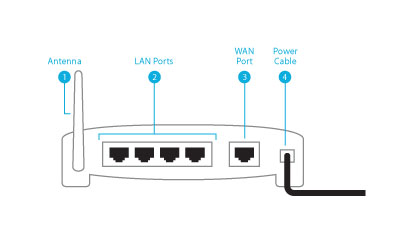
How to Set Up a WiFi Router Step by Step
Setting up a WiFi router is easier if you follow the process in order. I always tell people to take it one step at a time, like building a chair before you sit on it.
1. Place the Router in the Right Spot
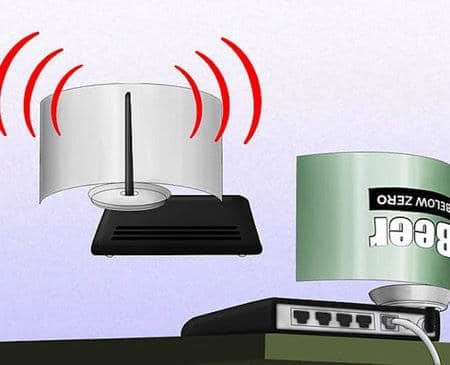
Put the router in a central, open area if possible. Avoid hiding it in a closet, behind a TV, or on the floor. WiFi signals move best when the router has fewer obstacles.
A few practical placement tips:
• Keep it off the floor
• Avoid thick walls and metal objects
• Place it away from microwaves and cordless phones
• Position antennas upright if your router has them
In one home I helped, moving the router from a corner cabinet to a hallway shelf improved signal in two bedrooms right away. Placement often matters more than people think.
2. Connect the Modem and Router
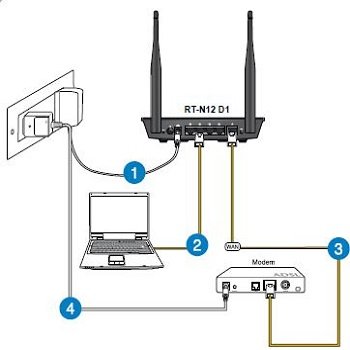
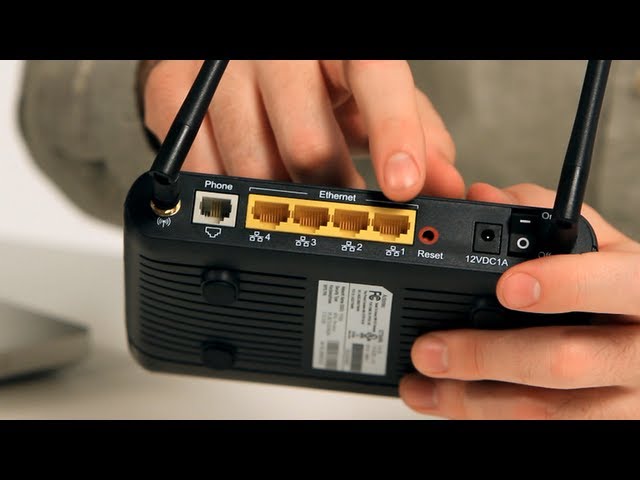
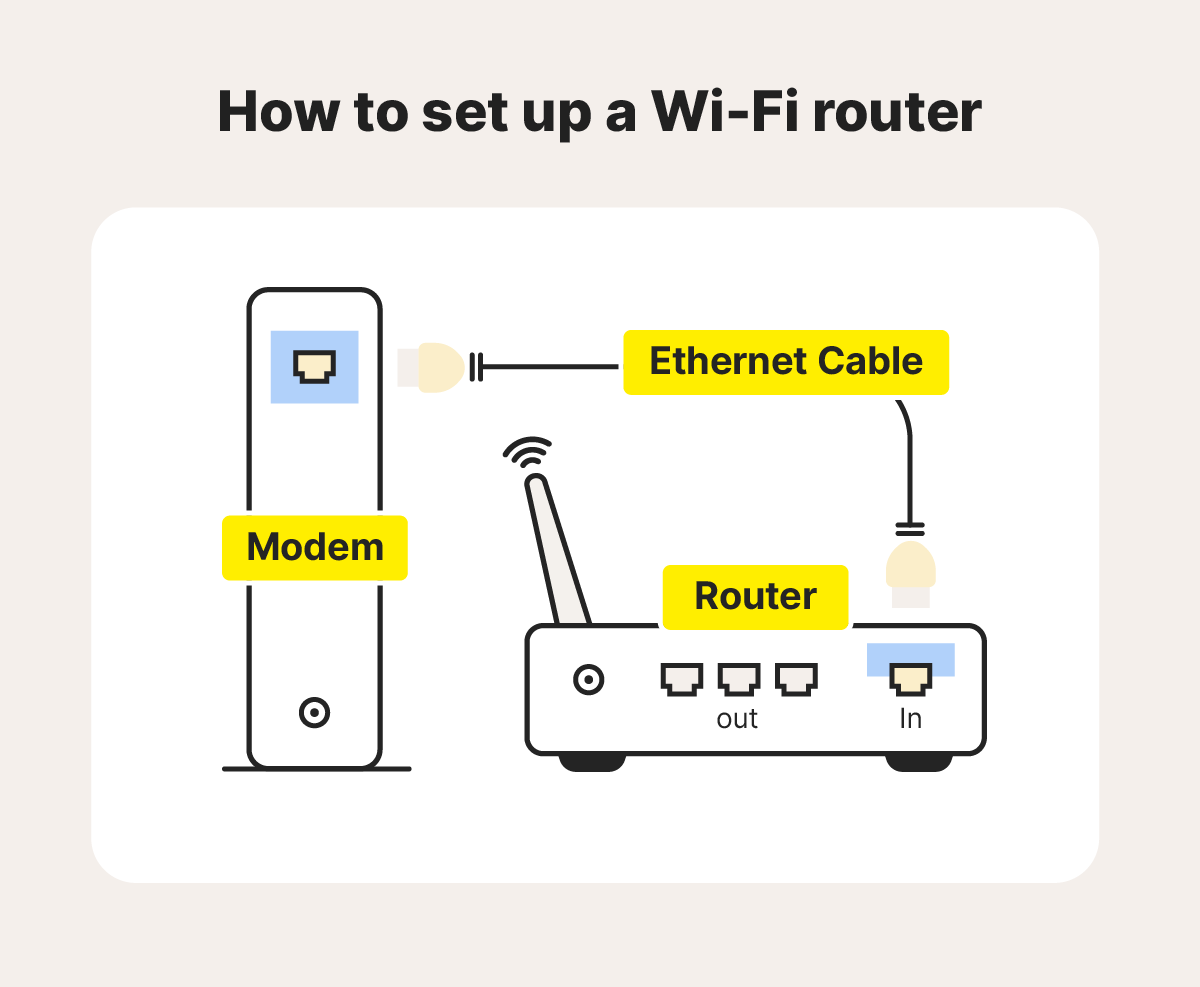
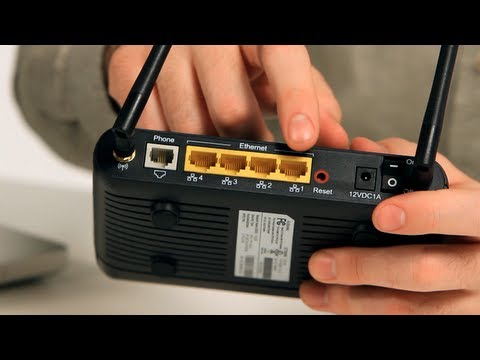
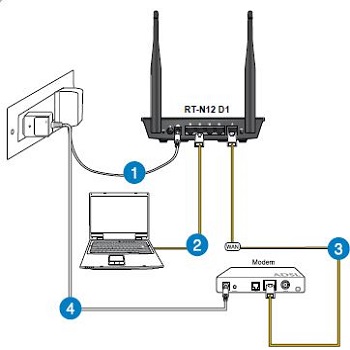
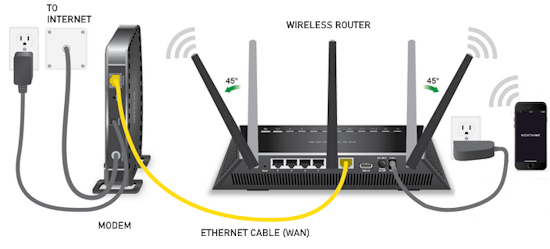
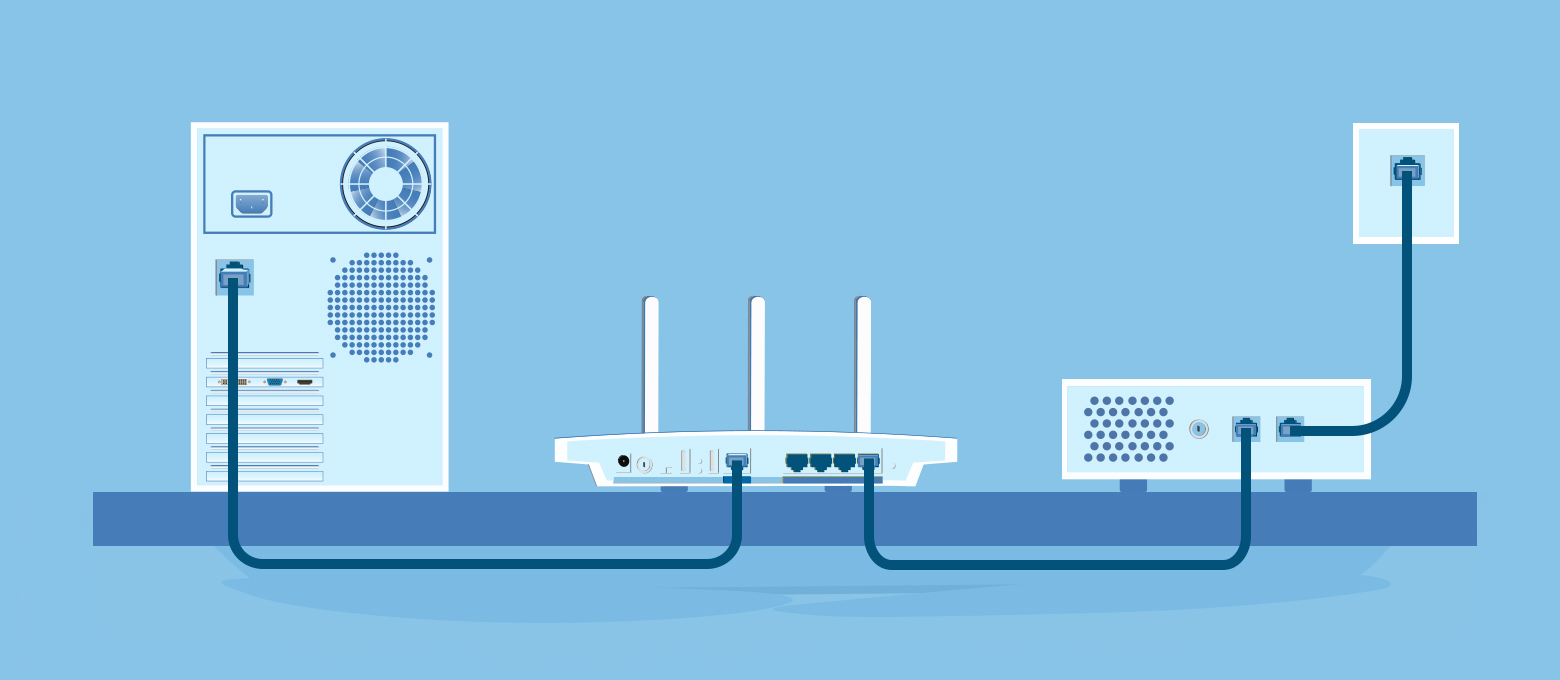
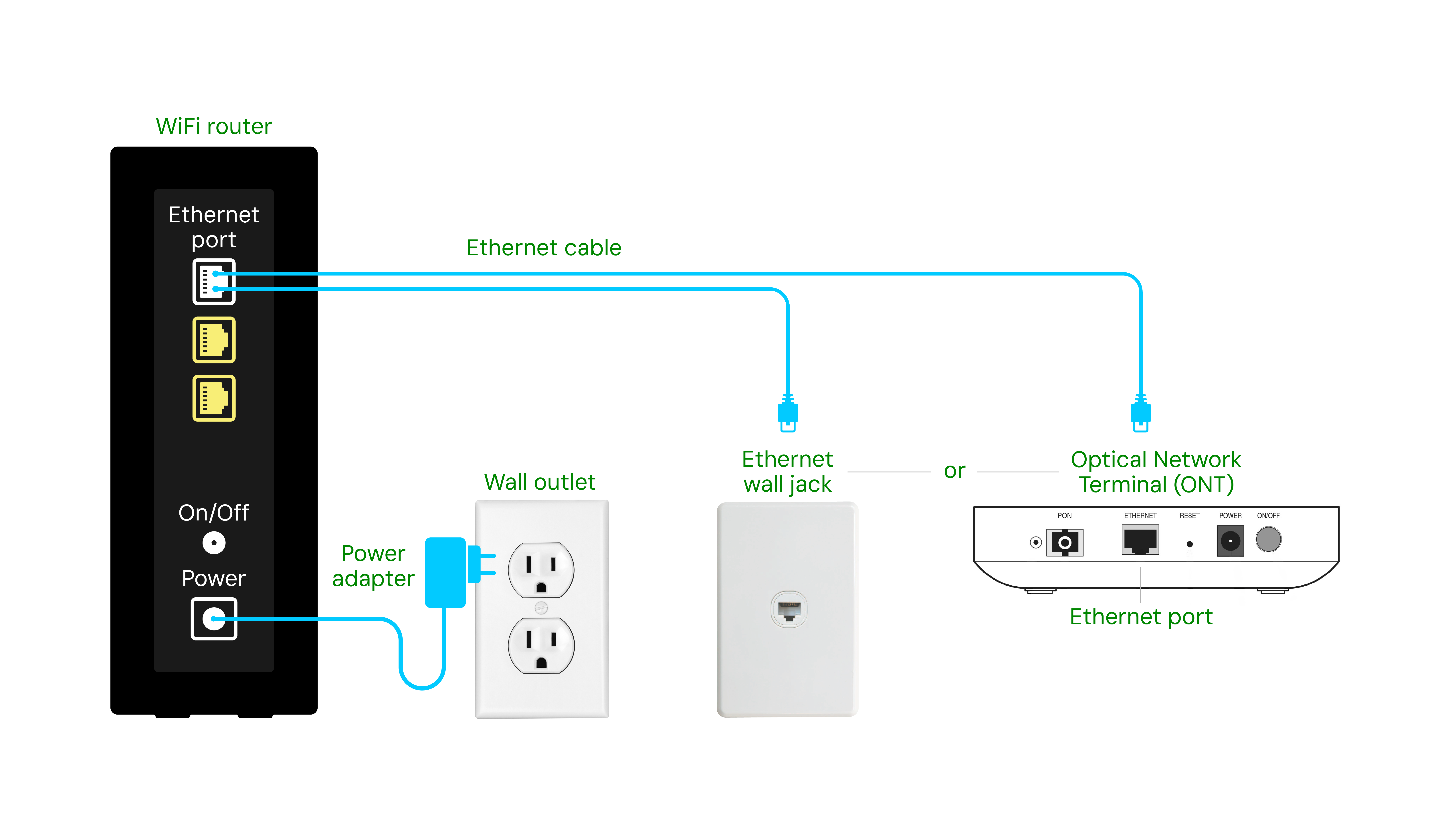
If you have a separate modem, connect it to the router using an Ethernet cable. Plug the cable into the modem’s LAN or Ethernet port and into the router’s WAN or Internet port.
Then plug both devices into power. If your modem and router are separate, turn on the modem first and wait until it fully boots. After that, power on the router.
If you have a modem-router combo, skip the modem-to-router cable step unless your provider instructions say otherwise. Always check your device labels because port names can vary.
3. Connect Your Device to the Router
Use a phone, laptop, or tablet to connect to the router’s default WiFi network. The network name and default password are usually printed on a sticker on the router.
If the router does not broadcast WiFi right away, you may need to connect with an Ethernet cable first. That gives you a direct path into the setup page.
4. Log In to the Admin Panel
Open a browser and enter the router’s default IP address or setup address. Common ones include 192.168.0.1, 192.168.1.1, or a manufacturer-specific web address.
You will usually log in with a default username and password. These are also printed on the router label or in the setup guide.
After logging in, change the default admin password right away. That step is one of the most important parts of setting up a WiFi router securely.
5. Run the Setup Wizard
Most modern routers have a setup wizard that walks you through the basics. It may ask for your internet type, timezone, network name, and wireless password.
Follow the prompts carefully. If your router detects your internet connection automatically, the process may be very fast. If not, you may need to enter PPPoE or other login details from your internet provider.
6. Set Your WiFi Name and Password
Choose a clear network name, also called the SSID. Avoid using your full name, apartment number, or anything too personal.
Create a strong password with a mix of letters, numbers, and symbols. A strong password helps keep neighbors, strangers, and random devices off your network.
A simple rule I use is this:
• Easy to type
• Hard to guess
• Not reused from another account
7. Choose the Right Security Mode
Use WPA3 if your router and devices support it. If not, WPA2 is still widely used and far better than older options like WEP or open networks.
Security mode matters because it controls how your wireless traffic is protected. Weak security can make your network easier to attack.
8. Update the Router Firmware
Firmware updates fix bugs, improve stability, and sometimes improve security. Many routers check for updates automatically in the admin panel.
If updates are available, install them before you finish. I’ve seen outdated firmware cause random drops, odd restarts, and strange pairing problems with smart devices.
9. Restart and Test the Connection
After saving your settings, restart the router if the system asks for it. Then test the internet on a few devices in different rooms.
Check for:
• Stable connection
• Good speed
• Reliable WiFi name and password
• Proper access from mobile and laptop devices
If something is off, do not panic. Small setup issues are common and usually easy to fix.
How to Improve WiFi Performance After Setup
Once the router is running, a few extra tweaks can make a real difference. This is where many people turn a basic setup into a much better home network.
Use the Best Band for Your Devices
Many routers support 2.4 GHz and 5 GHz bands, and some newer ones support 6 GHz too. The 2.4 GHz band travels farther but is often slower and more crowded. The 5 GHz band is usually faster at shorter distances.
Use 2.4 GHz for:
• Farther rooms
• Smart home devices
• Basic browsing
Use 5 GHz for:
• Streaming
• Gaming
• Video calls
If your router supports band steering, it may automatically move devices to the best band. That can simplify things a lot.
Rename the Network if Needed
If your router creates separate names for each band, make them easy to identify. A simple naming pattern helps you connect to the right signal quickly.
For example:
• HomeWiFi
• HomeWiFi_5G
This is not required, but it can make life easier, especially in busy homes.
Adjust Channel Settings
If you live in an apartment or a dense area, WiFi interference can slow you down. Changing the wireless channel can help.
Many routers handle this automatically, but manual channel changes sometimes improve performance. In practice, I’ve seen channel tuning help when neighbors’ networks were crowding the same band.
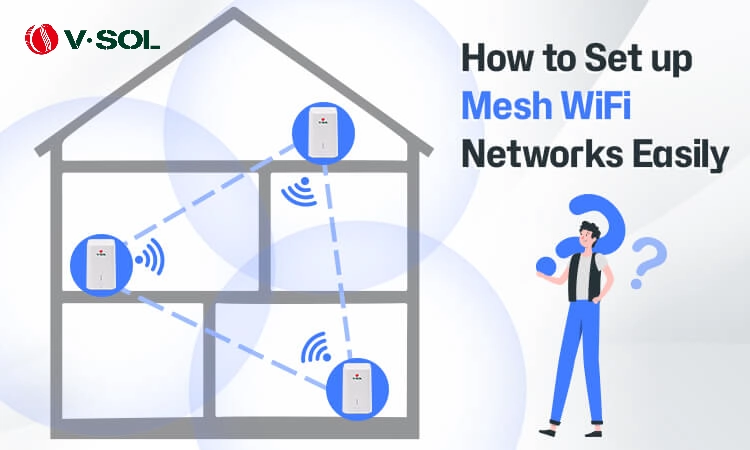
Add a Mesh System or Extender if Needed
If you have dead spots, a mesh system may be better than a simple extender. Mesh systems create a more seamless network across larger spaces.
Use an extender only when you need a low-cost fix for a smaller problem. They can help, but they sometimes reduce speed if placed poorly.
Common WiFi Router Setup Mistakes to Avoid
A lot of setup problems come from small mistakes. The good news is that most of them are easy to avoid.
Watch out for these:
• Leaving the router in a closed cabinet
• Using the default admin password
• Skipping firmware updates
• Choosing a weak WiFi password
• Placing the router near interference sources
• Forgetting to restart the modem and router in the right order
One of the most common mistakes I’ve seen is people setting up the router too quickly and never checking the admin login details later. If you forget those credentials, future changes become a hassle.
Another common issue is assuming one router can cover every corner of a large house. Sometimes the router is fine, but the home layout needs extra support.
Troubleshooting a WiFi Router Setup
If your WiFi router does not work after setup, start with the basics. Most problems have simple causes.
Try these steps:
• Check that the modem has an active internet signal
• Confirm all cables are fully inserted
• Restart the modem and router
• Make sure WiFi is turned on in the router settings
• Test with one device at a time
• Move closer to the router to rule out range issues
If the router lights show no internet connection, the problem may be with the modem or service line rather than the router itself. If your setup page will not load, try using a different browser or connecting with Ethernet.
When I troubleshoot a weak connection, I usually work from the wall inward: service, modem, router, device. That sequence saves time and avoids confusion.
Security Tips for a Safer Home Network
Security should not be an afterthought. A WiFi router is the front door to your home network, so it deserves a solid lock.
Use these best practices:
• Change the default admin username and password
• Use WPA2 or WPA3 encryption
• Create a strong WiFi password
• Turn off remote management if you do not need it
• Update firmware regularly
• Set up a guest network for visitors
A guest network is especially useful for smart speakers, guests, or short-term access. It keeps your main network cleaner and more private.
If you have children or work-from-home devices, a little extra setup can go a long way. It is like putting your valuables in a locked drawer instead of leaving them on the kitchen table.
When to Reset Your WiFi Router
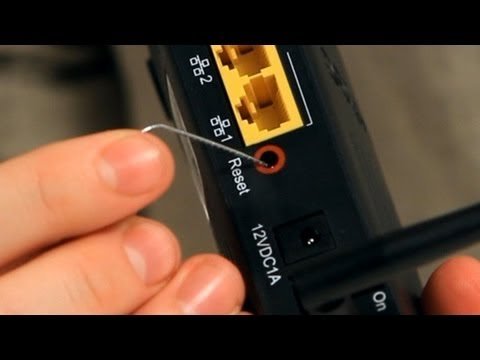
A reset can help when the router is acting strangely, but it should not be your first move. A simple restart is often enough for temporary issues.
Use a factory reset only when:
• You forgot the admin password
• The router setup failed badly
• The network is badly misconfigured
• You are giving the router to someone else
Keep in mind that a factory reset erases your settings. You will need to set up the WiFi router again from scratch.
Frequently Asked Questions of How to Set Up a WiFi Router
How long does it take to set up a WiFi router?
Most basic setups take 10 to 30 minutes. If your internet provider needs special login details or you are adding advanced settings, it may take a little longer.
Do I need a modem to set up a WiFi router?
Yes, in most homes you need a modem or modem-router combo to connect to the internet. The router shares that connection wirelessly with your devices.
Can I set up a WiFi router without a computer?
Yes, many routers can be set up with a smartphone or tablet. You can usually use a browser or the router’s app to complete the process.
Why is my WiFi router connected but there is no internet?
This often means the router is working, but the modem or internet line is not. Check the cables, restart both devices, and confirm that your service is active.
Should I use the same WiFi name and password as my old router?
You can, but changing them may help you start fresh and avoid confusion. If you have many devices, using the same credentials can make reconnection easier.
How often should I update my router firmware?
Check every few months, or enable automatic updates if your router supports them. Firmware updates are one of the easiest ways to keep the network secure and stable.
Conclusion
Setting up a WiFi router does not have to feel technical or stressful. Once you place it well, connect it correctly, secure the network, and check performance, you set yourself up for a smoother online experience.
The biggest lesson is simple: a thoughtful setup now can prevent weak signal, poor speed, and security problems later. If you take your time and follow the steps above, you will have a stronger and safer home network in no time.
If this guide helped you, try the setup on your router today, and share your experience or questions in the comments.

Similar Posts