How To Secure Your Home WiFi Network: Easy Steps
You can secure your home WiFi network by changing default settings, using strong encryption, and updating your router regularly.
A home network is like the front door to your digital life. If it is left wide open, strangers can peek in, slow your internet, or even reach your devices. I have seen many people assume their WiFi is “good enough” because the connection works, but security is what keeps the connection safe. This guide walks you through how to secure your home WiFi network with practical steps, simple language, and real-world advice you can use today.
Why Home WiFi Security Matters
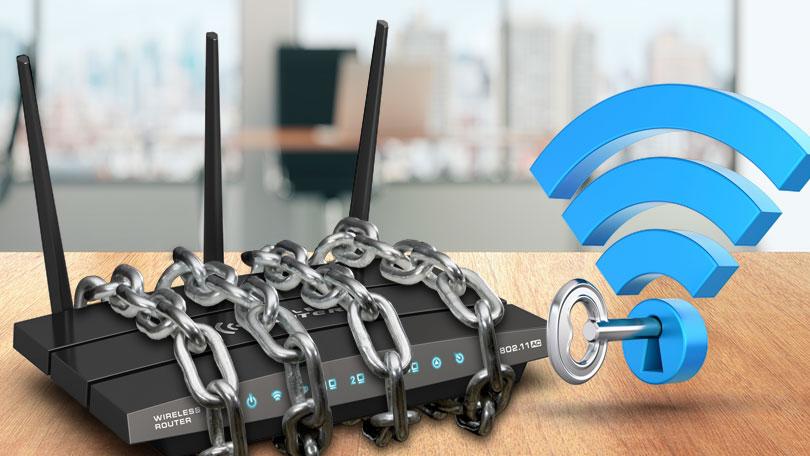
Your WiFi network is the bridge between your devices and the internet. If that bridge is weak, attackers may try to intercept your traffic, steal passwords, or use your network for their own activity. Even a neighbor guessing your password is enough to cause trouble, from slower speeds to privacy risks.
A secure home WiFi network helps protect:
• Personal data like bank logins, email, and photos
• Smart home devices such as cameras, speakers, and thermostats
• Work devices used for remote jobs and video calls
• Your internet speed and bandwidth from unauthorized use
I’ve also noticed that people often focus on antivirus software but forget the router itself. That is a common mistake. Your router is the gatekeeper, so learning how to secure your home WiFi network starts there.
Start With the Router Itself
The router is the heart of your home WiFi network. If it is not protected, the rest of your setup is at risk. Many routers ship with default settings that are meant to be changed, not left alone.
Here are the first things to check:
• Change the default admin username and password
• Set a unique network name, also called SSID
• Keep the router in a central place for better coverage and fewer weak spots
• Turn off remote administration unless you truly need it
Default router credentials are one of the most common weak points. Security groups and consumer tech guidance have long warned that attackers often try factory settings first. In my own experience, the fastest security win was always changing the admin login before anything else.
Use Strong WiFi Encryption
If you want to know how to secure your home WiFi network, encryption is one of the biggest pieces. Encryption scrambles your data so other people cannot easily read it as it moves through the air. Without it, your network is much easier to spy on.
Choose the strongest option your router supports:
• WPA3 is the best choice for most newer routers
• WPA2 is still acceptable if WPA3 is not available
• Avoid WEP and WPA, which are outdated and insecure
A strong password is only useful if the encryption is strong too. Think of encryption as the lock and the password as the key. If the lock is weak, even a good key does not help much.
Create a Strong WiFi Password
Your WiFi password should be long, unique, and hard to guess. A short password is like a flimsy screen door. It may look fine, but it will not stop much.
A strong password should:
• Be at least 14 to 16 characters long
• Mix uppercase and lowercase letters, numbers, and symbols
• Avoid names, birthdays, pets, and street names
• Not be reused from another account
A good trick is to use a passphrase. For example, a random line like “BlueLamp7!River$Toast” is easier to remember than a single strange word and much harder to crack. I often suggest this because people are more likely to stick with it.
Update Router Firmware Regularly
Firmware is the software inside your router. Just like your phone or laptop, it needs updates to fix bugs and security flaws. Many people never update their router, and that leaves holes open for attackers.
To keep your router current:
• Check the router app or admin page for updates
• Turn on automatic updates if your router supports them
• Review update notes when possible
• Replace very old routers that no longer receive support
This step matters more than many people think. Security researchers regularly find flaws in older networking gear, and vendors patch them over time. If your router is years old and no longer supported, updating may not be enough.
Change the Default Network Name
Your WiFi name, or SSID, should not reveal personal details. A network name like “SmithFamilyWiFi” or “JohnsHouse123” makes it easier for strangers to link the network to a household. That can be useful for social engineering or simple curiosity.
A better SSID is neutral and simple. You do not need to be clever. In fact, plain is usually safer.
Helpful tips:
• Avoid using your full name or address
• Do not include your router brand or model
• Keep it easy to identify inside your home
• Use separate names for guest and main networks if needed
Turn On the Guest Network
A guest network is one of the easiest ways to secure your home WiFi network. It gives visitors internet access without giving them access to your main devices. That means your laptop, printer, smart TV, and file shares stay more private.
Use a guest network for:
• Friends and family visiting your home
• Contractors or delivery staff who need short access
• Smart home devices that do not need full network access
• Temporary situations like parties or gatherings
If your router supports it, also isolate guest devices from one another. That adds another layer of safety. I’ve used guest networks in homes where people had lots of smart devices, and it made the setup cleaner and safer.
Disable WPS and Other Risky Features
WPS, or WiFi Protected Setup, was designed to make connecting devices easier. In practice, it has been a weak point on many routers. If you are serious about how to secure your home WiFi network, turning it off is smart.
Also review other features you may not need:
• Remote admin access
• UPnP, if it is not required
• Legacy support for very old WiFi devices
• Unused port forwarding rules
These settings are convenient, but convenience can create risk. I usually tell people to keep only the features they actually use. Less exposure means fewer chances for mistakes.
Secure Your Connected Devices Too
Your router can be strong, but a weak device can still cause problems. Every phone, laptop, smart TV, camera, and speaker connected to your WiFi is part of the network story. If one device is old or unpatched, it can become the soft spot.
Protect your devices by:
• Installing operating system and app updates
• Using screen locks and device passwords
• Removing old devices you no longer use
• Resetting smart devices before giving them away or selling them
This is where many households get surprised. They secure the router, then forget the baby monitor from five years ago is still online with its original password. That is the kind of detail attackers count on.
Use a Separate Network for Smart Home Devices
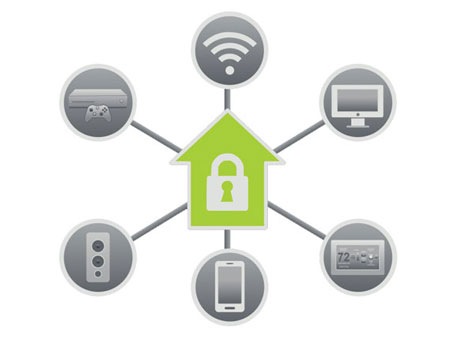
Smart home devices are convenient, but many of them are not built with top-tier security in mind. Cameras, plugs, bulbs, and voice assistants often need internet access, but they do not need access to your laptop files. Creating separation is a simple win.
If your router allows it, you can:
• Place smart devices on a separate SSID
• Use a VLAN or network isolation feature
• Keep work devices on the main trusted network
• Review device permissions in the app
This setup limits damage if one device is compromised. It is like locking certain rooms in a house even while guests are inside the front door.
Monitor Who Is Using Your Network
Checking connected devices is one of the best habits for home WiFi security. Most routers let you view all connected devices in the admin panel or app. If you see something you do not recognize, investigate it right away.
What to do:
• Review the device list weekly or monthly
• Rename known devices so they are easy to spot
• Kick off unknown devices and change the password if needed
• Enable alerts if your router supports them
A surprise device does not always mean a hacker, but it should never be ignored. Sometimes it is just an old tablet or a guest who was never removed. Still, a quick check can save a lot of stress later.
Back Up Your Router Settings
If your router fails, gets reset, or needs a full update, having a backup of the settings saves time. It also helps if you need to rebuild your network after a problem. This is a practical step many people skip until they need it.
Back up:
• WiFi names and passwords
• Guest network settings
• Port forwarding rules
• Parental controls or custom filters
A backup is not flashy, but it is useful. I learned this after helping someone recover from a failed update that wiped every custom setting. The recovery was much faster because the configuration had been saved.
Add Extra Protection for Remote Work and Banking
If you work from home or do a lot of banking online, your WiFi security matters even more. A secure router helps, but extra habits reduce risk further. Think of this as your second layer of defense.
Good habits include:
• Using a password manager for login credentials
• Turning on multi-factor authentication
• Avoiding public device sharing
• Keeping work and personal devices separate when possible
For sensitive tasks, a well-secured home WiFi network gives you a safer baseline. It will not replace account security, but it lowers the chance of interception or network misuse.
Common Mistakes to Avoid
People often make the same errors when learning how to secure your home WiFi network. The good news is that most of them are easy to fix.
Avoid these mistakes:
• Leaving the router on default admin credentials
• Using WEP or WPA security
• Reusing the same password for WiFi and other accounts
• Ignoring firmware updates
• Leaving WPS enabled
• Forgetting about guest access and old devices
These mistakes may seem small, but they stack up. Security is often about layers, not one magic setting. Each small fix makes the whole setup stronger.
A Simple Home WiFi Security Checklist
If you want a fast way to put this into action, use this checklist:
- Change the router admin username and password
- Switch to WPA3 or WPA2 encryption
- Set a strong, unique WiFi password
- Update the router firmware
- Rename the network SSID
- Turn on the guest network for visitors
- Disable WPS and unused features
- Review connected devices
- Secure smart home devices
- Back up your router settings
This checklist is a solid starting point for anyone asking how to secure your home WiFi network without getting lost in technical details.
Frequently Asked Questions of How to Secure Your Home WiFi Network
How often should I change my WiFi password?
You do not need to change it every month unless you suspect a problem. Changing it when someone leaves the household, after a device loss, or after a possible breach is usually enough.
Is WPA2 still safe to use?
Yes, WPA2 is still widely used and considered acceptable when WPA3 is not available. If your router supports WPA3, use that instead for stronger protection.
Should I hide my WiFi network name?
Hiding the SSID does not add much real security. It may reduce casual discovery, but a strong password and proper encryption matter far more.
Do I need a separate router for smart devices?
Not always, but a separate guest network or device network is a smart idea. It helps keep less secure devices away from your personal computers and files.
What is the biggest mistake people make with home WiFi security?
The biggest mistake is leaving the router on default settings, especially the admin password. That one issue can open the door to many other problems.
Conclusion
Securing your home network does not have to be complicated. Start with the basics: change the router login, use strong encryption, create a strong password, update firmware, and keep devices under control. Once those steps are in place, your home WiFi network becomes much safer and easier to manage.
The best time to improve your security is now, before a problem appears. Take ten minutes today to review your router settings, and then build from there. If you found this guide useful, explore more home security tips, subscribe for updates, or leave a comment with the step you plan to do first.