How To Change Your Router Password: Easy Security Guide
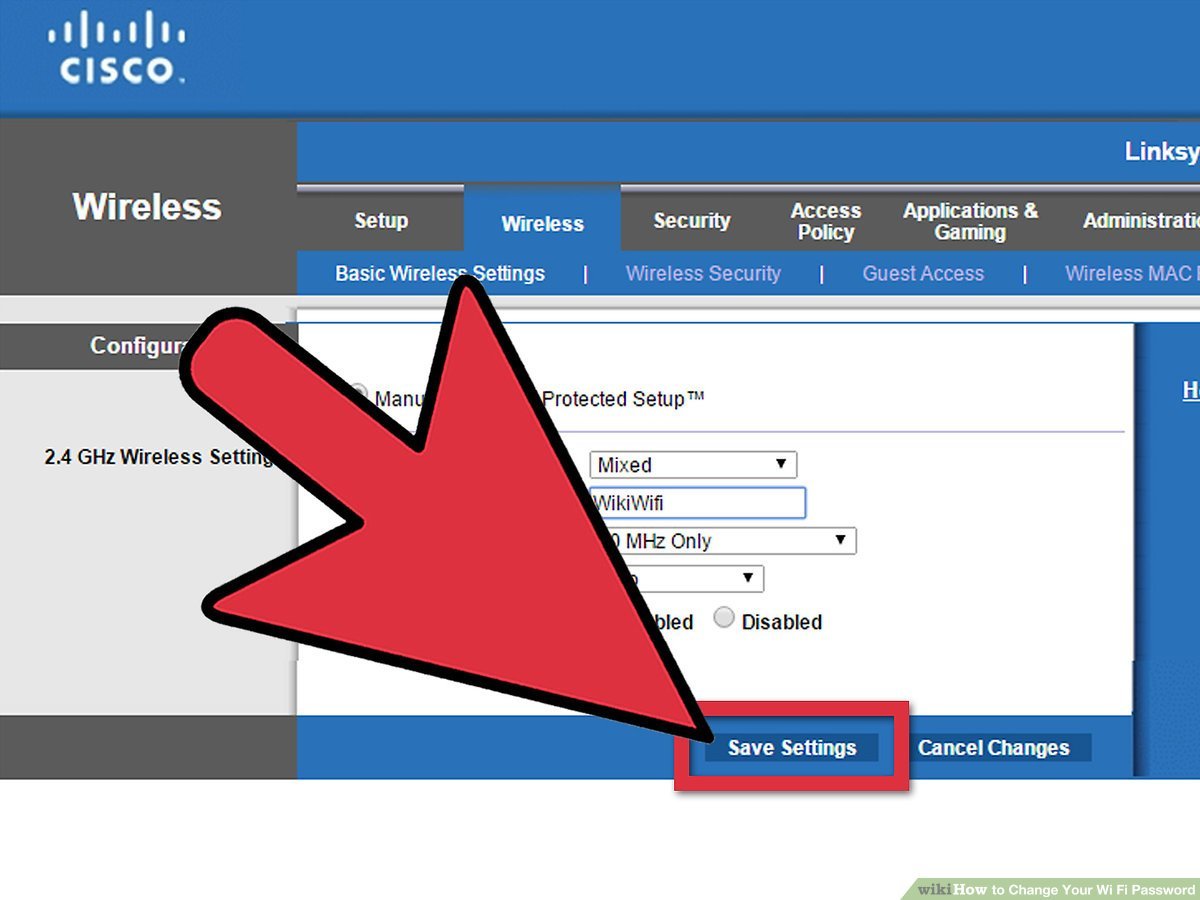
Changing your router password takes just a few minutes and protects your Wi-Fi from unwanted access.
If you have ever worried about neighbors piggybacking on your network, slow speeds from too many devices, or someone messing with your settings, changing your router password is one of the simplest fixes. I have walked people through this process many times, and the pattern is always the same: once they update the password, their network feels safer and easier to manage. In this guide, I’ll show you exactly how to change your router password, avoid common mistakes, and keep your home network more secure.

Why Changing Your Router Password Matters
Your router password is the key to your wireless network. If it is weak, shared too widely, or never changed, other people may be able to join your Wi-Fi without permission.
A strong router password helps you:
- Keep strangers off your network
- Reduce the risk of slow internet from unauthorized devices
- Protect your personal files, smart home gear, and connected devices
- Prevent someone from changing router settings
- Improve overall home network security
I once helped a friend who kept losing Wi-Fi speed every evening. The problem was not the internet plan. It was an old router password that a few neighbors had learned years earlier. Once we changed it, the network felt instantly more stable.
What You Need Before You Change Your Router Password
Before you start, gather a few basic details. This saves time and keeps the process smooth.
You will usually need:
- A phone, tablet, or computer connected to the router
- The router admin login details
- The current Wi-Fi password, if the router is already locked down
- The router brand and model, if you need help finding the right menu
You may also want to write down the new password before you begin. That way, you do not get locked out by a typo or forget the new login right after setting it.

How to Change Your Router Password
The exact steps can vary by brand, but the process is usually similar. Most routers let you change the Wi-Fi password or the admin password from a web dashboard or mobile app.
Step 1: Connect to Your Router
Make sure your device is connected to the router, either by Wi-Fi or Ethernet cable. If you are not connected, you may not be able to reach the settings page.
If your current Wi-Fi password already works, that is enough. If you are locked out, you may need to use a cable or reset the router.
Step 2: Find Your Router’s IP Address
Open a browser and enter the router’s local address. Common addresses include:
- 192.168.0.1
- 192.168.1.1
- 10.0.0.1
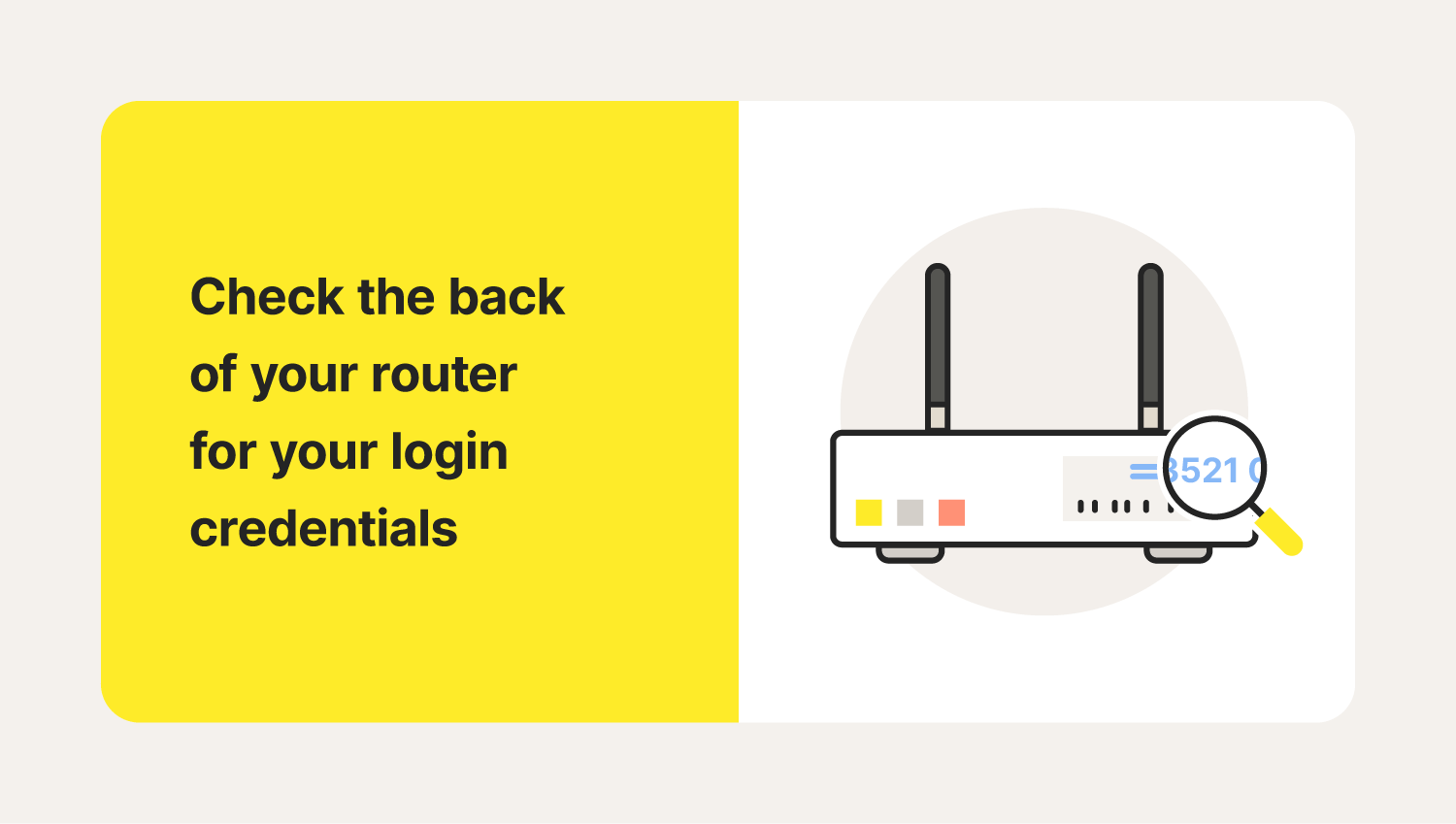
If none of those work, check the label on the router or look in the device manual. On many devices, the router IP is listed as “Default Gateway.”
Step 3: Sign In to the Admin Panel
Enter the admin username and password. This is not always the same as your Wi-Fi password.
If you never changed it, the login may still be the default printed on the router label. For security, many routers now require you to create a new admin password the first time you sign in.
Step 4: Open the Wireless or Wi-Fi Settings
Look for a menu called:
- Wireless
- Wi-Fi
- Network settings
- Security
- Wireless security
The naming changes by brand, but the setting you want is usually easy to spot once you are inside the dashboard.
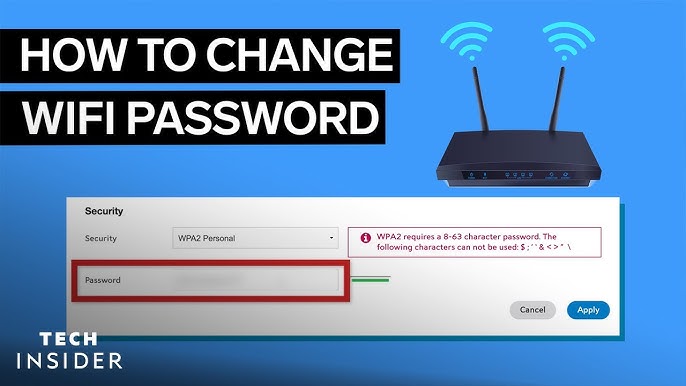
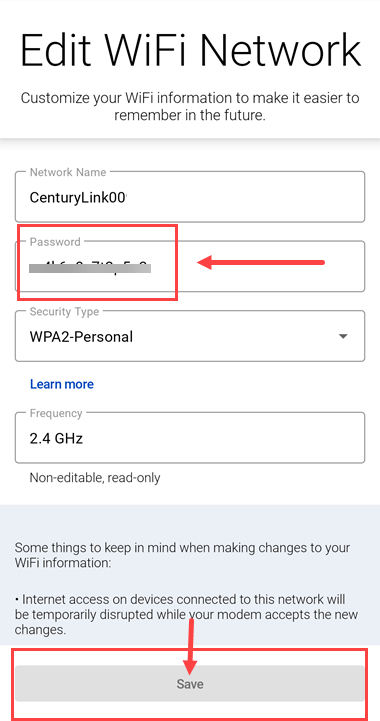
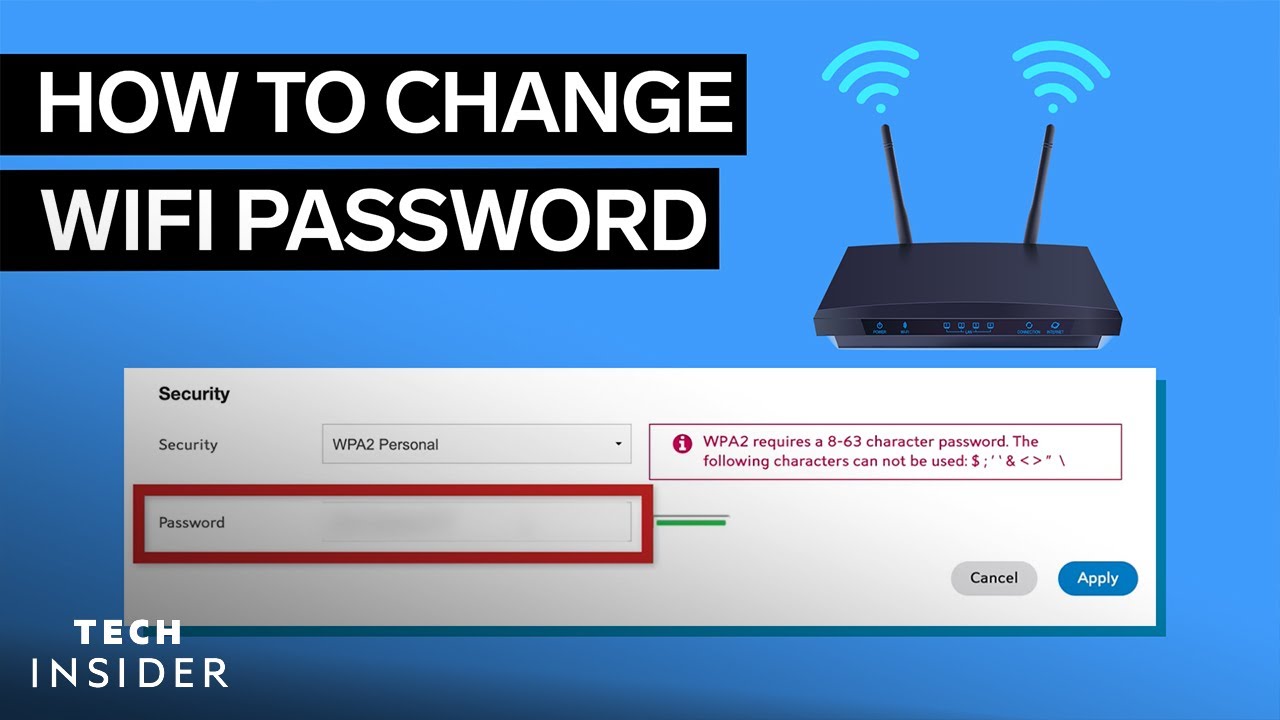
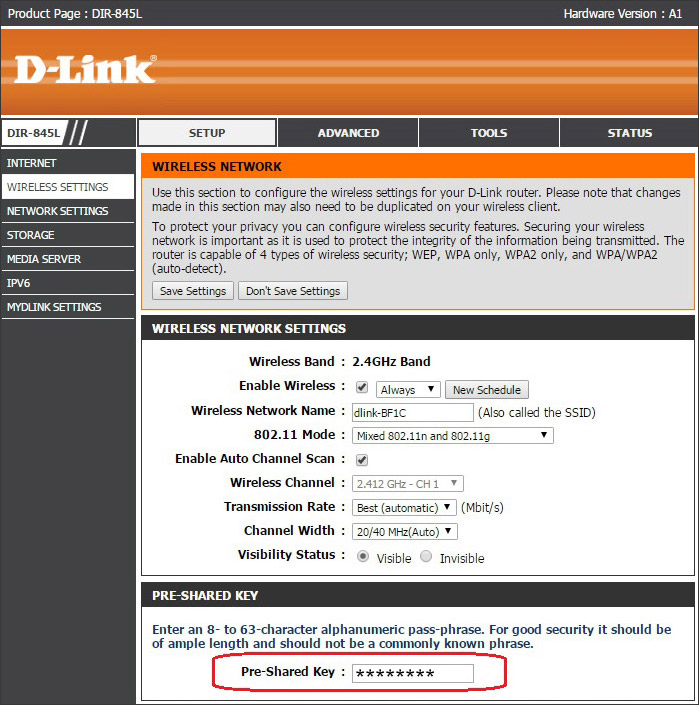
Step 5: Change the Wi-Fi Password
Find the password field, often labeled:
- Wi-Fi password
- Wireless password
- Network key
- Security key
- WPA key
Type in your new password, then save the changes. Use a strong password that is hard to guess but still easy for you to remember.
A good router password usually includes:
- At least 12 characters
- A mix of letters, numbers, and symbols
- No easy words like your name, street, or birthday
Step 6: Reconnect Your Devices
Once you save the new password, your phone, laptop, smart TV, and other devices will likely disconnect. Re-enter the new password on each one.
This part can feel annoying, but it is normal. Think of it like changing the locks on your front door. Everyone who belongs there gets a new key.
Step 7: Test the Connection
After reconnecting, open a website or stream a video to make sure everything works. If a device cannot connect, double-check the password and make sure you selected the correct Wi-Fi network name.
How to Change the Router Admin Password
Many people focus on the Wi-Fi password and forget the admin password. That is a mistake I see a lot, and it matters just as much.
The admin password protects the router settings page. If someone gets this login, they may be able to change your DNS, rename your network, or weaken your security.
To change it:
- Sign in to the router dashboard
- Look for Administration, System, or Management settings
- Find the admin password or router login section
- Create a strong new password
- Save the changes and store the new login in a safe place
If your router uses the same password for both Wi-Fi and admin access, consider separating them. That gives you better protection and cleaner control.
Tips for Creating a Strong Router Password
A weak password is like a flimsy lock on a good door. It may look fine, but it does not do much.
Here are simple rules I recommend:
- Use at least 12 to 16 characters
- Mix uppercase and lowercase letters
- Add numbers and symbols
- Avoid personal details
- Do not reuse a password from another account
- Make it unique for your router
A passphrase can work well too. For example, a long phrase with a few numbers and symbols is usually stronger than a short random word.
A helpful trick is to think of a sentence only you understand, then turn it into a password. That gives you strength without making it impossible to remember.

Common Mistakes to Avoid
Changing your router password is simple, but a few small mistakes can cause real frustration.
Watch out for these:
- Writing the new password wrong and locking yourself out
- Using the same password for Wi-Fi and admin access
- Choosing a weak password that is easy to guess
- Forgetting to update saved devices after the change
- Not keeping a secure record of the new admin login
I have seen people create a strong password, then immediately lose it because they typed it into the wrong notes app or forgot a capital letter. Slow down for one minute and save it carefully. That little habit can save a lot of trouble.

When You Should Change Your Router Password
You do not need to change it every week, but there are times when it makes sense.
Change your router password if:
- You shared it with guests and no longer want them connected
- You suspect someone is using your network
- Your internet is slower than expected and you see unknown devices
- You bought a used router
- You still use the default password
- You had a security incident or phishing scare
Many home security experts and device makers recommend replacing default credentials right away. That advice is practical, not alarmist. Default logins are one of the easiest things for attackers to try.
Extra Security Steps to Protect Your Wi-Fi
A strong router password is a great start, but it is not the whole story. A few more settings can make your network safer.
Consider these steps:
- Turn on WPA2 or WPA3 encryption
- Update the router firmware
- Disable remote management if you do not need it
- Change the default network name if it reveals your router brand or personal info
- Turn off WPS if you do not use it
- Review connected devices from time to time
These changes can feel technical, but most modern routers make them pretty easy. I usually compare it to locking the windows after you close the front door. One lock helps, but a few together work much better.
What to Do If You Forget the New Password
It happens. People save a new password, leave the room, and then realize they have no idea where they put it.
If you forget it, try these steps:
- Check your password manager or secure notes
- Look for a label if you wrote it down physically
- Log in with a device that already saved the password
- Use the router admin panel if you still know that login
- Reset the router as a last resort
A factory reset wipes custom settings, so use it only if needed. After a reset, you will have to set up the router again, including Wi-Fi name, password, and possibly internet settings.
Frequently Asked Questions
How often should I change my router password?
You do not need to change it on a strict schedule unless there is a security reason. A good time to update it is when you suspect unauthorized access, after a move, or if the password has been shared too widely.
Is my Wi-Fi password the same as my router admin password?
Not always. The Wi-Fi password lets devices join the network, while the admin password controls router settings. For better security, it is smart to make them different.
What if my router login page does not open?
Check that you are connected to the router and using the correct local IP address. If that still fails, restart the router or look for the default gateway in your device network settings.
Can I change my router password from my phone?
Yes, in most cases you can. Many routers let you sign in through a mobile browser or a manufacturer app, which makes the process easy from a phone.
Will changing my router password disconnect all my devices?
Yes, usually it will. Every device will need the new password, so plan a few minutes to reconnect your phone, laptop, TV, and smart home devices.
Conclusion
Changing your router password is one of the easiest ways to improve your home network security. It helps block unwanted users, protects your settings, and gives you more control over who gets online. If you also strengthen the admin login and update a few security settings, your router becomes much harder to misuse.
The best time to do it is now, before a weak password becomes a real problem. Take a few minutes, update your settings, and make a note of the new login in a safe place. If this guide helped, share it with someone who needs it or leave a comment with your router brand so I can help with the next step.

Similar Posts