How To Connect Bluetooth Speakers: Easy Step-By-Step Guide
Bluetooth speakers connect by putting both devices in pairing mode, then selecting the speaker from your phone or computer.
If you want a smooth setup, stable sound, and fewer pairing headaches, knowing how to connect Bluetooth speakers the right way makes all the difference. I’ve tested this in homes, offices, and outdoor setups, and the same small steps usually solve most issues before they turn into frustration.
:max_bytes(150000):strip_icc()/001-pairing-bluetooth-headset-to-iphone-577623-804069688d2a4164a7ee152b8c837db2.jpg)
What Bluetooth Speaker Connection Actually Means
Bluetooth speaker connection is a wireless link between your device and a speaker using short-range radio signals. Instead of a cable, your phone, laptop, tablet, or TV sends audio data over Bluetooth.
In simple terms, the devices “find” each other, agree to pair, and then stay connected until you turn one off or move too far away. Most modern speakers use Bluetooth Classic for audio, while some newer devices also support low-energy features for power savings and smart controls.
A good connection depends on a few things:
- The speaker is charged and turned on
- Your device has Bluetooth enabled
- The speaker is in pairing mode
- The speaker is close enough for a clean signal
When I first started setting up Bluetooth speakers for clients, the biggest surprise was how often the issue was not the speaker itself. It was something simple like an old pairing record, a muted device, or a speaker still connected to another phone.

How to Connect Bluetooth Speakers to a Phone
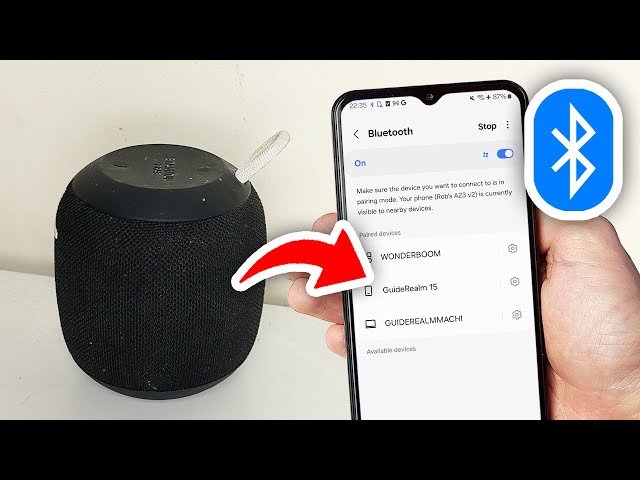
The easiest way to connect Bluetooth speakers is through your phone’s Bluetooth settings. The exact steps are almost the same on iPhone and Android, with only small menu changes.
Connect a Bluetooth speaker to iPhone
- Turn on the speaker.
- Put the speaker in pairing mode. This is often done by holding the Bluetooth button until a light flashes.
- Open Settings on your iPhone.
- Tap Bluetooth and make sure it is turned on.
- Look for your speaker under Other Devices.
- Tap the speaker name to pair.
If the speaker connects, it usually moves to My Devices. That means the pairing worked, and your phone should now play sound through the speaker.
Connect a Bluetooth speaker to Android
- Turn on the Bluetooth speaker.
- Put it into pairing mode.
- Open Settings on your Android device.
- Tap Connected devices, then Pair new device, or open Bluetooth directly.
- Wait for the speaker name to appear.
- Tap it and confirm pairing if needed.
On many Android phones, a small pop-up appears to finish the connection. If your speaker does not show up right away, wait a few seconds and refresh the list.
Best practices for phone pairing
- Keep the speaker within a few feet during first setup
- Turn off Bluetooth on nearby devices if the speaker keeps grabbing the wrong one
- Remove old pairing records if the speaker was used before
- Restart both devices if pairing fails
One lesson I learned the hard way: many speakers remember the last connected device. If that old device is nearby, the speaker may keep trying to reconnect to it instead of your phone.
How to Connect Bluetooth Speakers to a Laptop or Desktop
Connecting a Bluetooth speaker to a computer is just as easy, but the menu path can vary by operating system. The key is to make sure your computer supports Bluetooth or has a Bluetooth adapter.
On Windows
- Turn on the speaker and enter pairing mode.
- Open Settings.
- Go to Bluetooth & devices.
- Turn Bluetooth on.
- Click Add device.
- Choose Bluetooth and select your speaker from the list.
Once connected, Windows should send audio to the speaker automatically. If not, open Sound settings and choose the Bluetooth speaker as the output device.
On Mac
- Power on the speaker.
- Put it in pairing mode.
- Open System Settings.
- Select Bluetooth.
- Find the speaker in the available devices list.
- Click Connect.
After pairing, go to Sound settings if your Mac does not switch audio on its own. This is one of the most common fixes I use when someone says, “It connected, but I still hear nothing.”
Helpful computer tips
- Make sure Bluetooth is enabled in the system tray or settings menu
- Update Bluetooth drivers on Windows if the device never appears
- Disconnect headphones or other audio devices that may be taking over output
- Use a powered USB Bluetooth adapter if your desktop has weak Bluetooth support

How to Connect Bluetooth Speakers to a TV
A Bluetooth speaker can improve TV sound, but TV support varies. Some TVs have built-in Bluetooth audio, while others need an external adapter.
If your TV supports Bluetooth audio
- Turn on the Bluetooth speaker.
- Enter pairing mode.
- Open the TV settings menu.
- Go to Sound or Network settings.
- Find Bluetooth audio or Bluetooth speaker list.
- Select your speaker and confirm the pairing.
If the speaker connects but sound feels delayed, your TV may not handle Bluetooth audio well for movies or gaming. That delay is normal on some models, especially older ones.
If your TV does not support Bluetooth
You can use:
- A Bluetooth transmitter plugged into the TV’s audio output
- A soundbar with Bluetooth passthrough
- A streaming device with Bluetooth audio support
I’ve seen this solve a lot of “my TV won’t pair” complaints. In many cases, the TV is the issue, not the speaker.
How to Put a Bluetooth Speaker in Pairing Mode
Pairing mode is the step that lets your speaker become visible to other devices. Without it, your phone or laptop may never see the speaker.
Common ways to activate pairing mode include:
- Holding the Bluetooth button for 3 to 5 seconds
- Pressing the power and Bluetooth buttons together
- Using a dedicated pairing or source button
- Watching for a flashing light or tone
Different brands use different signals. Some speakers flash blue, others blink red and blue, and a few give a voice prompt like “pairing.”
If you are unsure, check the speaker’s buttons first. I usually tell people to look for the Bluetooth symbol before pressing random controls, because some speakers have similar buttons for power, input, and pairing.
Common Problems When Connecting Bluetooth Speakers
Bluetooth is simple on the surface, but a few issues can interrupt the connection. Most of them are easy to fix once you know what to look for.
Speaker not showing up
This usually means:
- The speaker is not in pairing mode
- Bluetooth is off on your phone or computer
- The speaker is already connected to another device
- The speaker is too far away
Try turning Bluetooth off and back on, then restart the scan.
Connected but no sound
This often happens when:
- Audio output is still set to the phone or laptop speakers
- Media volume is muted
- The app itself is paused or muted
- The speaker is connected for calls but not media
Check your sound output settings before assuming the speaker is broken.
Poor sound or dropouts
This may happen because of:
- Weak battery
- Distance or walls between devices
- Wi-Fi interference
- Too many nearby Bluetooth devices
Bluetooth works best in a clear line of sight. Thick walls, metal shelves, and crowded wireless spaces can reduce quality.
Speaker keeps disconnecting
Possible causes include:
- Low battery
- Old firmware
- Phone battery saver settings
- Signal interference
From experience, battery saver modes can be sneaky. They sometimes limit background wireless features and make the connection feel unstable.
How to Improve Bluetooth Speaker Sound and Stability
A clean connection is only part of the story. Good placement and settings can make a Bluetooth speaker sound much better.
Try these tips:
- Place the speaker at ear level when possible
- Keep it away from walls for fuller sound
- Avoid putting it next to routers or microwaves
- Charge the speaker before long use
- Use the latest firmware if the brand offers updates
If your speaker supports stereo pairing or multi-speaker mode, follow the brand instructions carefully. Some brands let you pair two speakers together for wider sound, but the setup order matters.
This is where many people get tripped up. They expect instant results, but speaker pairing often works best when you treat it like a small system, not just a one-time button press.
What to Know Before Buying or Using Bluetooth Speakers
Before you connect Bluetooth speakers, it helps to know what features matter most. Not every speaker is built for the same job.
Look for these features:
- Bluetooth version for better range and stability
- Battery life if you plan to move it around
- Water resistance for outdoor use
- Multipoint support if you switch between devices
- Voice prompts and easy controls for simpler setup
Bluetooth version can matter, but it is not everything. A well-built speaker with solid antennas and good software can outperform a newer model with poor design.
According to common Bluetooth standards used across consumer devices, audio performance depends on both hardware quality and how well the device manages wireless signals. That is why two speakers with similar specs can feel very different in real life.
Frequently Asked Questions of How to Connect Bluetooth Speakers
Why won’t my Bluetooth speaker connect to my phone?
The speaker may already be paired to another device, or it may not be in pairing mode. Restart both devices and forget the speaker in your phone’s Bluetooth list, then try again.
Can I connect two Bluetooth speakers at the same time?
Yes, but only if your speaker brand supports dual pairing, stereo mode, or party mode. Standard Bluetooth on most phones usually connects to one audio output device at a time.
Why is my Bluetooth speaker connected but silent?
This usually means the audio output is set incorrectly, the volume is low, or the app is muted. Check your device sound settings and make sure media audio is routed to the speaker.
How far can a Bluetooth speaker work from my phone?
Most Bluetooth speakers work best within about 30 feet in open space, though walls and interference can reduce that range. Real-world distance is often shorter indoors.
Do I need Wi-Fi to connect a Bluetooth speaker?
No, Bluetooth does not use Wi-Fi. It creates a direct wireless link between your device and the speaker.
How do I reset a Bluetooth speaker if it won’t pair?
Many speakers reset by holding the power and Bluetooth buttons together, but the method varies by brand. A reset clears old pairings and often fixes stubborn connection problems.

Conclusion
Learning how to connect Bluetooth speakers is really about a few simple habits: turn on pairing mode, keep devices close, and check audio settings if something feels off. Once you understand the basic flow, the process becomes fast and almost automatic.
The biggest wins come from small details, like clearing old pairings, watching battery levels, and placing the speaker in a good spot. If you follow those steps, you will save time and get better sound with far less stress.
Try the steps above the next time you set up a speaker, and you will likely notice the difference right away. If you found this guide helpful, explore more audio tips or leave a comment with the speaker model you are trying to connect.