How To Pair Noise-Canceling Headphones: Easy Steps
Pair noise-canceling headphones by turning on pairing mode, then connect them in your device’s Bluetooth settings.
If you have ever spent too long fighting a blinking light and a stubborn Bluetooth menu, you are not alone. Pairing noise-canceling headphones is usually simple once you know the right sequence, but the small details matter. In this guide, I’ll walk you through the process, explain why pairing sometimes fails, and share practical tips from real-world use so you can get a clean connection fast and enjoy the quiet sooner.
What Noise-Canceling Headphones Are and How Pairing Works
Noise-canceling headphones are designed to reduce outside sound, especially steady noise like airplane engines, fan hum, or train rumble. Most modern models use Bluetooth to connect wirelessly to phones, tablets, laptops, and TVs. When people search for how to pair noise-canceling headphones, they usually want a simple setup that works on the first try.
Pairing is the process of introducing the headphones to your device so they can remember each other. Think of it like exchanging phone numbers. After that first connection, your device can usually reconnect automatically when both devices are on and nearby.
A small but important detail is that noise canceling and Bluetooth pairing are two separate features. The Bluetooth link handles audio. The noise-canceling system handles sound blocking. You can use one without the other on some models, but both are often part of the same headset experience.
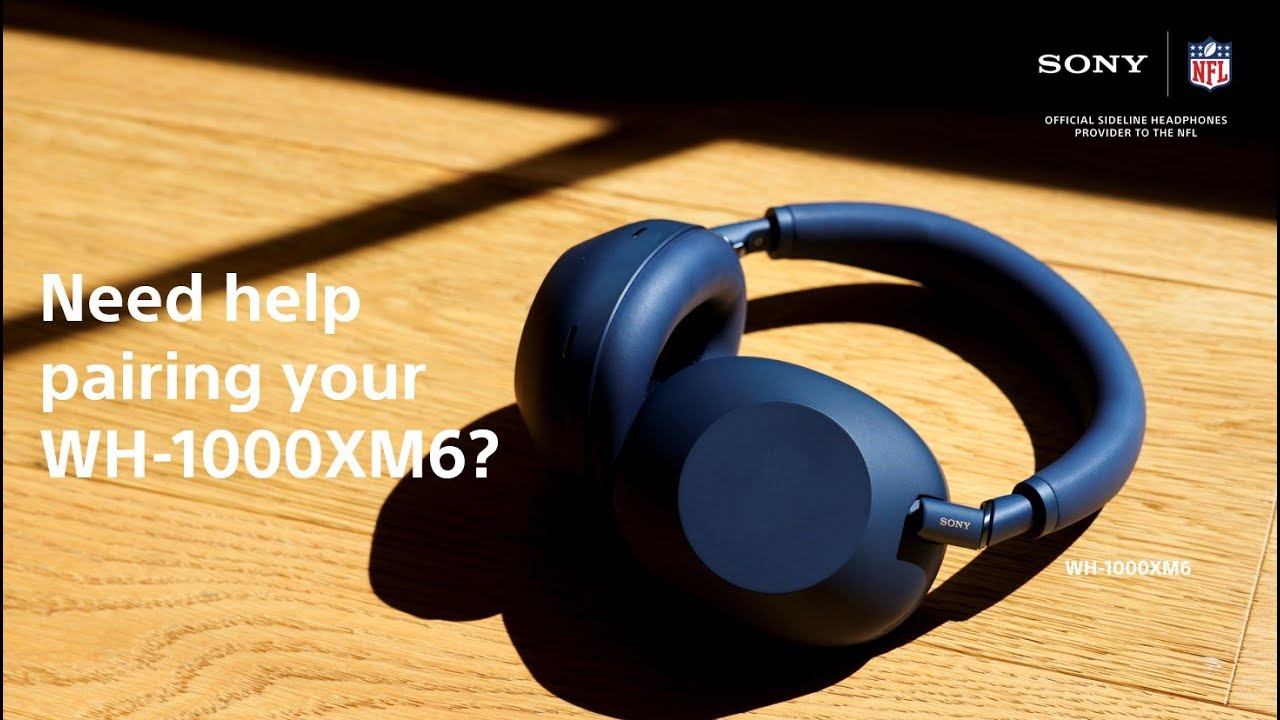
How to Pair Noise-Canceling Headphones Step by Step
The exact buttons can vary by brand, but the basic process is very similar across most headphones. I’ve paired dozens of models over the years, and the best results usually come from slowing down and following the sequence carefully.
Charge the headphones first
A low battery can cause pairing problems, weak signals, or random shutdowns.Turn the headphones on
Many models enter pairing mode when powered on for the first time. Others need a separate press.Put the headphones into pairing mode
Look for a flashing light, a voice prompt, or a long press on the power or Bluetooth button.Open Bluetooth settings on your device
On a phone, tablet, or computer, go to Bluetooth and start scanning for nearby devices.Select the headphones from the list
Tap or click the name of your headphones when they appear.Wait for confirmation
You may hear a sound, a voice message, or see a connected status on screen.Test the audio
Play music, a video, or a voice call to make sure the connection works.
If the headphones do not show up right away, stay calm. I’ve found that many “pairing problems” are really just timing problems. Turning Bluetooth off and back on, or repeating the pairing-mode step, solves a surprising number of issues.
How to Pair Noise-Canceling Headphones on Different Devices
Not every device handles Bluetooth in the same way. The good news is that the steps are still easy once you know where to look.
Pair with an iPhone or iPad
Open Settings, then Bluetooth, and make sure Bluetooth is on. Put the headphones in pairing mode and wait for the name to appear under Other Devices. Tap the name and wait for the connection to finish.
If you use Apple devices often, the connection may feel smoother after the first pairing. That happens because the device stores the headset and reconnects faster next time.
Pair with an Android phone
Open Settings, then Bluetooth or Connected Devices, depending on your phone model. Turn Bluetooth on, place the headphones in pairing mode, and select them from the list when they appear. Some Android phones also show a nearby devices pop-up, which makes pairing even easier.
I’ve noticed that some Android menus change a little from brand to brand. Samsung, Google Pixel, and OnePlus phones may label the menu differently, but the flow is still the same.
Pair with a Windows laptop
Open Settings, then Bluetooth & devices, and choose Add device. Select Bluetooth, then put the headphones into pairing mode. Click the headphone name once it appears.
If sound does not switch over right away, check the output device in your sound settings. Windows sometimes connects to the headphones for pairing but keeps audio on the laptop speakers until you change it manually.
Pair with a Mac
Open System Settings, then Bluetooth. Turn Bluetooth on, put the headphones into pairing mode, and click Connect when the device appears. After that, select the headphones as the sound output if needed.
Macs usually remember paired devices well. If the connection is flaky, removing the device and pairing again often fixes it.
Common Reasons Pairing Fails
Pairing problems can be frustrating, but most have a simple cause. The main trick is to stop guessing and check the usual trouble spots one by one.
Common causes include:
• The headphones are not actually in pairing mode
• The battery is too low
• The headphones are already connected to another device
• Bluetooth on the phone or laptop is turned off
• The device is too far away
• Too many saved Bluetooth devices are causing confusion
• A software bug is blocking the connection
One mistake I made early on was assuming the headphones were broken when they were just connected to my old laptop in another room. Many noise-canceling headphones can remember several devices, but they still tend to prefer the last one they used. That can make pairing feel random when it is really just automatic reconnection.
If you use your headphones with multiple devices, this is especially important. A headset may jump back to your tablet or work computer before it pairs with your phone. That is normal, but it can be annoying if you do not expect it.

How to Reset and Re-Pair Noise-Canceling Headphones
Sometimes the best fix is a reset. If you have tried pairing noise-canceling headphones several times and nothing works, a reset clears old connection data and gives you a clean start.
Here is a simple reset approach that works for many models:
- Turn the headphones off
- Hold the power button or the dedicated reset button for the required time
- Watch for a flashing light or a voice prompt that confirms reset
- Delete the headphones from your device’s Bluetooth list
- Reboot your phone, tablet, or laptop
- Pair again from scratch
Always check the user manual for the exact reset steps, since brands differ. Some models require holding two buttons at once. Others need a longer press than expected.
I usually recommend a reset only after the easy fixes fail. It is a bit like restarting a frozen app. It does not solve every issue, but it often clears out the glitch that is blocking a normal connection.
Tips for Better Bluetooth Connection and Sound Quality
A successful pairing is only the first step. A stable connection matters just as much, especially if you use your headphones for calls, work meetings, or travel.
Try these practical tips:
• Stay within about 30 feet of the source device for best results
• Keep walls, bags, and metal objects away when possible
• Avoid pairing in crowded wireless areas if you can
• Update your headphone firmware through the app, if available
• Update your phone or computer software regularly
• Remove old or unused Bluetooth devices from the memory list
A lot of people overlook firmware updates. In my experience, those updates often improve connection stability more than they improve anything flashy. They can also fix bugs tied to noise canceling, battery life, or auto reconnect.
Sound quality can also change based on which device you use. A high-quality source file, a strong Bluetooth codec, and a clean connection all help. If your headphones support advanced audio features, you may notice better performance on one device than another.
Using Noise-Canceling Features After Pairing
Once your headphones are paired, you can focus on the part people really care about: the quiet. Active noise canceling uses built-in microphones to listen to outside sound and reduce it with opposite sound waves.
After pairing, check whether your headphones have:
• A noise-canceling mode
• An ambient or transparency mode
• A companion app with extra controls
• Adjustable levels for noise reduction
These features can make a big difference in real life. On a plane, full noise canceling may be best. On a walk outside, transparency mode can be safer because it lets you hear traffic or announcements.
I like to think of noise canceling like dimming lights in a room. It does not erase every sound, but it lowers the noise enough to make music, podcasts, and calls much more comfortable. That is why pairing matters so much: without a solid Bluetooth link, you cannot enjoy the full benefit.
Best Practices for Multi-Device Pairing
Many modern noise-canceling headphones can connect to more than one device. This is useful if you want to listen on a laptop and still take calls from your phone. But multi-device pairing can also create confusion if you do not manage it well.
Keep these best practices in mind:
• Pair the most-used device first
• Remove duplicate or old pairings
• Turn off Bluetooth on devices you are not using
• Use the headphone app to manage connected devices, if available
• Test calls and media on each device after pairing
If your headphones support multipoint Bluetooth, they may connect to two devices at once. That can be very convenient, but it is not always perfect. Sometimes audio switches in a way you do not expect, especially when notifications arrive.
For work-from-home life, this feature is a real time saver. I have used it during meetings, and it is great when it works cleanly. Still, if you hear drops or strange switching, a single-device connection can be more stable.
When to Contact Support or Replace the Headphones
If you have reset the headphones, updated your devices, and still cannot pair them, there may be a hardware issue. That could mean a failing battery, a damaged Bluetooth chip, or a broken button.
Signs that point to a deeper problem include:
• The headphones never enter pairing mode
• The power light behaves strangely every time
• The device connects for a second, then disconnects
• The headphones will not charge properly
• The same problem happens on every phone or laptop
At that point, contact the manufacturer or retailer. If the product is under warranty, you may be able to get a repair or replacement. Trusted repair guidance and consumer protection advice from major electronics organizations often recommend checking warranty terms before trying advanced fixes yourself.
Being honest here matters: not every pairing issue is user error. Sometimes a device simply reaches the end of its life. That is frustrating, but it helps to know when troubleshooting should stop.
Frequently Asked Questions of How to Pair Noise-Canceling Headphones
How do I know my noise-canceling headphones are in pairing mode?
Most headphones show a blinking light, usually blue and red, or play a voice prompt that says they are ready to pair. If you do not see or hear that signal, hold the correct button again and check the manual for your model.
Why won’t my headphones show up in Bluetooth?
The most common reasons are low battery, weak pairing mode, or the headphones being connected to another device. Turn Bluetooth off and on again, then try a fresh scan after putting the headphones back into pairing mode.
Can I pair noise-canceling headphones with more than one device?
Yes, many models support multi-device pairing or multipoint Bluetooth. That said, some headphones only connect to one device at a time, so it helps to check the product specs before relying on that feature.
Do noise-canceling headphones work without Bluetooth?
Some models do, but only in wired mode if they include a cable connection. The noise-canceling feature may still work, but Bluetooth audio features and wireless controls will not be active unless the headphones are powered and connected properly.
Why do my headphones keep disconnecting after pairing?
This usually points to distance, interference, low battery, or outdated software. Try staying closer to the device, charging the headphones fully, and removing old Bluetooth pairings that may be causing conflict.
Conclusion
Learning how to pair noise-canceling headphones is mostly about patience, timing, and knowing where the common problems hide. Once you understand pairing mode, Bluetooth settings, and device conflicts, the process becomes much easier and far less stressful.
The real win is not just getting connected. It is getting reliable sound, better focus, and a calmer listening experience whether you are commuting, working, or relaxing at home. Try the steps above the next time your headphones act up, and you will likely save yourself a lot of guesswork.
If this guide helped, explore more headphone tips, bookmark it for later, or leave a comment with the model you use and the issue you ran into.

Similar Posts























[…] worth knowing: proper setup matters more than people think. Taking a few minutes to pair noise-canceling headphones correctly with your phone can affect mic performance, especially with newer Bluetooth […]