How To Improve Bluetooth Audio Quality: Easy Fixes That Work
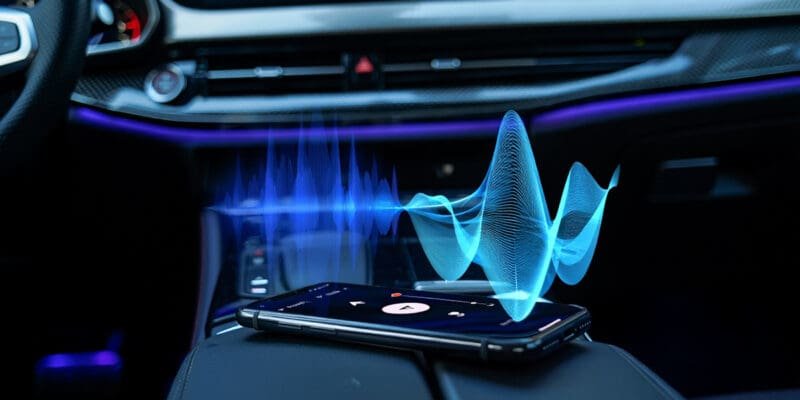
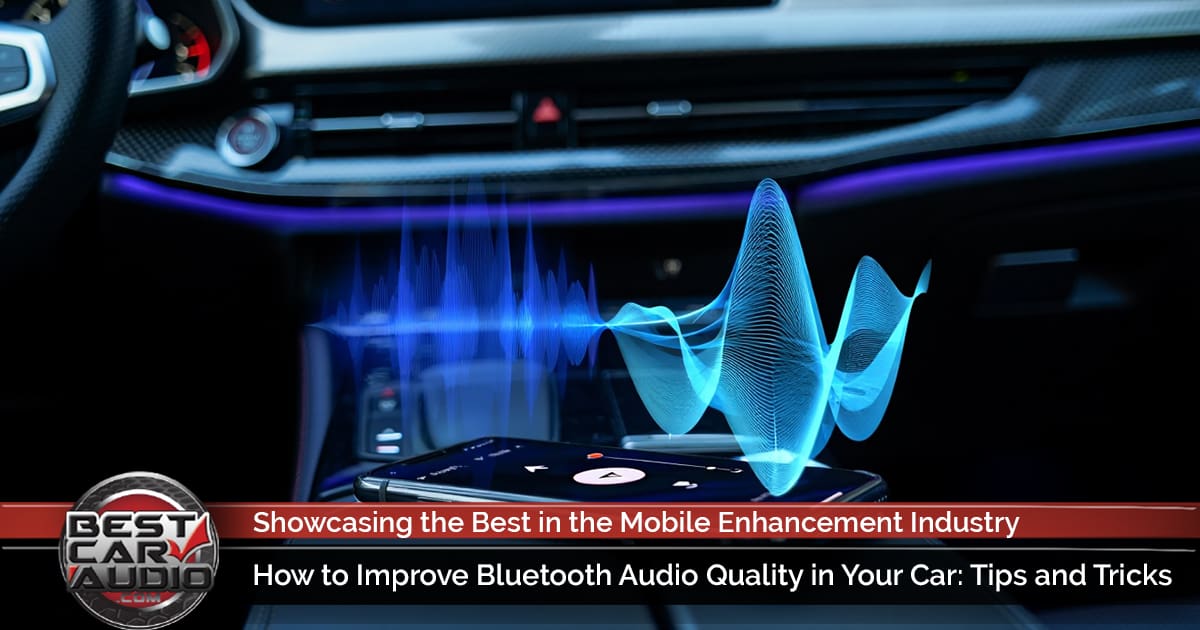
Bluetooth audio sounds better when you improve codecs, signal strength, and device settings together.
If you’ve ever had music that sounds thin, delayed, or oddly compressed over Bluetooth, you’re not imagining it. Bluetooth audio quality depends on a few moving parts working well at the same time, and small changes can make a surprisingly big difference. In this guide, I’ll walk you through how to improve Bluetooth audio quality with practical steps, real-world fixes, and a few lessons I’ve learned after testing gear in everyday use.

What Affects Bluetooth Audio Quality
Bluetooth audio quality is shaped by more than just the headphones or speaker you bought. The connection itself, the codec being used, your device settings, and even nearby interference all play a role. Think of it like a conversation through a walkie-talkie: if one part of the chain gets noisy, the whole sound gets worse.
The biggest factors usually include:
- Codec support, which controls how audio is compressed and sent
- Bluetooth version and antenna quality, which affect stability
- Distance and obstacles between devices, which can weaken the signal
- Source audio quality, which can limit how good the music sounds
- Device settings like EQ, volume, and power-saving modes
From my own testing, the most common mistake is blaming the headphones first. In many cases, the real problem is the phone, the app, or a weak wireless signal. Once you know what affects Bluetooth audio quality, it becomes much easier to fix.
Use the Best Bluetooth Codec Your Devices Support
One of the fastest ways to improve Bluetooth audio quality is to make sure your devices are using the best codec they both support. A Bluetooth codec is the method used to compress and transmit audio. Common codecs include SBC, AAC, aptX, aptX HD, aptX Adaptive, and LDAC.
In simple terms:
- SBC is the basic default codec and works almost everywhere
- AAC often sounds better on Apple devices and many streaming services
- aptX and aptX HD can offer cleaner sound on supported Android devices
- LDAC can deliver higher bit rates on compatible devices
- aptX Adaptive tries to balance quality and connection stability
I’ve seen people buy expensive headphones and never notice they are still stuck on SBC because of device settings. That’s like buying a sports car and driving it in first gear. Check your phone, tablet, laptop, and headphone specs to see what codec is actually active.
A few things to keep in mind:
- Both the transmitter and receiver must support the same codec
- Codec support can change depending on the app, operating system, or battery mode
- Higher-quality codecs may sound better, but they can also be less stable in crowded wireless areas
If your device supports it, try enabling the highest-quality codec available in developer or Bluetooth settings. Just remember that codec quality is only part of the picture.
Keep Devices Close and Reduce Interference
Bluetooth audio quality often drops because of distance and interference, not because the headphones are bad. Bluetooth works best when the source device and the receiver are close together with a clear path between them. Walls, bodies, bags, and even a pocket can reduce signal strength.
To improve Bluetooth audio quality in daily use:
- Keep your phone or computer within a few feet of the headphones or speaker
- Avoid placing the device in a backpack or behind thick objects
- Turn off unused wireless devices nearby if they are causing congestion
- Stay away from microwaves, crowded Wi-Fi areas, and USB 3.0 hubs when possible
I once had a pair of earbuds that kept cutting out at my desk. The problem turned out to be a USB hub sitting right next to the Bluetooth dongle. Moving it a few inches made the audio instantly smoother. Small interference sources can be sneaky.
If your audio keeps stuttering, don’t ignore environmental factors. A strong codec cannot fully save a weak signal.

Update Firmware, Drivers, and Software
Outdated software can hurt Bluetooth audio quality more than many people realize. Manufacturers often release firmware updates to fix dropouts, improve stability, and refine codec performance. Operating system updates can also improve Bluetooth stack behavior on phones, tablets, and computers.
Make sure to update:
- Headphone or speaker firmware through the manufacturer app
- Phone, tablet, or computer operating system
- Bluetooth drivers on Windows laptops and desktops
- Music apps that may contain audio or streaming improvements
On Windows, I’ve seen audio problems improve after updating both the Bluetooth driver and the chipset driver. On mobile devices, firmware updates for earbuds often help with latency, balancing, and connection drops. It’s not glamorous, but it works.
Before buying new gear, check whether an update is available. Sometimes the fix is free and takes less than ten minutes.
Improve Source Audio Quality
Bluetooth audio quality can never be better than the audio you send into it. If your source file or stream is low quality, even the best headphones cannot create detail that isn’t there. This matters a lot with compressed music or low-bitrate streaming settings.
To get better source audio:
- Use high-quality streaming settings in apps like Spotify, Apple Music, or YouTube Music
- Prefer lossless or high-resolution files when supported
- Avoid extremely compressed files like very low-bitrate MP3s
- Turn off data-saving audio modes if they reduce bit rate
A good rule I follow is simple: if the audio starts out muddy, Bluetooth will not magically fix it. It may even make the flaws more obvious. High-quality sources give Bluetooth a better base to work with.
Also, keep in mind that some streaming services adjust quality based on your connection or app settings. It’s worth checking those controls before assuming the headphones are the issue.
Adjust EQ and Audio Settings Carefully
Equalizer settings can make Bluetooth audio quality seem much better, but they can also make things worse if pushed too far. A little tuning can add clarity, warmth, or bass. Too much boost can cause distortion, especially on smaller earbuds and portable speakers.
Useful audio adjustments include:
- Lowering bass if the sound is muddy
- Raising mids slightly for clearer vocals
- Adding a small treble boost for detail
- Avoiding extreme EQ curves that overwork the drivers
In my experience, people often chase bigger bass when what they really want is cleaner sound. A bloated low end can hide vocals and make Bluetooth audio feel less detailed. Sometimes the best fix is not more bass, but less of it.
Also check for:
- Loudness enhancement settings
- Spatial audio modes that may change balance
- Sound normalization features that can flatten dynamics
A clean, modest EQ usually beats a dramatic one.
Match Your Devices Correctly
Bluetooth audio quality can suffer when devices are paired in awkward ways or when a connection is half-broken. If you’ve used the same headphones with many devices, old pairing data can cause odd behavior. Re-pairing often clears up strange glitches.
Try this:
- Forget the device on both ends
- Restart both devices
- Pair again from scratch
- Test with a different phone or laptop to compare results
This simple reset fixes more problems than people expect. I’ve had earbuds that sounded dull for weeks, and a fresh pairing made them behave normally again. When Bluetooth acts inconsistent, a clean start can do wonders.
If you use multipoint pairing, note that connecting to two devices at once can sometimes reduce stability or quality. If sound is your priority, try connecting to only one device and see if it improves.
Use Better Hardware When Needed
Sometimes the honest answer is that the hardware is the bottleneck. Not every Bluetooth device supports modern codecs, strong antennas, or clean internal audio processing. A cheap adapter or older laptop can hold back even excellent headphones.
When shopping for better hardware, look for:
- Support for modern codecs like AAC, aptX Adaptive, or LDAC
- Bluetooth 5.0 or newer, though version alone does not guarantee sound quality
- Low-latency support if you watch video or game
- Good reviews for connection stability, not just sound
One mistake I see often is assuming Bluetooth version equals sound quality. That is only partly true. Bluetooth 5.x can help with range and efficiency, but codec support and implementation matter more for audio quality.
If you use a desktop or older laptop, a quality Bluetooth transmitter can improve Bluetooth audio quality a lot. The right adapter can be a small upgrade with a big payoff.
Improve Bluetooth Audio on Windows, Mac, Android, and iPhone
Different platforms handle Bluetooth audio in different ways, so the fix is not always the same.
On Windows:
- Update Bluetooth and audio drivers
- Use a high-quality USB Bluetooth adapter if the built-in one is weak
- Disable audio enhancements if they cause distortion
- Check the output format in sound settings
On Mac:
- Update macOS regularly
- Reconnect headphones if the codec seems stuck
- Keep other wireless devices away from the Mac
- Close apps that may be grabbing audio output
On Android:
- Check developer options for codec selection if available
- Turn off battery optimization for your audio app or earbuds app
- Try enabling high-quality codec options when supported
- Keep the app and system updated
On iPhone:
- AAC is often the main high-quality codec path
- Keep iOS updated
- Re-pair headphones if quality drops after an update
- Use trusted music apps with high-quality streaming settings
The big lesson here is that Bluetooth audio quality is platform-dependent. A fix that works on Android may not exist on iPhone, and vice versa. That is normal, not a sign that your gear is broken.
Best Habits for Better Bluetooth Audio Every Day
If you want better Bluetooth audio quality without deep tinkering, a few habits go a long way. These are the small things that keep sound clean and stable over time.
Try to:
- Keep firmware and software updated
- Use high-quality source audio
- Stay within a reasonable range
- Avoid crowded wireless environments when possible
- Re-pair devices if audio suddenly changes
- Use the right codec and not just the default one
In everyday life, the best Bluetooth audio setup is usually the one that stays simple. Fewer connection hops, fewer unnecessary settings, and a clean signal path usually win. That’s been true in my own testing more often than not.
Limitations of Bluetooth Audio
Even after you improve Bluetooth audio quality, there are limits. Bluetooth still compresses audio, and that means it will not always match wired playback for detail, dynamics, or pure fidelity. Some listeners will hear the difference more than others, especially with high-end headphones.
A few honest limitations:
- Bluetooth can introduce latency, especially in video or gaming
- Compression may reduce fine detail compared with wired audio
- Some codecs perform better only in ideal conditions
- Battery-saving settings can lower performance
That does not mean Bluetooth sounds bad. It means Bluetooth is a trade-off between convenience and perfection. If you know the limits, you can choose better gear and make smarter settings choices.
Frequently Asked Questions of How to Improve Bluetooth Audio Quality
Why does my Bluetooth audio sound muffled?
Muffled Bluetooth audio often comes from a weak codec, low source quality, or EQ settings that overboost bass. Interference and poor fit on earbuds can also make the sound seem dull.
Does Bluetooth 5.0 improve sound quality?
Bluetooth 5.0 can improve connection range and stability, but it does not automatically improve sound quality by itself. Codec support and device tuning matter more for audio performance.
Is wired audio always better than Bluetooth?
Wired audio usually has the edge for pure sound quality because it avoids Bluetooth compression. That said, modern Bluetooth headphones can still sound excellent for everyday listening.
Why do my Bluetooth headphones sound different on different devices?
Different devices may use different codecs, output levels, or Bluetooth implementations. That can change bass, clarity, and volume even with the same headphones.
Can a Bluetooth adapter improve sound quality on a PC?
Yes, a good Bluetooth adapter can help if your computer has a weak built-in Bluetooth radio. It may support better codecs, stronger range, and fewer dropouts.
Conclusion
Bluetooth audio quality is not just about buying better headphones. It’s about the whole chain: codec support, signal strength, software updates, source quality, and smart settings. When you improve those pieces one by one, the sound can get cleaner, steadier, and much more enjoyable.
If you want the biggest gains, start with the basics first: check your codec, update your devices, reduce interference, and use better source audio. Those simple steps solve most problems fast. Then fine-tune EQ and hardware only if you still need more improvement.
Try a few of these fixes today, listen closely, and notice what changes. If you found this guide helpful, share it, save it, or leave a comment with the Bluetooth issue you want to fix next.

Similar Posts