How To Reset Bluetooth Speakers: Easy Step-By-Step Guide
Resetting a Bluetooth speaker usually fixes pairing glitches, freezes, and connection problems fast.
Bluetooth speakers are simple on the outside, but inside they rely on saved connections, firmware, and memory that can get tangled over time. If you have ever had a speaker that will not pair, keeps dropping audio, or stays stuck in a weird mode, learning how to reset Bluetooth speakers can save you a lot of frustration. I have dealt with plenty of speakers that looked broken but only needed a proper reset, and the fix was often easier than people expect.
Why Bluetooth Speakers Need a Reset
A Bluetooth speaker stores connection history and settings so it can reconnect quickly. That is helpful most of the time, but it can also cause problems after software updates, power surges, or too many paired devices. When that happens, a reset clears the speaker’s memory and gives it a fresh start.
In my experience, resets are especially useful when a speaker works with one phone but not another, or when it pairs and then disconnects right away. Think of it like restarting a frozen laptop. The device is not always damaged. It just needs its memory cleared and its pairing process rebuilt.
What a Bluetooth Speaker Reset Actually Does
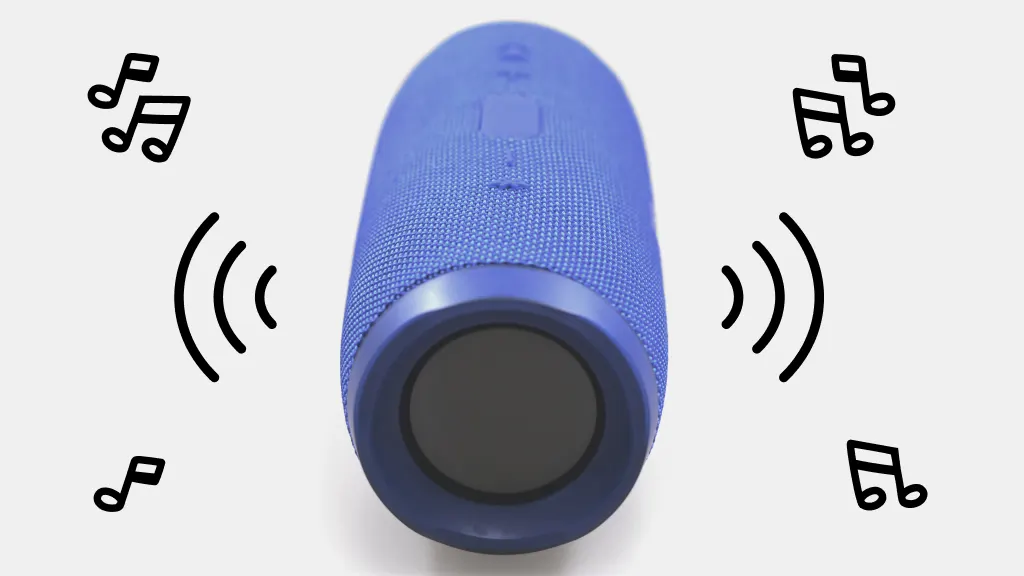
A reset is different from simply turning the speaker off and on. A power cycle restarts the device, but a reset usually clears saved Bluetooth pairings and sometimes restores factory settings. That means the speaker forgets old devices and returns to a clean state.
Depending on the brand, a reset may also clear volume memory, EQ settings, or voice prompts. Some speakers keep a small amount of stored data after a soft reset, while a full factory reset wipes more settings. This is why it helps to know which kind of reset your speaker supports before you start.
When You Should Reset Bluetooth Speakers
Resetting is a good idea when the speaker shows signs of software or pairing trouble. It is one of the first fixes I recommend before assuming the battery or hardware is bad.
Common times to reset Bluetooth speakers include:
- The speaker will not enter pairing mode.
- Your phone sees the speaker, but they will not connect.
- Audio cuts in and out for no clear reason.
- The speaker keeps reconnecting to an old device.
- Button presses stop responding properly.
- The speaker is acting strange after a firmware update.
- You want to erase all paired devices before giving it away or selling it.
A reset is not a cure-all, though. If the charging port is broken, the battery is dead, or the speaker has water damage, a reset will not fix that. Still, it is a smart and low-risk first step.
Before You Reset Bluetooth Speakers
A little prep can save you time later. Before you reset Bluetooth speakers, make sure you know the model name and have the charger nearby. Some speakers only reset when plugged in or when the battery is above a certain level.
Here is what to do first:
- Charge the speaker fully or at least above 50 percent.
- Turn off Bluetooth on nearby devices you used before.
- Forget the speaker from your phone, tablet, or laptop if possible.
- Check the manual or support page for the exact reset steps.
- Save custom EQ or sound settings if the speaker has them.
I learned this the hard way with a portable speaker that would not reconnect after a reset because my phone kept trying to restore the old pairing. Forgetting the device on the phone first made the next pairing clean and smooth.
How to Reset Bluetooth Speakers
The exact method depends on the brand, but most speakers use one of a few common reset patterns. If your model has a small reset pinhole, a special button combo, or a long-press power sequence, use the official instructions if you can find them. If not, these general methods cover many popular speakers.
Method 1: Soft Reset
A soft reset is the easiest place to start. It is often just a simple restart that clears minor glitches without removing all settings.
Follow these steps:
- Turn the speaker off.
- Wait 10 to 30 seconds.
- Turn it back on.
- Try pairing again.
This works well when the problem is temporary, like a frozen Bluetooth stack or a short connection bug. I use this first whenever a speaker was working fine earlier in the day and suddenly started acting up.
Method 2: Reset Through Button Combination
Many Bluetooth speakers use a button combination to trigger a reset. The most common method is pressing and holding the power button, Bluetooth button, or both at the same time for 5 to 15 seconds. Some models give a beep, flash lights, or power off when the reset begins.
Try these common patterns if your speaker supports them:
- Hold the power button and Bluetooth button together.
- Hold the volume up and volume down buttons together.
- Hold the multifunction button for 10 to 15 seconds.
- Hold the reset or pairing button until the light flashes rapidly.
If nothing happens, do not keep pressing random combinations for too long. Different brands use different commands, and repeated guessing can waste time. Check the manual or support guide if the first combination fails.
Method 3: Factory Reset
A factory reset is the strongest option. It wipes saved pairings and returns the speaker to default settings. This is the best choice when a speaker has persistent Bluetooth errors or when you want to erase all old connections before handing it to someone else.
Typical factory reset steps look like this:
- Power on the speaker.
- Press and hold the required buttons for 10 to 20 seconds.
- Wait for a light pattern, tone, or shutdown.
- Turn the speaker back on and pair it like new.
Some speakers may also need to be connected to power during the reset. If your device has a companion app, there may be a reset option inside the app as well. That is common with smart speakers and premium wireless audio brands.
Brand-Specific Reset Tips
Different brands use different reset methods, so it helps to know the basics before you press anything. I have seen people hold the wrong button for minutes and think the speaker is dead, when all they needed was the correct sequence.
Here are a few general brand-style patterns you may see:
- Bose often uses a combination of buttons during power on or a long press on multifunction controls.
- JBL commonly uses long presses on the volume and Bluetooth buttons.
- Sony speakers may use reset or update functions with specific button holds.
- Anker and Soundcore models often rely on the Bluetooth and volume buttons together.
- UE Boom style speakers may use power and volume button combinations.
Because models change often, always confirm the exact steps for your speaker. If you are not sure, the safest approach is to search the model number plus “reset” and follow the device manual.
How to Reset Bluetooth Speakers on Different Devices
The speaker itself is only half the story. Sometimes the issue lives on the phone, tablet, or laptop side. If the speaker reset did not fix the problem, you should also clear the old pairing on your device.
Do this on your phone or computer:
- Open Bluetooth settings.
- Find the speaker in the list of paired devices.
- Choose Forget, Remove, or Unpair.
- Turn Bluetooth off and back on.
- Pair the speaker again from scratch.
This matters because devices sometimes cling to old connection data. A clean reset works best when both sides forget each other and start fresh. That is one reason how to reset Bluetooth speakers often includes resetting the host device too.
Common Mistakes to Avoid
Resetting is simple, but a few mistakes can make it harder than it needs to be. I have seen people accidentally skip the pairing step, use the wrong button combo, or assume a reset failed when it actually worked.
Avoid these common mistakes:
- Resetting before checking the battery level.
- Not forgetting the speaker on your phone first.
- Holding the wrong buttons for the wrong amount of time.
- Trying to reset while the speaker is off if it requires power on.
- Confusing a restart with a full factory reset.
- Skipping the manual when the model is brand-specific.
It also helps to be patient after the reset. Some speakers need a few seconds to fully reboot and re-enter pairing mode. Rushing that step can make the whole process seem broken when it is really just slow.
Troubleshooting After a Reset
If the speaker still does not work after a reset, the issue may be deeper. The problem could be with Bluetooth version mismatches, device interference, battery failure, or firmware bugs. In rare cases, the speaker may need a software update or professional repair.
Try these follow-up steps:
- Charge the speaker fully.
- Test it with another phone or laptop.
- Move away from Wi-Fi routers, microwaves, or other interference sources.
- Update the speaker’s firmware if the brand offers an app.
- Restart your phone or computer.
- Test a different audio source and cable if the speaker supports AUX input.
This is where experience matters. When a reset does not solve the issue, I usually test the speaker with a second device right away. That quick check tells me whether the problem is with the speaker or the original phone.
Benefits of Learning How to Reset Bluetooth Speakers
Knowing how to reset Bluetooth speakers gives you more control and less stress. It can save you from unnecessary service calls, reduce downtime, and help extend the life of a device that still works well.
Key benefits include:
- Faster fixes for pairing problems.
- Cleaner device handoffs when sharing or selling a speaker.
- Better troubleshooting for audio glitches.
- Fewer stale Bluetooth connections.
- More confidence using your device day to day.
It is a small skill, but it pays off often. Once you know the reset process, you can handle common issues in minutes instead of spending hours guessing.
Best Practices to Keep Bluetooth Speakers Working Well
A reset should not be something you need every week. Good habits can keep a speaker stable and cut down on connection problems. This is especially true for portable models that travel a lot.
Try these simple habits:
- Keep the speaker charged regularly.
- Avoid storing it in hot or damp places.
- Remove old pairings you no longer use.
- Keep firmware updated when possible.
- Turn the speaker off when not in use for long periods.
- Handle the buttons gently to avoid wear.
I also like to pair speakers with only the devices I use most. Too many saved connections can cause confusion, especially in homes with several phones, tablets, and laptops.
Frequently Asked Questions
How do I know if my Bluetooth speaker needs a reset?
If the speaker will not pair, keeps dropping connection, or behaves oddly after an update, a reset is often the right move. It is also useful if the speaker still remembers old devices you no longer use.
Will resetting my Bluetooth speaker delete everything?
Usually, yes, at least the Bluetooth pairings and some stored settings. On many models, a factory reset clears most preferences, while a soft reset only restarts the speaker.
Why is my speaker not pairing after I reset it?
The most common reason is that the phone or laptop still remembers the old pairing. Forget the speaker on your device, restart Bluetooth, and try pairing again.
Can I reset a Bluetooth speaker without the power button?
Some models allow resets through button combinations, app controls, or a reset pinhole. If your speaker does not respond to the power button, check the manual for the exact method.
Is it safe to reset Bluetooth speakers often?
Yes, but only when needed. Repeated resets are not ideal, but they usually do not harm the speaker if you use the correct method and avoid forcing buttons.
Conclusion
Resetting a Bluetooth speaker is one of the simplest ways to fix pairing issues, strange behavior, and stubborn connection errors. Once you understand the difference between a soft reset, a factory reset, and a full unpairing process, the whole thing becomes much less intimidating.
The big takeaway is this: start with the easiest fix, follow the correct steps for your model, and clear the pairing from both the speaker and your phone when needed. If your speaker is still acting up after that, you will know the problem may be hardware or firmware related instead of just a connection glitch.
If this guide helped you, try the steps on your speaker today, bookmark it for later, or leave a comment with your model if you want help figuring out the right reset method.

Similar Posts
































[…] you're having trouble with a stuttering connection later, check out this quick troubleshooting guide that works for earbuds […]