How To Use A GaN Charger: Easy Fast Charging Guide
To use a GaN charger, match its power output to your device, connect a suitable cable, and let USB charging standards manage delivery.
Learning how to use a GaN charger is simple, but choosing the right port, cable, and power level matters. Gallium nitride chargers can be smaller, cooler, and more powerful than many older chargers. This guide explains the technology, setup steps, safety tips, common mistakes, and practical ways to get the best results.
What Is a GaN Charger?
A GaN charger uses gallium nitride instead of traditional silicon in key parts of its power system. Gallium nitride can switch power at high speeds and handle high voltage efficiently. This allows manufacturers to build smaller chargers without giving up useful power.
The charger still performs the same basic job. It changes electricity from a wall outlet into the type of power your phone, tablet, laptop, or other device needs.
When learning how to use a GaN charger, remember that “GaN” describes the internal material. It does not automatically tell you the charger’s wattage, port type, or charging standard.
A GaN charger may support:
• USB-C Power Delivery, often called USB PD
• USB-C Programmable Power Supply, or PPS
• Quick Charge for some Android devices
• USB-A charging
• Multiple charging ports
• Power outputs from about 20 watts to more than 200 watts
The charger and device communicate before high-speed charging begins. The device requests a safe power level, and the charger supplies it when both products support the same standard.

How to Use a GaN Charger Step by Step
Using a GaN charger usually takes less than a minute. Follow these steps to charge a phone, tablet, laptop, or other USB device.
1. Check your device’s power needs
Look at the device manual, original charger, or manufacturer’s support page. Find the recommended charging power in watts.
Common examples include:
• Basic phones: 5 to 20 watts
• Fast-charging phones: 25 to 80 watts
• Tablets: 20 to 45 watts
• Ultrabooks: 30 to 65 watts
• Larger laptops: 65 to 140 watts
• Handheld game consoles: about 30 to 65 watts
A higher-wattage charger is usually safe when it follows USB PD rules. A 65-watt GaN charger does not force 65 watts into a phone that needs only 18 watts.
2. Select the correct port
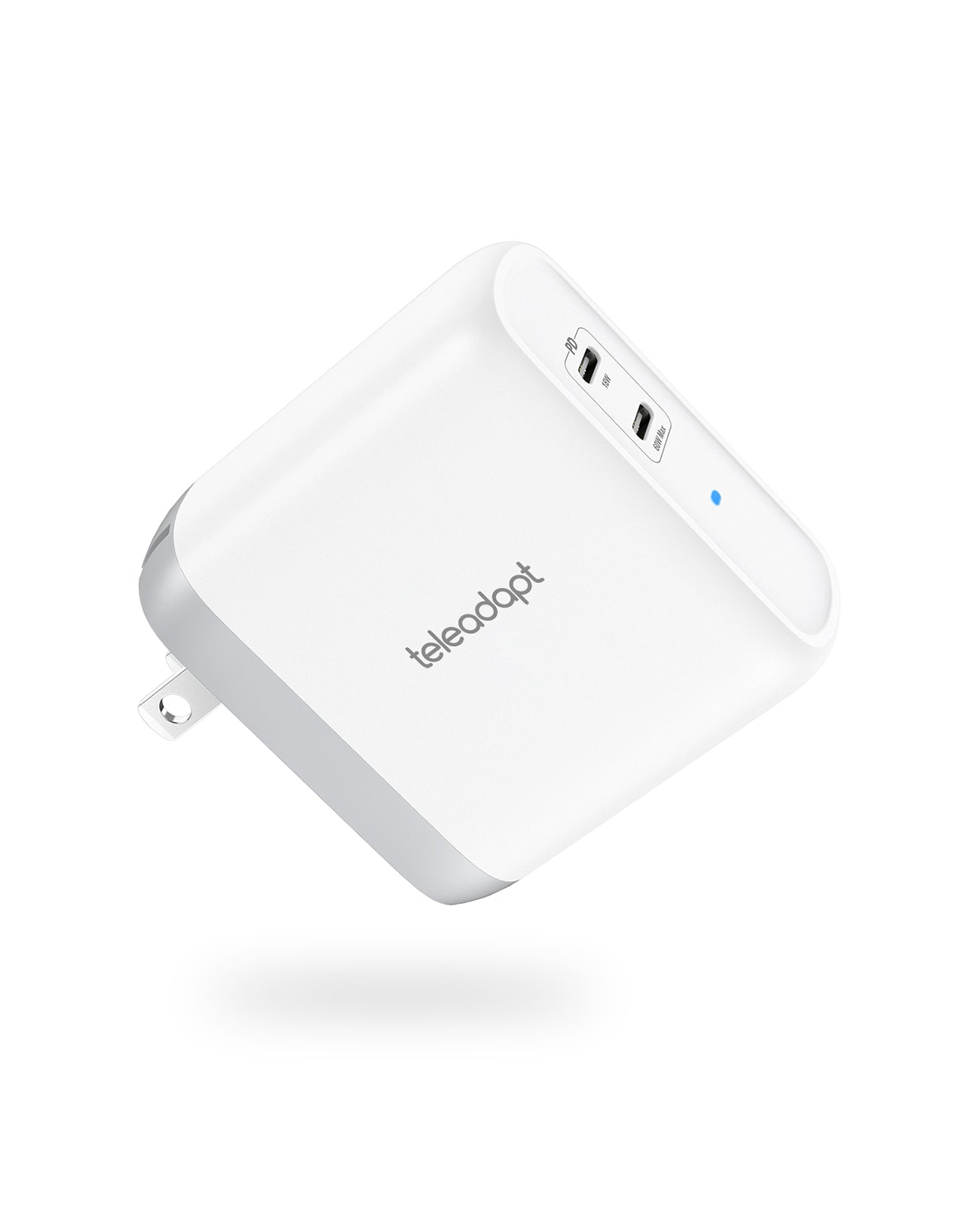
Use a USB-C port for most modern phones, tablets, laptops, and handheld consoles. Some GaN chargers have ports with different power ratings.
For example, a charger may include:
• One USB-C port rated at 100 watts
• A second USB-C port rated at 30 watts
• One USB-A port rated at 18 watts
The port label, product box, or manual will show the limits. If your laptop needs 65 watts, plugging it into a lower-power port may result in slow charging or battery drain during use.
3. Choose a suitable cable
The cable also affects charging speed. Use a cable that supports the power and charging standard your device needs.
For USB-C devices, check these points:
• A standard cable may support basic charging only
• A 60-watt USB-C cable is suitable for many phones and small laptops
• A 100-watt or 240-watt cable may be needed for higher-power devices
• USB-C cables with an electronic marker can safely support higher power
A cable that works for your phone may not be suitable for a powerful laptop. If the charger shows a low-power warning, try a certified, higher-rated cable.
4. Connect the charger to the wall
Plug the GaN charger into a suitable wall outlet. Then connect the cable to the charger and your device.
Most modern chargers manage the connection automatically. You do not need to select a voltage or manually set the current.
5. Confirm that charging begins
Look for the charging symbol, battery animation, or charging light. On a laptop, the operating system may show the estimated charging rate.
If the device charges slowly, check the following:
• The charger’s wattage
• The selected port
• The cable rating
• The device’s charging settings
• Whether another device is using the charger
This basic process explains how to use a GaN charger for most everyday devices.

How GaN Charging Works
A wall outlet supplies alternating current. Your device needs carefully controlled direct current. The charger converts the electricity and adjusts its output to match the device.
Inside a GaN charger, gallium nitride components switch power rapidly. This can reduce energy loss and allow smaller transformers and cooling parts. The result is often a compact charger with a high power rating.
USB Power Delivery adds another layer of control. The charger and device exchange information through the USB-C connection. They agree on a voltage and current level, such as:
• 5 volts for basic charging
• 9 volts for many phones
• 15 or 20 volts for tablets and laptops
• Higher voltage levels for newer USB PD systems
The exact output depends on the device, charger, cable, and supported protocol. A GaN charger cannot create a faster charging speed than the device allows.
This is why a 100-watt charger may charge one laptop quickly but provide only 20 watts to a phone. The phone controls its own charging limit.

How to Choose the Right GaN Charger
The best GaN charger depends on your devices and daily routine. Start with your most demanding device, then consider how many products you charge at once.
Choose the right wattage
Use the following guide as a starting point:
• 20 to 30 watts: phones, earbuds, smartwatches, and small accessories
• 45 to 65 watts: phones, tablets, Chromebooks, and thin laptops
• 100 watts: larger laptops, tablets, phones, and accessories together
• 140 watts or more: high-performance laptops and demanding multi-device setups
More watts can offer flexibility, but they do not always mean faster charging. Your device decides how much power it accepts.
Count the ports
A single-port GaN charger is useful when you want maximum power for one device. A multiport charger is better for travel, work, and bedside charging.
Check the shared power rating. A charger marked “100 watts” may provide 100 watts through one port but split the power when two or more devices are connected.
Look for USB PD and PPS
USB PD is important for modern laptops, tablets, and many phones. PPS can improve charging efficiency on supported devices by making smaller voltage adjustments.
For a recent Android phone, a charger with USB PD PPS may offer better fast-charging support than a basic USB PD charger. Always check your phone manufacturer’s requirements.
Review safety features
A quality GaN charger should include several protections:
• Overcurrent protection
• Overvoltage protection
• Overheating protection
• Short-circuit protection
• Surge protection
Buy from a trusted brand and check for recognized safety marks in your region. In the United States, look for appropriate certification information from a recognized testing organization.

How to Use a GaN Charger With Multiple Devices
Multiport charging is one of the biggest benefits of GaN technology. You can charge a laptop, phone, tablet, and earbuds from one compact unit.
The key is understanding power sharing. Suppose a charger offers 100 watts through one USB-C port. When you connect a second device, the charger may divide its output between both ports.
A typical setup may look like this:
• Laptop on the main USB-C port: 65 watts
• Phone on the second USB-C port: 20 watts
• Earbuds on USB-A: 10 watts
The exact split varies by model. Read the power table printed on the charger or listed in the manual.
When I set up a multi-device charger, I connect the laptop first. I then add smaller devices. This helps the charger assign the highest available power to the device that needs it most.
Avoid assuming that every port has the same strength. A small label near the port may show the maximum output.

How to Use a GaN Charger for a Laptop
Many modern laptops charge through USB-C. However, the laptop must support USB-C charging, and the charger must provide enough power.
Check the laptop’s original power adapter. If it is rated at 65 watts, choose a GaN charger that can provide at least 65 watts through one USB-C port. For a laptop that needs 100 watts, select a charger and cable rated for that level.
Keep these points in mind:
• Use the highest-power USB-C port
• Use a cable rated for the laptop’s wattage
• Connect the charger directly to the laptop
• Avoid low-power ports on multiport chargers
• Expect slower charging while gaming or running heavy software
Some laptops may display a message such as “slow charger” when the power supply is too weak. This does not always mean the charger is defective. It often means the laptop needs more power than the current port or cable can provide.
A compact GaN charger is especially useful for travel. It can replace a bulky laptop adapter while also charging a phone and other small devices.

How to Use a GaN Charger With a Phone
Most phones are easy to charge with a GaN charger. Connect a compatible USB-C cable, use a suitable port, and let the phone manage the charging process.
For the best results:
• Use USB-C Power Delivery for iPhones with USB-C ports
• Use USB PD PPS when your Android phone supports it
• Use the cable supplied with the phone when possible
• Keep the phone cool during fast charging
• Remove thick insulation or heat-trapping covers if the phone becomes hot
Fast charging often slows as the battery fills. This is normal. The phone reduces power near full capacity to manage heat and battery stress.
A charger with much higher wattage will not damage a phone by itself. The phone requests the power it can safely use. However, a cheap or poorly made charger may create safety risks, so quality matters more than impressive wattage.

Benefits of Using a GaN Charger
GaN chargers offer several practical benefits over many older silicon-based chargers.
Smaller size
A 65-watt GaN charger may be much smaller than an older 65-watt laptop adapter. This saves space in a backpack, desk drawer, or travel bag.
High power in one unit
One charger can often replace several separate adapters. This reduces cable clutter and makes it easier to charge multiple devices.
Better energy efficiency
GaN components can reduce power loss during conversion. Less wasted energy can also mean less heat, although every charger still produces some warmth.
Lower travel weight
A compact charger is useful for flights, hotels, coffee shops, and shared workspaces. You can carry one unit instead of a phone charger, tablet charger, and laptop brick.
Modern charging support
Many GaN chargers include USB PD, PPS, and high-power USB-C ports. These features make them suitable for newer devices.
The benefits are real, but GaN does not remove the need for good design. A poorly engineered charger can still perform badly, regardless of the material used inside.

GaN Charger Safety Tips
Learning how to use a GaN charger also means understanding safe charging habits.
Use these tips:
• Inspect the charger and cable before use
• Stop using equipment with exposed wires, cracks, or burn marks
• Keep the charger away from water
• Do not cover it with clothes, blankets, or bedding
• Leave airflow around the charger
• Use a wall outlet that is in good condition
• Avoid unknown, counterfeit, or damaged chargers
• Do not force a connector into a port
Some warmth is normal during charging, especially at high power. The charger should not smell like burning plastic, make unusual sounds, or become too hot to touch.
Do not open the charger yourself. Internal components can store dangerous electrical energy even after unplugging the unit.
Safety agencies and electrical standards groups consistently emphasize certified equipment, proper insulation, and overload protection. These details matter more than a low price or a high wattage number.
Common Mistakes to Avoid
Many charging problems come from small setup errors rather than a faulty GaN charger.
Using the wrong cable
A low-rated cable may limit speed. It may also become warm when used near its maximum capacity.
Choosing the wrong port
On a multiport charger, the strongest port may not be the first one you see. Check the labels before connecting a laptop.
Expecting maximum power on every port
A charger’s total wattage may be shared. Connecting three devices can reduce the output available to each one.
Blocking ventilation
Placing a charger under a pillow or inside a tight bag can trap heat. Always charge in an open area.
Ignoring device limits
A phone that supports 25 watts will not charge at 100 watts simply because the charger has that rating.
Buying based only on wattage
A 140-watt charger is not automatically better. Port layout, USB PD support, PPS support, safety features, size, and cable quality also matter.
One mistake I often see is using a powerful laptop charger with an old, thin USB-C cable. The charger is capable, but the cable becomes the weak link. Replacing the cable often solves the problem immediately.
How to Troubleshoot a GaN Charger
If your device does not charge, work through the issue in order.
-
Unplug the charger from the wall.
-
Check both ends of the cable.
-
Try another cable with the correct power rating.
-
Try a different port on the charger.
-
Test the charger with another device.
-
Test the device with another known-good charger.
-
Check the device’s charging port for dust or damage.
-
Let the charger cool before testing it again.
If one device works but another does not, the problem may be compatibility or power requirements. If no device works, the charger, wall outlet, or cable may be defective.
For laptops, check whether the charger provides enough power during use. A 45-watt charger may charge a laptop while it is idle but fail to increase the battery level during heavy work.
Avoid repeatedly reconnecting a charger that becomes extremely hot or produces a burning smell. Replace it and contact the manufacturer if it is under warranty.
How to Use a GaN Charger While Traveling
A GaN charger is a strong travel choice because it combines power and portability. Before traveling, check the charger’s input range. Many modern chargers support worldwide input from 100 to 240 volts, but you should confirm this on the label.
You may still need a plug adapter for outlets in other countries. A plug adapter changes the shape of the plug. It does not always convert voltage.
For a simple travel kit, pack:
• One multiport GaN charger
• A USB-C cable for your laptop
• A USB-C cable for your phone
• A short USB-A cable if needed
• A suitable plug adapter
• A small cable pouch
Do not pack a charger loosely with keys or metal objects. Protect the ports and cable ends from pressure. At hotels and airports, keep the charger where you can see it and unplug it when you leave.
How to Maintain a GaN Charger
Good maintenance can extend the useful life of a charger.
Keep the charger clean and dry. If dust builds up around the ports, unplug the charger and gently remove it with a soft, dry brush. Do not spray liquid into the ports.
Store cables without tight bends. Repeated bending near the connector can damage the inner wires. Replace cables that become loose, hot, or intermittent.
Avoid leaving a high-power charger plugged in under heavy heat for long periods. Modern chargers include protection systems, but cool airflow remains helpful.
Firmware updates are uncommon for basic chargers, but some advanced charging hubs may support updates. Check the manufacturer’s instructions rather than using unofficial software.
Frequently Asked Questions About How to Use a GaN Charger
Is it safe to use a GaN charger with any phone?
Yes, a quality GaN charger is generally safe with phones that use compatible USB charging standards. The phone requests the power it needs, but you should use a reliable charger and suitable cable.
Can a GaN charger damage a laptop?
A compliant GaN charger should not damage a compatible USB-C laptop. Choose a charger with enough wattage, use the correct USB-C port, and avoid damaged or counterfeit products.
Does a higher-watt GaN charger charge devices faster?
Not always. Charging speed depends on the device, charger protocol, cable rating, battery temperature, and battery level.
Can I leave a GaN charger plugged in?
You can usually leave a quality charger plugged in when it is in a cool, dry, open area. Unplug it if it becomes unusually hot, makes noise, smells burnt, or shows physical damage.
Do I need a special cable for a GaN charger?
You need a cable that supports the power level and connector used by your device. Higher-power laptops may need a 60-watt, 100-watt, or 240-watt USB-C cable.
Why does my GaN charger get warm?
Some heat is normal because electrical power conversion is not perfectly efficient. Excessive heat, burning smells, smoke, or a charger that is painful to touch indicates a possible fault.
Can a GaN charger fast charge multiple devices at once?
Yes, if the charger supports multiple ports and has enough total power. The available power may be divided between devices, so each device may charge more slowly.
Will a GaN charger work with a USB-A device?
Many GaN chargers include USB-A ports, but not all do. If your charger has only USB-C ports, you need a compatible USB-C-to-USB-A cable or adapter.
Conclusion
How to use a GaN charger comes down to four habits: check the device’s power needs, choose the right port, use a capable cable, and keep the charger cool and clear. USB PD and related charging systems handle most power decisions automatically, so setup is usually simple.
A good GaN charger can reduce clutter, save travel space, and power several devices from one compact unit. Start with your laptop or highest-power device, choose a trusted model with proper safety features, and test your cable before blaming the charger.
Use these steps with your current setup, compare your devices’ power needs, and explore more charging guides to build a safer, simpler charging routine.