How To Use A Wireless Charger: Easy Guide For Fast Charging
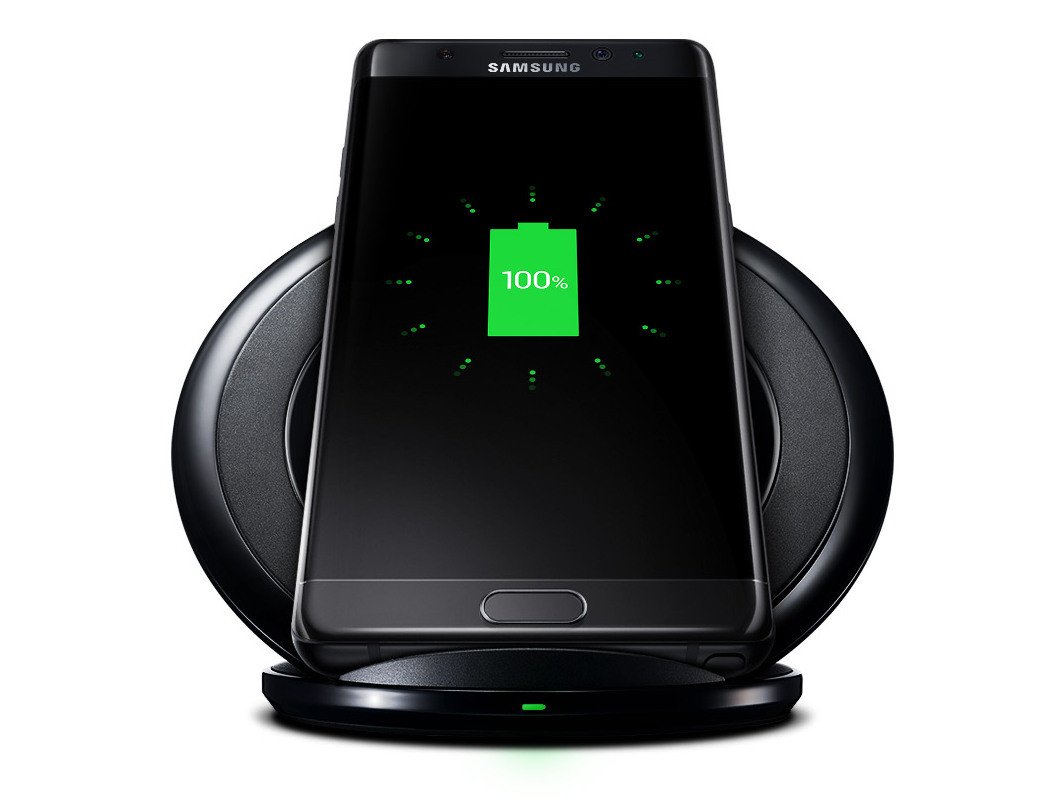
Place your phone on a compatible wireless charging pad, and power begins without plugging in a cable.
Learning how to use a wireless charger is simple, but small details affect speed, safety, and charging success. This guide explains the Qi and Qi2 standards, correct phone placement, case compatibility, charging problems, and practical tips from hands-on daily use.
What Is a Wireless Charger?
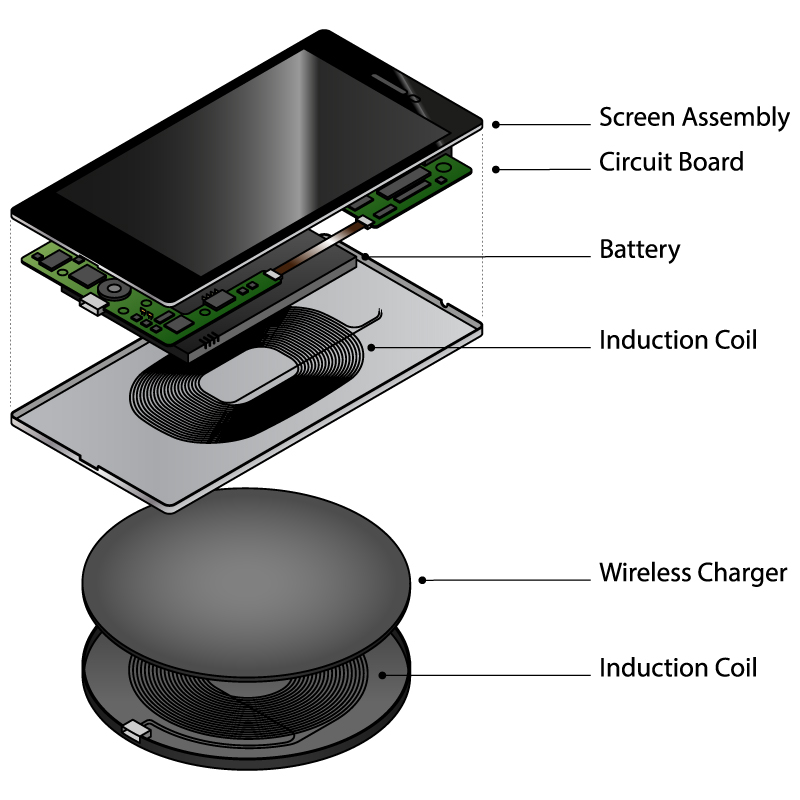
A wireless charger sends power to your phone through electromagnetic induction. The charger has a coil inside it, and your phone has a matching coil near its back. When the two coils line up, energy moves from the charging pad to the phone battery.
Most modern wireless chargers use the Qi standard. Newer Qi2 chargers add magnetic alignment, which helps the phone sit in the right spot. Some Apple, Samsung, Google, and other Android devices support wireless charging, but not every phone does.
Wireless charging is not truly cable-free. The charging pad still needs a power adapter and a wall outlet or USB port. The benefit is that you do not need to connect a cable to your phone each time you want to charge it.
What You Need Before Using a Wireless Charger
Before learning how to use a wireless charger, check that your phone and charger can work together. A few minutes of preparation can prevent slow charging or no charging at all.
You will usually need:
- A Qi or Qi2-compatible wireless charging pad or stand
- A compatible power adapter
- A working wall outlet or USB power source
- A phone that supports wireless charging
- A phone case that allows wireless power transfer
Check your phone’s technical specifications or user guide. Wireless charging is common in premium phones, but many budget models still require a cable.
The power adapter also matters. A weak adapter may let the charger work, but it can reduce charging speed. Use the adapter recommended by the charger maker when possible. Some fast wireless chargers need a USB-C Power Delivery adapter to reach their stated speed.

How to Use a Wireless Charger Step by Step
The basic process takes only a few seconds. Follow these steps when you use a wireless charger for the first time.
1. Connect the charger to power
Plug the wireless charging pad into its approved power adapter. Then connect the adapter to a wall outlet or a suitable USB port.
Look for a small light or sound that confirms the pad has power. If nothing happens, test the outlet with another device.
2. Place the charger on a stable surface
Set the pad or stand on a flat surface. A desk, nightstand, or kitchen counter works well.
Avoid soft surfaces such as beds, thick blankets, or couches. These surfaces can block airflow and trap heat around the charger and phone.
3. Remove objects between the phone and pad
Take away metal cards, coins, keys, magnetic plates, and thick grips. Metal can block the charging signal or cause extra heat.
Some wallet cases contain metal parts. Remove the case if the phone does not charge through it.
4. Place the phone in the center
Put the back of the phone against the pad. Center the phone over the charging coil.
On a stand, place the middle of the phone against the charging area. You may need to move it slightly until the charging symbol, vibration, or light appears.
5. Confirm that charging has started
Check the phone screen for a charging icon or battery message. Some chargers also show a colored light.
Wait a few seconds. A phone may need time to detect the charging field. If the battery percentage does not rise, adjust the phone’s position.
6. Leave the phone in place
Once charging begins, avoid moving the phone. A small shift can break the connection, especially with a flat pad that does not use magnets.
This is the complete process for how to use a wireless charger. The best setup is one that lets you place the phone down easily and pick it up without hunting for a cable.
How to Position Your Phone Correctly
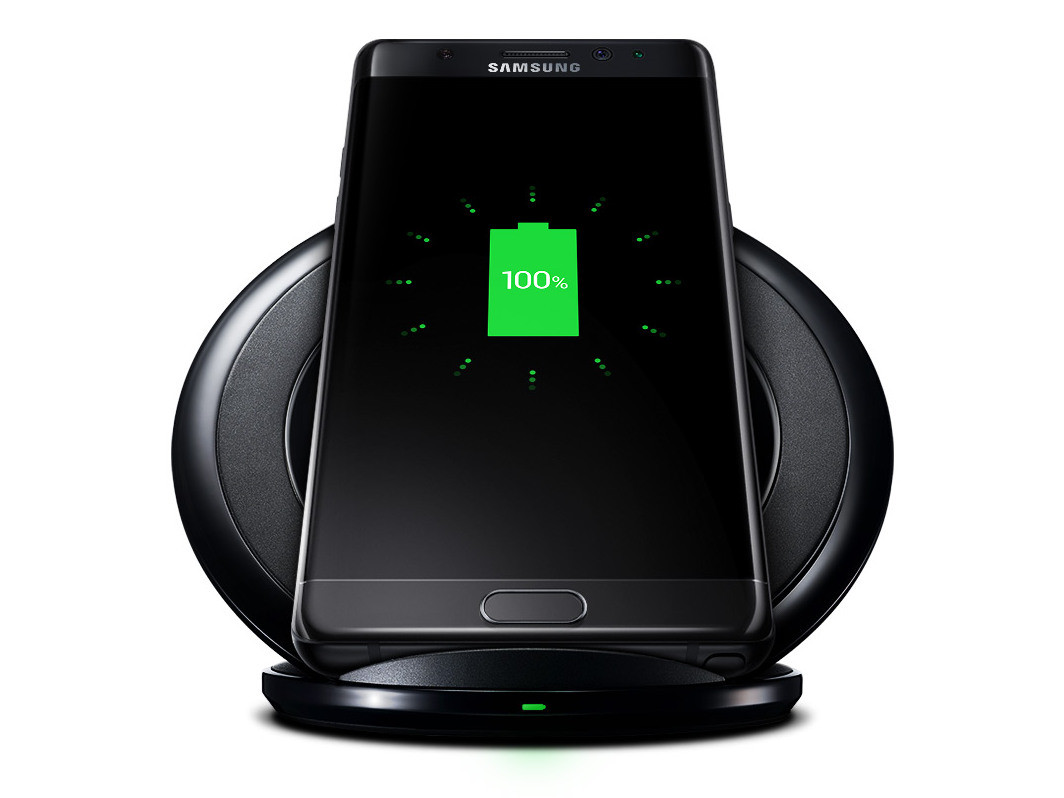
Correct alignment is one of the most important parts of how to use a wireless charger. Think of the charging coils as two small rings that need to overlap. If they are far apart, power transfer becomes weak or stops.
For a flat charging pad, place the phone near the center. The exact position depends on the phone model because manufacturers place the internal coil at different heights.
A charging stand can be easier to use. It supports the phone and keeps the screen visible. This design works well at a desk because you can check messages or video calls without lifting the phone.
Magnetic Qi2 chargers make alignment easier. The magnet guides the phone into place, much like a key fitting into a lock. Still, the phone and charger must both support the same magnetic system.

How to Use a Wireless Charger With a Phone Case
Many cases support wireless charging. Thin plastic, silicone, and leather cases often work well because they allow the signal to pass through.
Problems are more likely with thick or reinforced cases. Cases with metal kickstands, credit card slots, magnetic plates, or extra battery packs can interrupt charging.
If charging fails, test the phone without its case. If the phone charges normally, the case is the cause.
When choosing a case, look for terms such as:
- Wireless charging compatible
- Qi compatible
- Qi2 compatible
- MagSafe compatible, for supported Apple devices
A case can also affect charging speed. A thick layer between the phone and charger may increase the distance between the coils. That can lead to slower charging and more heat.

How Fast Is Wireless Charging?
Wireless charging speed depends on the phone, charger, adapter, software, temperature, and alignment. A charger rated at 15 watts does not mean every phone will charge at 15 watts.
The phone controls the power it accepts. This protects the battery and prevents unsafe power levels. For example, a phone designed for 7.5-watt wireless charging may not become faster when placed on a 15-watt pad.
Wired charging is often faster and more efficient. Wireless charging trades some speed for convenience. It works especially well on a nightstand, desk, or shared family charging area.
Use a certified charger with a suitable adapter. Very cheap products may advertise high power but lack good heat control or electrical protection. Certification does not guarantee perfection, but it is a useful safety signal.
Why Is My Wireless Charger Not Working?
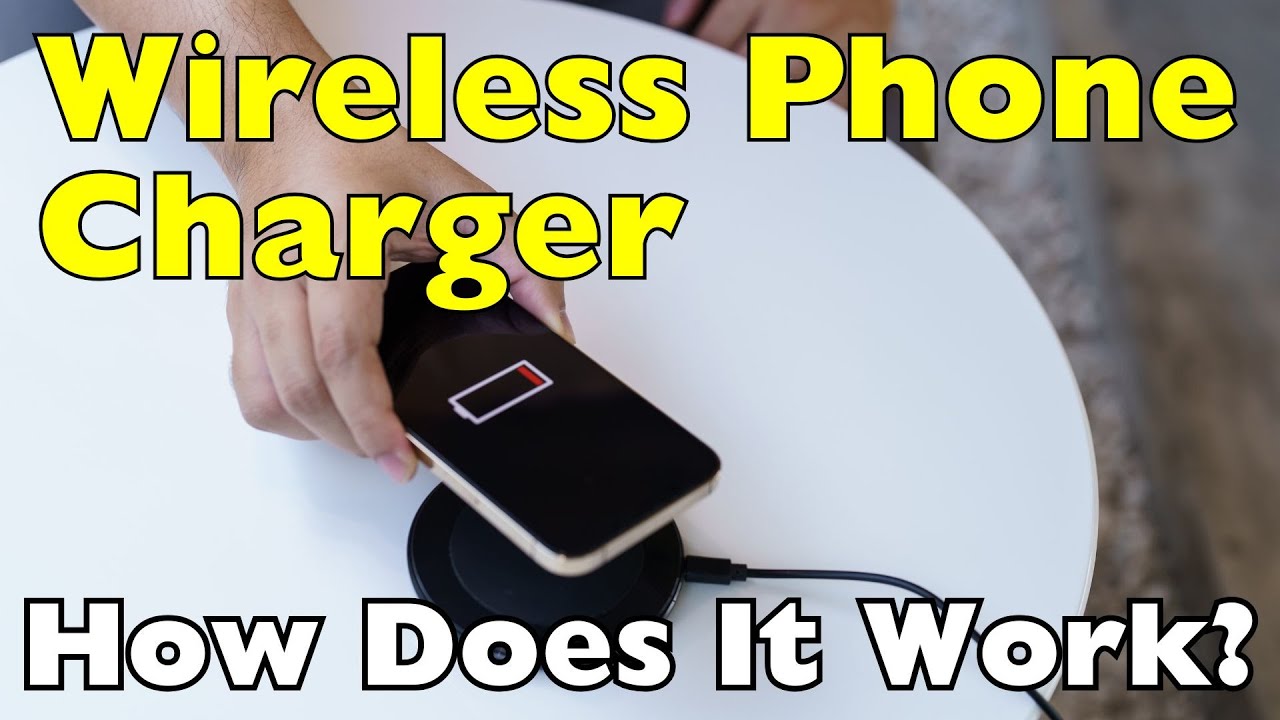
If the phone does not charge, check the simple causes first. Most problems come from power, alignment, the case, or device compatibility.
Try these steps:
- Confirm that the charging pad is connected to power.
- Test a different wall outlet.
- Use the original or recommended power adapter.
- Remove the phone case.
- Remove coins, cards, and other metal objects.
- Place the phone at the center of the pad.
- Restart the phone.
- Check whether the phone supports Qi charging.
- Inspect the charging pad and cable for damage.
- Test the charger with another compatible phone.
A blinking light may indicate an error. The meaning varies by brand, so check the charger’s instructions.
If the phone starts and stops charging, it may be moving on the pad. It may also be too hot. Let the phone cool, remove thick accessories, and try again.
In my hands-on testing, the most common mistake is placing the phone slightly too high on a flat pad. A stand reduces this problem because it naturally guides the phone into a stable position.

How to Use a Wireless Charger Safely
Wireless charging is generally safe when you use a reliable charger and follow the maker’s instructions. It creates a small electromagnetic field between the charger and phone, but the system is designed for short-range power transfer.
Use these safety habits:
- Keep the charger and phone dry.
- Do not use a charger with a damaged cable or cracked body.
- Keep metal objects away from the charging surface.
- Do not cover the charger with clothing or bedding.
- Stop using the charger if it smells burnt or becomes unusually hot.
- Use the correct power adapter.
- Keep the charger away from liquids and extreme heat.
Some warmth is normal. Wireless power transfer creates more heat than a direct cable connection because energy can be lost during the transfer. Excessive heat, however, can slow charging and may affect long-term battery health.
Modern phones usually reduce charging power when they become warm. This protection is helpful, but good airflow is still important.

Does Wireless Charging Damage the Battery?
Wireless charging does not automatically damage a phone battery. Battery aging comes from many factors, including heat, charging cycles, usage, and battery chemistry.
Heat is the main concern. A phone that stays warm for long periods may experience faster battery wear than one that stays cool. Keep the charger on a hard surface and remove thick cases if the phone becomes hot.
Many phones stop or slow charging when the battery reaches a high level. Some also offer optimized charging features that pause charging and finish it near the time you usually unplug the phone.
For daily use, wireless charging is convenient and reasonable. If you need the lowest possible heat and fastest speed, wired charging may be a better choice.

Wireless Charger Mistakes to Avoid
Knowing what not to do is just as useful as knowing how to use a wireless charger.
Avoid these common mistakes:
- Using a charger that your phone does not support
- Expecting a high-watt charger to force faster charging
- Leaving a metal card between the phone and pad
- Charging on a bed or under a blanket
- Using a damaged or low-quality power adapter
- Ignoring repeated overheating
- Placing the phone off-center
- Assuming every magnetic charger works with every phone
- Covering the charging pad with stickers or thick material
- Moving the phone often while it charges
One mistake I made early on was leaving a magnetic wallet attachment on the phone. The phone looked perfectly aligned, but charging stopped after a few seconds. Removing the attachment solved the problem immediately.
How to Use a Wireless Charger at Home, Work, and in the Car
A wireless charger can fit into several parts of your routine.
At home, a charging stand beside the bed makes overnight charging simple. A flat pad works well on a desk or kitchen counter where you often place your phone for short top-ups.
At work, choose a charger with a stable base. A stand lets you see notifications without picking up the phone. This can reduce distractions during the day.
In a car, use a wireless charging mount that securely holds the phone. Make sure it connects to a suitable car power adapter. Strong sunlight can heat the phone, so avoid placing it in direct sun when possible.
For travel, bring the charger’s power adapter and cable. A wireless pad without its power source is not useful. A compact Qi2 charger may save space, but check that it supports your phone before packing it.
How to Use a Wireless Charger With Earbuds and Smartwatches
Some wireless chargers can power more than phones. Many wireless earbuds use a Qi-compatible charging case. Place the case on the pad and check for its charging light.
Smartwatches are different. Some use a special magnetic charging puck rather than standard Qi charging. A regular phone pad may not charge them, even if the watch attaches magnetically.
Three-in-one charging stations can power a phone, earbuds, and smartwatch at once. They are convenient, but each charging area may use a different technology. Read the product details before buying one.
Keep each device in its marked position. If one device fails to charge, move the others away and test it alone.
How to Choose the Best Wireless Charger
The best wireless charger depends on your phone and daily habits. Do not choose only by the highest watt number.
Consider these features:
- Compatibility with Qi or Qi2
- Charging speed supported by your phone
- A suitable power adapter
- Temperature control
- Foreign object detection
- A stable, non-slip surface
- Clear charging indicators
- A design that fits your desk or nightstand
- Magnetic alignment, if your phone supports it
- Warranty and customer support
A flat pad is small and easy to carry. A stand is better for viewing the screen. A multi-device station saves space but usually costs more.
Look for accurate product specifications. Claims such as “fast charging” can mean different things across brands. The phone’s own charging limit remains the final control.
Frequently Asked Questions About How to Use a Wireless Charger
Can I use a wireless charger with any phone?
No. The phone must support Qi, Qi2, or another compatible wireless charging system. Check the phone’s specifications before buying a charger.
Should I remove my phone case before wireless charging?
Not always. Thin cases usually work, but thick cases, metal parts, wallet slots, and magnetic plates may block charging.
Can I use my phone while it is on a wireless charger?
Yes, but movement can interrupt charging on a flat pad. A charging stand is better if you need to view or use the phone while it charges.
Why does my phone get warm on a wireless charger?
Some warmth is normal because wireless power transfer creates heat. Remove thick cases, improve airflow, and stop using the charger if the heat seems excessive.
Is a wireless charger slower than a cable?
Often, yes. Wireless charging may be slower than wired charging because the phone limits power and some energy becomes heat.
Can I leave my phone on a wireless charger overnight?
Most modern phones manage charging automatically and reduce power when the battery is full. Keep the charger on a hard, open surface and use a reliable product.
Do wireless chargers work through glass or plastic?
They often work through thin plastic, silicone, or glass. Thick materials and metal can weaken or block the charging signal.
Conclusion
Learning how to use a wireless charger comes down to four habits: use compatible equipment, connect the right power adapter, center the phone, and manage heat. Keep metal objects away, test the case when charging fails, and choose a charger that matches your phone’s real charging limits.
Once set up correctly, wireless charging becomes an easy part of your routine. Try these steps with your current charger, then explore a Qi2 stand or multi-device station if you want even more convenience.

Similar Posts