How To Fix Slow Charging: Quick Phone Solutions
Clean the port, use a compatible charger and cable, reduce heat, and check for battery or software problems.
Slow charging can turn a quick top-up into a long wait, especially when your phone shows “charging slowly” or gains only a few percent in an hour. The fix often comes down to a small issue, such as lint in the charging port, a weak power adapter, a damaged cable, heat, or an aging battery. This guide explains how to fix slow charging safely, with clear steps based on common phone charging standards and practical troubleshooting.
What Slow Charging Really Means
Slow charging means your device receives less power than it should. Charging power depends on three main factors: voltage, current, and the charging rules supported by your phone, charger, and cable.
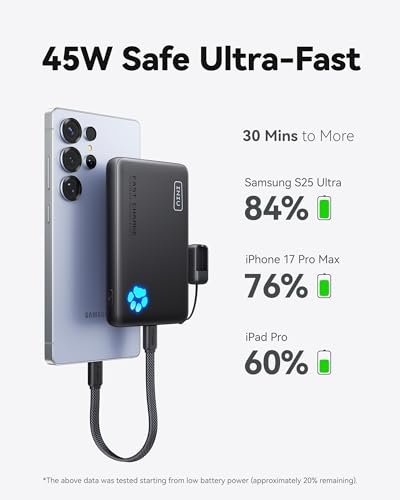
A modern phone may support fast charging at 20 watts, 30 watts, or more. Yet it can charge at a much lower rate if one part of the setup cannot deliver that power. For example, a fast phone connected to an old 5-watt adapter will charge, but it will charge slowly.
Most phones also reduce charging speed when the battery gets warm or reaches a high level. This is normal. Lithium-ion batteries need careful control to reduce heat and wear.
Signs your phone is charging slowly
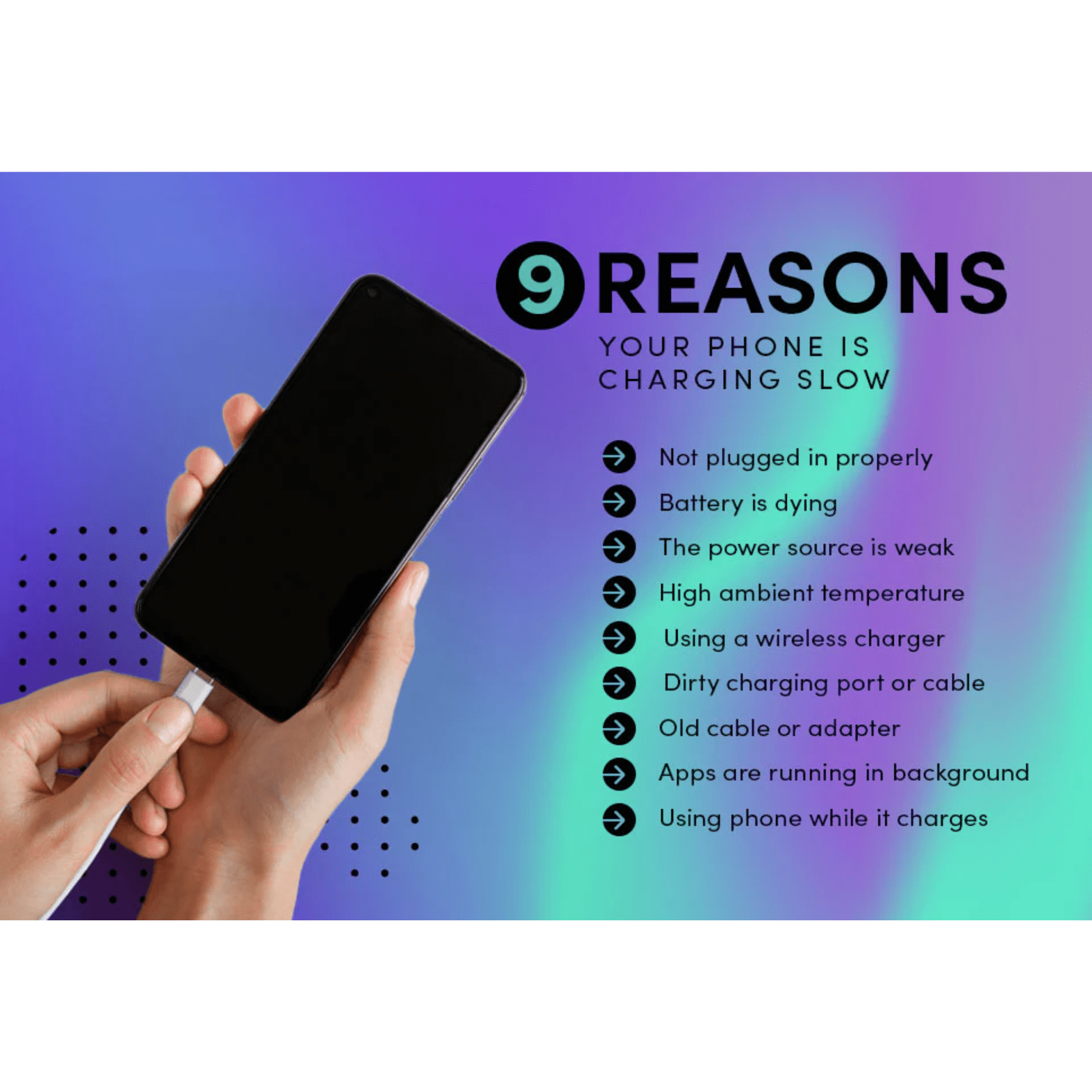
Look for these clues:
• The battery level rises by only a few percent over 30 minutes.
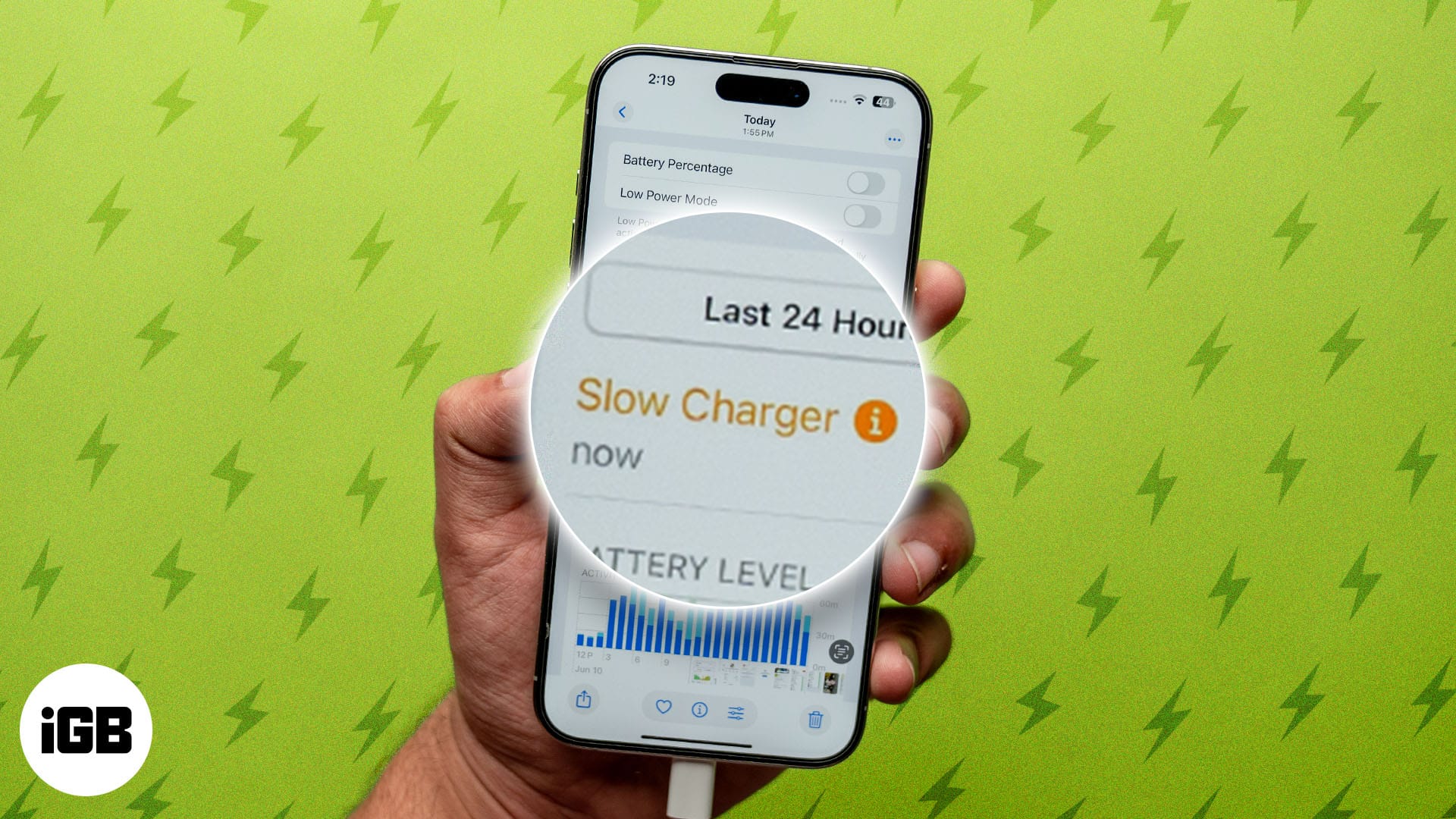
• The phone displays “slow charging,” “charging on hold,” or a similar message.
• Fast charging worked before but no longer appears.
• The charger or cable feels unusually hot.
• Charging works only when the cable is held at a certain angle.
• The battery drains almost as fast as it charges while you use the phone.
Learning how to fix slow charging starts with identifying which of these signs you see. A phone that charges slowly only when hot needs a different solution from one with a loose port.
Check the Charger and Charging Cable
The charger and cable are the first parts to test. They carry power to your phone, so even a small fault can reduce charging speed.
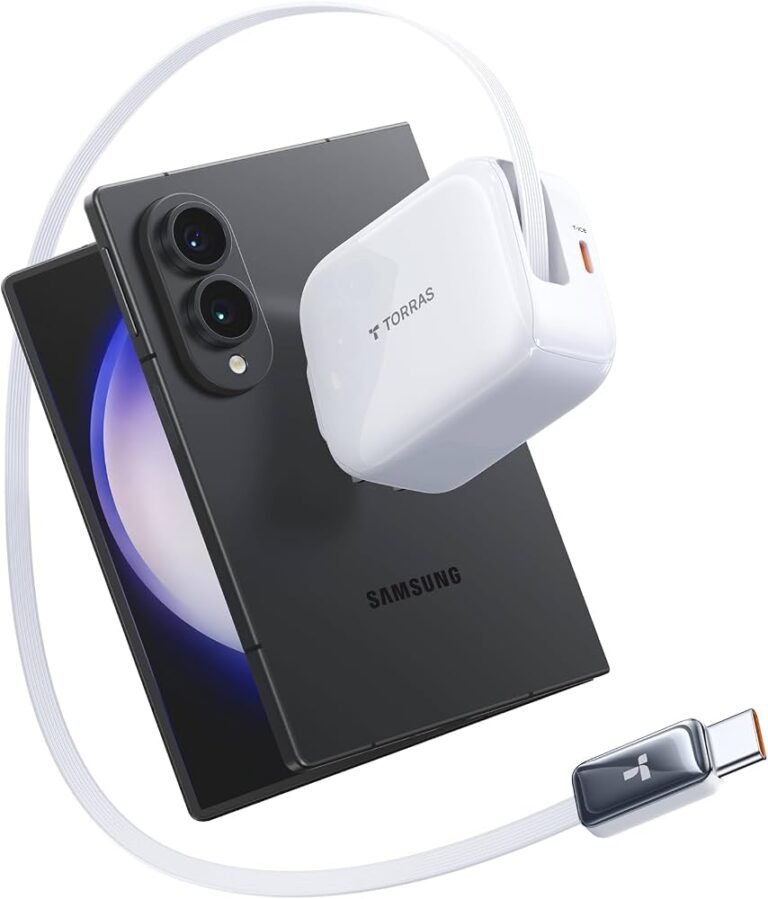
Start by using the original charger that came with your phone, if available. If you no longer have it, use a certified charger from a trusted brand. Check its output rating in watts. A small adapter made for older phones may not support the power level your current phone needs.
The cable matters just as much. USB-C cables can look alike while supporting very different charging speeds. Some are made only for basic power, while others support high current and fast charging standards.
Try these steps:
- Unplug the charger from the wall and inspect the cable.
- Look for cuts, bent connectors, loose ends, or dark marks.
- Test another cable that supports your phone’s charging standard.
- Plug the adapter directly into a wall outlet.
- Avoid testing through a laptop, car USB port, or cheap power strip.
- Try a second compatible power adapter.
In hands-on troubleshooting, replacing the cable solves slow charging more often than many people expect. Cables spend their lives bent, pulled, and packed into bags. A cable can still transfer power while no longer supporting fast charging.

Match the charger to your phone
Fast charging is not one universal feature. Different brands use different systems, such as USB Power Delivery, Programmable Power Supply, or proprietary charging methods.
A compatible charger should support:
• The correct charging standard.
• Enough power for your phone.
• A safe voltage range.
A higher-watt charger is usually safe when it comes from a reputable brand because the phone controls how much power it accepts. Still, do not use a damaged or counterfeit charger. Poor-quality adapters may create heat, electrical noise, or safety risks.
Clean the Charging Port Carefully
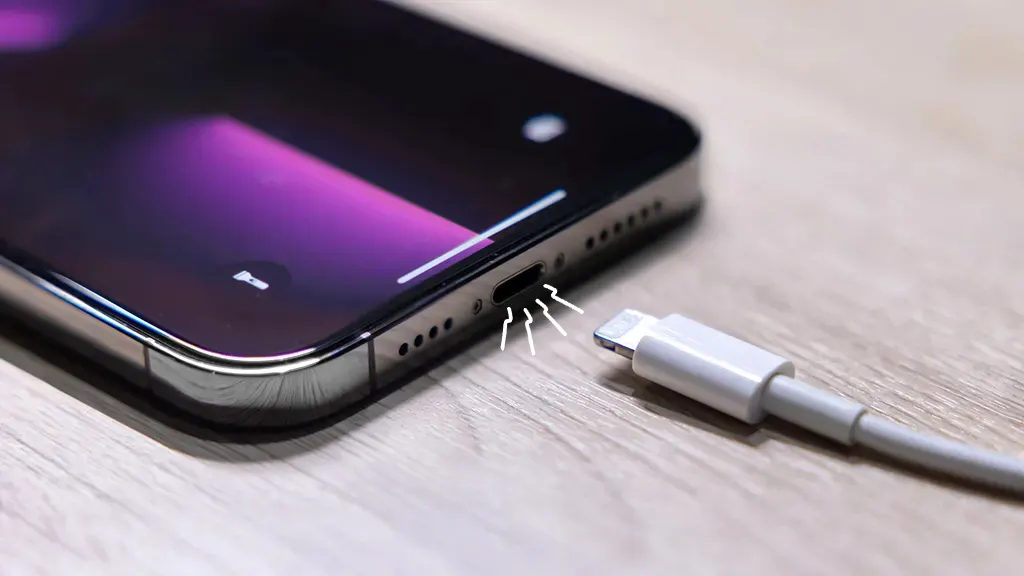
Pocket lint and dust can collect inside a charging port. The debris may stop the plug from reaching the electrical contacts fully. Your phone may then charge slowly, disconnect, or charge only at certain angles.
Turn off the phone before cleaning it. Shine a light into the port and look for compacted lint. If you see debris, gently remove it with a dry, nonmetal tool designed for delicate electronics.
Avoid these common mistakes:
• Do not use a needle, paper clip, or metal pin.
• Do not pour liquid into the port.
• Do not force the tool deep inside.
• Do not scrape hard against the contacts.
• Do not use compressed air at close range.
A soft, dry brush may help remove loose dust. If the port looks bent, corroded, or damaged, stop cleaning and seek professional repair. A damaged port can become worse if you keep pushing a cable into it.
Cleaning the port is one of the simplest answers to how to fix slow charging, but it should be done gently. The port is small and easy to damage.

Reduce Heat While Charging
Heat is a major reason phones slow down charging. When the battery or phone becomes too warm, the charging system lowers power to protect the battery and internal parts.
Remove thick cases if the phone feels hot. Place it on a hard surface, away from direct sunlight. Avoid charging it under a pillow, blanket, or coat.
You should also avoid demanding tasks during charging, such as:
• Playing high-end games.
• Recording long 4K videos.
• Using navigation in a hot car.
• Running a mobile hotspot.
• Streaming video at high brightness.
• Downloading large files over cellular data.
A warm phone may charge slowly even with a perfect charger. Let it cool for 10 to 20 minutes, then try charging again. Do not place a hot phone in a freezer or against an ice pack because sudden temperature changes can cause condensation.
Battery protection features may also pause or limit charging. Some phones stop near 80% during a scheduled routine or learn your daily habits. This behavior is designed to reduce battery aging, not indicate a fault.

Restart the Phone and Check for Software Problems
Software controls charging speed, temperature limits, battery protection, and accessory detection. A temporary system error can make the phone charge slowly.
Restart the phone first. This simple step can clear a stuck charging process. Then install available system updates from the phone’s settings.
Check the battery or device care menu for messages about charging. Some phones show whether the charger supports fast charging. Others report battery temperature, cable problems, or charging limits.
You can also test the phone in safe mode if a third-party app may be causing high power use. If charging improves in safe mode, a recently installed app could be keeping the phone busy.
Useful software checks include:
- Restart the phone.
- Install pending system updates.
- Close power-hungry apps.
- Check battery usage.
- Turn off hotspot and location when not needed.
- Test charging while the phone is powered off.
If the phone charges quickly while powered off but slowly while active, power use or software activity may be part of the problem. If it remains slow when powered off, focus on the charger, cable, port, battery, or charging hardware.

Stop Using the Phone During the Charging Test
Your phone may appear to charge slowly because it is using power at the same time. A bright screen, mobile data, gaming, and navigation can consume much of the incoming power.
For a fair test, connect the phone to a wall charger and leave it idle for 20 to 30 minutes. Turn off the screen and avoid using it. Record the battery level before and after the test.
This test helps separate two problems:
• Slow power delivery means the charger, cable, port, battery, or phone may be at fault.
• High power use means the phone receives power but spends much of it on active tasks.
Airplane Mode can provide another useful test. If the phone charges much faster with Airplane Mode enabled, weak cellular signal or network activity may be using extra power. You can then check signal strength, background apps, and network settings.
When people ask how to fix slow charging, they often replace accessories before checking usage. A simple idle test can save money and time.
Check the Battery’s Health
A worn battery can affect charging speed, battery life, and phone performance. Lithium-ion batteries lose capacity over time and through repeated heat exposure.
Many phones show battery health in the settings app. Look for terms such as battery health, maximum capacity, cycle count, or service recommendation. The exact menu varies by brand.
Common signs of battery wear include:
• The phone loses power quickly.
• The battery percentage jumps or drops suddenly.
• The phone shuts down before reaching zero percent.
• The back of the phone feels swollen or raised.
• Charging takes much longer than it did when the phone was new.
A swollen battery is a safety issue. Stop using the phone, disconnect it from power, and contact the manufacturer or a qualified repair center. Do not press the phone flat or attempt a home battery replacement unless you have the proper training and tools.
Battery replacement may restore normal charging when the battery is worn. However, it will not fix a damaged port or faulty charging circuit. A technician should test the phone before replacing parts.

Try These Device-Specific Charging Checks
Different devices may need different steps. The basic method for how to fix slow charging remains the same, but settings and charging terms can vary.
iPhone
Use a compatible USB-C or Lightning cable, depending on the model. Check the charging port for lint and review battery settings for optimized charging or charging limits.
If an iPhone shows a liquid detection alert, disconnect the cable and let the port dry naturally. Do not use heat, rice, or metal objects inside the port.
Android phones
Look in battery or device care settings for fast charging options. Some phones allow fast wired charging, super-fast charging, or similar features to be turned on or off.
Use a charger that matches the phone brand’s requirements. A basic USB adapter may work but may not activate the phone’s fastest charging mode.
Wireless charging
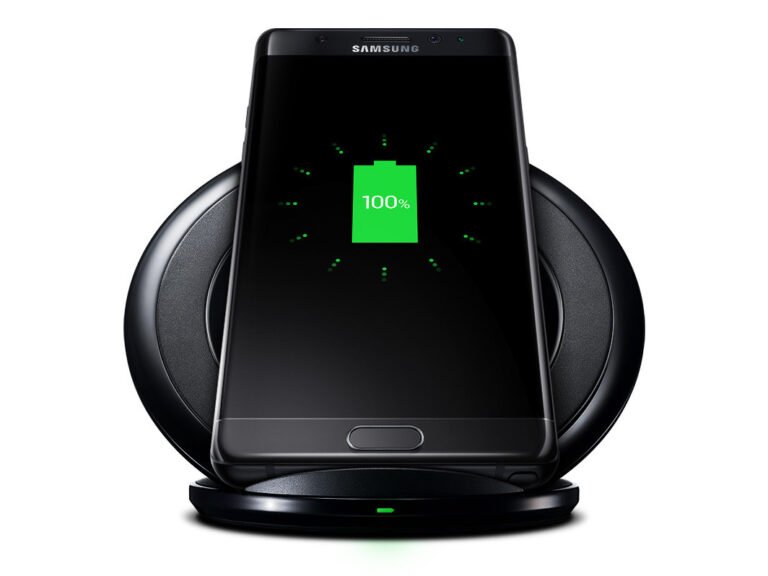
Wireless charging is often slower than wired charging. Misalignment, thick cases, heat, and foreign objects can reduce power.
Place the phone in the center of the charging pad. Remove magnetic cards and metal objects from between the phone and pad. Test with a wired charger to determine whether the issue affects only wireless charging.
Avoid These Common Mistakes
Some popular charging tips can damage your phone or waste your time. Avoid quick fixes that ignore heat, power ratings, or safety.
Do not use a damaged cable because it still “works.” A cable with exposed wires or a loose connector can cause unstable charging and heat.
Do not buy the cheapest charger you can find. Look for clear safety certifications, accurate power ratings, and a reputable seller. Online marketplaces can contain products with misleading labels.
Do not repeatedly bend the cable near the connector. This weakens the internal wires. Store the cable in a loose loop instead.
Do not clean the port with water or household cleaners. Moisture can cause corrosion or trigger a liquid detection warning.
Do not assume a high-watt charger will force fast charging. The phone, cable, and adapter must communicate correctly. The slowest part of the chain controls the result.

When to Get Professional Help
You should seek repair help when basic tests do not solve the problem. Continued use may create more damage if the port, battery, or charging circuit has a fault.
Contact the manufacturer or a qualified repair shop if:
• Multiple known-good chargers and cables charge slowly.
• The port feels loose or the plug falls out.
• The phone becomes very hot while charging.
• You smell burning plastic or see discoloration.
• The phone has water damage.
• The battery looks swollen.
• Charging starts and stops repeatedly.
• The phone will not charge when powered off.
Before repair, back up your photos, contacts, and important files. Ask the repair provider to explain the suspected fault and estimated cost. On an older phone, compare the repair price with the cost of replacement.
Reliable repair shops should not promise a battery replacement without testing. Slow charging can come from several parts, and a proper diagnosis prevents unnecessary work.
How to Prevent Slow Charging Later
Once you learn how to fix slow charging, a few habits can help keep the problem from returning.
Use a quality charger and cable that match your phone. Keep the charging port clean and protect it from dust. Avoid extreme heat and do not leave the phone charging under bedding.
Helpful habits include:
• Charge on a firm, open surface.
• Keep the phone away from direct sunlight.
• Replace cables that are frayed or loose.
• Update the phone’s software.
• Use battery protection features when available.
• Avoid heavy gaming while charging.
• Unplug accessories that draw power from the phone.
• Buy replacement chargers from trusted sources.
Battery care is not about chasing a perfect percentage. It is about limiting heat, avoiding damage, and using safe accessories. A phone battery is more like a water bottle than a fuel tank: it is healthier when you use it in a steady, practical way.
Frequently Asked Questions About How to Fix Slow Charging
Why is my phone charging slowly even with a fast charger?
The cable may not support the charger’s power level, or the phone may not support that charging standard. Heat, battery protection settings, a dirty port, and heavy app use can also reduce charging speed.
Can a dirty charging port cause slow charging?
Yes. Lint or dust can prevent the cable from making full contact with the port. Turn off the phone and remove loose debris carefully with a dry, nonmetal tool.
Does using my phone while charging make it charge slower?
It can. Gaming, navigation, video streaming, and mobile data use power while the phone charges, so the battery level may rise very slowly.
How long should a phone take to charge?
The time depends on the battery size, charger power, charging standard, temperature, and battery level. Most phones charge faster at low battery levels and slow down near full capacity.
Is slow charging a sign that the battery needs replacement?
Not always. A faulty cable, weak adapter, dirty port, software issue, or high temperature is often responsible. Consider battery replacement when the phone also has poor battery life, unexpected shutdowns, or a battery health warning.
Is wireless charging slower than wired charging?
Often, yes. Wireless charging can lose energy through alignment issues and heat, while wired charging usually delivers power more directly. A thick case or misplaced phone can make wireless charging even slower.
Is it safe to use a higher-watt charger?
A reputable higher-watt charger is generally safe when it supports the phone’s charging standard. The phone normally limits the power it accepts, but counterfeit or damaged chargers can be unsafe.
Conclusion
How to fix slow charging usually begins with simple checks: test a different cable and wall adapter, clean the port with care, reduce heat, stop demanding apps, and restart the phone. If the issue continues across several safe chargers, the battery, port, or charging circuit may need professional testing.
Start with the low-cost steps today and watch how the phone responds. If you have a charging tip or solved a stubborn charging problem, share your experience in the comments and explore more practical device care guides.