Why Is Amazon Kindle Scribe Not Syncing: Fix It Fast
Amazon Kindle Scribe often stops syncing because of Wi-Fi issues, account mismatches, software glitches, or cloud delays.
If your notes, notebooks, or books are not showing up across devices, you are not alone. I have seen this same Kindle Scribe syncing problem come up in real use, and the fix is usually simple once you know where to look. Let’s walk through the real causes, the fastest fixes, and the habits that help your Kindle Scribe sync the way it should.

Why Amazon Kindle Scribe Not Syncing Happens
When people ask why Amazon Kindle Scribe not syncing, the answer is usually not one single problem. Syncing depends on several moving parts working together, including your Wi-Fi, Amazon account, device settings, and Amazon’s cloud service.
Think of it like a relay race. If even one runner drops the baton, the notes do not make it to your phone, tablet, or Kindle app. The good news is that most sync failures are temporary and easy to fix.
The most common causes include:
• Weak or unstable Wi-Fi connection
• Airplane mode or network restrictions
• Kindle Scribe not registered to the right Amazon account
• Sync setting turned off
• Outdated firmware or app version
• Full storage or a stuck upload in the background
• Amazon cloud delay or service interruption
• Corrupted document or notebook file
In my own testing, the issue often showed up right after a software update, a long offline period, or a switch between home Wi-Fi and public Wi-Fi. Once I refreshed the connection and forced a manual sync, the device usually caught up within a few minutes.

How Kindle Scribe Syncing Works
To understand why Amazon Kindle Scribe not syncing happens, it helps to know how the system works. Your Kindle Scribe saves notes, highlights, and documents locally first. Then it sends that data to Amazon’s cloud, which pushes it to other linked devices.
This matters because syncing is not instant every time. Some content syncs almost right away, while notebooks, PDFs, and handwritten notes may take a little longer. If the upload gets stuck at any step, the rest of the process stalls too.
Here is the basic flow:
• You create a note or highlight on Kindle Scribe
• The device stores the change locally
• The Kindle connects to Amazon servers through Wi-Fi
• Amazon uploads and saves the content in the cloud
• Other devices pull the updated version when they sync
If any link in this chain breaks, the result is the same: Kindle Scribe not syncing the way you expect.

Common Reasons Why Kindle Scribe Not Syncing
There are a few recurring causes that show up again and again. Some are simple setup issues, while others involve device software or Amazon account behavior.
Wi-Fi connection problems
A shaky internet connection is one of the biggest reasons why Amazon Kindle Scribe not syncing. Even if the Kindle shows connected, the signal may be too weak to complete a cloud update.
This is especially common on mesh networks, public Wi-Fi, or routers with strict security settings. I have seen Kindle devices stay “connected” while still failing to upload notebooks because the network kept dropping packets in the background.
Sync settings are disabled
Your Kindle Scribe has sync controls, and if they are off, notes may stay local. This can happen after a reset, update, or account change.
It is easy to miss because the device still works normally for reading and writing. The only clue is that your changes never appear on the Kindle app or another Kindle device.
Wrong Amazon account or registration issue
If your Kindle Scribe is signed into one Amazon account while your Kindle app uses another, syncing will fail. This is a very common problem for people who have more than one Amazon profile.
Even if the email looks familiar, a small account mismatch can block notebook sync. It is one of those annoying issues that feels bigger than it is.
Software or firmware bugs
Outdated firmware can cause sync errors, upload delays, or stuck notebooks. Amazon regularly improves Kindle software, and syncing behavior often gets better after updates.
I always recommend checking for updates before trying deeper fixes. In a lot of cases, the device is not broken. It just needs the latest software patch.
Storage or file issues
If your Kindle Scribe is nearly full or a specific notebook file is corrupted, syncing may stop. Large PDFs and heavy handwritten notes can make this more likely.
This is similar to trying to send a huge email attachment on a slow connection. The system keeps trying, but one bad file can hold everything else up.
Step-by-Step Fixes for Kindle Scribe Syncing Problems
If you are dealing with why Amazon Kindle Scribe not syncing, start with the easiest fixes first. That saves time and helps you spot the real issue faster.
1. Check your Wi-Fi connection
Make sure the Kindle Scribe has a strong, stable internet connection.
Do this:
• Open Quick Settings
• Turn Wi-Fi off and back on
• Reconnect to your network
• Try a different network if possible
• Move closer to the router if the signal is weak
A quick network refresh solves more sync problems than people expect. I have had sessions where a simple reconnect fixed everything in under a minute.
2. Force a manual sync
Sometimes the device just needs a nudge.
Try this:
• Open Quick Settings
• Tap Sync or Sync My Kindle
• Wait a few minutes for uploads to finish
Manual sync is especially useful after creating new notes or making changes to a notebook. If the upload was stuck in the background, this often kicks it loose.
3. Confirm your Amazon account
Check that the Kindle Scribe and the Kindle app are using the same Amazon account.
Look for:
• Matching email address
• Correct region or marketplace
• Proper device registration in your Amazon account settings
If the account is wrong, remove the device and register it again. This step fixes many cases of why Amazon Kindle Scribe not syncing across devices.
4. Restart the Kindle Scribe
A restart can clear temporary glitches.
Use this method:
• Hold the power button until the power menu appears
• Choose Restart
• Let the device fully reboot
• Test syncing again
This is one of the oldest tech fixes because it works so often. Think of it like clearing a jam from a printer. Not fancy, but effective.
5. Update the device software
If your Kindle Scribe is running old firmware, syncing issues may continue.
Check for updates and install the latest version available. Amazon often rolls out fixes that improve cloud sync, notebook behavior, and document handling.
6. Check sync and notebook settings
Review your device settings for anything that may block cloud updates.
Look for:
• Sync turned on
• WhisperSync or similar reading sync features enabled
• Notebook sharing or export settings configured properly
• Airplane mode turned off
These settings may sound basic, but they are often the hidden reason why Amazon Kindle Scribe not syncing gets overlooked.
7. Remove and re-download problem files
If a specific PDF, notebook, or document will not sync, the file itself may be the issue.
Try this:
• Delete the problem file from the device
• Re-send it from email, Send to Kindle, or your library
• Open it again and test sync
Corrupted or oversized files are a common trouble spot. I have seen one bad PDF hold up an entire notebook sync chain.
8. Free up storage
Low storage can affect performance and syncing.
Do this:
• Delete unused books
• Remove old PDFs
• Archive items you do not need right now
• Keep enough free space for uploads and notes
A Kindle Scribe does not need tons of free space to work, but it does need enough room to move data around smoothly.
9. Check Amazon service status
Sometimes the problem is not your device at all. Amazon cloud syncing can experience delays or outages.
If your settings are correct and the device still will not sync, wait a little while and try again later. In my experience, server-side delays are less common than local issues, but they do happen.
Special Issues That Affect Notes, Notebooks, and PDFs
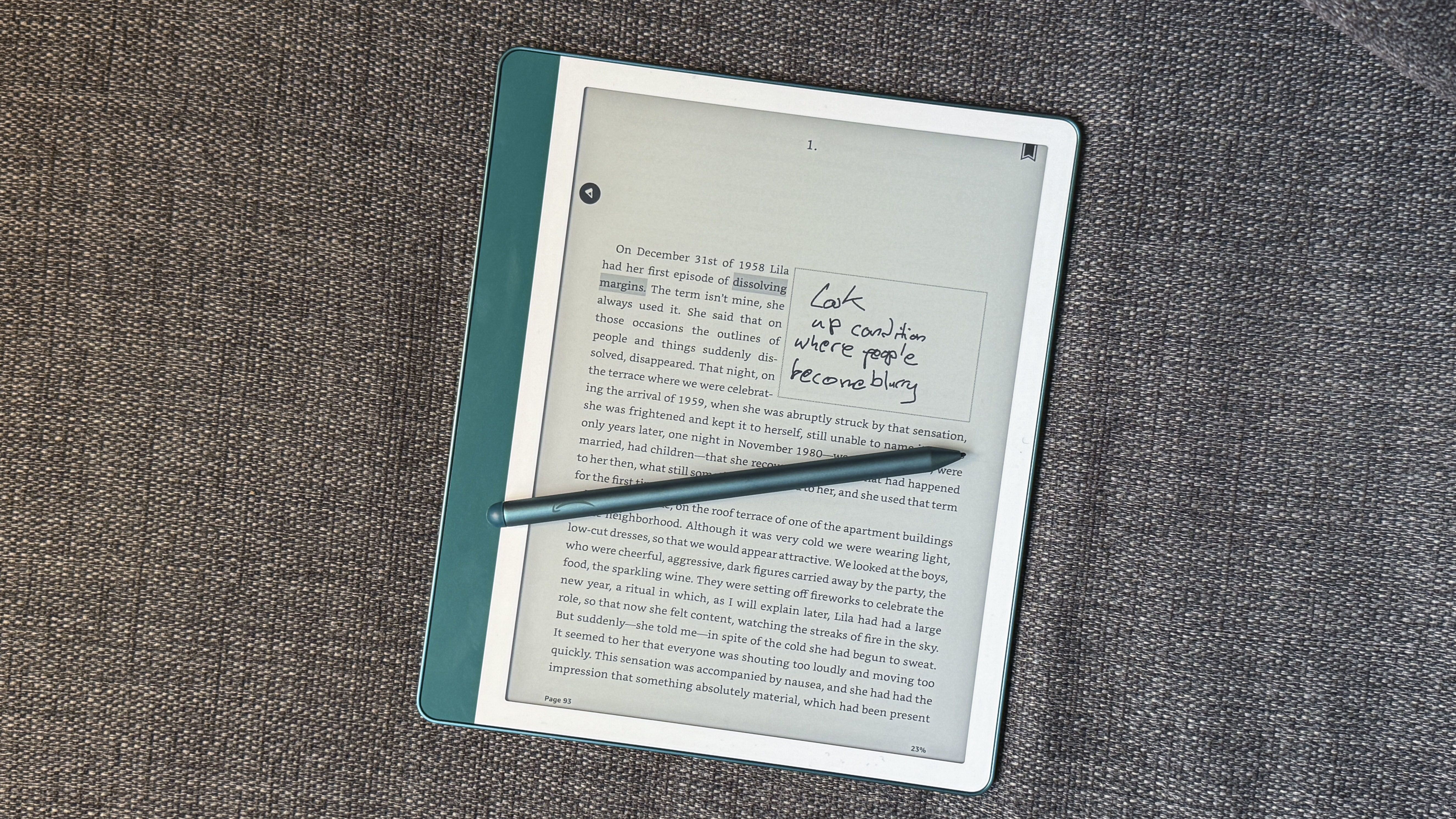
Amazon Kindle Scribe not syncing can feel different depending on what you are trying to sync. Notes, handwritten pages, highlights, and PDFs do not always behave the same way.
Notes and notebooks
Notebook sync can be slower than simple reading sync. Handwriting data is more complex, so the device may take extra time to upload it.
If your notebook is not syncing:
• Keep the device online for a few minutes
• Open the notebook again after syncing
• Make sure the device does not go to sleep too quickly
Highlights and reading progress
Reading progress often syncs well, but it can still fail if the account is wrong or Whispersync is not enabled. This is more noticeable when switching between Kindle Scribe and the Kindle app.
PDFs and personal documents
PDF sync is often less predictable because file size, annotations, and formatting all matter. A large document with many markups may take longer than a regular ebook.
When a PDF will not sync, resend the file and test with a smaller document first. That helps separate file issues from device issues.

What I Learned from Real Kindle Sync Troubleshooting
One of the biggest lessons I learned while testing Kindle sync issues is that people often blame the wrong thing first. They think the Kindle is broken, but the real problem is usually a weak Wi-Fi signal or a mismatched account.
Another useful lesson is to test one change at a time. If you restart the device, change networks, and sign out all at once, you lose track of what fixed the issue. Keep it simple and work like a detective.
A mistake I see often is waiting too long before checking the basics. Before you dig into resets or service calls, always verify:
• Wi-Fi
• Account
• Sync settings
• Updates
• Storage
That sequence saves a lot of time and frustration.

How to Prevent Amazon Kindle Scribe Syncing Problems
A little routine maintenance goes a long way. If you want to reduce the chances of asking why Amazon Kindle Scribe not syncing again, build these habits into your normal use.
• Keep Wi-Fi stable when creating notes or sending documents
• Sync the device regularly, especially after offline use
• Update firmware when Amazon releases it
• Use the same Amazon account across all devices
• Avoid loading huge or broken PDFs
• Restart the Kindle occasionally
• Leave room for storage growth
These simple steps make the device feel smoother, like oiling a door hinge before it starts squeaking.

Frequently Asked Questions of Why Is Amazon Kindle Scribe Not Syncing?
Why is my Kindle Scribe not syncing notes to the app?
This usually happens because of Wi-Fi issues, account mismatch, or sync settings being off. Make sure both devices use the same Amazon account and force a manual sync.
How long does Kindle Scribe take to sync?
Simple updates may sync within minutes, but notebooks and PDFs can take longer. If it still has not synced after a reasonable wait, check the connection and restart the device.
Does Kindle Scribe need Wi-Fi to sync?
Yes, it needs an internet connection to send changes to Amazon’s cloud. Without Wi-Fi, your notes and documents stay on the device until it reconnects.
Why are my Kindle Scribe notebooks not showing on other devices?
The most common reasons are sync being disabled, the wrong account, or a file that failed to upload. Confirm the device is registered correctly and check for software updates.
Can low storage stop Kindle Scribe from syncing?
Yes, low storage can slow down or interrupt syncing. Freeing up space often helps the device process uploads more reliably.
Will restarting Kindle Scribe delete my notes?
No, a normal restart will not delete your notes or books. It only refreshes the device and can fix temporary sync glitches.

Conclusion
When you run into why Amazon Kindle Scribe not syncing, the cause is usually something small: a weak connection, an account issue, a stuck file, or an outdated update. The fix is often simple once you check the right steps in the right order.
Start with Wi-Fi, confirm your Amazon account, force a sync, and update the software before moving to deeper troubleshooting. If you stay methodical, you can usually get your Kindle Scribe syncing again without much stress. If this guide helped, keep it handy, share it with another Kindle user, or leave a comment with the fix that worked for you.