Hp Deskjet 2755E Troubleshooting: Quick Fix Guide
HP DeskJet 2755e troubleshooting is usually about fixing setup, connectivity, ink, paper, or driver issues fast.
If your HP DeskJet 2755e is acting up, you are not alone. This compact all-in-one printer is handy for home use, but like many wireless printers, it can get stuck on setup errors, offline status, paper jams, or print quality problems. I’ve seen the same patterns many times, and the good news is that most HP DeskJet 2755e troubleshooting steps are simple once you know where to look.

Common HP DeskJet 2755e Troubleshooting Problems
The HP DeskJet 2755e is built for easy home printing, but a few issues come up again and again. In most cases, the problem is not the printer itself. It is usually a connection issue, a driver mismatch, a weak Wi-Fi signal, or a small paper feed error.
From experience, I always start with the basics first. That saves time and avoids overcomplicating things. A printer can seem broken when it is really just paused, offline, or waiting for a hidden error to clear.
Here are the most common issues people face with HP DeskJet 2755e troubleshooting:
- Printer will not turn on
- Printer shows offline
- Wi-Fi setup fails
- Paper jam or paper feed error
- Ink not printing correctly
- Print jobs stuck in the queue
- Scanner not working
- Blinking lights or error codes
If you understand the problem category first, the fix gets much easier. Think of it like checking whether a car will not start because of fuel, battery, or ignition. The same logic helps with printer troubleshooting.
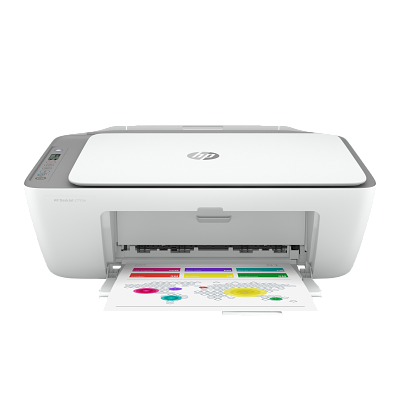
HP DeskJet 2755e Troubleshooting for Power and Startup Issues
If your HP DeskJet 2755e does not turn on, start with the power source. This sounds basic, but in my work, a loose adapter or bad outlet is one of the most common causes. Always check the cable, the wall socket, and the printer power button.
Try these steps:
- Make sure the power cord is firmly connected to the printer and outlet
- Try a different wall outlet
- Remove any power strip or surge protector temporarily
- Press the power button and wait up to 60 seconds
- Look for any blinking lights or unusual sounds
If the printer still does not respond, unplug it for 60 seconds, then plug it back in. This soft reset often clears small electrical glitches. I have seen printers come back to life after nothing more than a full power cycle.
If the unit is completely dead after this, the adapter or internal power board may be the issue. At that point, you may need support or replacement service.

Fixing HP DeskJet 2755e Offline Problems
An offline printer is one of the most frustrating HP DeskJet 2755e troubleshooting issues because the printer may be on, but your computer cannot reach it. This usually happens when the Wi-Fi drops, the computer picks the wrong printer, or the print queue gets stuck.
Here is the usual fix order:
- Confirm the printer is powered on.
- Check that your computer and printer are on the same Wi-Fi network.
- Restart the printer, router, and computer.
- Open printer settings and set the HP DeskJet 2755e as the default printer.
- Clear any pending print jobs.
- Remove and re-add the printer if needed.
On Windows, I have found that the “Use Printer Offline” setting can sometimes be enabled without the user noticing. On Mac, the printer may need to be removed and added again if the system is holding on to an old connection profile.
A weak Wi-Fi signal can also cause the printer to look offline. If your router is far away, move the printer closer or reduce interference from walls, microwaves, and other devices.

HP DeskJet 2755e Wi-Fi Setup Troubleshooting
Wireless setup is where many users hit a wall. The HP DeskJet 2755e is designed for Wi-Fi printing, but setup can fail if the network band, password, or router settings are not right. I have learned that most setup problems are not “mystery errors.” They are usually simple compatibility problems hiding behind a confusing light pattern.
Try this method:
- Make sure you are using a 2.4 GHz Wi-Fi network, not 5 GHz only
- Confirm the Wi-Fi password is correct
- Place the printer near the router during setup
- Restart the router before trying again
- Reset the printer’s network settings if the setup keeps failing
Many home printers, including this model, work best on 2.4 GHz because the signal reaches farther and passes through walls more easily. If your router uses one combined network name for both bands, your phone or laptop may connect fine while the printer struggles.
A factory network reset can help when the printer remembers an old router or a bad password. This is one of the most useful HP DeskJet 2755e troubleshooting steps when Wi-Fi setup keeps looping or timing out.
HP DeskJet 2755e Paper Jam and Paper Feed Troubleshooting
Paper jams can feel dramatic, but the fix is often simple if you stay calm and avoid pulling too hard. The HP DeskJet 2755e has a compact paper path, so even a slightly crooked sheet can cause trouble. In my experience, many jams start with paper that is curled, damp, or stacked too tightly.
To clear a jam safely:
- Turn off the printer
- Open the input tray and access areas carefully
- Remove any visible paper slowly with both hands
- Check for tiny torn scraps inside the rollers
- Reload clean, plain paper
- Make sure the paper guides fit snugly, not too tight
If the printer pulls multiple sheets or fails to grab paper, the rollers may be dusty. A lint-free cloth lightly dampened with water can help clean them. Let the rollers dry before printing again.
Best practices to prevent jams:
- Use fresh paper stored in a dry place
- Do not overfill the tray
- Fan the paper before loading it
- Align the paper stack neatly
A lot of paper feed issues come from humidity, rough paper edges, or user loading mistakes. That is why slow, careful loading matters more than people think.

HP DeskJet 2755e Ink and Print Quality Troubleshooting
If your pages print faded, streaky, or blank, the problem may be ink-related. This is one of the most common HP DeskJet 2755e troubleshooting complaints because ink issues often show up gradually. The printer may seem fine one day and start printing weak lines the next.
Check these items first:
- Make sure the ink cartridges are installed correctly
- Confirm the protective tape was removed from new cartridges
- Check ink levels in the HP software or app
- Run a printhead cleaning cycle
- Print a test page to compare results
If colors are missing or text looks patchy, the printhead may need cleaning. Do not run cleaning cycles too many times in a row, though, because that can waste ink quickly. I have made that mistake before, and it is easy to burn through a cartridge while trying to fix a problem too aggressively.
Also, use the right paper settings. Printing on photo paper with plain paper settings can create poor results. Good print quality often depends on matching the job type to the paper and ink.

HP DeskJet 2755e Driver and Software Troubleshooting
Drivers are the bridge between your computer and printer. If that bridge is broken, the HP DeskJet 2755e may not print correctly even when the hardware is fine. Driver problems often appear after a system update, a new device install, or a change in network settings.
Try these steps:
- Uninstall the printer from your computer
- Restart the computer
- Install the latest printer software again
- Make sure the operating system is fully updated
- Reconnect the printer after installation
Sometimes older drivers conflict with newer operating system updates. I have seen users spend hours on “printer errors” when the real issue was a stale driver package. Fresh installation fixes more than people expect.
If you use the printer with both a computer and mobile app, keep both updated. Mismatched software versions can create strange behavior, like delayed printing or failed scan jobs.
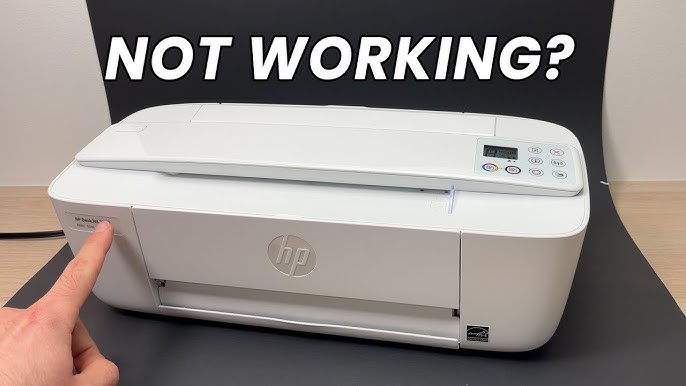
HP DeskJet 2755e Scanner Troubleshooting
The scanner in the HP DeskJet 2755e can stop working for simple reasons. Sometimes the printer is fine, but the software cannot detect the scanning module. Other times, the lid is open, the app is outdated, or the connection dropped during the scan request.
Use this checklist:
- Make sure the scanner lid is closed properly
- Confirm the printer is connected to the same Wi-Fi network as your device
- Restart the printer and the scanning app
- Check for software updates
- Try scanning from a different device if possible
A flatbed scanner depends on both the hardware and the app that controls it. If one side fails, the scan may not start. When I test home printers, I always treat scan issues like communication problems first, not hardware failure.
If scans come out blank or cut off, place the document correctly on the glass. Alignment seems minor, but it makes a big difference in scan quality.

Blinking Lights and Error Codes on HP DeskJet 2755e
Blinking lights can look alarming, but they are the printer’s way of asking for help. On the HP DeskJet 2755e, lights often point to paper, ink, connection, or setup issues. Learning what the pattern means saves a lot of guesswork.
General steps to follow:
- Note which light is blinking
- Check the paper tray and cartridge area
- Restart the printer
- Look for paper jams or low ink
- Reconnect Wi-Fi if the wireless light is flashing
If multiple lights blink together, the printer may be in a setup or attention state. That can happen after a reset, during a network change, or when the printer needs cartridge alignment. I always tell people not to panic at first sight of flashing lights. They are useful clues, not always signs of serious damage.
Best Practices to Prevent HP DeskJet 2755e Problems
The easiest HP DeskJet 2755e troubleshooting is the kind you never have to do. Good habits can prevent many of the common problems before they start. A little care goes a long way with compact printers like this one.
Helpful habits include:
- Keep the printer on a stable surface
- Use clean, dry paper
- Print at least once in a while to keep ink flowing
- Keep firmware and software updated
- Place the printer near the router if wireless printing is important
- Shut down the printer properly instead of unplugging it often
One lesson I learned the hard way is that printers do best when they are used regularly. Sitting unused for weeks can lead to dried ink and stubborn print quality issues. It is like a bike chain that rusts when ignored.
Also, avoid loading damaged paper or overfilling the tray. Many small issues come from small habits. The printer does not need perfect care, just steady, sensible use.
When to Reset or Replace the HP DeskJet 2755e
A reset can solve many stubborn issues, but it should not be your first move every time. Think of a reset as a clean slate when standard HP DeskJet 2755e troubleshooting steps fail. It is useful for recurring Wi-Fi errors, strange status lights, or repeated offline behavior.
Consider a reset if:
- The printer will not connect after several setup attempts
- The device keeps showing the wrong status
- Print jobs are stuck even after restarting
- You changed routers or passwords and the printer will not update
A full reset may clear saved settings, so be ready to reconnect Wi-Fi and reinstall the printer afterward. If the printer still fails after that, the issue may be hardware-related. At that point, a repair or replacement may be more cost-effective than repeated fixes.
Frequently Asked Questions of HP DeskJet 2755e Troubleshooting
Why is my HP DeskJet 2755e not printing even though it is connected?
This usually happens because the print queue is stuck, the printer is set offline, or the wrong printer is selected. Restart both the printer and computer, then clear any pending print jobs.
How do I reset the Wi-Fi on my HP DeskJet 2755e?
You can reset the network settings through the printer’s control buttons and then reconnect it to your 2.4 GHz Wi-Fi. If setup fails again, restart the router and try the process near the router.
Why are my HP DeskJet 2755e pages coming out blank?
Blank pages often mean the cartridges are empty, not installed correctly, or the protective tape was not removed. Running a printhead cleaning cycle may also help if the nozzles are clogged.
How do I fix an HP DeskJet 2755e paper jam?
Turn off the printer and gently remove any visible paper without tearing it. Check for small scraps inside the paper path, then reload clean paper and make sure the guides are aligned.
Why does my HP DeskJet 2755e keep going offline?
It may be losing its Wi-Fi connection or your computer may not be using the correct printer profile. Restart the printer, router, and computer, then set the printer as the default device.
Conclusion
HP DeskJet 2755e troubleshooting becomes much easier when you break the problem into parts: power, Wi-Fi, paper, ink, software, and scanning. Most issues are simple once you check them in the right order, and small habits can prevent many repeat problems. In my experience, the fastest fixes usually come from calm, step-by-step checks instead of random trial and error.
If your printer is still acting up, go back through the basics one more time and focus on the most likely cause first. You will often find the answer sooner than expected. If this guide helped, save it for later, share it with someone who needs it, or leave a comment with the issue you are trying to solve.