Brother Mfc-L8395Cdw Troubleshooting: Fast Fixes Guide

Most Brother MFC-L8395CDW issues come from paper, Wi-Fi, toner, or driver settings.
If you have been dealing with Brother MFC-L8395CDW troubleshooting, you already know how one small issue can slow down an entire workday. I’ve seen this printer behave like a champ for long stretches, then suddenly act up with paper jams, connection drops, or print-quality problems. The good news is that most Brother MFC-L8395CDW troubleshooting steps are simple, practical, and easy to do at home or in the office if you know where to start.
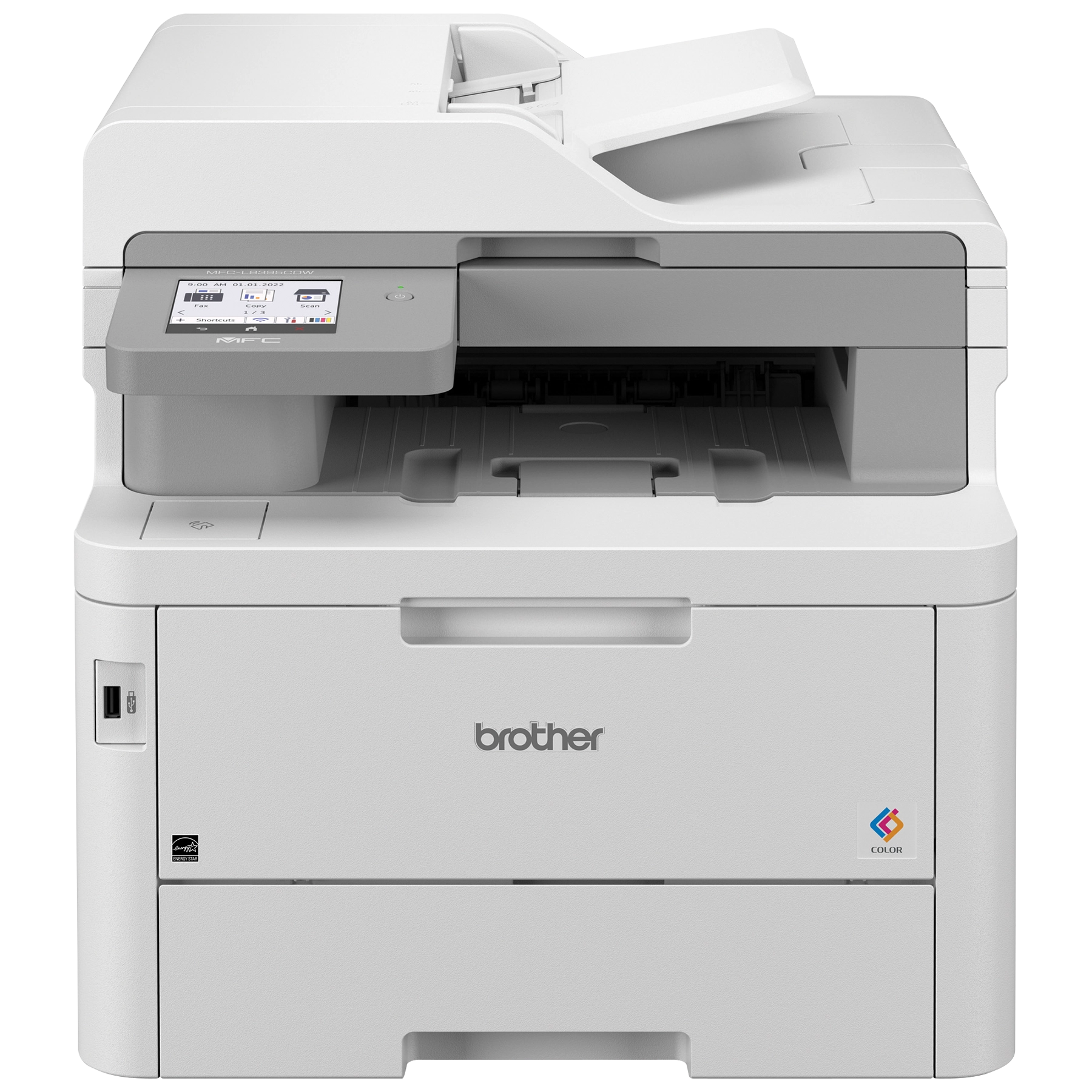
Common Brother MFC-L8395CDW Troubleshooting Basics
Brother MFC-L8395CDW troubleshooting usually starts with the simplest causes first. That includes checking power, paper, toner, the display panel, and your connection type. In my experience, skipping these basics is the fastest way to waste time.
Here are the first things I always check:
- Power and display status: Make sure the printer is fully on and not showing an error code.
- Paper load: Confirm the tray is loaded correctly and the paper guides are snug, not tight.
- Toner and drum: Low toner or a worn drum can cause poor print quality or warning messages.
- Cable or Wi-Fi: A loose USB cable or unstable wireless signal can stop print jobs.
- Restart cycle: Turn the printer off, wait about 30 seconds, then turn it back on.
A lot of people assume a printer problem is complex, but many Brother MFC-L8395CDW troubleshooting cases come down to a small setup issue. Think of it like a car that won’t start because the gas cap is loose. Simple things matter more than most users expect.
If the machine still seems off, check the screen for an error message. Brother’s status codes are often clear enough to point you in the right direction. That one clue can save you from guessing.

Brother MFC-L8395CDW Paper Jam Troubleshooting
Paper jams are one of the most common Brother MFC-L8395CDW troubleshooting problems. They can happen because of damp paper, mixed paper sizes, worn rollers, or too much paper in the tray. I’ve also seen jams caused by paper that looked fine but had curled edges from being stored near a window or heater.
To clear a jam safely:
- Turn the printer off.
- Open the front cover and any rear access points.
- Remove jammed paper slowly with both hands.
- Check for tiny scraps inside the rollers and paper path.
- Reload fresh paper and make sure the stack is even.
A few habits reduce jams over time:
- Use paper that matches the recommended weight and size.
- Store paper in a dry place.
- Fan the stack before loading it.
- Do not overfill the tray.
- Adjust the paper guides so they touch the paper lightly.
If jams keep happening in the same spot, the rollers may be dirty or worn. That is when deeper Brother MFC-L8395CDW troubleshooting may require cleaning or part replacement. A printer should feed paper like a smooth conveyor belt, not like a reluctant vending machine.
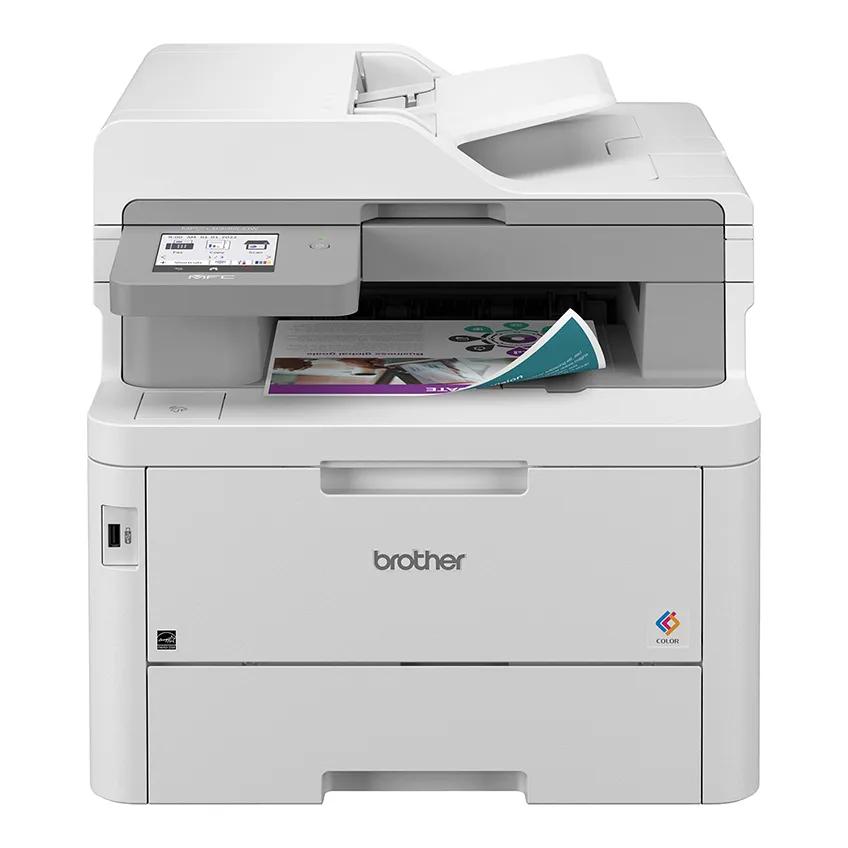
Fixing Brother MFC-L8395CDW Print Quality Problems
Print quality issues can look like faded text, streaks, spots, blank pages, or uneven color. In Brother MFC-L8395CDW troubleshooting, these problems often point to toner, drum, or calibration issues. Sometimes the printer is fine, but the driver settings are wrong and the result looks terrible anyway.
Common print quality causes include:
- Low or uneven toner
- Dirty drum unit
- Incorrect paper type setting
- Dirty laser or internal path
- Draft mode or wrong color settings
Try these steps:
- Run a test print from the printer menu.
- Shake the toner cartridge gently if the output is faded and the toner is not empty.
- Clean the drum unit only as recommended by the manufacturer.
- Check that the paper type in the driver matches the paper in the tray.
- Set print quality to normal or high for important documents.
One mistake I made early on was assuming a faded page always meant the toner was bad. Sometimes the driver was set to a lightweight paper profile, and the printer was reducing density to match. That is why Brother MFC-L8395CDW troubleshooting works best when you check both hardware and software.
If color is off, print a calibration or alignment page if the menu offers one. Small color shifts can happen after cartridge changes or long periods of inactivity. A quick calibration often brings things back to normal.

Brother MFC-L8395CDW Wi-Fi and Network Troubleshooting
Wireless problems are a major part of Brother MFC-L8395CDW troubleshooting. The printer may show as offline, fail to connect, or disappear from devices after a router change. This is usually a network issue, not a printer failure.
Start with these checks:
- Confirm the printer is connected to the correct Wi-Fi network.
- Make sure the router is working and other devices can connect.
- Restart the printer, router, and computer or phone.
- Move the printer closer to the router if the signal is weak.
- Re-enter the Wi-Fi password if the network was changed.
If the printer keeps going offline, try these steps:
- Remove the printer from your device and add it again.
- Print a network configuration page to confirm the IP address.
- Assign a stable IP address if your office network changes often.
- Update router firmware if you suspect compatibility issues.
In office environments, I’ve seen the Brother MFC-L8395CDW act flaky after a router reboot because the IP address changed and the computer kept sending jobs to the old address. That is a classic Brother MFC-L8395CDW troubleshooting headache, but it is fixable once you know what to look for.
If you use Ethernet, check the cable and port lights too. A wired connection is often more stable than Wi-Fi, especially in busy office spaces with many devices.
Driver, Software, and Compatibility Issues
Sometimes Brother MFC-L8395CDW troubleshooting has nothing to do with the printer itself. The real problem may be an outdated driver, a bad install, or a mismatch between the printer and your operating system. This is common after a Windows update or a new Mac setup.
What to check:
- Make sure the correct Brother driver is installed.
- Remove old printer entries from your device list.
- Confirm you are printing to the right device name.
- Update your operating system if compatibility issues are known.
- Reinstall the software package if scans or fax features stop working.
Helpful steps:
- Download the most current driver for your OS.
- Restart after installation before testing again.
- Use the manufacturer’s full software package if you need scan functions.
- For mobile printing, check app permissions and network access.
A printer can look broken when the driver is just confused. I once spent far too long chasing a “printer not responding” issue, only to discover the laptop had two nearly identical printer entries. Removing the old one fixed it in minutes. That is why Brother MFC-L8395CDW troubleshooting should always include the software side.
If printing works but scanning does not, the scanner driver or app service may be the issue. That split symptom is a useful clue. It usually means the printer is okay, but one feature path is failing.

Scan, Copy, and Fax Troubleshooting
The Brother MFC-L8395CDW is an all-in-one device, so Brother MFC-L8395CDW troubleshooting often goes beyond printing. Scan and copy issues can be caused by connection settings, feeder problems, or software permissions. Fax problems often point to line setup or sending settings.
For scan issues, check:
- Whether the scanner glass is clean
- Whether the document is placed correctly
- Whether the computer has scanner access enabled
- Whether the scanning app is using the correct device
For copy issues, look at:
- Paper path obstruction
- Toner or drum quality
- Copy density settings
- Document feeder rollers
For fax issues, verify:
- The phone line is connected correctly
- The fax number is entered correctly
- The line is not blocked by a splitter or VoIP conflict
- Error correction or transmission settings are appropriate
I’ve found that many people think the machine has failed when the real issue is a tiny setting in the software or a loose line connection. Brother MFC-L8395CDW troubleshooting gets much easier when you treat each function separately. Printing, scanning, copying, and faxing each have their own path.
If the automatic document feeder misfeeds pages, clean the rollers and check for tiny bits of paper or staples. Feeder issues often come from wear and dust, not major hardware failure.
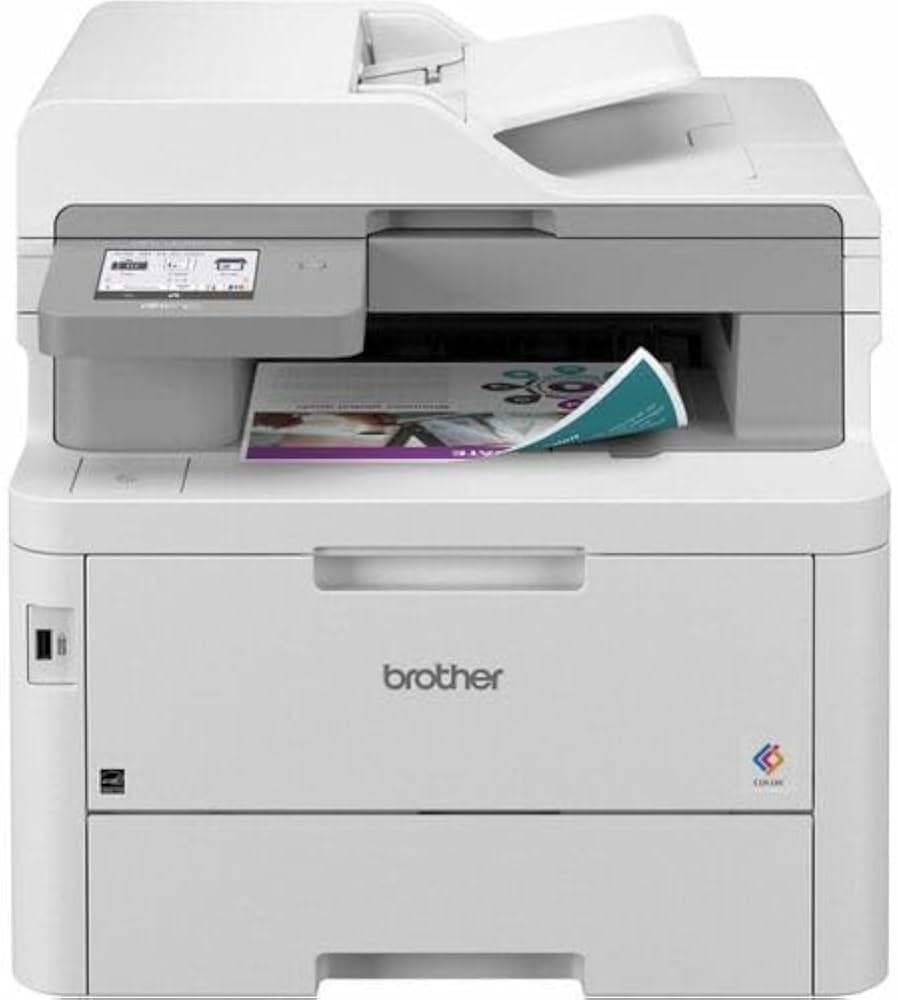
Toner, Drum, and Maintenance Troubleshooting
Consumables play a big role in Brother MFC-L8395CDW troubleshooting. Toner, drum, waste toner handling, and routine cleaning can all affect performance. Many users ignore maintenance until the printer starts complaining, but that usually means the machine has already been working harder than it should.
Watch for these signs:
- Toner warning messages
- Light or patchy print output
- Repeating marks down the page
- Smudges, streaks, or background haze
- Drum-related error alerts
Practical maintenance steps:
- Replace toner when print quality drops and the cartridge is near empty.
- Replace the drum unit when the printer signals that it is due.
- Use genuine or high-quality compatible supplies.
- Clean dust from the exterior and paper path regularly.
- Keep the printer in a stable room with normal temperature and humidity.
One thing I always tell people is not to wait until a cartridge is completely empty if the work is important. For business use, planning ahead saves time and stress. That simple habit reduces emergency Brother MFC-L8395CDW troubleshooting later.
You should also be careful with third-party supplies. Some work well, but some can cause inconsistent output or warning messages. It is a tradeoff between cost and reliability, so make that choice with your use case in mind.

Resetting the Brother MFC-L8395CDW Safely
A reset can help when Brother MFC-L8395CDW troubleshooting has exhausted all the easy fixes. It may clear temporary faults, stuck settings, or network issues. Still, a reset should be a last step, not the first one.
Useful reset options may include:
- Network reset
- Settings reset
- Factory reset
- Power cycle restart
Before resetting, remember:
- Save any important network details first.
- Write down custom settings like scan destinations or static IP information.
- Reconnect to Wi-Fi after a network reset.
- Reinstall printer software if needed.
A reset is like wiping a chalkboard clean. It can help a lot, but it also removes what was written there. I have used resets many times in Brother MFC-L8395CDW troubleshooting, and they are best when the printer is stuck in a strange state after updates or network changes.
If a reset fixes the issue, take note of what caused the problem. That helps prevent the same headache later. Good troubleshooting is not just about solving the issue once; it is about learning the pattern behind it.

Best Practices to Prevent Future Problems
The best Brother MFC-L8395CDW troubleshooting is the kind you never need to do. A little care goes a long way with this printer. Most recurring issues can be reduced with simple habits.
Try these prevention tips:
- Keep the printer on a steady surface.
- Use clean, dry, good-quality paper.
- Update firmware and drivers when available.
- Restart the printer once in a while to clear memory.
- Clean the scanner glass and feeder paths regularly.
- Avoid moving the printer while paper is inside.
- Keep Wi-Fi and router settings stable when possible.
Good printer care is a lot like caring for a kitchen appliance. If you clean it, feed it the right materials, and do small checkups, it keeps working smoothly. That is the mindset I use for Brother MFC-L8395CDW troubleshooting in real offices and home setups.
If you run a busy office, assign one person to handle printer checks. That small bit of ownership prevents a lot of confusion. The printer stays healthier, and users stay less frustrated.
Frequently Asked Questions of Brother MFC-L8395CDW Troubleshooting
Why does my Brother MFC-L8395CDW keep going offline?
This usually happens because of Wi-Fi drops, IP address changes, or an outdated printer driver. Restart the printer and router first, then remove and re-add the printer on your computer.
How do I fix faded printing on the Brother MFC-L8395CDW?
Check toner level, print settings, and the paper type selected in the driver. If the toner is not empty, try shaking the cartridge gently and running a test print.
What should I do if the printer says there is a paper jam but I cannot find one?
Open every access point and look for tiny scraps of paper in the paper path, rollers, and rear section. Even a small torn piece can trigger a jam message.
Why won’t my Brother MFC-L8395CDW scan to my computer?
The issue is often a driver, app permission, or device selection problem. Make sure the scanner software is installed correctly and that the printer is selected as the scan source.
How often should I update Brother printer drivers?
Update drivers when you change your operating system, after major software updates, or when a feature stops working correctly. If the printer is stable, you do not need to update constantly.
Is it better to use genuine toner for this model?
Genuine toner usually gives the most consistent results and fewer compatibility issues. Compatible toner can save money, but quality varies, so choose carefully if reliability matters most.
Conclusion
Brother MFC-L8395CDW troubleshooting becomes much easier when you start with the basics and work step by step. Most problems come from paper handling, network setup, drivers, or consumables rather than a major hardware failure. Once you know how each part of the system behaves, the printer stops feeling mysterious and starts acting like a manageable tool.
The best approach is simple: check the obvious things first, keep the printer maintained, and avoid rushed guesses. If you apply the fixes in this guide, you will solve many issues faster and with less stress. If this helped, take a few minutes to review your printer setup now, and explore more practical printer guides or leave a comment with the problem you are facing.

Similar Posts
































